EEvlarSoft

Night Light Filter

A blue light filter for Windows that warms every monitor in the evening, clears it again in the morning, and keeps working on monitors where Night light does nothing.

Buy for $2.99
One payment. No subscription.
14-day money-back guarantee.
Warmth on every screen, at the hour you choose.
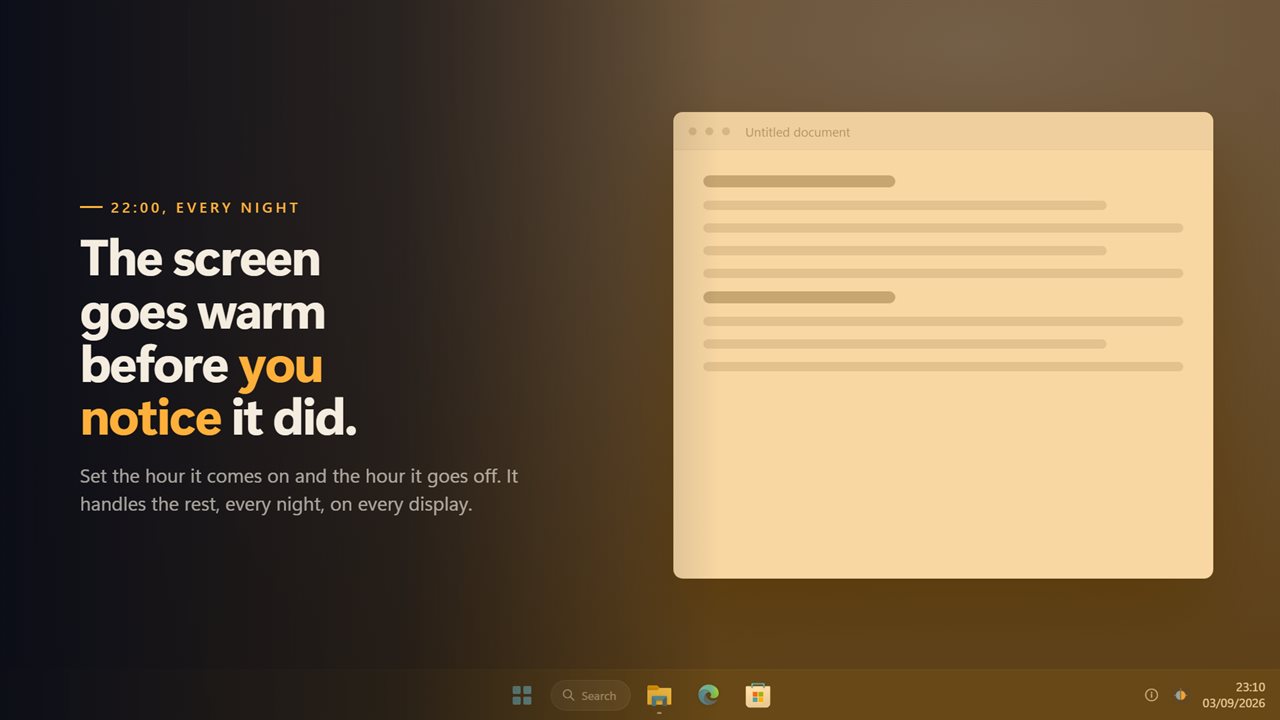
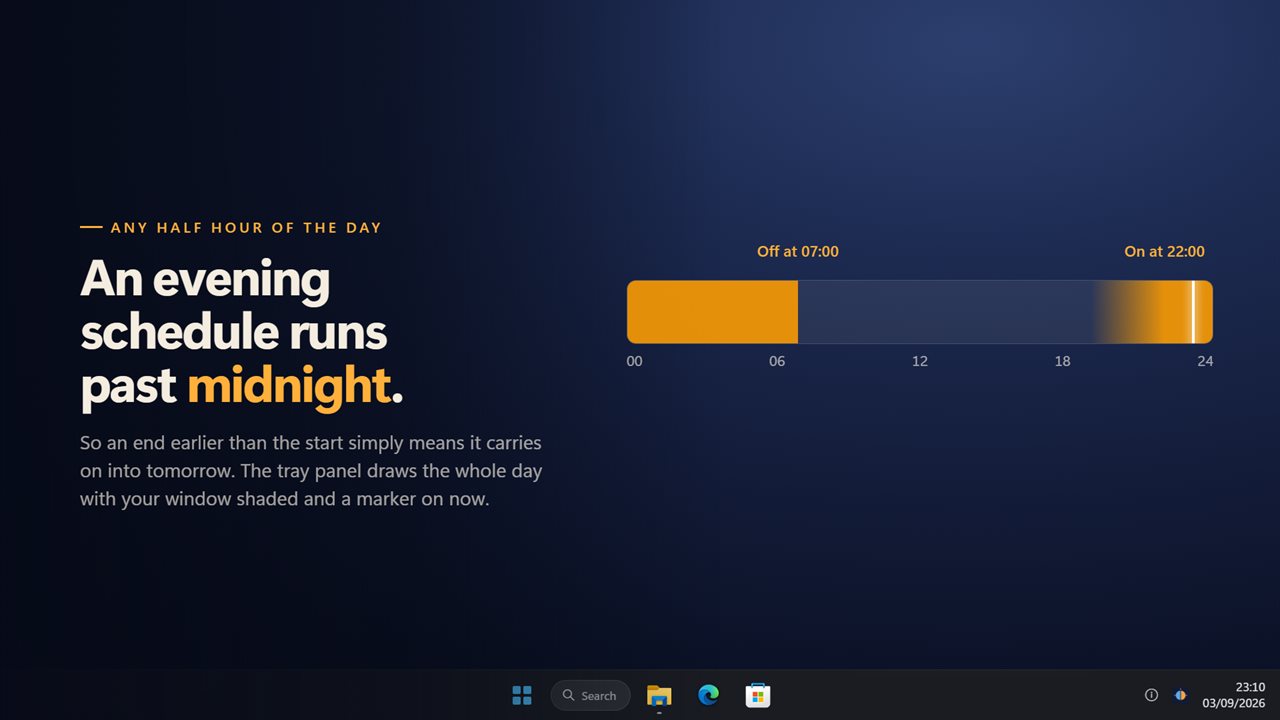
Comes on at 22:00, goes off at 07:00 — straight through midnight.
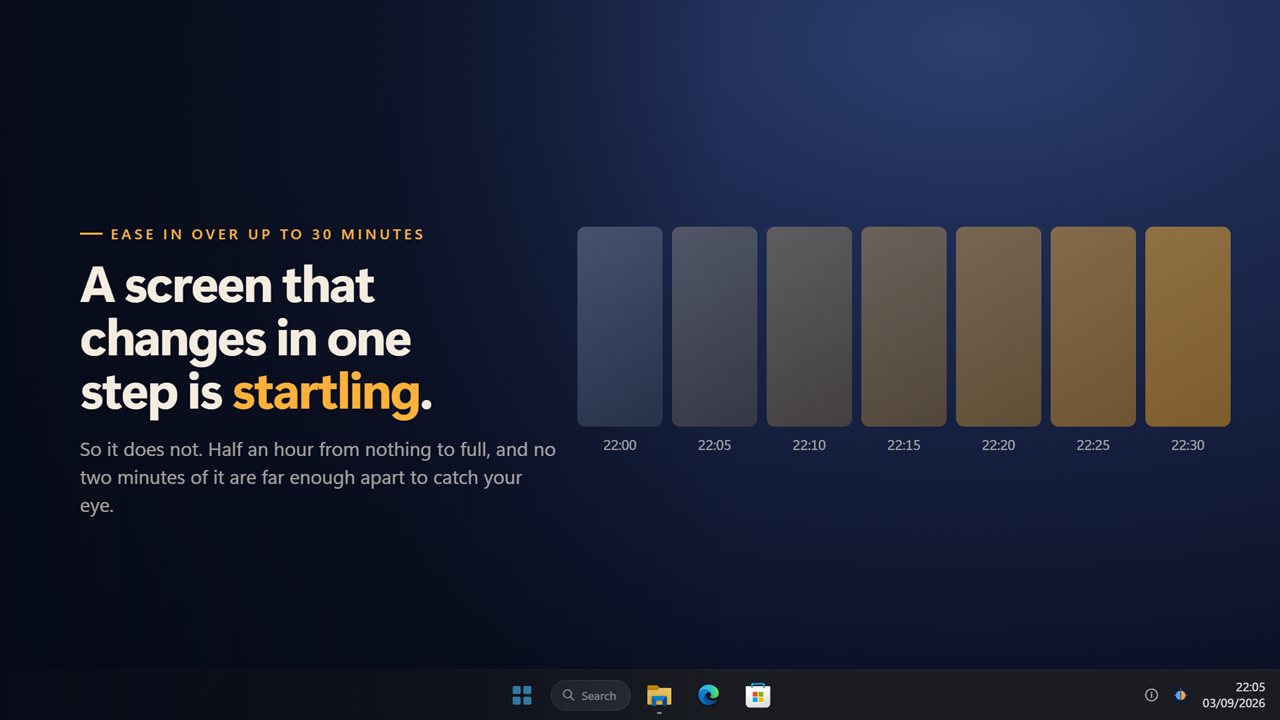
Eases in over half an hour, so you never catch it happening.
Any colour, not a warmth slider. And further than Windows goes.
In the notification area, starting with Windows.

Warmth on every screen, at the hour you choose.

190,000+downloads of EvlarSoft apps
Signed by EvlarSoftVerified US publisher
14-day money-backNo questions asked
Updates includedNo upgrade fees

A blue light filter for Windows that does not need your driver's help

Night Light Filter is a blue light filter for Windows PCs. It draws a see-through layer of warm color over each screen, so whites turn amber and the blue end of the picture is pulled back. You choose the color and the strength, and you can let a clock decide when it is on.

The difference from the setting built into Windows is where the color comes from. The built-in Night light asks the graphics driver to shift the display's color, which is why it goes grey, does nothing on some monitors, or stops working after a driver update. This app paints its layer on top of the picture instead, so a second monitor, a docked laptop or a panel with a generic driver gets the same warmth as the main screen.

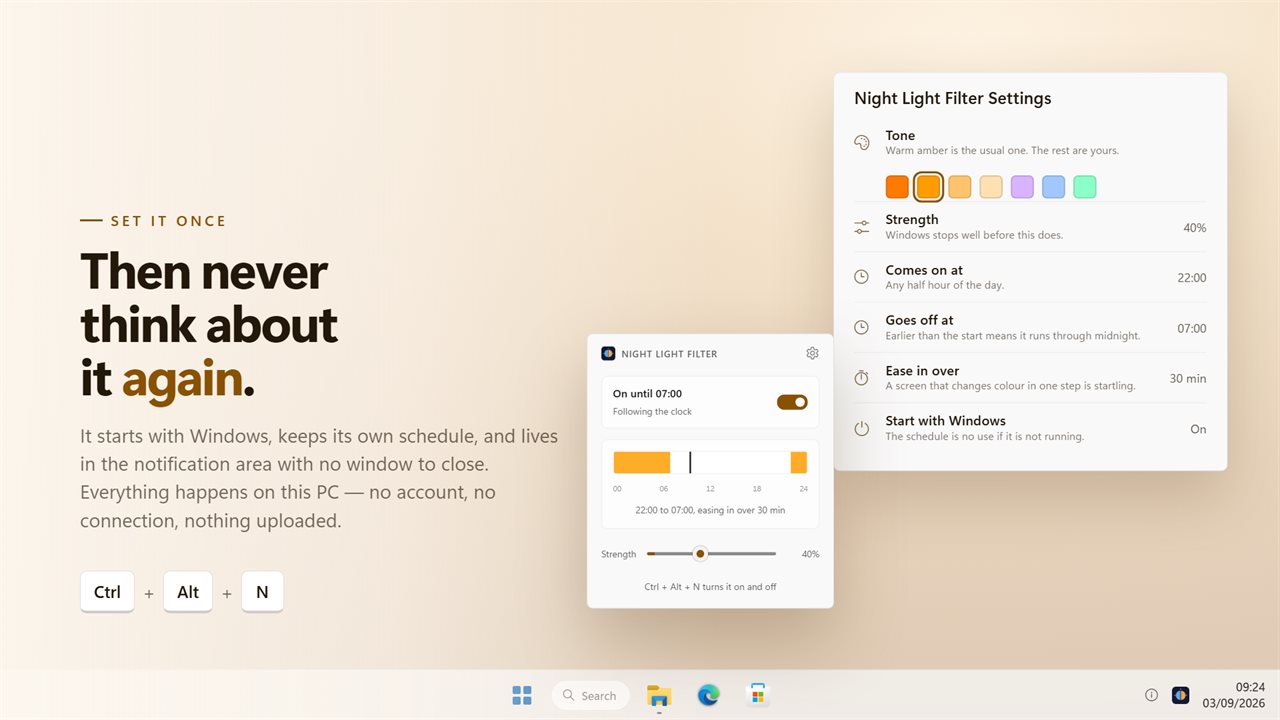
It lives in the notification area. Click the icon for a panel with an on and off switch, a strip that draws the whole day with your evening window shaded, the tone swatches and a strength slider.

When Windows Night light is not working

The usual fixes for a broken Night light are a list of chores: turn location services on, correct the clock, reinstall the display driver, switch HDR off, restart. Sometimes one works; on some hardware none do, because the monitor or driver never accepted the color change to begin with.

Because this filter never asks the display to change anything, it does not care which of those is the cause. Install it, turn on Warm light, and every connected screen warms, including the taskbar. A monitor plugged in later is covered as soon as Windows sees it.

Set a night mode schedule on Windows 11 or 10

Open Settings from the gear in the tray panel and find On a schedule.

  • Turn on Follow the clock.
  • Choose Comes on at and Goes off at. Both take any half hour; the defaults are 22:00 and 07:00.
  • An end time earlier than the start runs the filter through midnight, so an overnight window needs no extra step.
  • Set Ease in over anywhere from 0 to 30 minutes so the warmth arrives gradually. The default is 5 minutes.
  • Switch on Start with Windows, since a schedule only runs while the app does.

Stronger than the built-in setting, and not only orange

Strength runs from 5% to 92% in single steps, starting at 20%. Most people settle low, but the headroom is there if you work late in a dark room and the screen still feels cold.

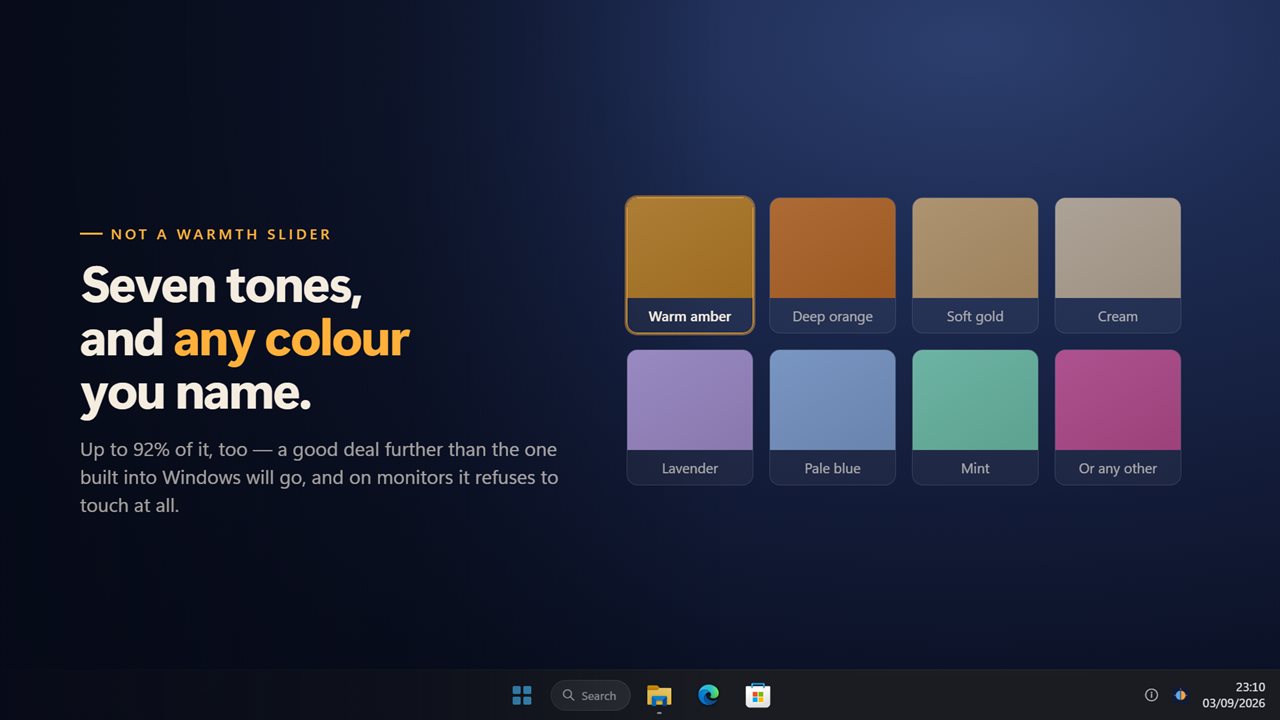
Seven tones sit in the panel: deep orange, amber, a lighter amber, cream, lavender, pale blue and mint. Amber is the starting point; the others suit people who prefer a softer wash or a different hue entirely. A color picker in Settings covers anything else.

What the night light app includes

  • A warm overlay on every screen and the taskbar, drawn over the picture rather than through the driver
  • Follow the clock schedule with start and end times on any half hour, overnight windows included
  • Ease in over 0 to 30 minutes when the evening window opens
  • Strength from 5% to 92%
  • Seven tone presets plus a custom color picker
  • Ctrl+Alt+N turns it on and off from any app, and can be changed in Settings
  • A day strip in the tray panel showing your window and the current time
  • Clicks pass through the layer and it never takes focus

Who uses it

Late work on a cold monitor

Set the window for the hours you are usually at the desk after dark and let it warm the screen without being asked.

PCs where Night light is greyed out

Older graphics cards, generic display drivers and some external monitors never take the built-in setting. The overlay works on them anyway.

Multi-monitor desks

Every display gets the same tone and strength, so the side screen does not stay blue while the main one turns amber.

What's new in 2.0.8

  • New: the schedule eases in over up to 30 minutes instead of switching in one step
  • New: the tray panel draws the whole day, with the scheduled window shaded and now marked on it
  • New: seven colour presets, and any colour you name
  • New: a schedule that runs through midnight properly
  • A monitor plugged in while the app is running is covered too, without a restart
  • The overlay now covers the taskbar instead of stopping at it
  • One keyboard shortcut for the whole app, working from anywhere
  • Redesigned settings and tray panel that match Windows 11 and follow the light and dark themes

Questions

Anything else? Ask us

Will it work on a monitor where the Windows night light does nothing?

It should. It draws a see-through colored layer over each screen instead of asking the display or graphics driver to change color, so it does not depend on the monitor supporting color adjustment.

Can it turn on in the evening and off in the morning by itself?

Yes. Turn on Follow the clock and pick a start and end time on any half hour. An end time earlier than the start runs through midnight, and the clock is checked every 30 seconds, so a PC waking from sleep inside the window warms up again.

Does the color change all at once?

Not on a schedule if you set Ease in over, which runs from 0 to 30 minutes and is 5 minutes by default. The ease only applies when the scheduled window opens; at the end time, and when you switch it by hand, it changes within a fraction of a second.

Can I use a color other than orange?

Yes. There are seven presets, from deep orange and amber through cream to lavender, pale blue and mint, and a custom color picker. Strength runs from 5% to 92%.

Does it cover every monitor and the taskbar?

Yes. Every screen gets the same color and strength, the layer covers the whole screen including the taskbar, and a monitor plugged in while it runs is covered too. You cannot set a different color for each monitor.

Is there a keyboard shortcut to turn it on and off?

Yes. Ctrl+Alt+N by default, and you can change it in Settings. If another app already holds the combination, the tray icon still turns it on and off.

Should I turn off the Windows Night light while using this?

Yes, it is best to use one or the other. Running both stacks two warm shifts on top of each other, which makes the strength hard to judge.

Why does the tray panel say Waiting for the schedule?

The filter is switched on, but Follow the clock is set and the time is outside your window. It warms the screen when the Comes on at time arrives. Turn Follow the clock off to keep it on all day.

Does the filter change the colors of my photos or documents?

No. The warmth is a layer drawn over the screen, not an edit to your files, so an image you edit or export keeps its real colors. Switch the filter off with Ctrl+Alt+N when you need to judge color.

Which versions of Windows does it run on?

Windows 10 (version 1809 or later) and Windows 11.

Is it a subscription?

No. Night Light Filter is a one-time purchase of $2.99, and updates are included.

How do I get it?

Buy it on this page and your license key arrives by email. If the button says Notify me, Night Light Filter is not on sale here yet; leave your email and we will tell you when it is.