EEvlarSoft

Monitor Info

See what monitor you have: every connected screen drawn to scale, with its real model name, size in inches, refresh rate and the port it is plugged into.

Buy for $1.99
One payment. No subscription.
14-day money-back guarantee.
5.0
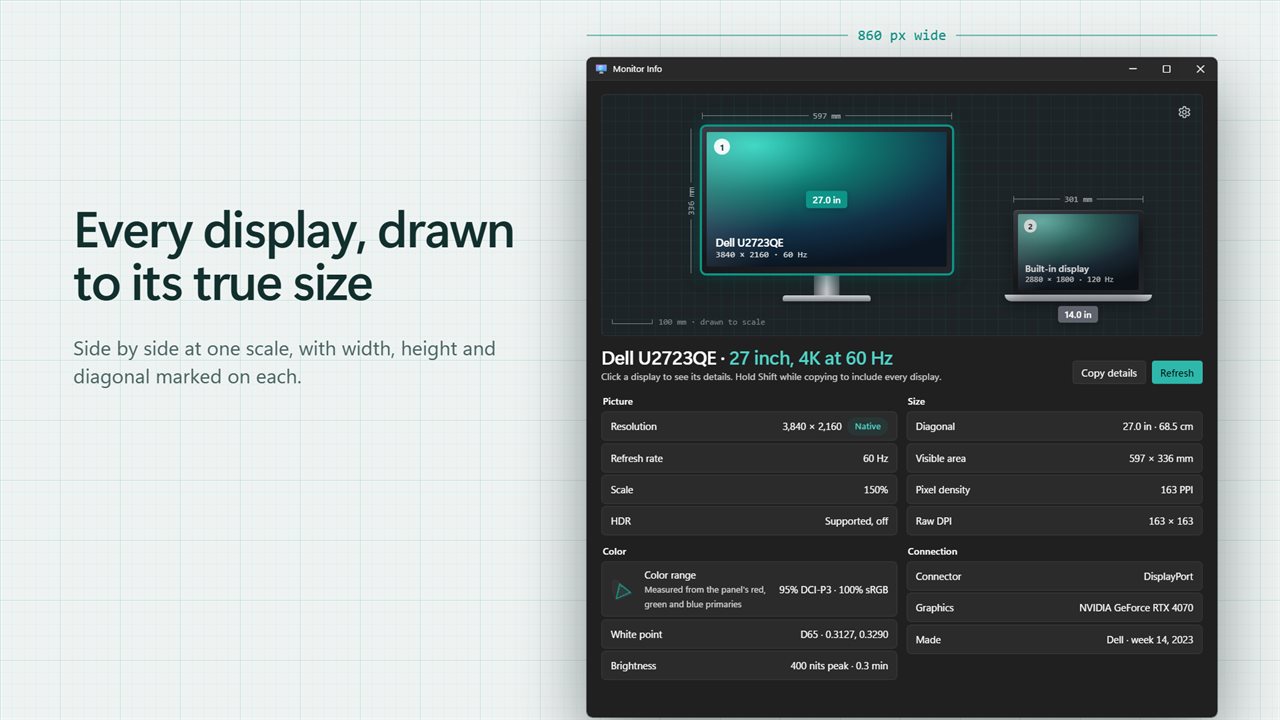
Every display drawn to its true size.
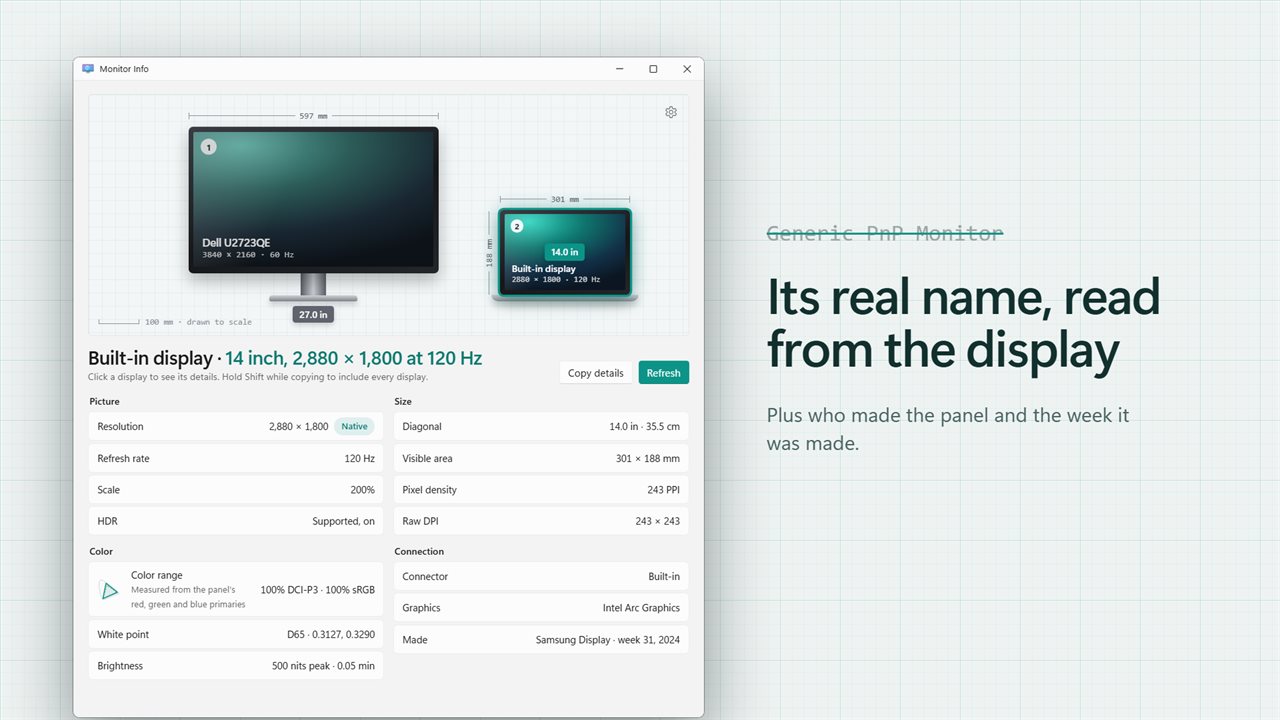
Its real name, not "Generic PnP Monitor".
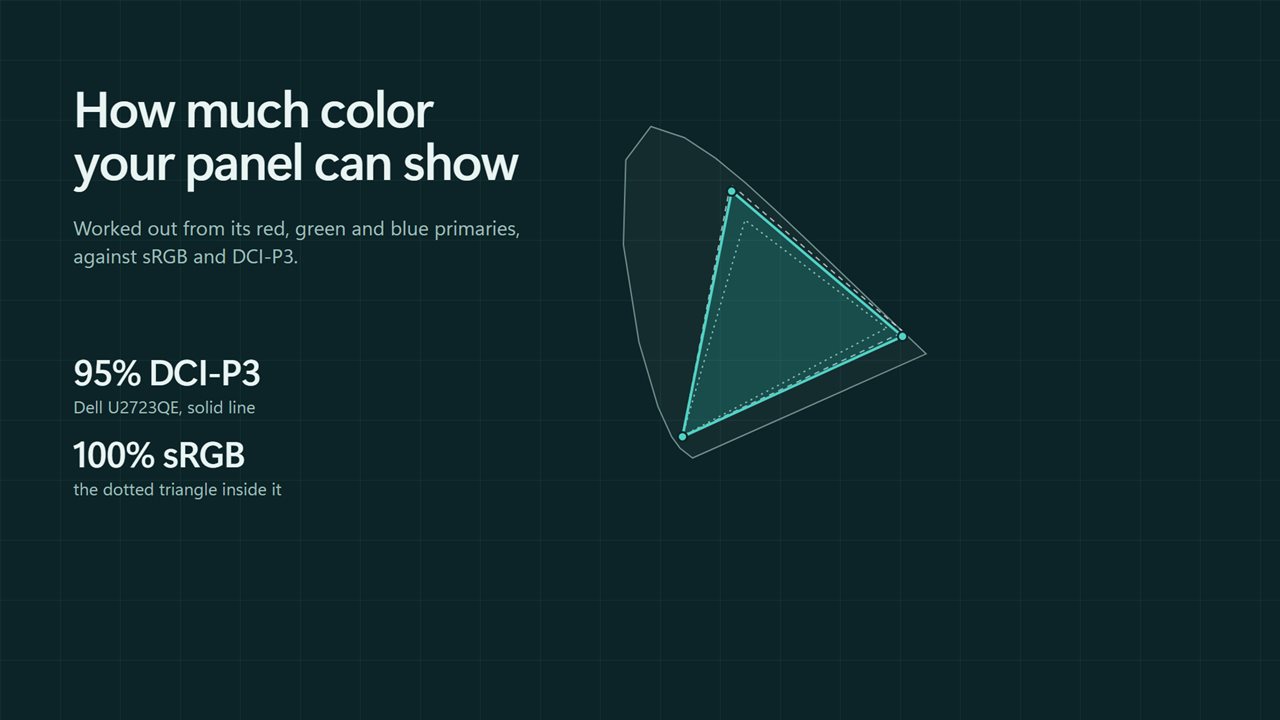
How much of sRGB and DCI-P3 your panel can show.
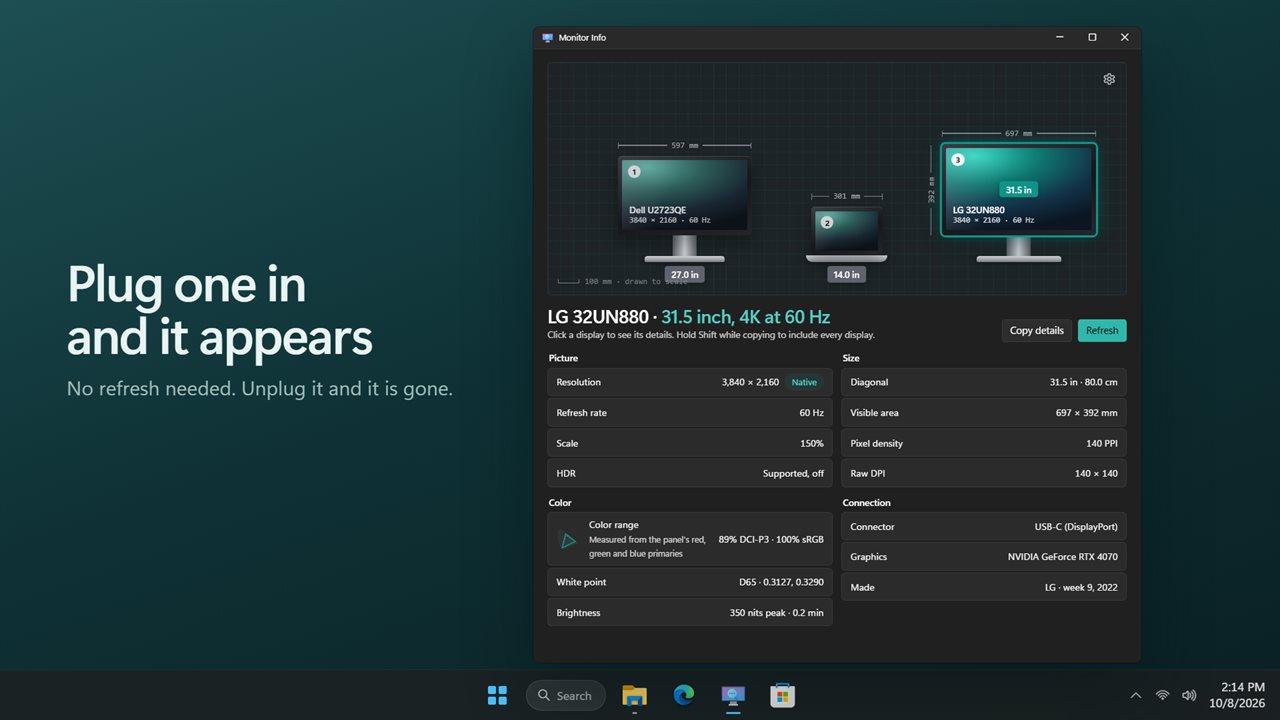
Plug one in and it appears.
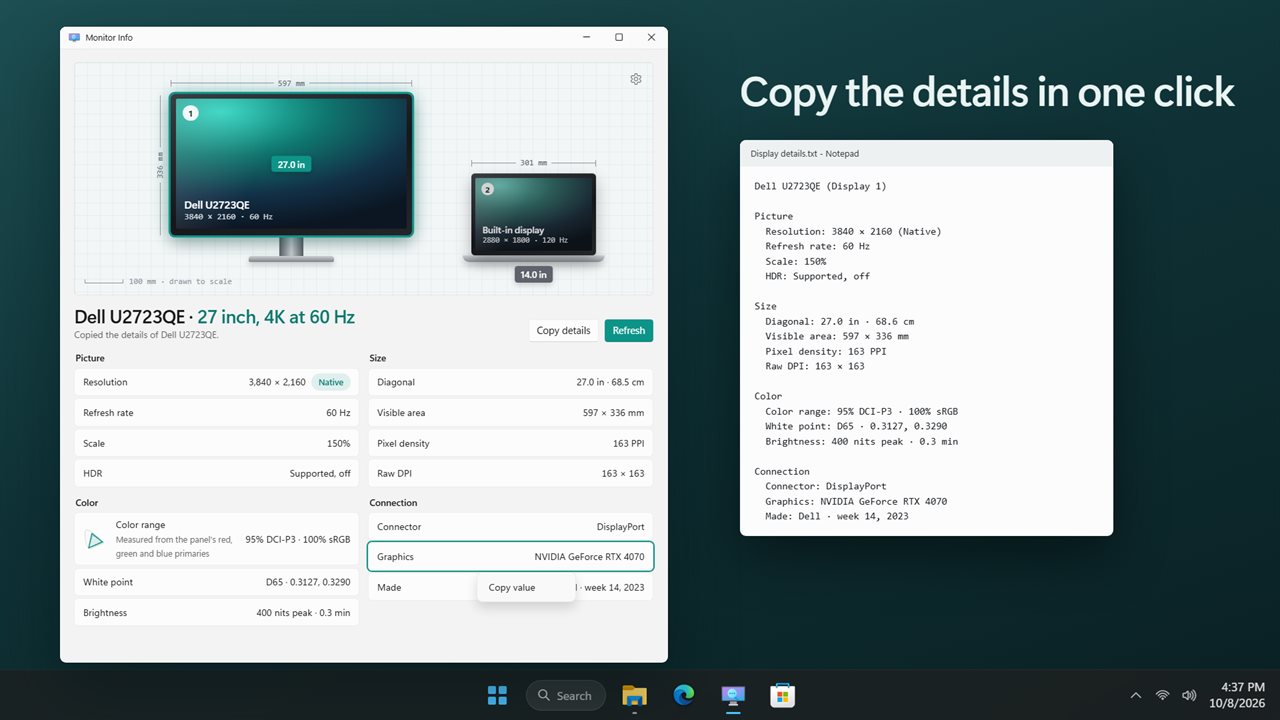
Copy the details, or right-click any value.
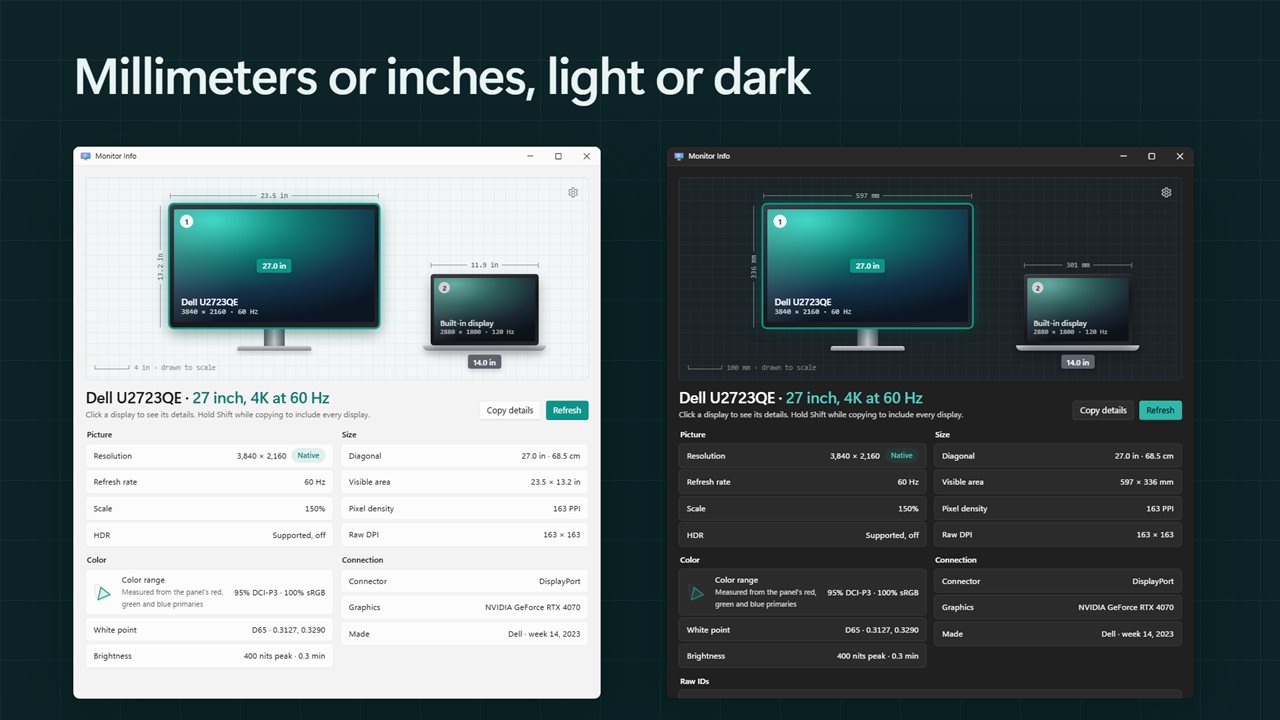
Millimeters or inches, light or dark.

Every display drawn to its true size.

190,000+downloads of EvlarSoft apps
Signed by EvlarSoftVerified US publisher
14-day money-backNo questions asked
Updates includedNo upgrade fees

What monitor do I have, and what can it do?

Asking what monitor do I have usually sends you to a sticker on the back of the stand, or to Device Manager, which often answers with Generic PnP Monitor. Monitor Info skips both. It reads the identification data the monitor itself sends to the PC and shows the model name it stores there, next to everything Windows can tell you about that screen.

Open the app and every connected display appears on a drafting sheet, side by side and at one shared scale. Width, height and the diagonal are marked on each one, so a laptop panel beside a 27 inch desk monitor looks exactly as small as it is. Each drawing carries the number Windows uses for it, the same number you see in Display settings.

Click a screen and its details fill four groups: Picture, Size, Color and Connection. Anything a monitor does not report reads Not reported, rather than a guess.

What size is my monitor? Diagonal, visible area and PPI

The advertised size of a monitor is rounded, and it is rarely printed anywhere you can see while seated. The Size group works it out from the physical dimensions the panel reports: the Diagonal in inches and centimeters, the Visible area as width by height, and Pixel density in PPI, calculated from the panel width and its native resolution.

Use the Units setting to switch the drawing and the measurements between Millimeters and Inches. A scale bar under the sheet marks 100 mm, or 4 in, so you can judge the drawing by eye.

How to check monitor refresh rate and resolution

The Picture group answers the questions people search for after buying a high refresh rate screen, or when a game feels less smooth than it should.

  • Resolution, with a Native tag when it matches the panel's own resolution, or a note such as Native is 3840 × 2160 when Windows is running it at something lower.
  • Refresh rate in Hz, as the display is running right now. If it reads 60 Hz on a 144 Hz monitor, the cable or the Windows setting is holding it back.
  • Scale, the percentage Windows uses to enlarge text and apps.
  • HDR: Supported, on, Supported, off or Not supported. When Windows does not say, a panel rated above 400 nits reads Likely supported.

Monitor specs Windows hides: color range, nits and port

The Color group turns the red, green and blue primaries a monitor reports into a Color range figure, given as a share of DCI-P3 and of sRGB and plotted on a small chart. Beside it are the White point, marked D65 when it is the standard daylight white, and Brightness as peak and minimum nits.

Connection shows the Connector (HDMI, DisplayPort, USB-C (DisplayPort), DVI or VGA), the Graphics adapter driving it, and Made: the maker and the week and year the panel was built, when the monitor records them. That last line is handy for checking whether a used or refurbished screen is as new as the seller says.

What you get for each display

  • A to-scale drawing of every connected screen, numbered as in Windows
  • The model name stored in the monitor, instead of a generic driver name
  • Current and native resolution, refresh rate in Hz and Windows scale
  • Diagonal in inches and centimeters, visible area and pixel density
  • DCI-P3 and sRGB coverage from the reported primaries, with a chart
  • Peak and minimum brightness in nits, white point and HDR status
  • Connector type, graphics adapter, maker and week of manufacture
  • Updates on its own when a display is plugged in or removed; Refresh reads everything again
  • Copy details for one screen, hold Shift for all, or right-click a single value
  • Optional Show raw IDs setting for device, adapter, LUID and target identifiers

When people check their monitors

Checking a new high refresh monitor

Confirm the screen is actually running at the rate you paid for, and at its native resolution, before blaming the game or the graphics card.

Identify monitors on a multi-screen desk

With two or three similar screens, the numbered drawings match Display settings, and the Connector row tells you which cable feeds which one.

Writing up a support ticket or a listing

Copy details produces a plain-text report you can paste into an email, a help desk form or a for-sale post, so nobody has to read a sticker over the phone.

What's new in 2.0.2

  • New: every display drawn to its true size, with width, height and diagonal marked
  • New: the monitor's real name, maker and the date it was made
  • New: color range as a share of sRGB and DCI-P3, plus HDR support
  • New: refresh rate, scale, pixel density and the graphics card for each display
  • New: updates by itself when you plug in or unplug a display
  • New: copy a report of one display or all of them, or right-click any value to copy it
  • Fixed: Refresh now reads everything again

Questions

Anything else? Ask us

Does Monitor Info measure my monitor's real color gamut and brightness?

No. It shows what the monitor reports to Windows about itself: its red, green and blue primaries, white point and peak and minimum brightness in nits. The sRGB and DCI-P3 percentages are worked out from those reported primaries, and anything the monitor does not report is shown as Not reported.

Why does it show my monitor's model name when Device Manager says Generic PnP Monitor?

It reads the name the monitor stores in its own identification data (EDID), such as a model number, instead of the generic driver name. A display that reports no name is shown as Display and its number, or Built-in display on a laptop.

Can it tell me which cable or port a monitor is connected with?

Yes. Each display shows its connector as reported by Windows, such as HDMI, DisplayPort, USB-C (DisplayPort), DVI, VGA, Built-in, Miracast or a USB display adapter, along with the graphics card driving it.

Can I find out when my monitor was made?

Yes, when the monitor reports it. The maker and the week and year of manufacture are read from the monitor's EDID and shown under Connection.

Does it show whether my monitor supports HDR?

Yes. It shows Supported, on, Supported, off, or Not supported, as Windows reports it. When Windows gives no answer but the reported peak brightness is over 400 nits, it shows Likely supported.

Can it change my resolution or refresh rate?

No. Monitor Info only reads display information. You can copy one display's details as plain text, hold Shift to copy every display, or right-click any value to copy just that.

How do I find my monitor size without a tape measure?

Open Monitor Info and read the Diagonal row under Size. It is calculated from the physical width and height the monitor reports, in inches and centimeters. If a display does not report its dimensions, the drawing is marked Size not reported.

Why is my monitor only running at 60 Hz?

The Refresh rate row shows the rate Windows is using now, not the panel's maximum. A lower figure usually means a lower rate is selected in Windows display settings, or the cable or port cannot carry the higher rate at that resolution. Check the Connector row: an older HDMI or a VGA link is a common cause.

What is the pixel density (PPI) of my monitor?

Look at the Pixel density row under Size. Monitor Info divides the panel's native horizontal resolution by the physical width it reports, so the figure describes the screen itself and stays the same if Windows runs it at a lower resolution.

Which versions of Windows does it run on?

Windows 10 (version 1809 or later) and Windows 11.

Is it a subscription?

No. Monitor Info is a one-time purchase of $1.99, and updates are included.

How do I get it?

Buy it on this page and your license key arrives by email. If the button says Notify me, Monitor Info is not on sale here yet; leave your email and we will tell you when it is.