EEvlarSoft

Dim Your Screen Below Minimum Brightness

Takes your screen darker than its lowest brightness setting, for late nights and dark rooms, and works on monitors that have no brightness control at all.

Buy for $3.99
One payment. No subscription.
14-day money-back guarantee.
3.6
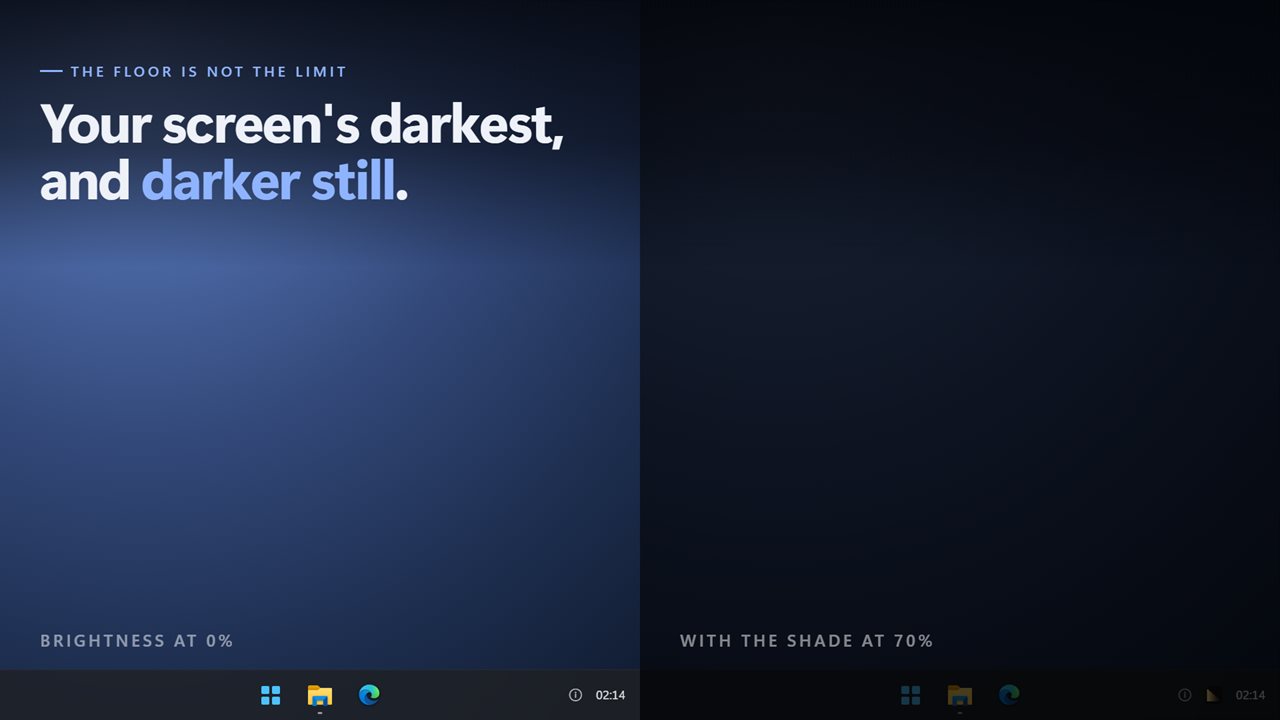
A screen at 0% brightness beside the same screen with the shade at 70%, taskbar included
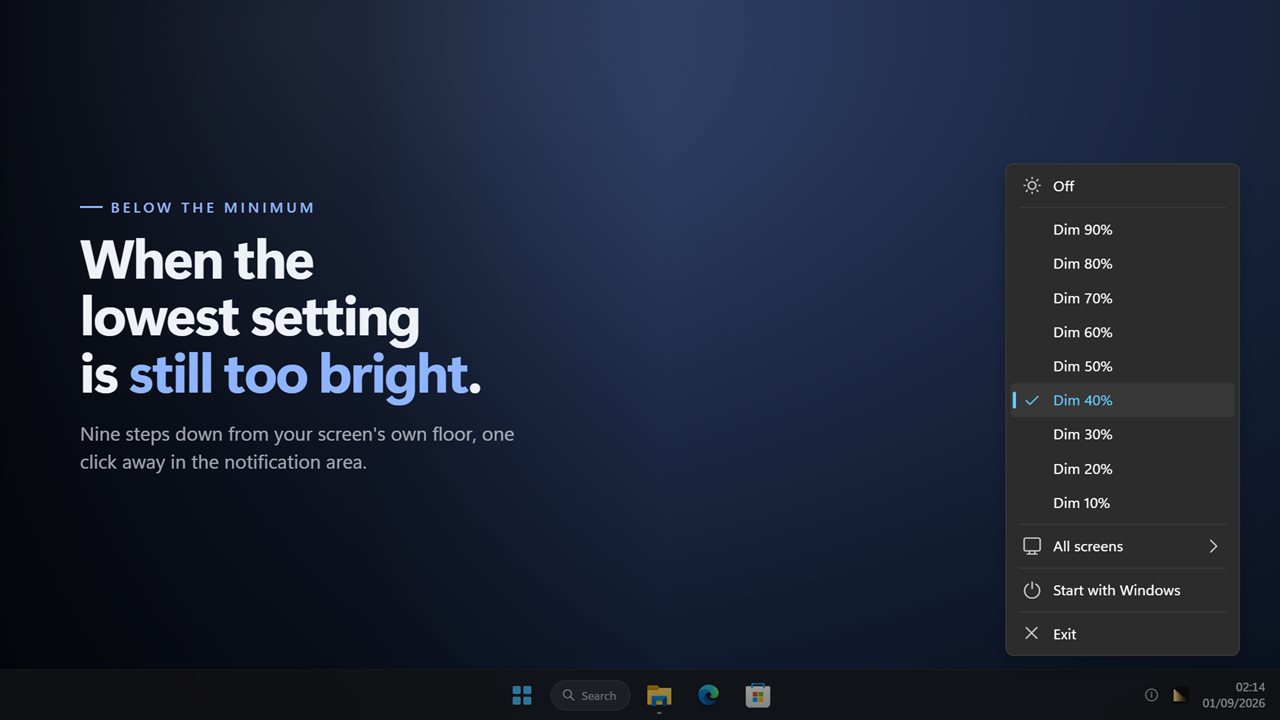
Nine steps below your screen's own lowest setting.
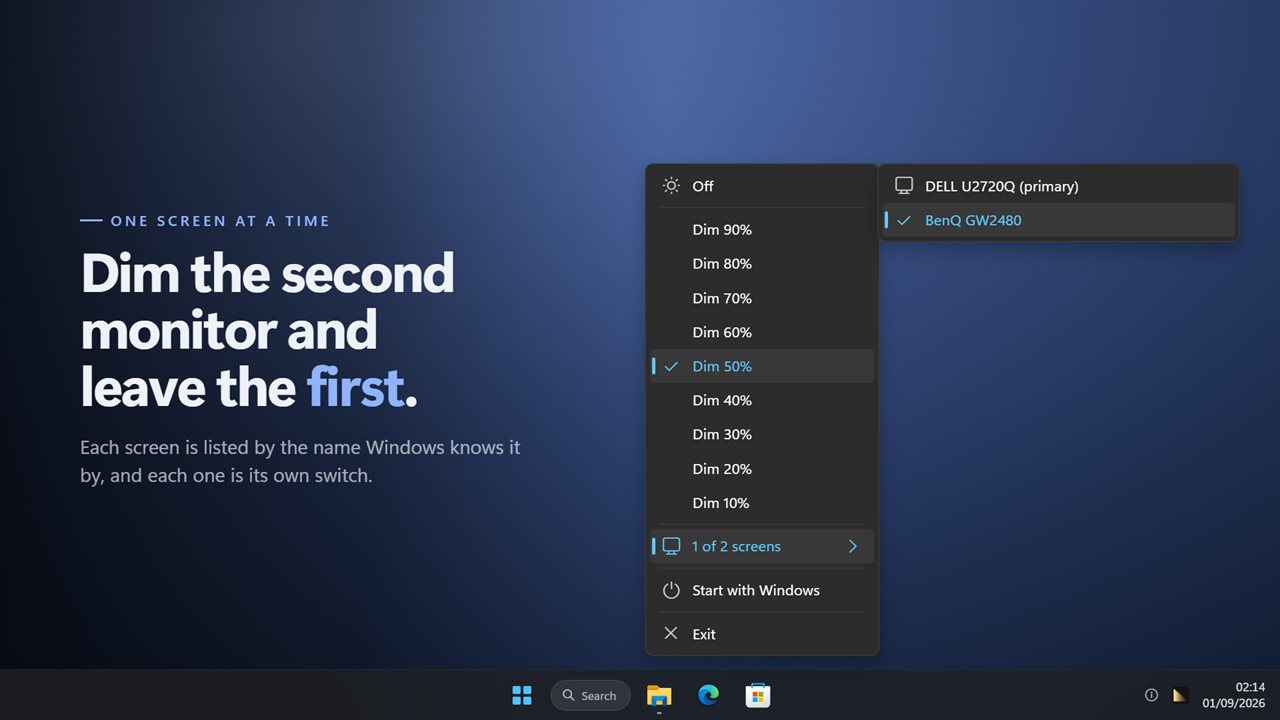
Every screen is its own switch, by the name Windows knows it by.

Brightness Below Minimum in 35 seconds

Brightness Below Minimum trailer
190,000+downloads of EvlarSoft apps
Signed by EvlarSoftVerified US publisher
14-day money-backNo questions asked
Updates includedNo upgrade fees
10% to 90%

Nine levels below the floor

Each step lays a darker sheet over the screen. Even the darkest still leaves enough to find the icon that turns it off.

Laptop · Monitor

Any display

Nothing is asked of the hardware, so it works on desktop monitors and panels that ignore Windows' brightness slider.

Screen by screen

Each monitor on its own

Dim the second display and leave the main one alone. A screen plugged in later is picked up without a restart.

Why 0% brightness can still be too bright

A display's brightness slider stops where the manufacturer decided it should. On many laptops and most office monitors, that lowest setting is still a glaring rectangle in a dark bedroom or a night shift control room.

Desktop monitors are worse: Windows often cannot change their brightness at all, and the buttons on the bezel are slow and fiddly.

Brightness Below Minimum works on top of whatever the panel is doing. It lays a see-through dark sheet over the whole screen, taskbar included, and your clicks pass straight through it, so you keep working underneath at a level that is comfortable.

How to dim your screen below minimum brightness in Windows

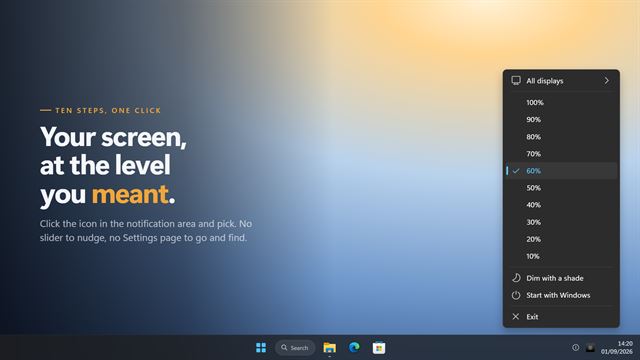
Brightness Below Minimum has no window. Everything is done from its icon in the notification area, and a level takes one click.

  • Click the Brightness Below Minimum icon in the notification area.
  • Pick a level from Dim 10% to Dim 90%. Each step lays a darker sheet over the screen.
  • Open the screens submenu and choose which monitors to dim. The primary one is marked.
  • Turn on start with Windows if you want the shade back after a restart, at the same level and on the same screens.
  • Choose Off from the same menu to return the screen to normal.

How it differs from the Windows brightness slider

The Windows slider changes the display's own brightness, and it stops at the lowest level the panel allows. Brightness Below Minimum does not touch that setting. It draws a dark layer over the picture, so it starts where the slider ends.

That means the two add up. Set the Windows slider to 0%, then add the shade at 70% and the screen goes darker than the panel could manage on its own. Turn the shade off and the display is exactly as you left it.

Dimming a second monitor on its own

Each screen is its own switch. You can bring the side monitor down to near black and leave the main one at its normal level, which helps when one screen shows something you only glance at.

Screens are listed by the name Windows knows them by, so two monitors of the same model can be told apart. A monitor plugged in after the app started is listed and covered like the others, without restarting the app.

A darker screen for night use, taskbar included

In a dark room the brightest thing on a dimmed screen is often the taskbar. The shade covers the whole display, taskbar included, so no lit strip is left along the bottom.

Your clicks pass straight through the shade, so you keep working underneath it. The menu follows your light or dark theme, and the darkest step still leaves enough to read, so you can always find the icon that turns it off.

Brightness Below Minimum features

  • Nine levels below the floorFrom a light 10% to a near-black 90%.
  • One click from the trayPick a level from the notification area menu.
  • Works on any displayNothing is asked of the hardware, so monitors with no brightness control dim too.
  • Each screen on its ownDim one monitor and leave another alone.
  • Screens listed by nameThe primary one is marked, so identical models can be told apart.
  • Later monitors includedA screen plugged in after launch is covered like the rest.
  • Covers the taskbarThe shade spans the whole display, not just the work area.
  • Clicks pass throughYou use the PC normally underneath the shade.
  • Remembers your choiceLevel and screens come back after a restart, and it can start with Windows.
  • Works offlineNo account needed, and nothing is uploaded unless you turn on backup.

What people use it for

Reading or working at night

Bringing a screen down to the level of the room, instead of the other way round.

Monitors with no brightness control

Dimming an external display that Windows offers no slider for.

A second screen in the background

Keeping a chat or a dashboard on the side monitor without it lighting up the room.

What people say

★★★★★

“Exactly what it says it is. The new update is even better than I expected!”

Nathaniel, GB
★★★★★

“Works flawlessly, especially above 50% for almost pitch darkness!”

Damian, US

What's new in 2.0

  • Each screen switched on or off separately, listed by its real name
  • Monitors connected later are dimmed too
  • The shade now covers the taskbar
  • Your level and screens are remembered after a restart
  • A redesigned menu that matches Windows 11 in light and dark

Questions

Anything else? Ask us

Does it change my monitor's settings?

No. It draws a dark layer over the picture and leaves the display's own brightness alone. Turn it off and everything is exactly as it was.

Can I still click things through it?

Yes. The shade lets every click through, so you use the PC normally underneath it.

Can it go completely black?

No, on purpose. The darkest level is 90%, so you can always see the icon that turns it off.

Does it work with two or three monitors?

Yes. Each one is listed by name and can be dimmed or left alone.

Can it start with Windows?

Yes, and it comes back at the level and on the screens you last chose.

Which versions of Windows does it run on?

Windows 10 (version 1809 or later) and Windows 11.

Is it a subscription?

No. Brightness Below Minimum is a one-time purchase of $3.99, and updates are included.

How do I get it?

Buy it on this page and your license key arrives by email. If the button says Notify me, Brightness Below Minimum is not on sale here yet; leave your email and we will tell you when it is.

More display tools from EvlarSoft