Keep screen on per app, not for the whole PC
Windows lets you keep the screen on in exactly one way: raise the screen timeout or set it to Never, for everything. That fixes the recipe page going black while your hands are covered in flour, and it also leaves the monitor glowing all afternoon over an inbox nobody is reading.
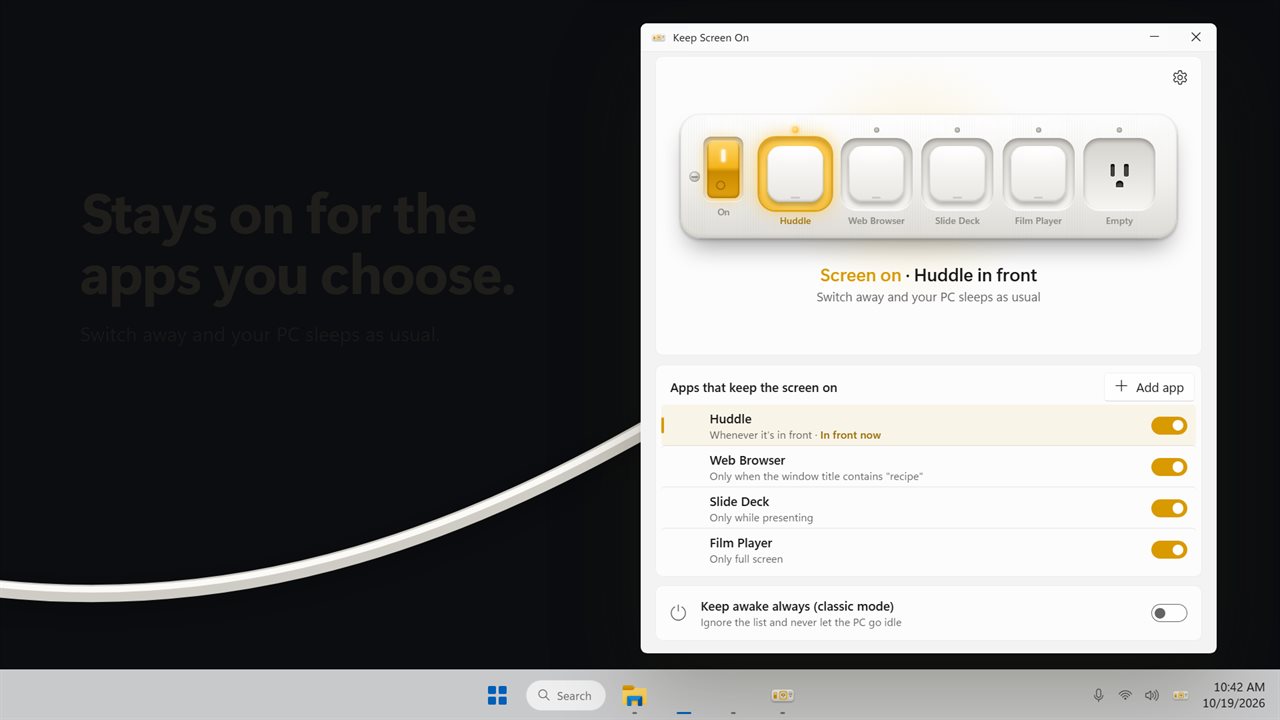
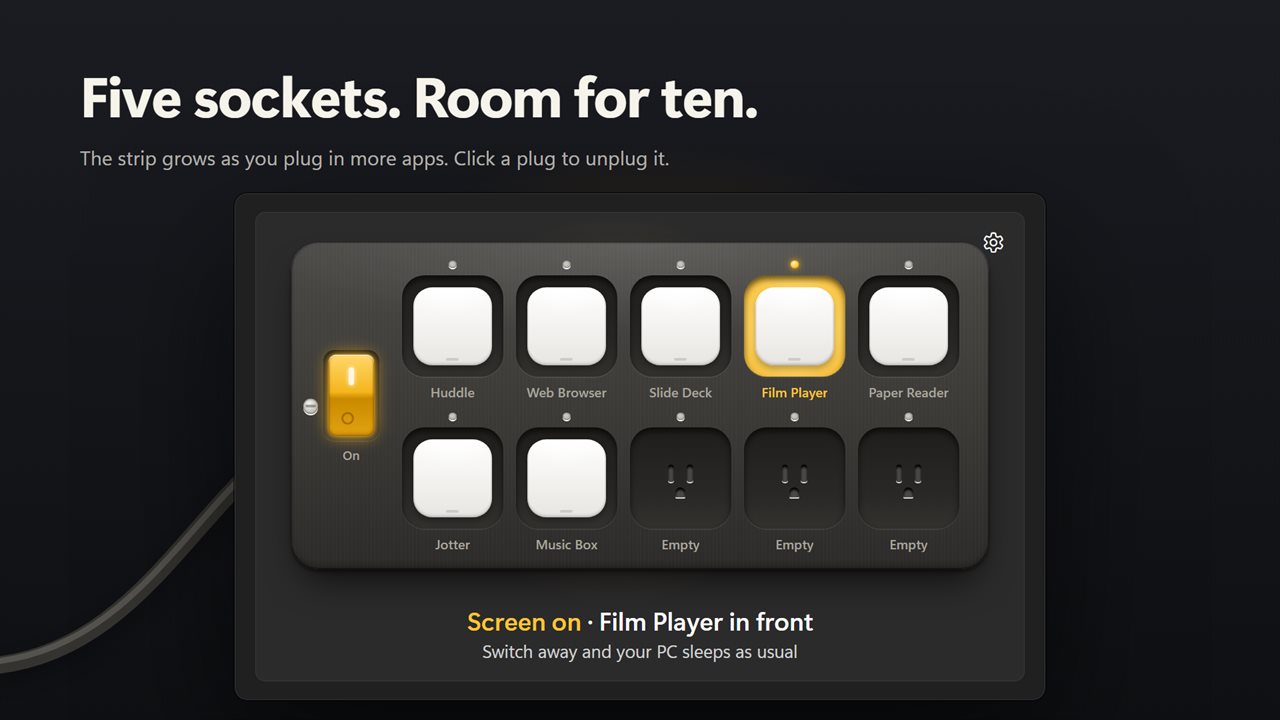
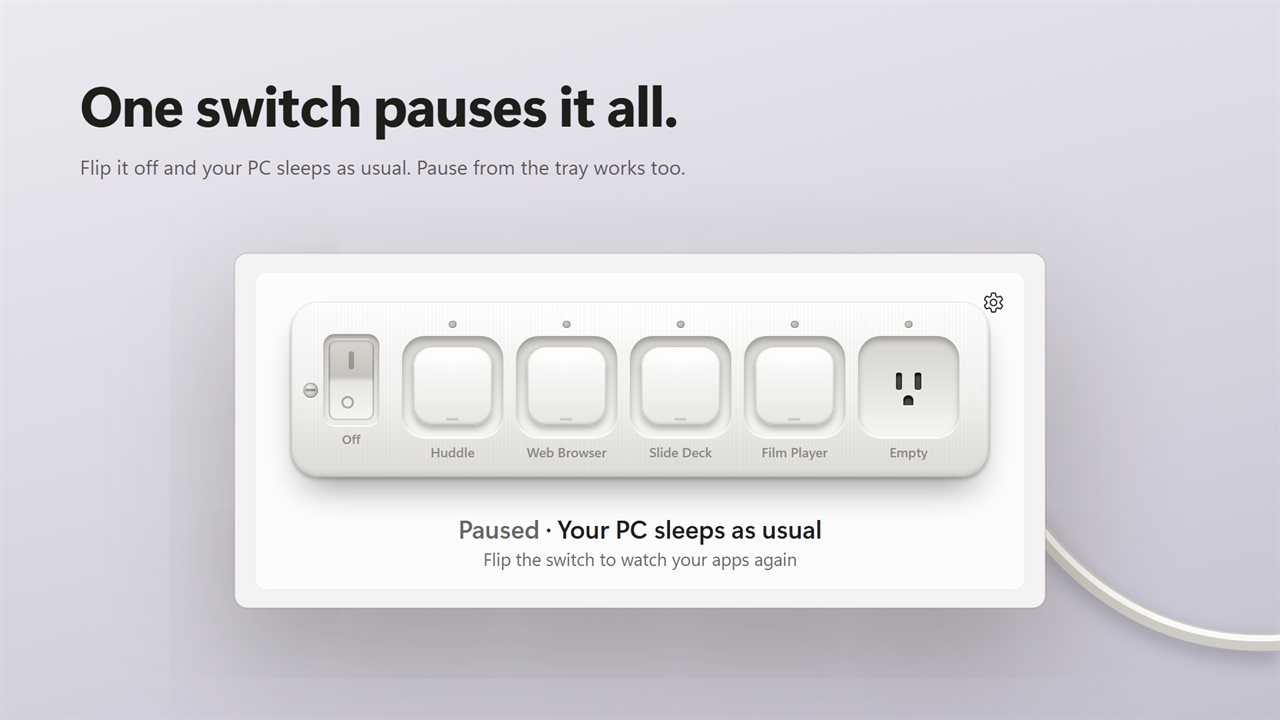
Keep Screen On ties the display to the apps that need it. You plug the programs you care about into a power strip on screen. Whenever one of those holds the foreground, the display and the PC stay awake. Click into anything else and, within about a second, your normal power settings are back in charge.
It works by sending Windows the same keep-awake request a video player makes. Nothing moves the mouse and no keystrokes are faked, so it does not interfere with what you are doing and leaves your power plan alone.
How to stop the screen from turning off for one app
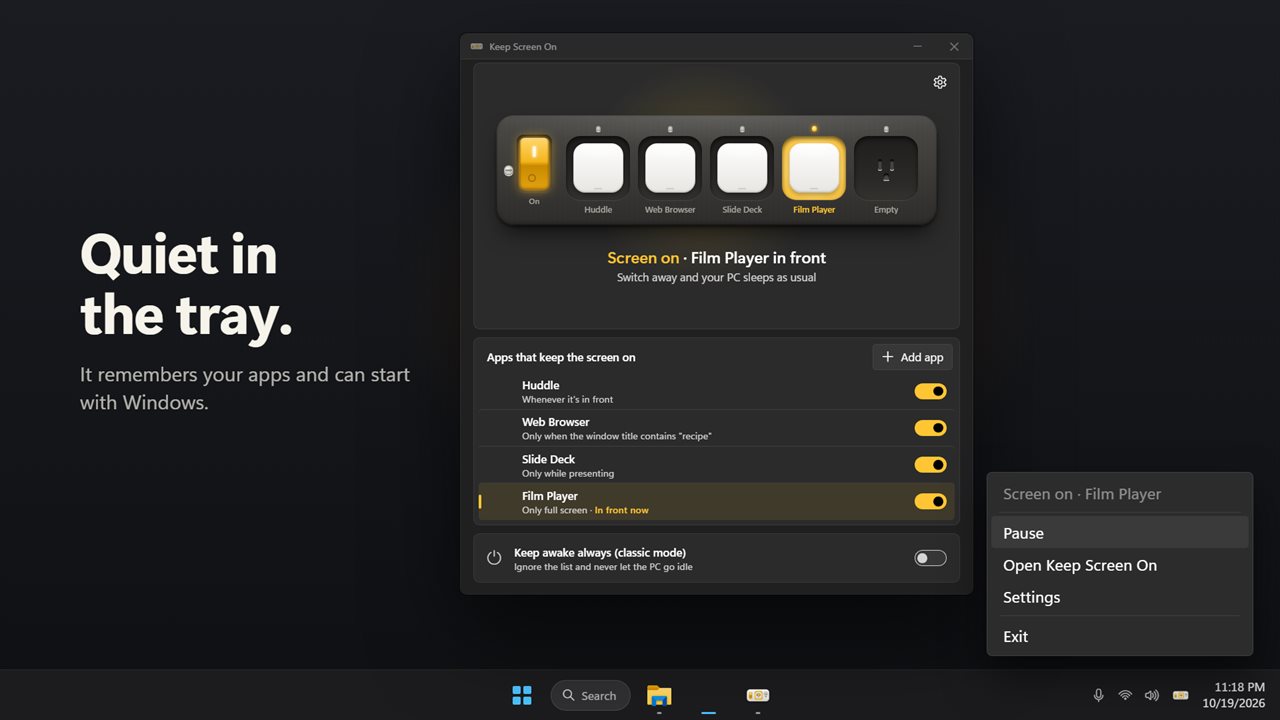
Close the window and the app keeps working from the notification area. Turn on Start with Windows so it is watching after a restart, and Start in the tray if you would rather not see the window at all.
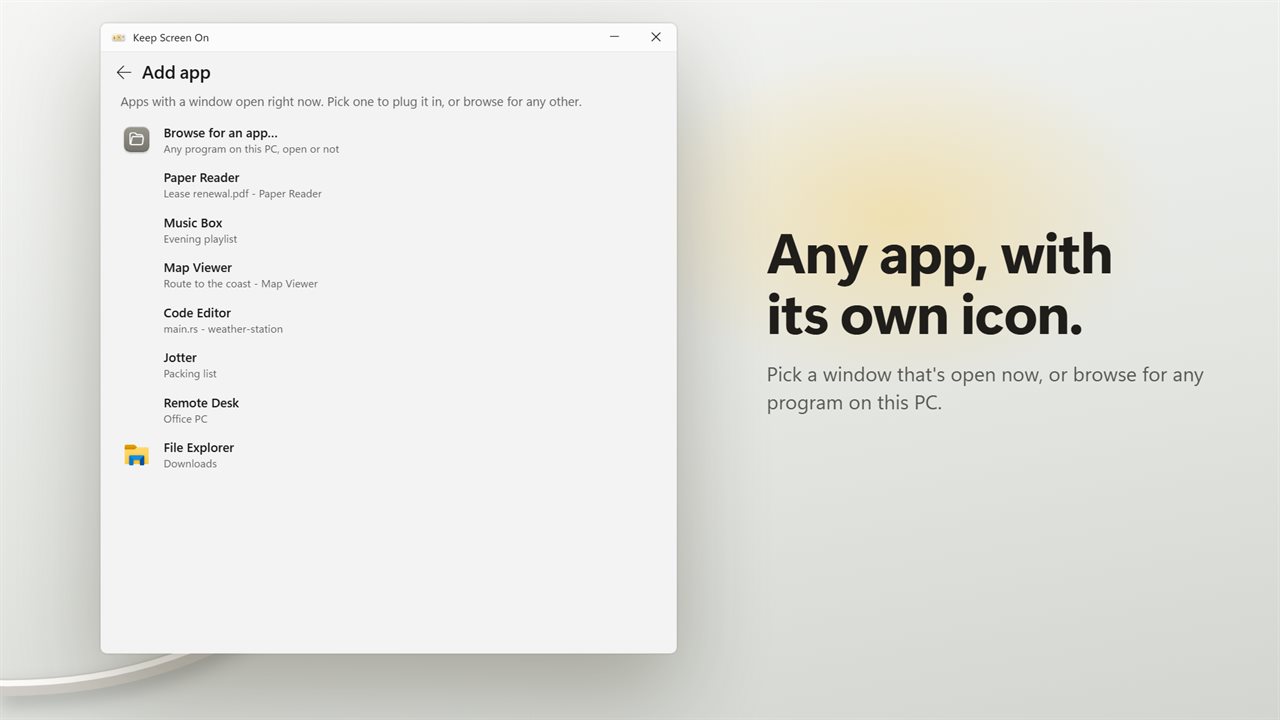
- Click Add app, then pick from the windows that are open now or choose Browse for an app… to find any program on the PC, open or not.
- Its icon appears on a plug in the next free socket. The strip begins with five sockets and expands to ten as you add more.
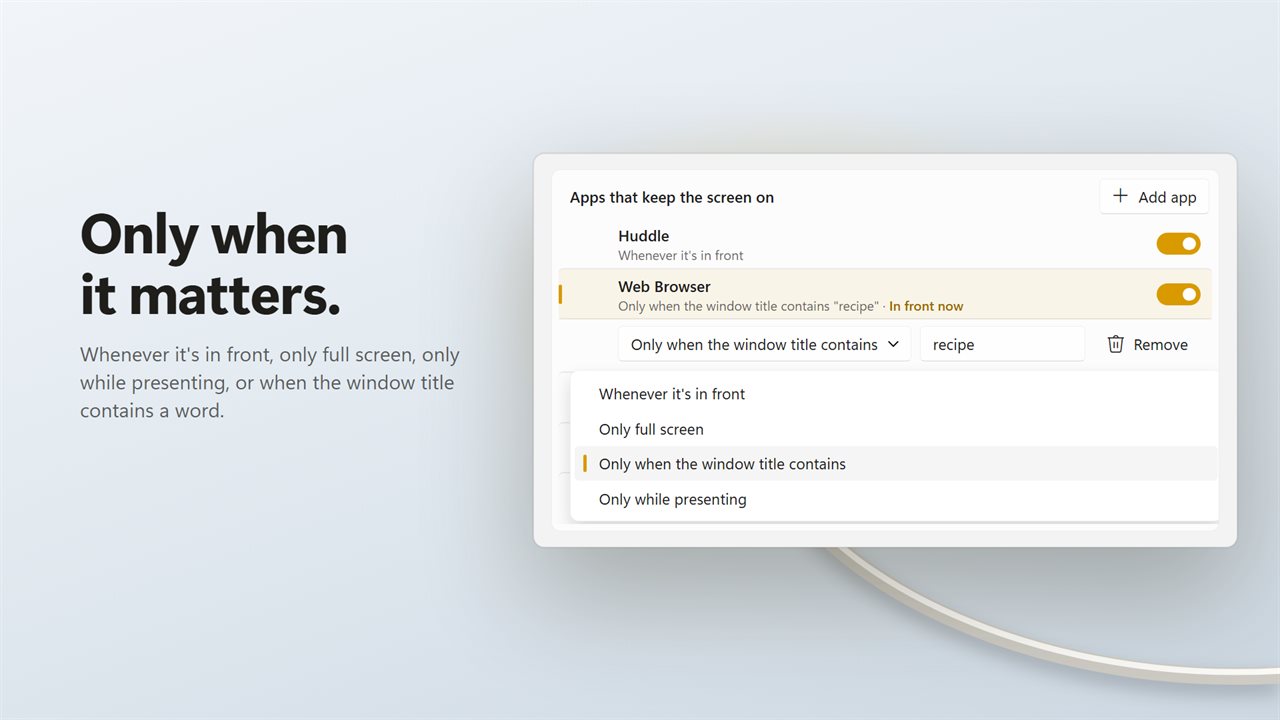
- Give it a rule. The default, Whenever it's in front, counts any time the app has focus; the stricter rules are explained below.
- Bring that app to the front. Its socket lights and the line under the strip says Screen on and which app is holding it.
One website in a browser, not every tab
A browser is usually the hardest case: you want the screen to stay on for a cooking site or a live dashboard, but not for email. Set its rule to Only when the window title contains and type a word from the page title, such as the site's name. Browsers put the active tab's title in the window title, so the screen stays awake for that tab only. The match ignores letter case. Each program can be added once, so a browser gets a single word.
Full screen and presenting modes for video and slides
Only full screen applies when the app's window fills its whole monitor, which suits a media player that you also use windowed for browsing a library. Only while presenting follows Windows' own signal that a presentation or full-screen game is running, or that presentation mode is on, which is useful for slide software.
Keep the display on all the time, or pause
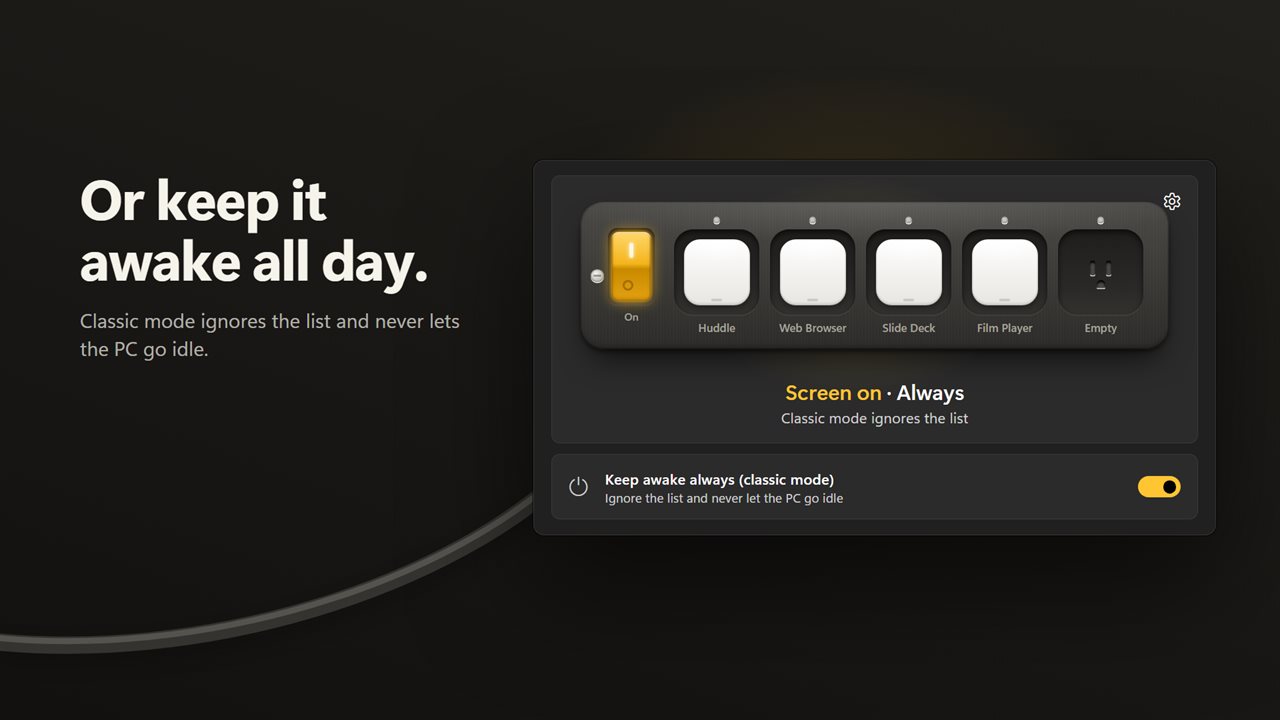
Sometimes you do want the screen on everywhere for a while, for a kiosk, a status board or a long install. Keep awake always (classic mode) ignores the list and keeps both PC and display awake until you turn it off.
To stop everything at once, flip the big switch on the strip or choose Pause in the tray. To take one app out of play without losing its setup, switch it off in the list; click its plug to remove it altogether.