A window dimmer that spotlights the app you are using
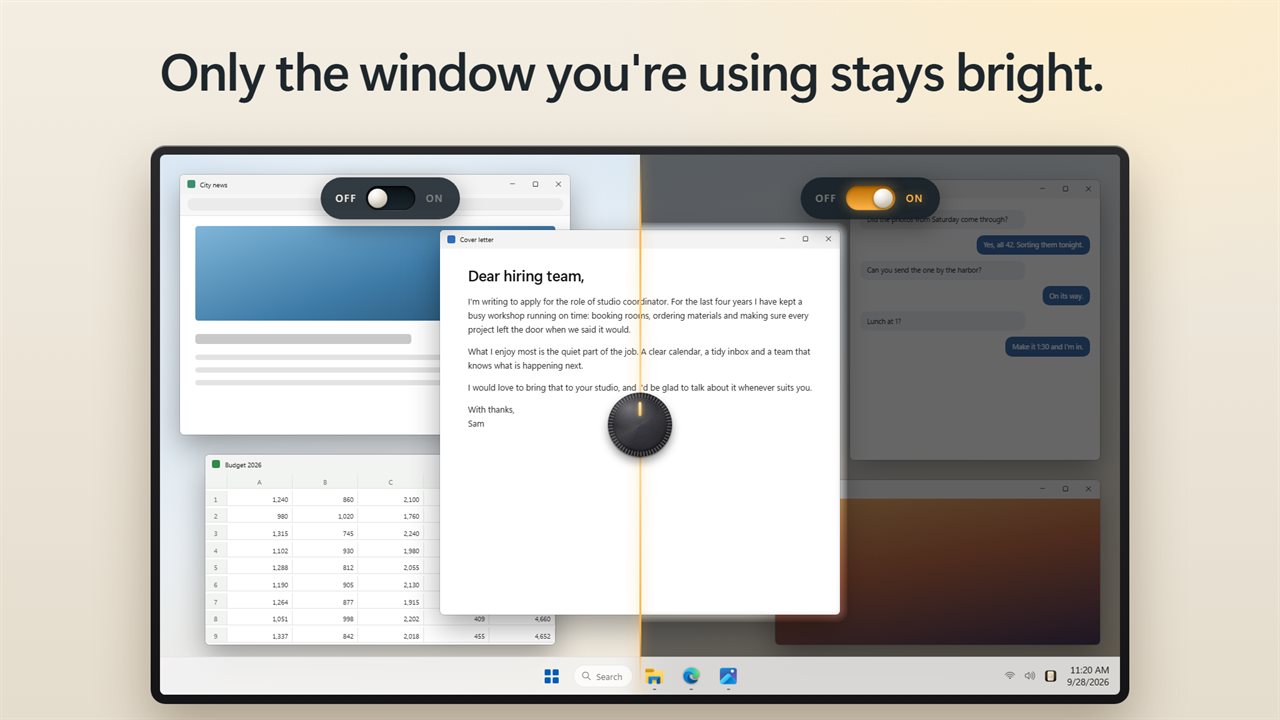
A busy desktop competes for your attention. Chat badges, a browser full of tabs and a second monitor playing something all sit in the corner of your eye while you try to read one document. Smart Window Dimmer is a window dimmer for Windows: it lays a dark, see-through layer over the screen and cuts a hole for the window in front, so that one stays bright and the rest recede.
Click into a different window and the bright area follows. Nothing is minimized, closed or rearranged, and you can still click straight through the dim layer into anything behind it.
It covers every connected monitor, and it does not touch your monitor's brightness setting. The effect is closer to a desk lamp pointed at your work than to turning the room lights down.
How to dim background windows on Windows 11 and 10
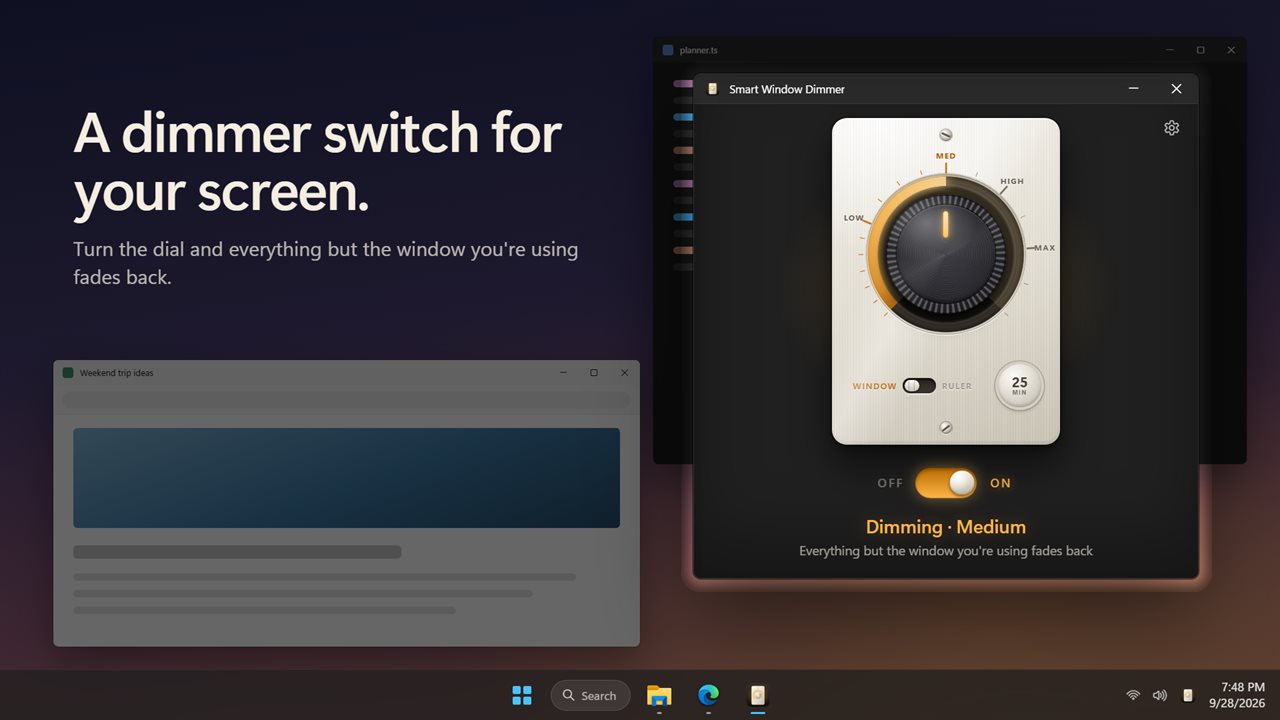
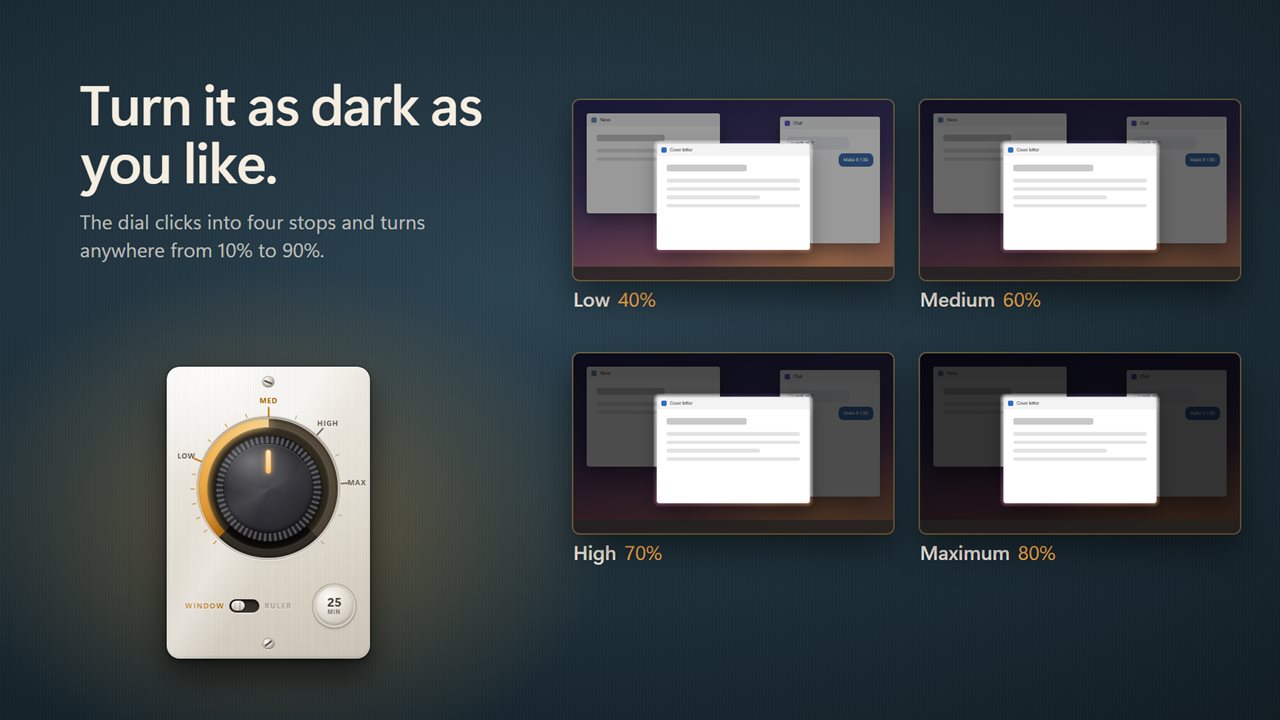
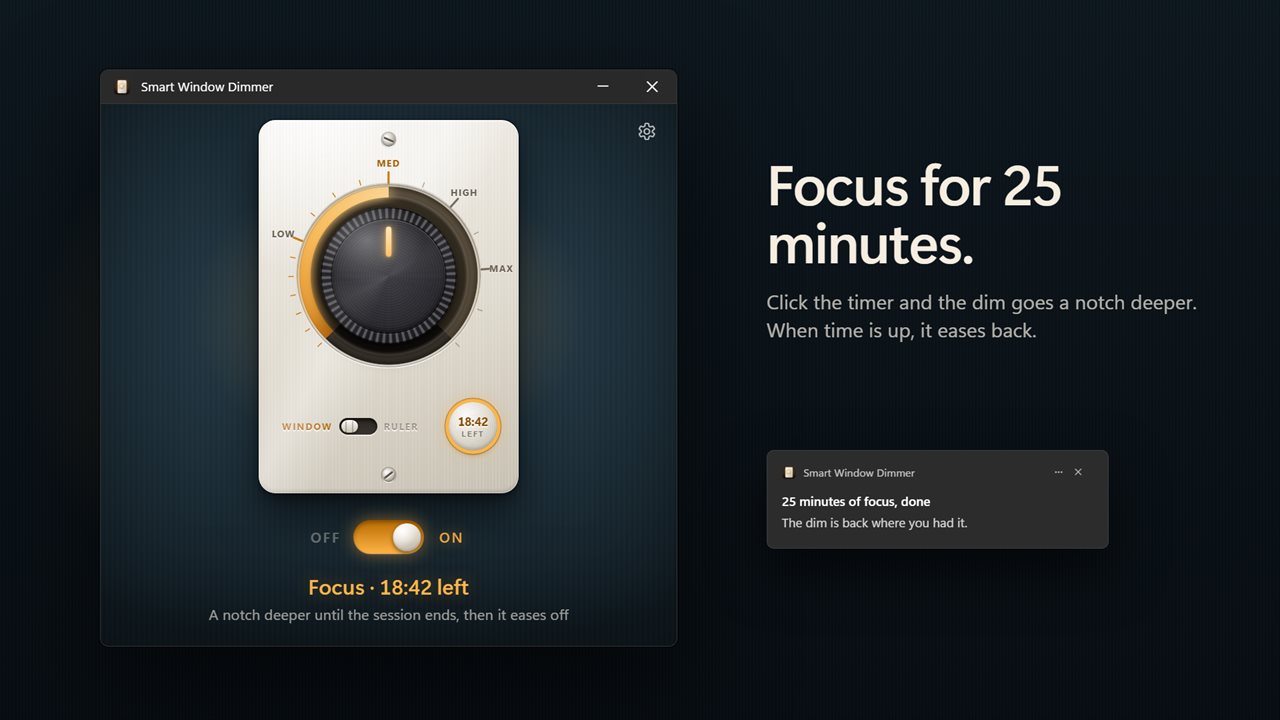
The main window is a wall dimmer you operate with the mouse.
- Click the dial, or flip the switch beside it, to turn dimming on.
- Drag or scroll on the dial to set the depth. It catches at Low, Medium, High and Maximum, and rests at any value from 10% to 90% in between.
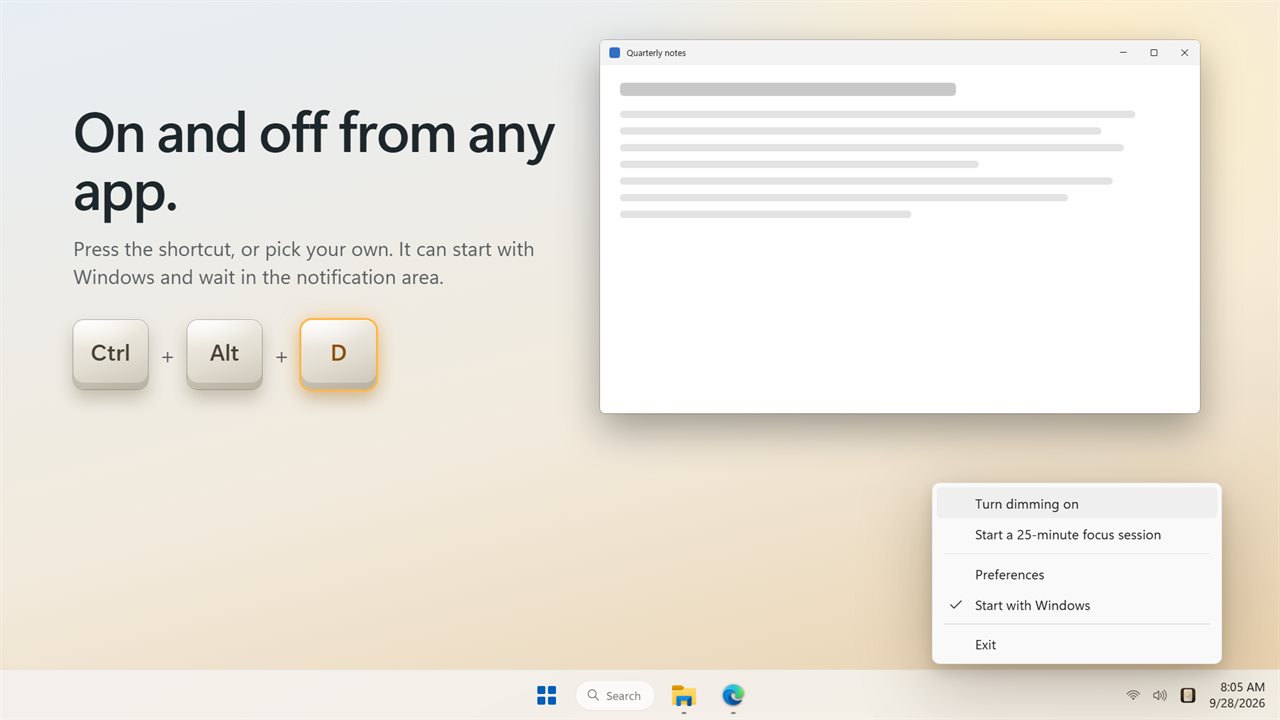
- Use Ctrl+Alt+D anywhere to toggle it without opening the window, or record your own shortcut under Settings.
- Leave Undim while a full-screen app is focused on so games, films and slideshows are never darkened.
A reading ruler for the computer screen
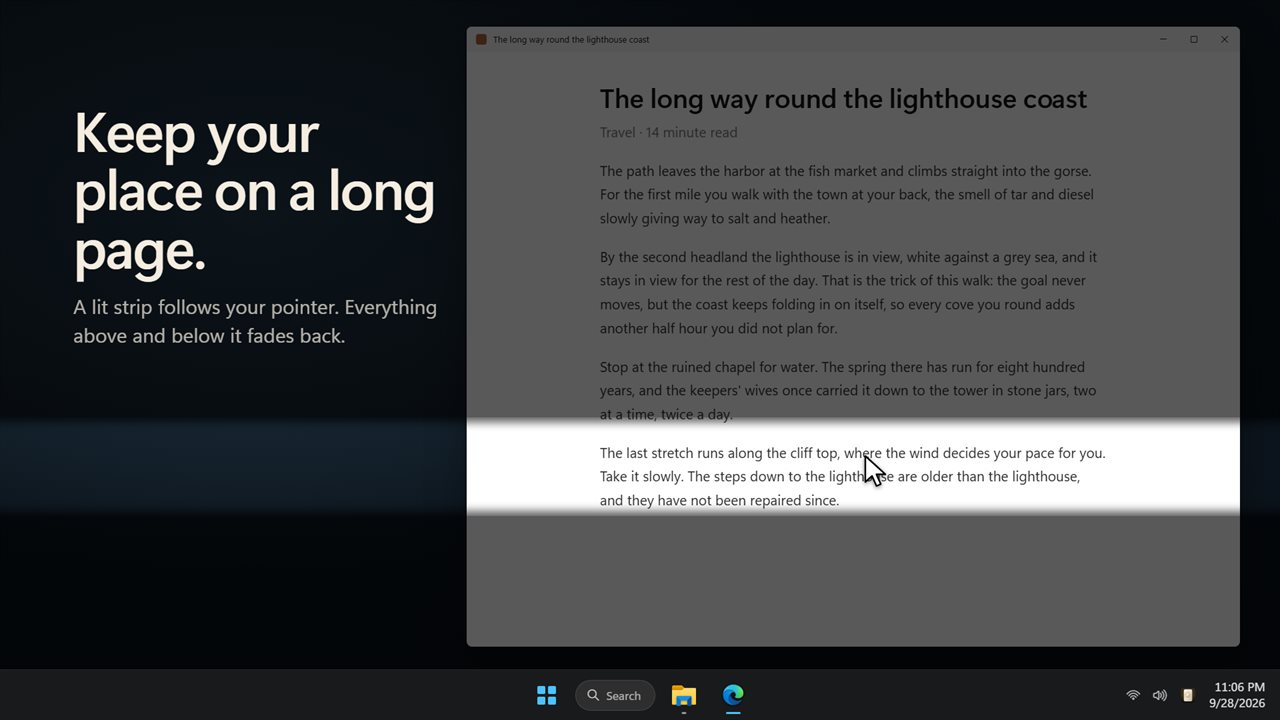
Set the dial to Ruler and the spotlight changes shape. Instead of a whole window, a horizontal strip of light follows your mouse pointer, and the lines above and below it fade. It holds your position in a lengthy contract, a dense spreadsheet or a research paper, and many readers with dyslexia or tired eyes find a reading strip like this easier than a bare page.
Choose a height between 40 and 240 pixels with Reading ruler height in Settings, so it can frame a single line of small print or a full paragraph. On several monitors, the strip appears on whichever screen the pointer is over.
Focus mode with a timer, and rules for each app
A focus session deepens the dim one notch for a fixed stretch, with the minutes left shown on the dimmer. Set Focus session length to 15, 25 or 45 minutes, 1 hour or 90 minutes. When it ends, a Windows notification says so and the dim eases back to your usual level.
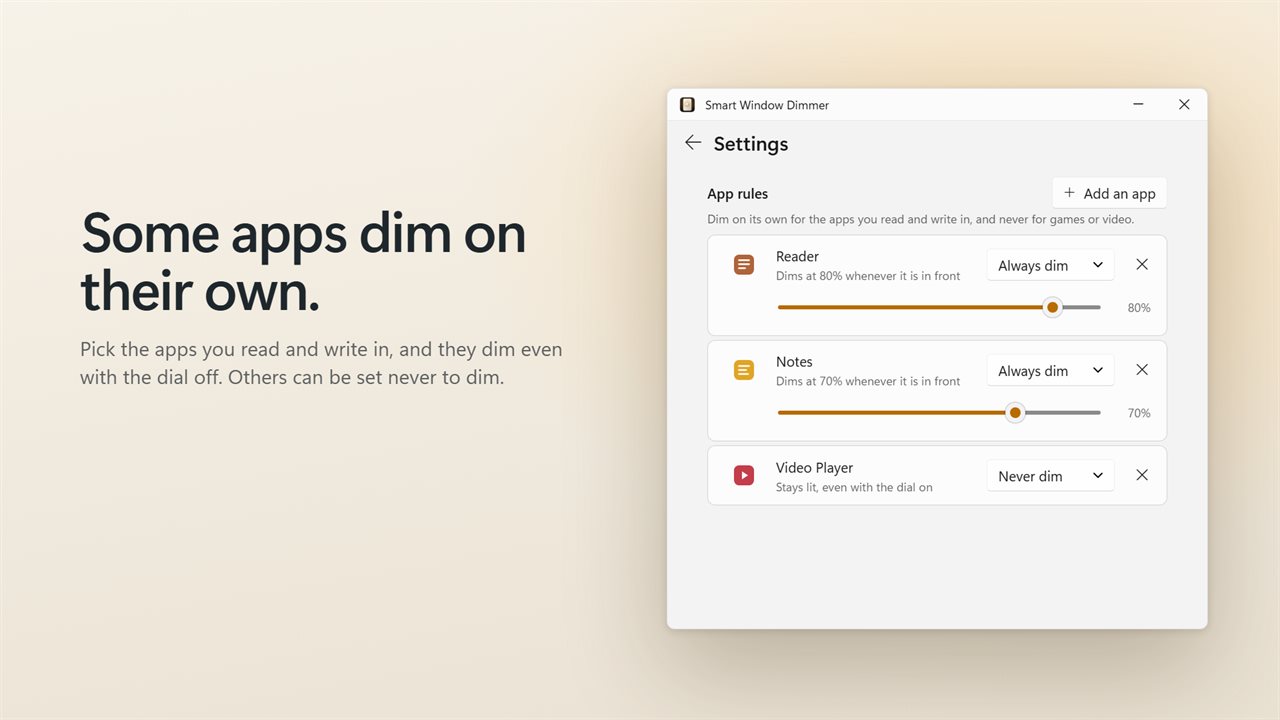
App rules handle the programs that need special treatment. Press Add an app, choose one that has a window open, and set it to Always dim, at its own level, so the background fades whenever that app is in front even while the dial is off. Or set it to Never dim, so it stays at full brightness even while dimming is on. Your writing app can switch the effect on by itself, while a video call is left alone.