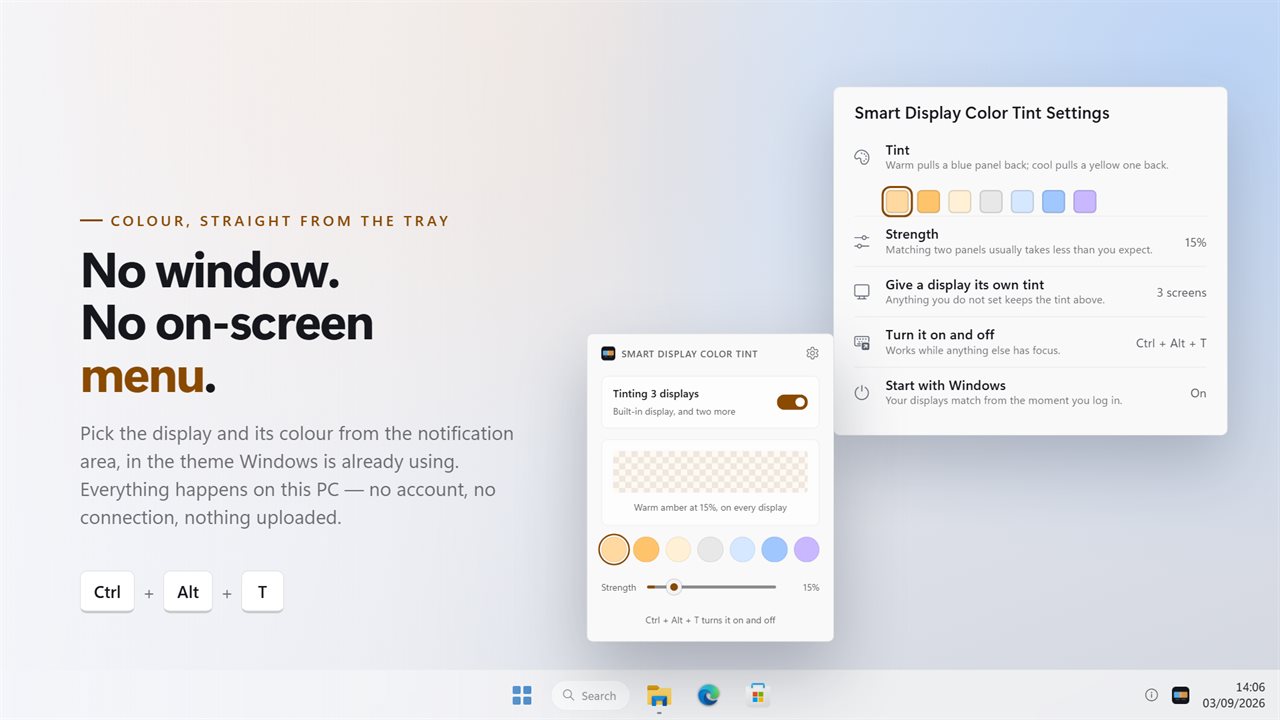
A screen tint you can set in seconds and switch off with one key
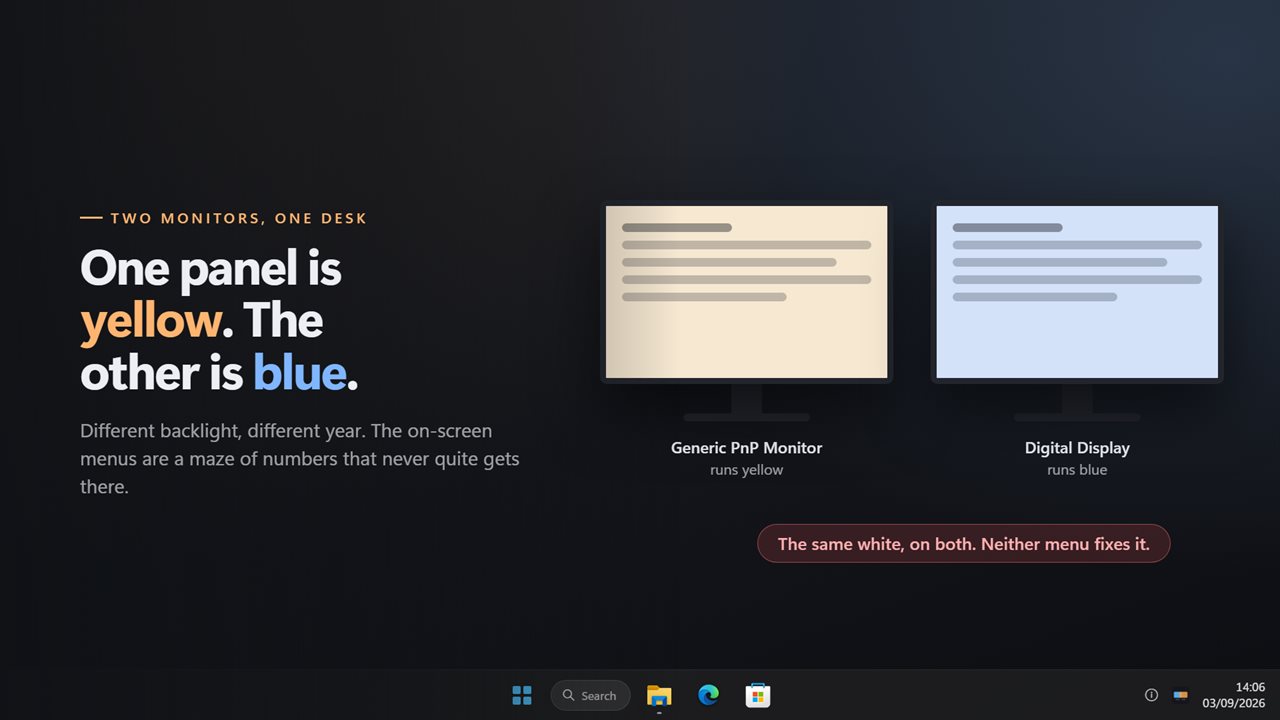
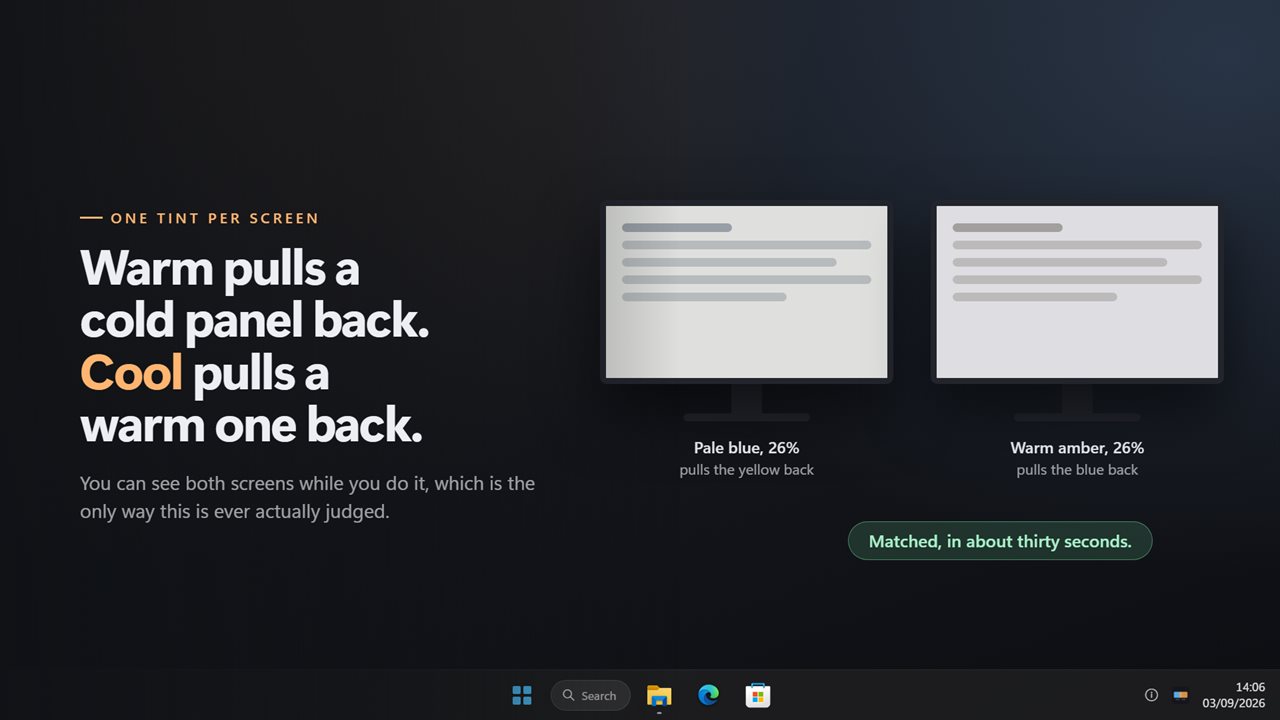
A screen tint is a sheet of color laid over everything on the display. Warm it and a harsh white panel turns softer and more amber; cool it and a monitor that leans yellow reads closer to neutral. Smart Display Color Tint draws that sheet over each connected screen and keeps it there until you turn it off.
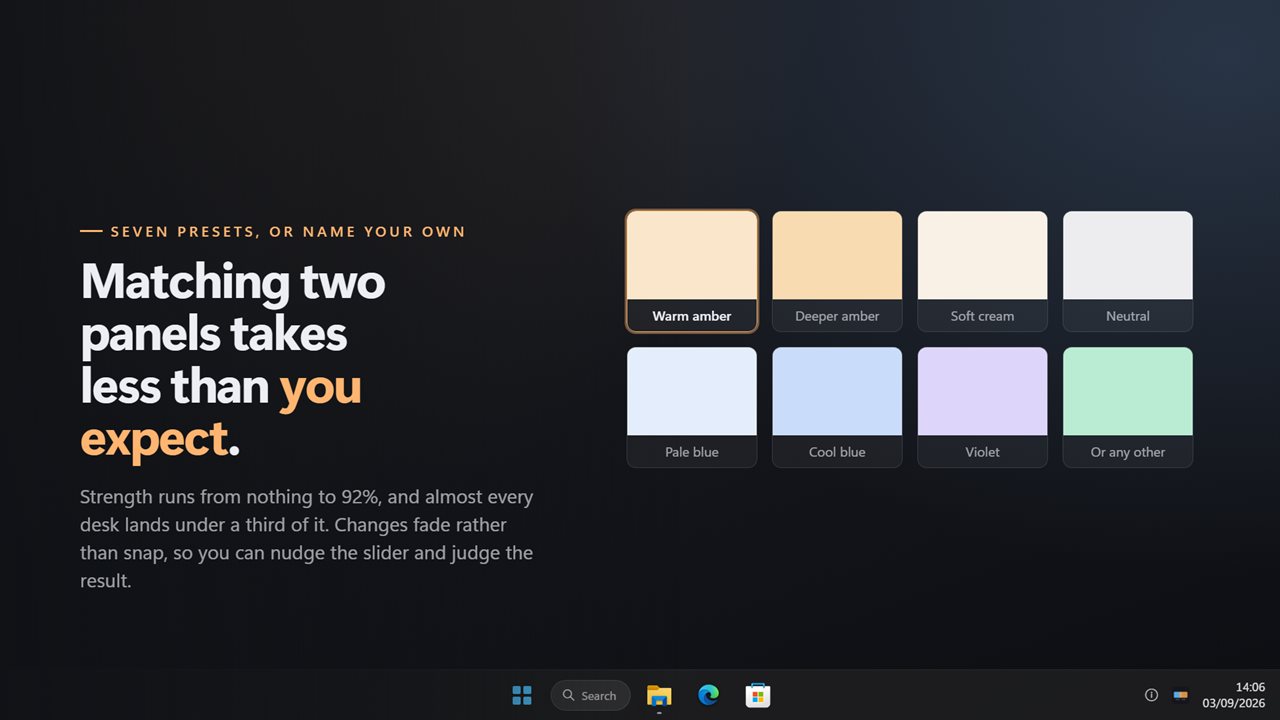
Click the icon in the notification area and a small panel opens. The switch at the top turns the tint on, the preview card shows the color at its current strength, a row of seven swatches picks the color, and the Strength slider sets how much of it you see. The preview repaints the moment you click, so you judge the color before you look up at the screen.
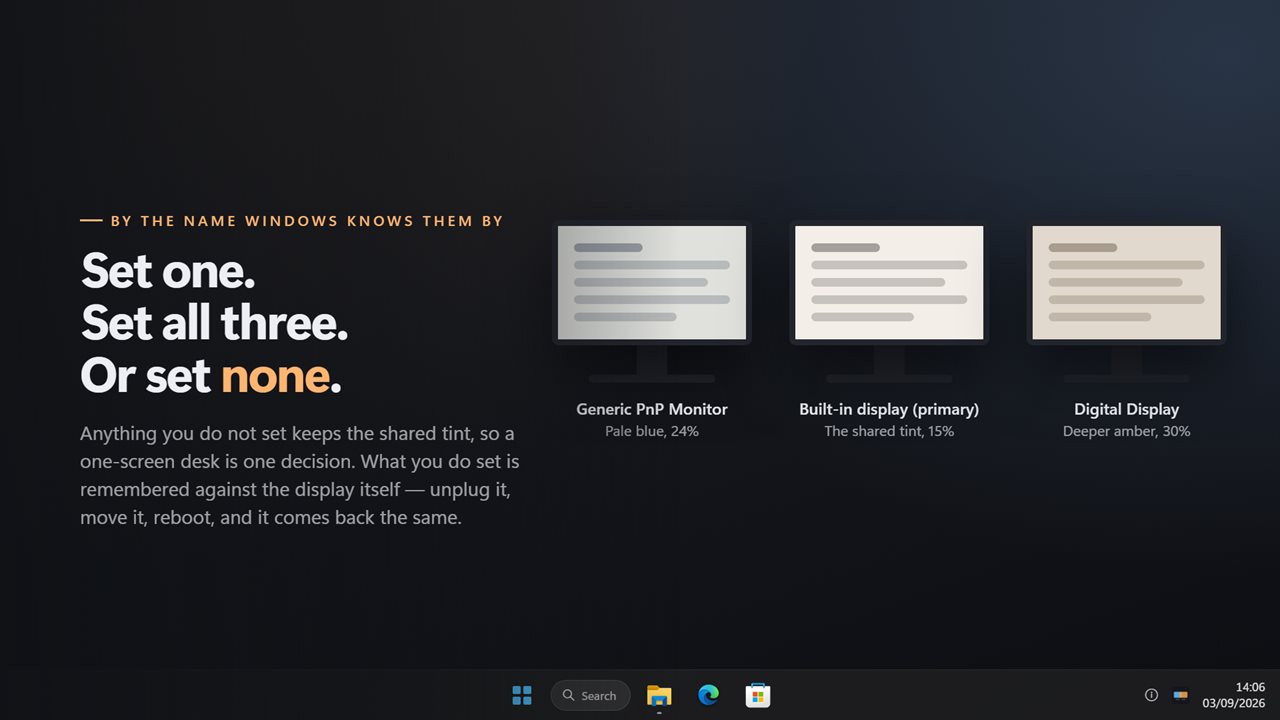
Because the color is drawn over the picture rather than sent to the monitor, it does not depend on the panel's own buttons or menus. A laptop screen, a budget monitor with no color controls and a TV used as a second display all take the same tint.
How to change screen color on Windows with a tint
The whole job takes four steps, and nothing needs a restart.
- Click the tray icon to open the panel, then flip the switch so it reads Tint on.
- Pick a swatch: two ambers and a cream warm the screen, a neutral grey mutes it without shifting the hue, and two blues and a violet cool it.
- Drag Strength until the color looks right. The default is 15%, which is often enough.
- For a color outside the seven, click the gear and choose one under Tint in Settings.
A warm screen without a schedule
Some people want a warmer screen at every hour, not only after sunset: a bright office monitor that feels glaring at noon, a panel whose whites look blue next to printed paper, or a desk lamp that makes the screen look cold beside it. This app has no timer and no sunset logic. The tint you set is the tint you get until you change it.
Color changes fade over about a third of a second instead of snapping, so nudging the slider looks like the panel slowly warming up rather than a flicker.
A colored screen overlay that stays out of the way
An overlay is only useful if you forget it is there. The tint never takes focus and passes clicks straight through to the window underneath, so you type, drag and scroll exactly as before. It has no window of its own on the taskbar.
Press Ctrl+Alt+T from any app to turn it on or off, which makes it easy to compare the tinted and untinted picture side by side in your head. You can record a different shortcut under Turn it on and off in Settings. The tray slider moves in 5% steps up to 90%; the Strength slider in Settings goes in 1% steps to 92% for fine matching.