EEvlarSoft

Desktop Screen Locker

Lock your computer screen so nobody can click, tap or type into it, while whatever is on it, a film, a slideshow or your open work, stays right where it is.

Buy for $2.99
One payment. No subscription.
14-day money-back guarantee.
3.7
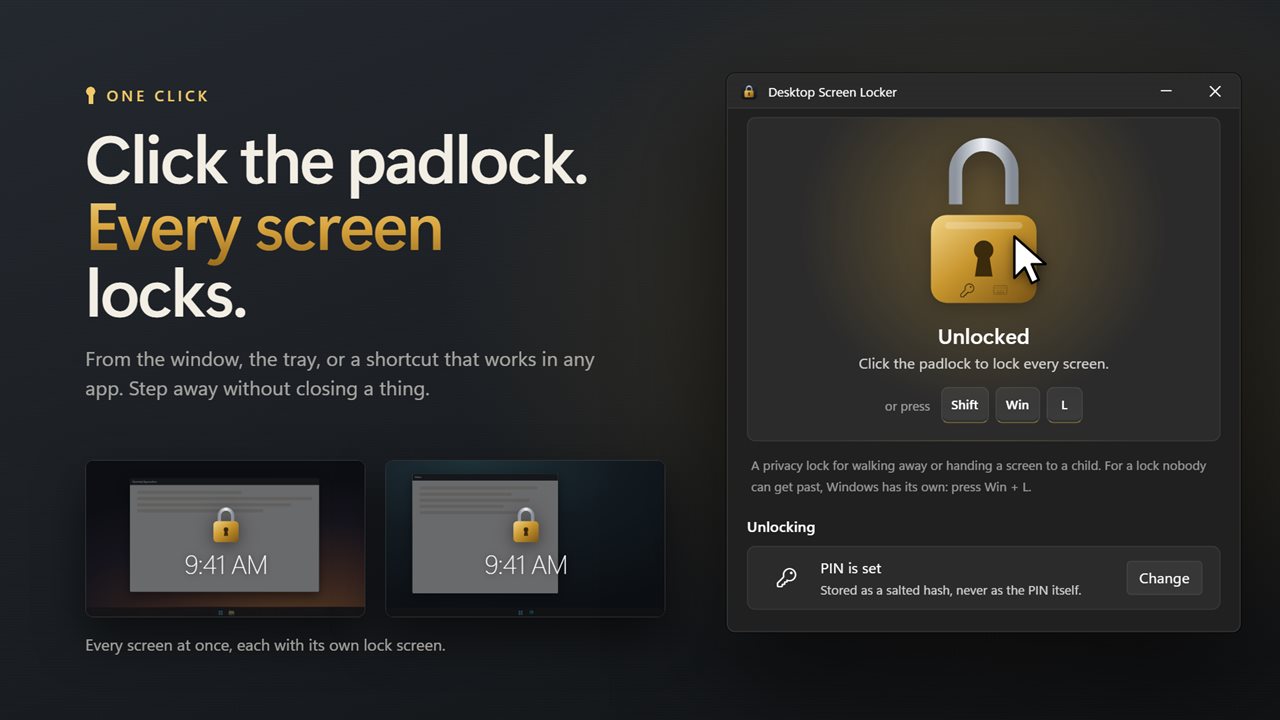
One click on the padlock locks every screen.
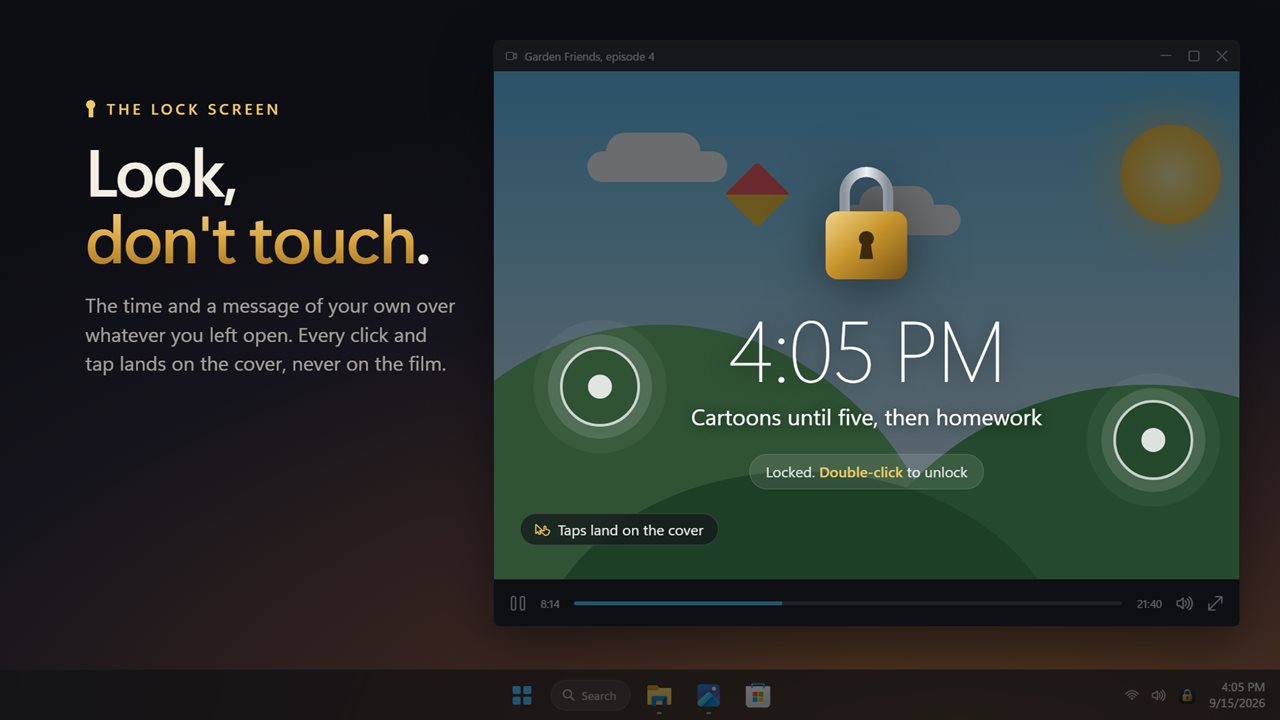
A lock screen with the time and your own message. Clicks and touches go nowhere.
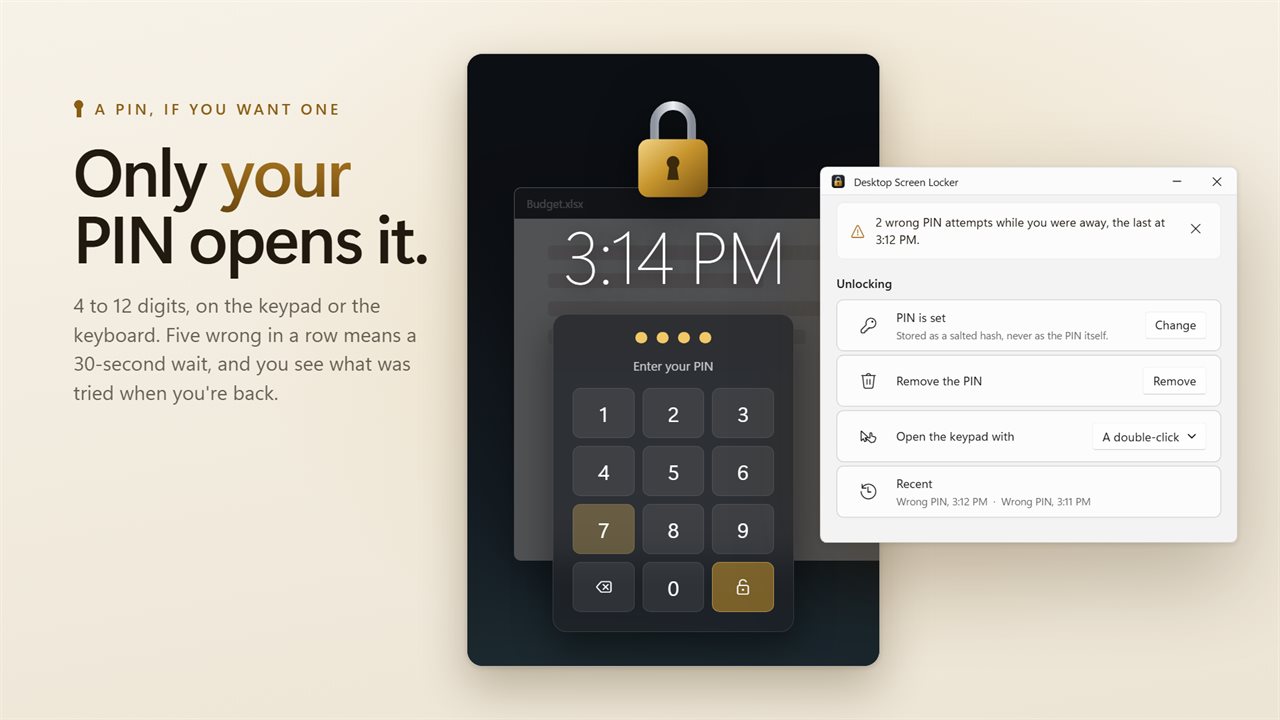
Set a PIN and unlock on the keypad. Wrong tries are counted.
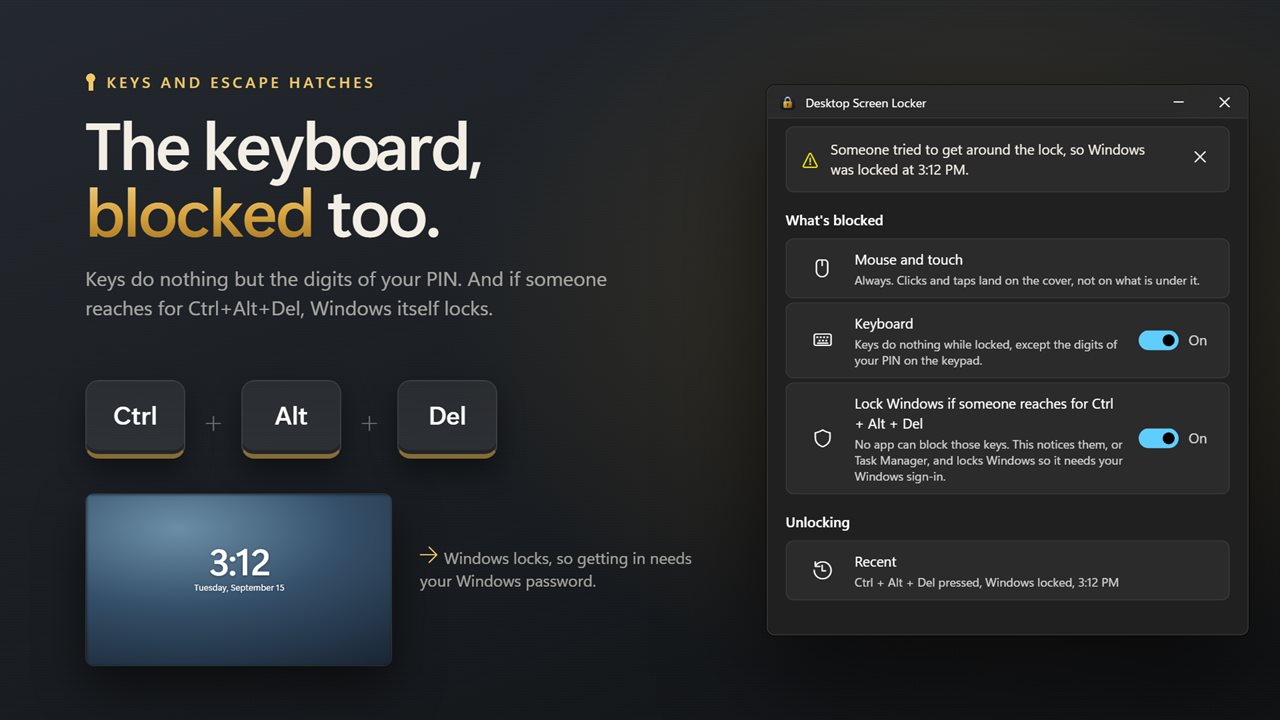
Block the keyboard, and lock Windows if someone reaches for Ctrl+Alt+Del.
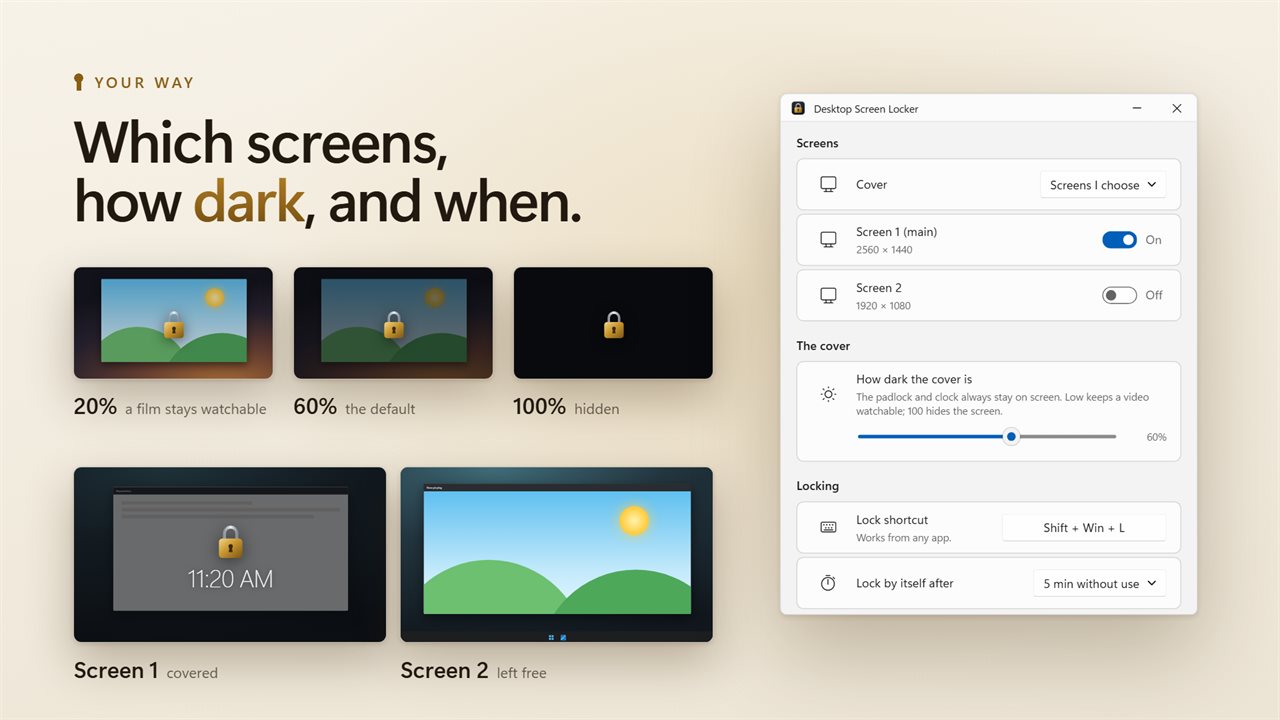
Choose the screens, the darkness, and when it locks by itself.

One click on the padlock locks every screen.

190,000+downloads of EvlarSoft apps
Signed by EvlarSoftVerified US publisher
14-day money-backNo questions asked
Updates includedNo upgrade fees

How to lock a computer screen without hiding what is on it

Win+L is the usual way to lock a computer screen, and it is the right one when you leave the building. It also hides your desktop behind the Windows sign-in picture and makes you type a password to get back. Often you want something lighter: a cartoon running for a toddler on a touch-screen laptop, a slide left up on a shared desk, a dashboard nobody should poke at while you grab a coffee.

Desktop Screen Locker lays a see-through cover over the screen. Everything underneath keeps running and stays visible, but every click and touch lands on the cover instead. Task switching is shut off as well: Alt+Tab, Ctrl+Shift+Esc and the Windows key are swallowed while it is up.

Locking takes one action: the padlock in the app window, a click on its tray icon, or Win+Shift+L pressed in any program. You see the shackle close, and every covered display carries the padlock, so there is no doubt it worked.

Lock the keyboard and mouse together

The mouse and touch are always blocked. The keyboard is optional, because some people want to lock the screen but keep typing into a chat or a note behind it. Turn on Keyboard under What's blocked and keys stop working entirely while locked, except the number keys needed for a PIN. Setting a PIN for the first time switches keyboard blocking on for you.

Unlock with a double-click or a PIN

By default you open it again by double-clicking the cover; pick A single click under Unlock with if you prefer. That is enough to stop a cat, a child or an accidental elbow. For a lock that only you can open, set a PIN:

  • Choose a code between four and twelve digits long. Only a salted hash of it is saved on the PC, not the code.
  • With a PIN set, the click opens an on-screen keypad; type on it or on the keyboard.
  • Miss it five times running and the keypad locks itself for half a minute.
  • Once you are back in, the window reports any failed attempts made in your absence.
  • Forgot the PIN? Sign in to Windows again and the cover is lifted, so you are never shut out of your own PC.

A screen locker that is honest about Ctrl+Alt+Del

No program can intercept Ctrl+Alt+Del; Windows reserves it on purpose. So instead of pretending, the app watches for it. With Lock Windows if someone reaches for Ctrl + Alt + Del switched on, the default, as soon as that screen appears or Task Manager is brought forward, the app triggers a full Windows lock, so only your account password gets past it. Treat this as a privacy lock for short absences, and use Win+L when the PC must be secure.

Lock the screen automatically, and style the cover

Lock by itself after can be set to 1, 2, 5, 10, 15 or 30 minutes, or 1 hour, without use. Start with Windows, and turn on Lock when Windows starts it for a kiosk or a family PC that should come up locked.

The cover can carry your own Message and the time. Keep watching while locked fades the padlock after a few seconds so a video stays clear; a click brings it back. How dark the cover is goes from a faint tint to fully hidden, and Frosted glass blurs the screen so text cannot be read. Cover lets you choose Every screen, The main screen only or Screens I choose.

Features

  • Padlock button, tray click or Win+Shift+L, with the hotkey changeable
  • Mouse and touch input always blocked; keyboard blocking optional
  • Task-switching keys disabled while the cover is up
  • Unlock by double-click, single click or a PIN
  • 30-second wait after five wrong PINs, and a count of failed tries
  • Locks Windows when Ctrl+Alt+Del or Task Manager appears
  • Adjustable darkness, frosted glass, clock and custom message
  • Auto-lock after 1 minute to 1 hour idle, and lock at startup

What's new in 2.0.5

  • New: block the keyboard while locked
  • New: a PIN keypad on the lock screen. Passwords from the previous version are not carried over; please set a PIN
  • New: Alt+Tab and the Windows key no longer get past the lock
  • New: if someone presses Ctrl+Alt+Del or opens Task Manager while locked, Windows is locked too
  • New: a lock shortcut, auto-lock after a set time, and a record of wrong PIN attempts
  • New: a lock screen with the time, your own message, adjustable darkness and frosted glass
  • New: choose which screens are covered
  • Fixed: "main screen only" could miss the main screen on some setups
  • Fixed: locking now shows clearly on screen instead of the window just disappearing
  • Faster to open, and a new window that follows the Windows light and dark themes

Questions

Anything else? Ask us

How do I unlock the screen?

Without a PIN, a double-click on the cover unlocks it, or a single click if you choose that, and anyone at the PC can do it. With a PIN of 4 to 12 digits, the same click opens a keypad, and after five wrong tries in a row it makes you wait 30 seconds.

Does it block the keyboard?

Only if you turn it on. Clicks and taps always land on the cover, but the cover does not take keyboard focus, so with keyboard blocking off your typing still reaches the app you were using. Alt+Tab, the Windows key and Ctrl+Shift+Esc are blocked either way, and setting your first PIN turns keyboard blocking on.

Can it stop Ctrl+Alt+Del?

No. No app can. By default, when the Ctrl+Alt+Del screen opens or Task Manager comes to the front, it locks Windows, so getting back in needs your Windows password.

What if I forget my PIN?

Press Ctrl+Alt+Del, lock Windows, and sign in again. Signing back in to Windows always removes the cover, so a forgotten PIN never locks you out of your PC.

Does it cover more than one monitor?

Yes. It can cover every screen, only the main screen, or the screens you pick in Settings.

Can it lock by itself when I walk away?

Yes. It can lock after 1, 2, 5, 10, 15, 30 or 60 minutes without use. It can also start with Windows and lock as soon as it starts.

How do I lock my screen but keep a video playing?

Start the video, then press Win+Shift+L or click the padlock. Leave Keep watching while locked on and set How dark the cover is low, and the video stays watchable while taps and clicks do nothing.

What is the keyboard shortcut to lock the screen?

Win+Shift+L in this app, which you can change under Lock shortcut. Windows' own Win+L locks the whole account and shows the sign-in screen instead.

Do downloads and music keep going while the screen is locked?

Yes. The lock is a cover laid over the screen, not a Windows sign-out, so every program underneath keeps running. Only your clicks, taps and, if you choose, key presses are stopped.

Which versions of Windows does it run on?

Windows 10 (version 1809 or later) and Windows 11.

Is it a subscription?

No. Desktop Screen Locker is a one-time purchase of $2.99, and updates are included.

How do I get it?

Buy it on this page and your license key arrives by email. If the button says Notify me, Desktop Screen Locker is not on sale here yet; leave your email and we will tell you when it is.

Prefer widgets? The Screen Lock widget on WidgetSpark does a similar job, alongside over 100 other desktop widgets in one app.