EEvlarSoft

Smart Screen Dimmer

A screen dimmer for two or more monitors that darkens every screen you are not using and follows your mouse from one display to the next.

Buy for $1.99
One payment. No subscription.
14-day money-back guarantee.
3.5
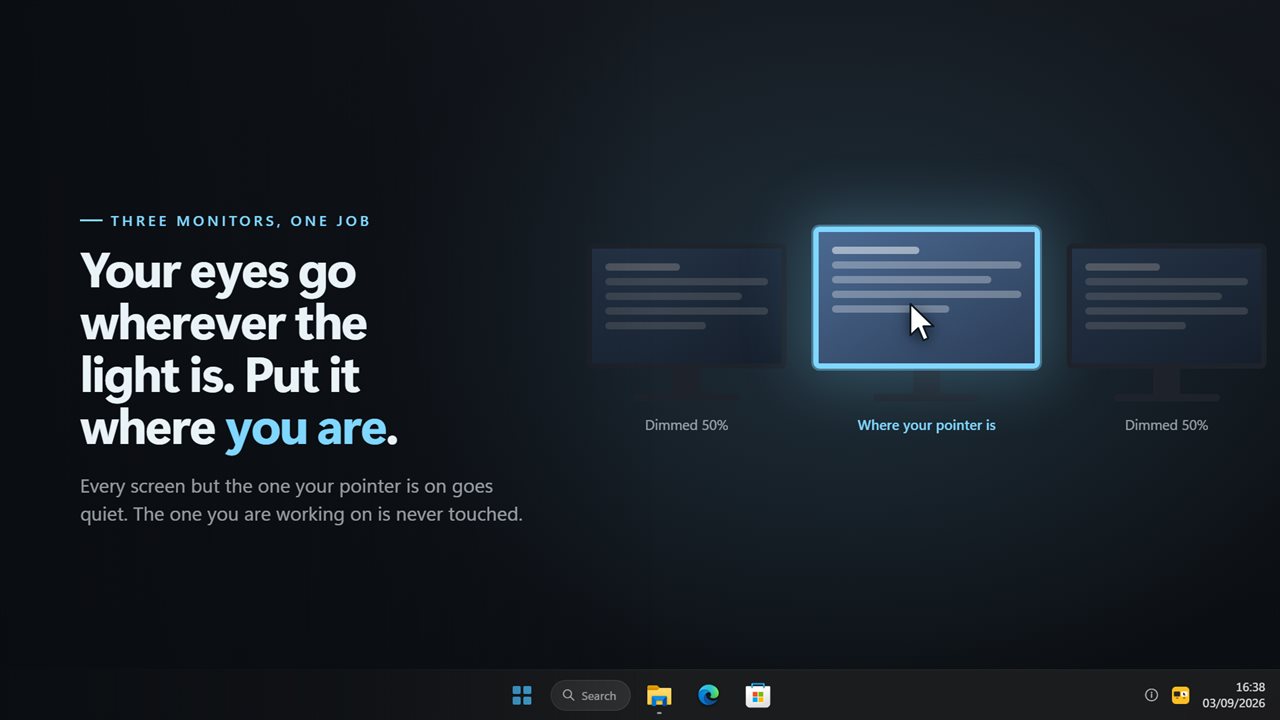
The screen you are on stays lit. The rest go quiet.
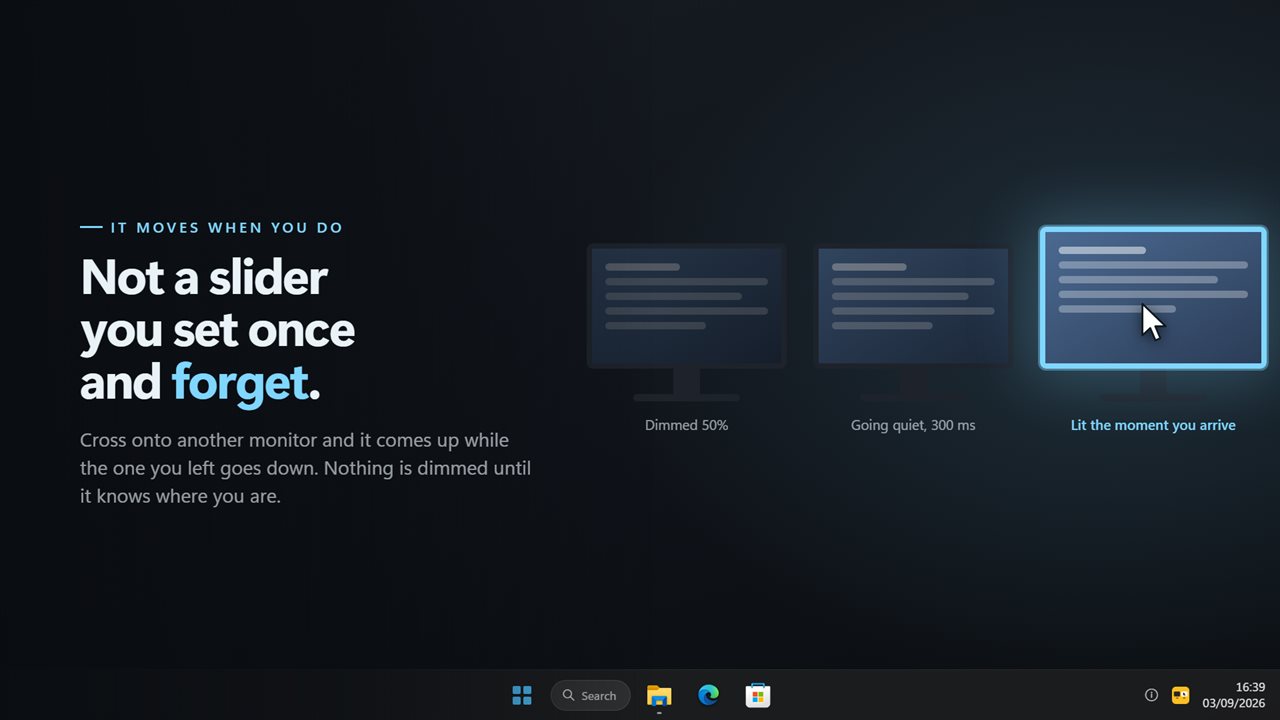
Move to another monitor and the light moves with you.
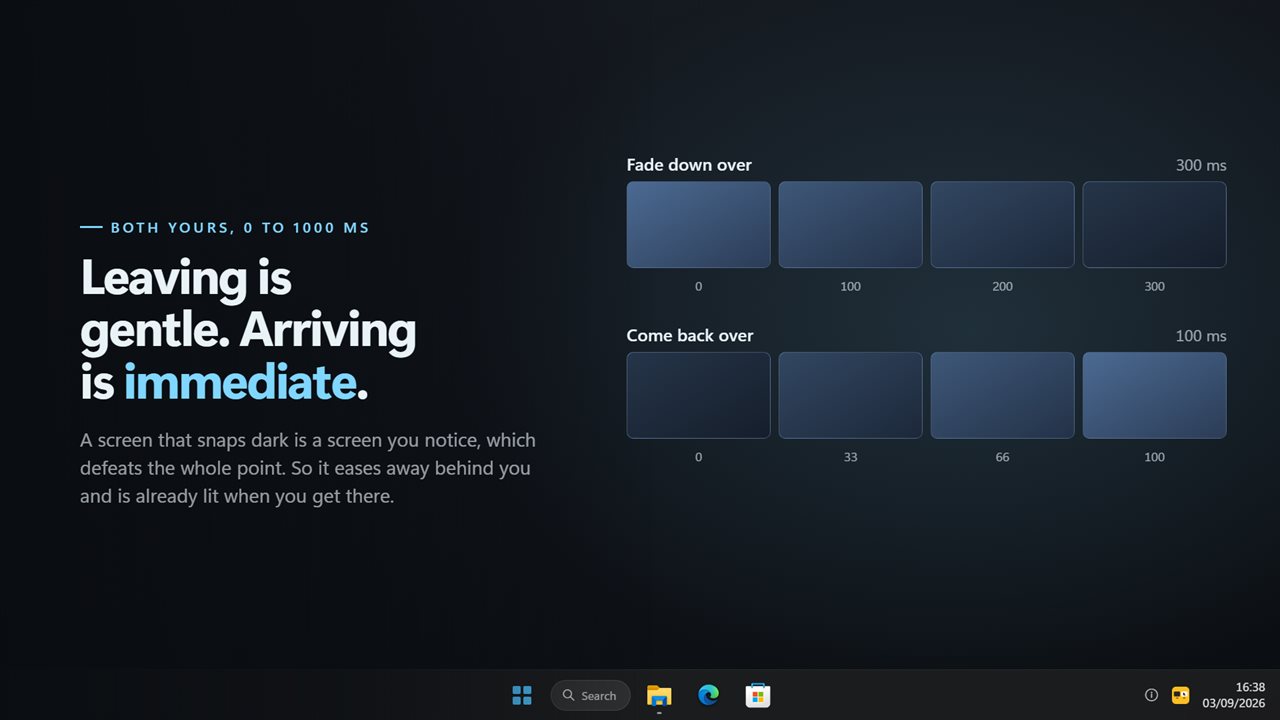
Fades down over up to a second, and comes back at once.
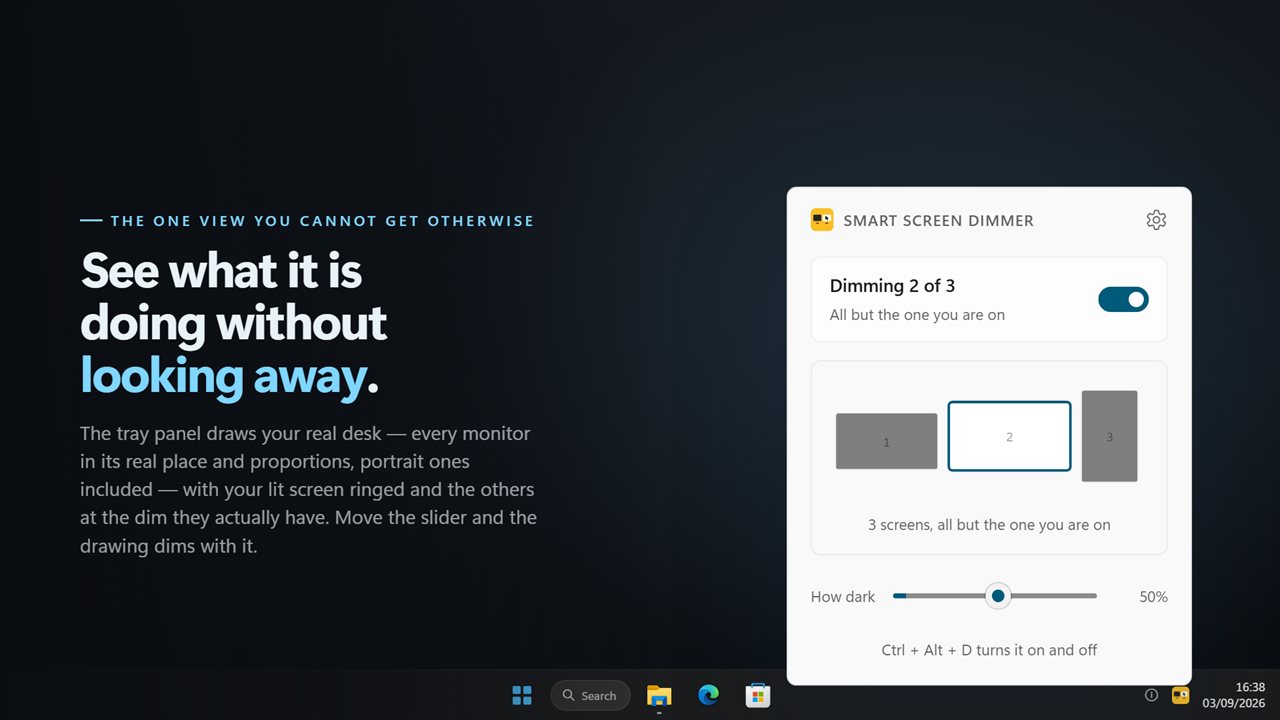
The tray panel draws your real desk, at the real dim.
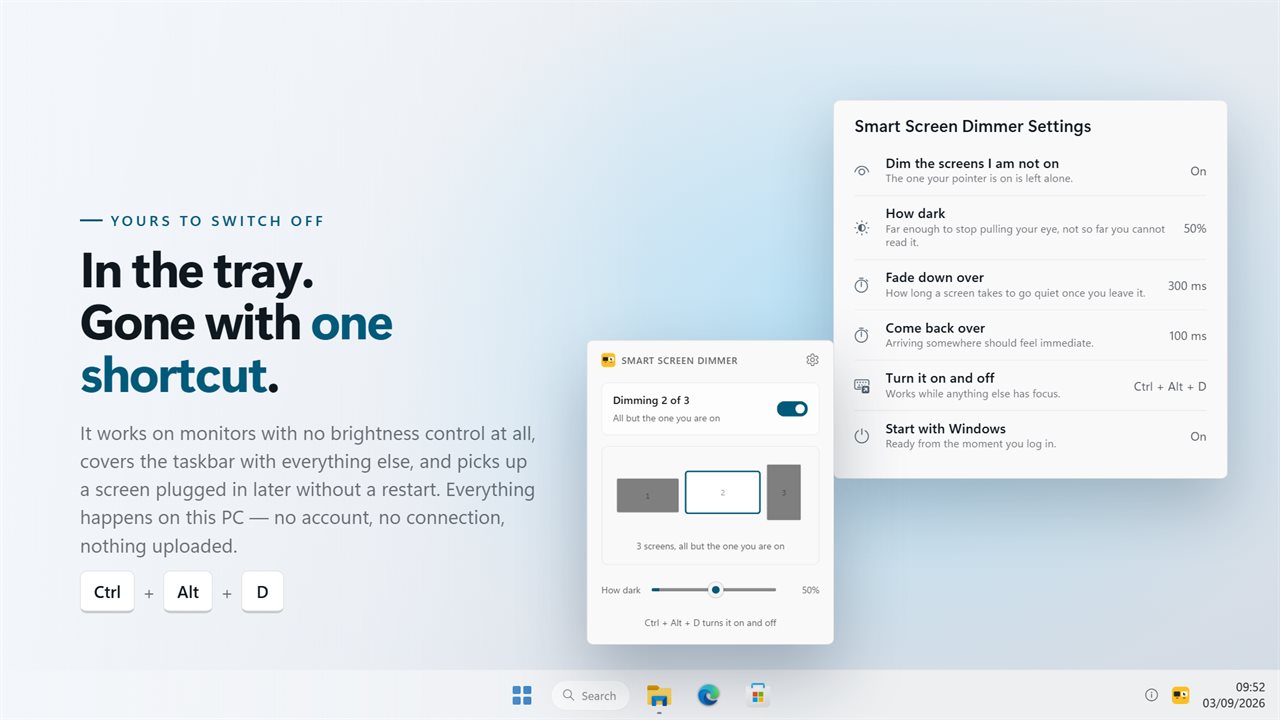
In the notification area. One shortcut turns it off.

The screen you are on stays lit. The rest go quiet.

190,000+downloads of EvlarSoft apps
Signed by EvlarSoftVerified US publisher
14-day money-backNo questions asked
Updates includedNo upgrade fees

A screen dimmer that follows your mouse across monitors

On a desk with two or three monitors, the brightest screen grabs your attention, and it is rarely the one you are working on. Smart Screen Dimmer is a screen dimmer built for that setup. It watches which monitor your pointer is on, leaves that one exactly as it is, and fades the others down.

Move the mouse onto another display and the roles swap: the new screen comes up and the one you left eases back down. Nothing has to be clicked or switched; the light simply stays with you.

Because the effect is a layer drawn over the picture, it does not care what brand or age your monitors are, or how they are connected. A TV used as a third screen dims just like a desk monitor.

How to dim a second monitor in Windows

Windows can switch a second display off with Win+P, but that moves your windows and throws away the extra space. Dimming keeps everything where it is and just turns the light down. To set it up:

  • Launch the app and click its icon in the notification area.
  • Switch on Dim the screens I am not on, or press Ctrl+Alt+D from any app.
  • Drag How dark until the idle screens stop pulling your eye but stay readable. It runs from 5% to 92%.
  • Open Settings to tune Fade down over and Come back over, each from 0 to 1000 ms.
  • Turn on Start with Windows so it is ready every time you sign in.

See the dim on a map of your desk

A dimmer like this works where your eyes are not, which makes it hard to judge. To help, the tray panel draws a miniature of your monitor layout in its real positions and proportions, so a portrait screen beside a wide one looks like exactly that. Each screen carries its number, the active one is outlined in the accent color, and the rest are shaded to match the real dim.

Move the How dark slider and the drawing darkens with it, so you can set the level without glancing around the room. If something prevents dimming, such as a single-screen setup, the panel explains why instead of silently doing nothing.

A screen darkener for evenings and dark rooms

Side monitors are the biggest light source on many desks after sunset. Dimming them cuts the glow that spills across the room and the contrast your eyes keep adjusting to every time they drift sideways, while the screen in front of you stays at its normal brightness.

The speed is yours to set. A quick Fade down over and a slower Come back over is the usual pairing: the screen you leave gets out of the way at once, and the one you arrive at rises gently instead of flashing at you. Plug in another monitor while it runs and the new screen joins in without a restart.

Features

  • Dims every monitor except the one the pointer is on
  • Follows the pointer from screen to screen
  • How dark adjustable from 5% to 92%
  • Separate fade-down and come-back times, 0 to 1000 ms in 50 ms steps
  • A tray panel that draws your real monitor layout and its dim
  • Works on any monitor, with no brightness commands sent
  • Covers the taskbar and lets every click through
  • New monitors are picked up while it runs
  • A global on/off shortcut, Ctrl+Alt+D by default

Who uses it

Writers and coders on wide desks

Keep reference material and chat open on side screens without them competing with the document in front of you.

Evening and dark-room work

Idle monitors stop lighting the room, while the one you are using stays at its normal brightness.

Streamers and traders

Dashboards stay visible on every display, but only the screen you are acting on is fully bright.

What's new in 2.0.7

  • New: the tray panel draws your actual desk, with the lit screen ringed and every other one at the dim it really has — and it previews the slider as you move it
  • New: the panel says why in plain words when something is stopping it working, instead of appearing to do nothing
  • New: how dark is a real slider, from 5% to 92%
  • The dim now covers the taskbar instead of stopping at it and leaving a lit strip
  • A monitor plugged in while the app is running joins in, without a restart
  • Your old fade times carry over unchanged
  • One keyboard shortcut for the whole app, working from anywhere
  • Redesigned settings and tray panel that match Windows 11 and follow the light and dark themes

Questions

Anything else? Ask us

Does Smart Screen Dimmer work with only one monitor?

No. It dims every screen except the one your pointer is on, so with a single screen there is nothing to dim. The tray panel says so instead of dimming the only screen you have.

Does it change my monitor's brightness setting?

No. It lays a see-through black layer over each screen and never sends the display any command, so it also works on monitors with no brightness control. The monitor's own brightness stays where you set it.

How dark can it make the other screens?

From 5% to 92%. The upper limit is fixed so a dimmed screen can still be read.

Can I change how fast screens dim and come back?

Yes. The time a screen takes to dim after you leave it and the time it takes to come back are set separately, each from 0 to 1000 ms in 50 ms steps. By default a screen dims over 100 ms and comes back over 300 ms.

Does the dim cover the taskbar, and can I still click on a dimmed screen?

Yes to both. The layer covers the whole monitor, taskbar included, and clicks pass straight through it to the window underneath.

Is there a hotkey to turn the dimming on and off?

Yes. Ctrl+Alt+D switches it on and off while any app has focus, and you can change the shortcut in Settings. Dimming is off the first time the app starts.

Does it work with a laptop and one external monitor?

Yes. A laptop screen plus one monitor is two displays, which is all it needs. Work on the monitor and the laptop panel dims; move the pointer down to the laptop and the monitor dims instead.

Is it better to dim a second monitor or turn it off?

Dim it if you still glance at what is on it, such as chat, a reference document or a dashboard. Everything stays readable and clickable, and the screen lights back up when you move the pointer over. Turn it off if you will not look at it for hours.

Which versions of Windows does it run on?

Windows 10 (version 1809 or later) and Windows 11.

Is it a subscription?

No. Smart Screen Dimmer is a one-time purchase of $1.99, and updates are included.

How do I get it?

Buy it on this page and your license key arrives by email. If the button says Notify me, Smart Screen Dimmer is not on sale here yet; leave your email and we will tell you when it is.

More from EvlarSoft