EEvlarSoft

My Hourly Day Planner

A digital hourly planner for your PC. Write plans into the hours of the day, let it fit your to-do list around your meetings, and get a reminder when each slot comes up.

Buy for $1.99
One payment. No subscription.
14-day money-back guarantee.
3.0
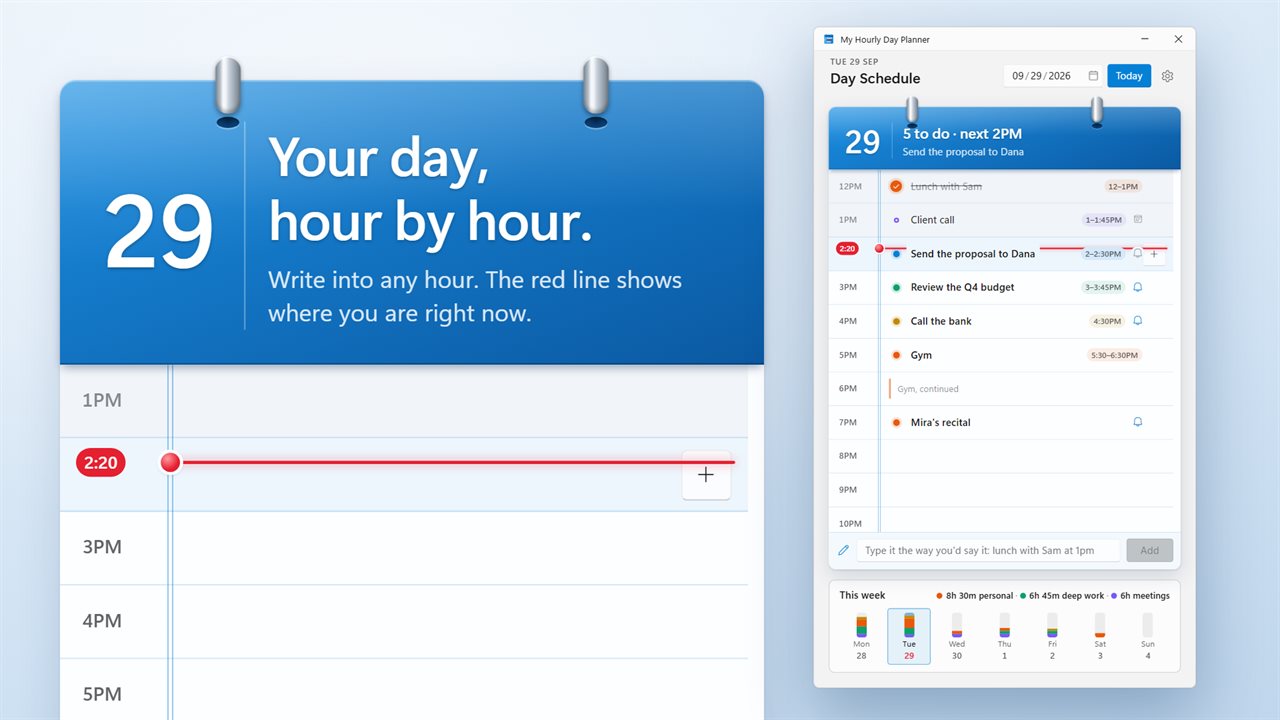
Plan your day hour by hour. The red line shows where you are now.
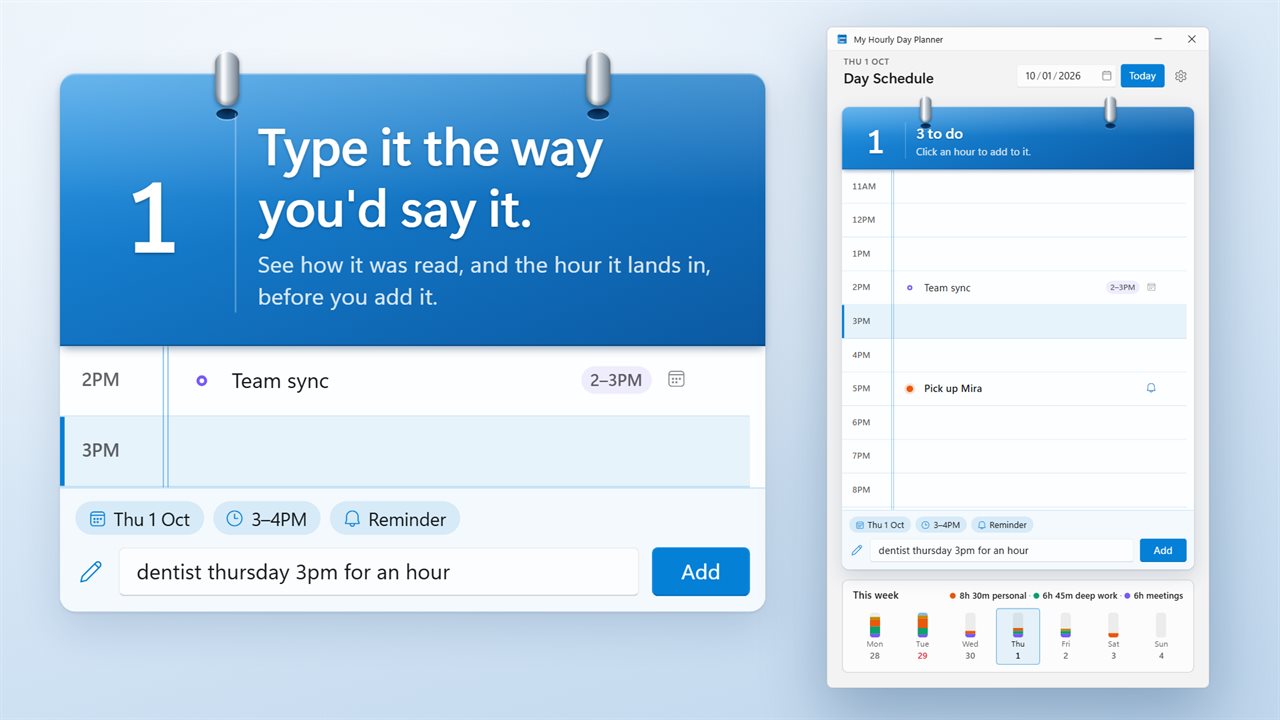
Type it the way you'd say it, and see how it was read before it lands.
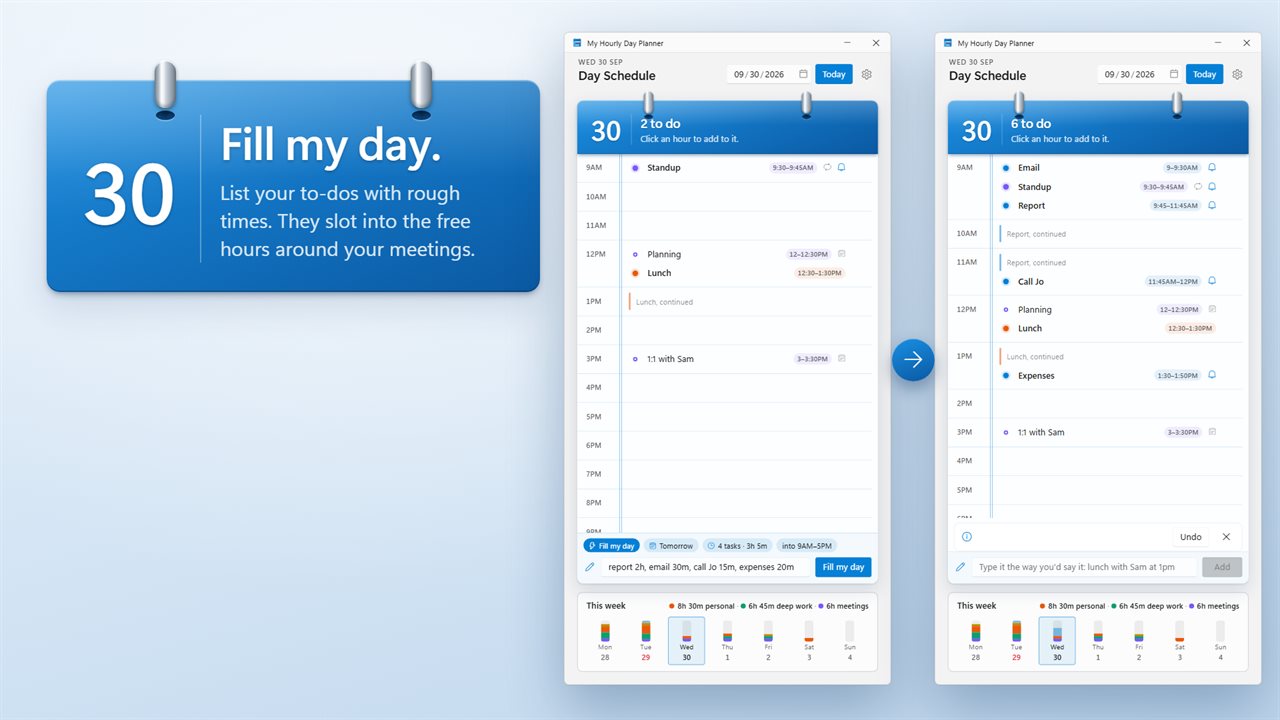
Fill my day fits your to-do list into the free hours.
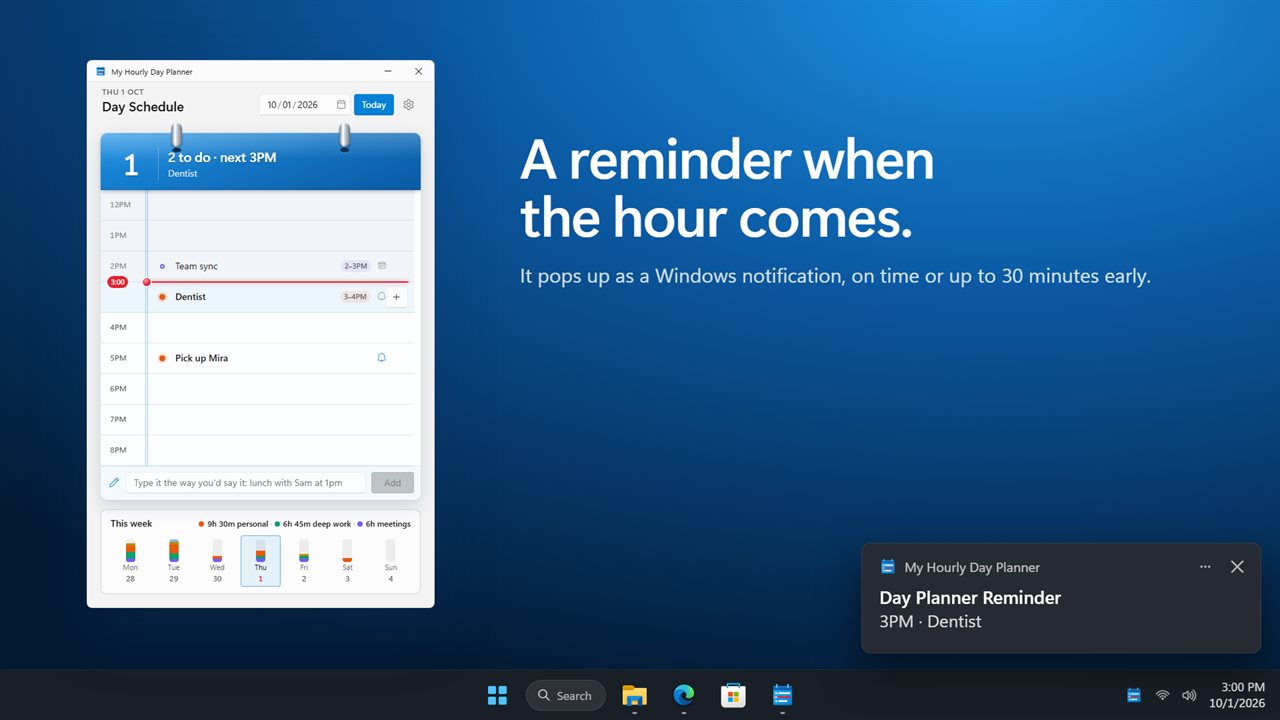
Reminders arrive as Windows notifications.
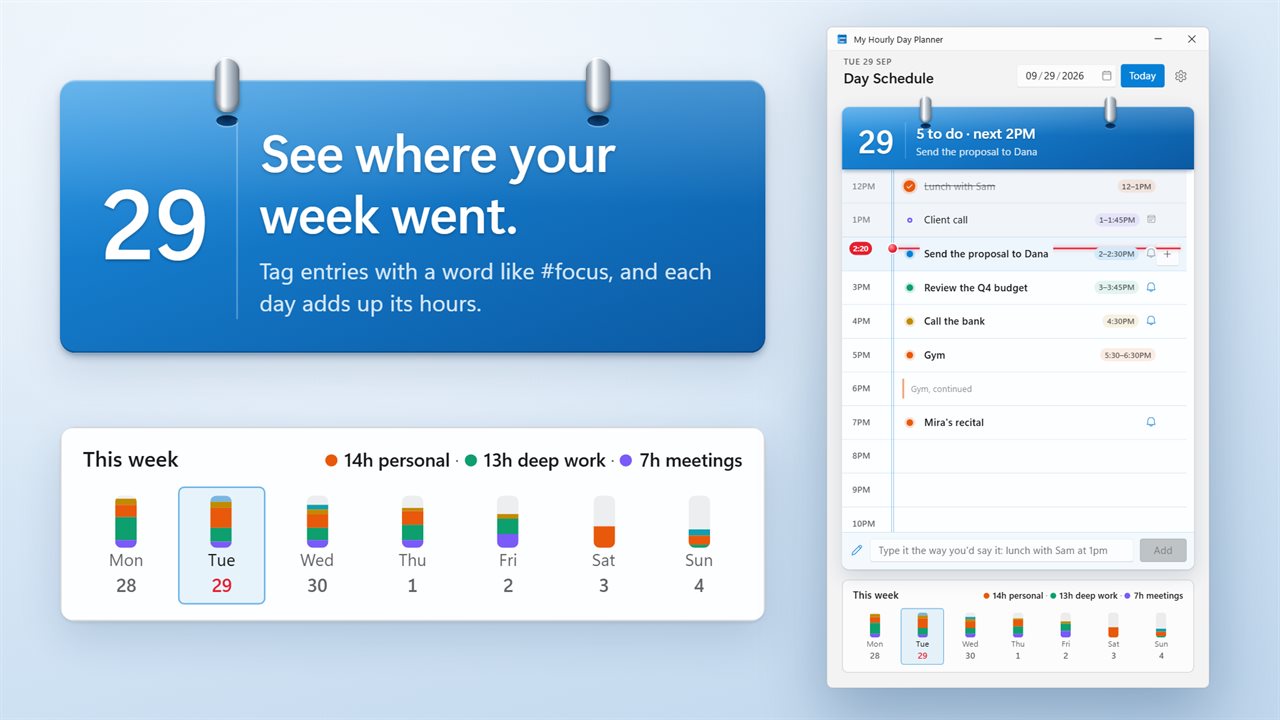
Tag entries and see where your week went.
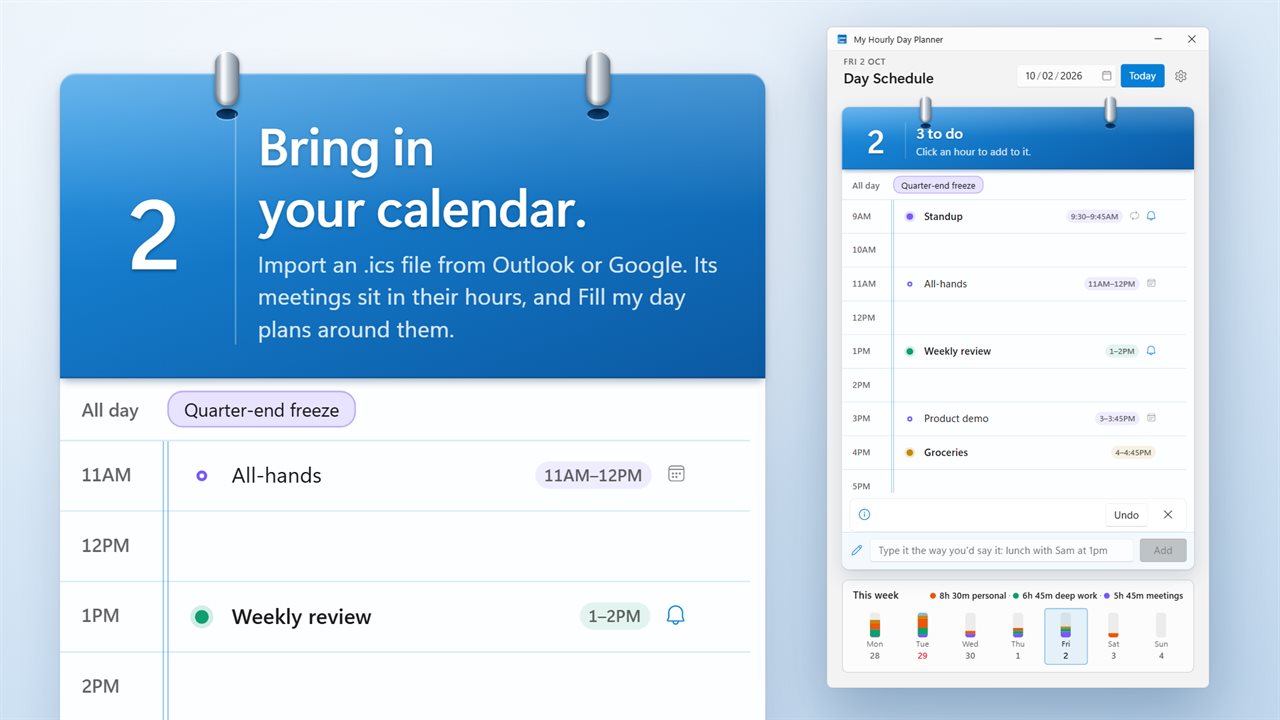
Import your Outlook or Google calendar from an .ics file.
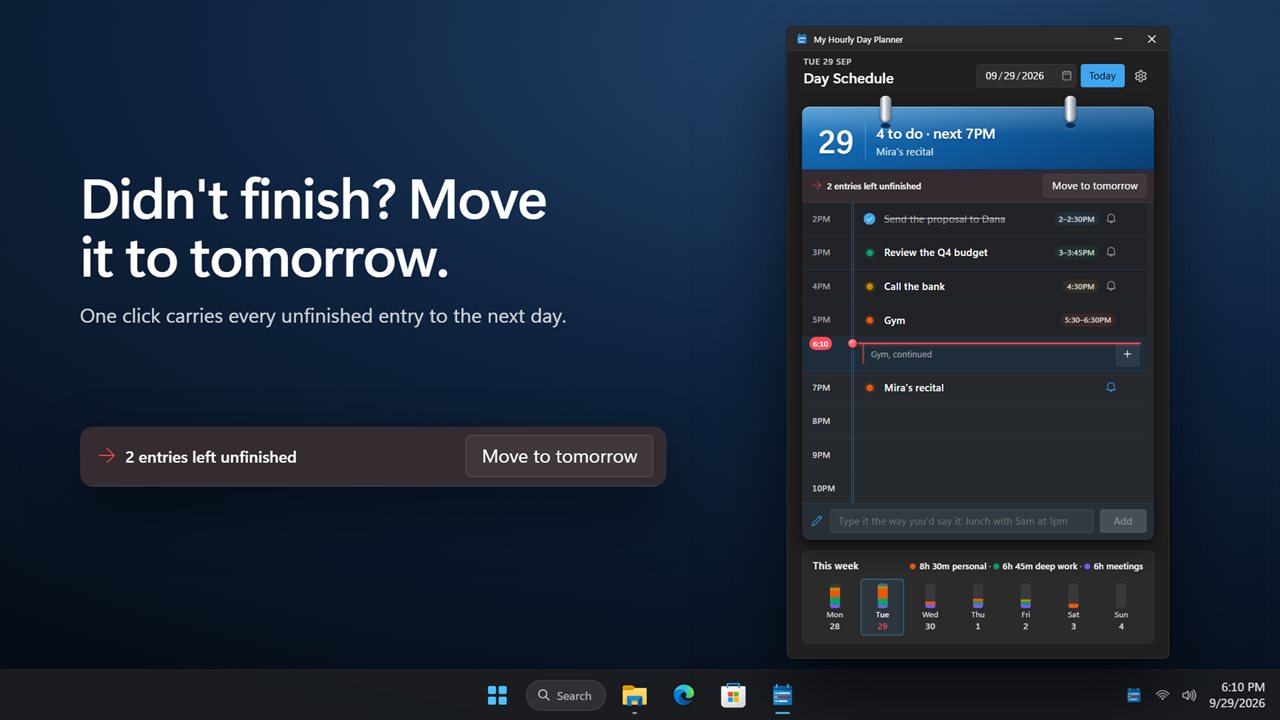
Move everything unfinished to tomorrow in one click.

Plan your day hour by hour. The red line shows where you are now.

190,000+downloads of EvlarSoft apps
Signed by EvlarSoftVerified US publisher
14-day money-backNo questions asked
Updates includedNo upgrade fees

An hourly planner that lives on your desktop

A paper hourly planner works because it forces a question a to-do list never asks: when, exactly, will you do this? My Hourly Day Planner keeps that format, a single page with one line per hour from midnight to 11 PM, and adds what paper cannot do: it reminds you, it reschedules what you did not finish, and it shows where your week actually went.

The page opens at the current hour with a line marking the time, so a glance tells you what is now and what is next. Click any hour and write an entry, then give it a length, a tag and a reminder. Drag it to another hour if plans move, tick it off when it is done, and press Ctrl+Z to undo anything.

The window is a narrow column that sits comfortably beside your other work, and the app keeps running in the notification area, so reminders still arrive once you have closed it.

Add plans by typing the way you talk

Above the page is a box marked Type it the way you'd say it. Write "review notes friday 2pm" or "call mom in 2 hours", and before you press Add it shows the day, the time and the hour where the entry will go, so a misread date never lands silently.

Repeats are written the same way: "standup every weekday 9:30" or "every Mon, Wed and Fri". A repeating entry can skip a single day with Skip this day, or end with Stop repeating. Put a #word in the text to tag it.

Time blocking without the dragging: Fill my day

Time blocking means giving every task its own slot on the calendar instead of leaving it on an open list. It is effective and tedious, because you have to find the gaps yourself. Fill my day does that part.

Type your tasks with rough lengths, such as "slides 2h, inbox 20m, invoices 45m", and press Fill my day. Each one is slotted into free time between your Work hours start and Work hours end settings (9 to 5 unless you change them), around anything already booked. When filling today it starts from the current time. A task too long for any single gap is broken into pieces no shorter than half an hour, and whatever still does not fit waits in the box.

Daily schedule planner with desktop reminders

Reminders show up as Windows notifications. Under Remind me you choose At the entry's time, or 5, 10, 15 or 30 minutes before, and New entries remind me decides whether fresh entries get one by default. Turn on Start with Windows and the planner is ready at login without opening a window.

Behind on the day? When unfinished entries remain, one button carries them all to the next day, instead of copying them across by hand.
Planner features

  • One slot per hour, all 24 hours, with 12-hour (1PM) or 24-hour (13:00) labels
  • Entries with a length, tag, reminder and done tick
  • Natural-language quick add with a preview before it is saved
  • Repeating entries on chosen weekdays, with per-day skips
  • Automatic time blocking of a task list inside your work hours
  • Tags for meetings, deep work, personal and errands, plus your own
  • A week strip of planned hours per day, split by tag color, plus the three biggest tag totals
  • Import a calendar (.ics) so your events appear in their hours
  • Plans made in the previous release carried over

Who plans this way

Remote and hybrid workers

Import the meetings, then let Fill my day put focus work into the gaps between them.

Students

Block out lectures, revision and breaks hour by hour, and get a nudge before each study session starts.

Freelancers

Tag client work and check the week strip on Friday to see how many hours each kind of job really took.

What's new in 2.0.4

  • New: type entries in plain words, and see how they were read before they are added
  • New: Fill my day fits your to-do list into the free hours
  • New: repeating entries, tags, and a week strip that shows where your hours went
  • New: import an .ics calendar from Outlook or Google
  • New: move unfinished entries to tomorrow, drag entries between hours, and undo
  • Reminders can arrive up to 30 minutes early, and old missed reminders no longer pile up at startup
  • Your existing plans are all still there

Questions

Anything else? Ask us

Does it sync with Outlook or Google Calendar?

No. It imports an .ics file you export from Outlook or Google, bringing in events from 30 days ago to a year ahead, repeating ones included. Importing a file with the same name again replaces its earlier events.

Do imported calendar events give me reminders?

No. Reminders come from the entries you write in the planner, including repeating ones. Imported events sit in their hours, and Fill my day plans around them.

Will I get reminders with the window closed?

Yes, as long as the planner is running in the notification area, and it can start with Windows. A reminder missed by more than an hour, for example while the PC was off, is marked as done without popping up.

How early can a reminder come?

At the entry's time, or 5, 10, 15 or 30 minutes before. That lead time is one setting for all reminders, and each entry's reminder can be turned on or off.

What can I type into quick add?

Things like "lunch with Sam at 1pm", "gym 6-7am tomorrow", "call mom in 2 hours" or "standup every weekday 9:30". A #word sets the tag, and "quietly" or "no reminder" adds it without a reminder. A list such as "report 2h, emails 30m" goes to Fill my day.

How does Fill my day decide where tasks go?

It places them in the free time inside your work hours, around what is already on the page, starting from now if you are filling today. A task that fits nowhere whole is split into parts of at least 30 minutes, and anything that still does not fit stays in the box.

What is an hourly planner?

An hourly planner divides the day into one-hour slots so you assign each task a specific time instead of keeping an open list. This app shows all 24 hours on one page and opens at the current hour.

Can I see my whole week?

The week strip shows how many hours are planned on each day of the week, colored by tag, with your three largest tag totals. Individual entries are edited on the day page.

Can I use 24-hour time?

Yes. Under Hour labels in Settings choose 24-hour (13:00) instead of 12-hour (1PM).

Which versions of Windows does it run on?

Windows 10 (version 1809 or later) and Windows 11.

Is it a subscription?

No. My Hourly Day Planner is a one-time purchase of $1.99, and updates are included.

How do I get it?

Buy it on this page and your license key arrives by email. If the button says Notify me, My Hourly Day Planner is not on sale here yet; leave your email and we will tell you when it is.