EEvlarSoft

Stopwatch With Notes

A stopwatch with splits that you can label: save the time whenever something happens, type what it was, and keep the clock running.

Buy for $2.49
One payment. No subscription.
14-day money-back guarantee.
3.3
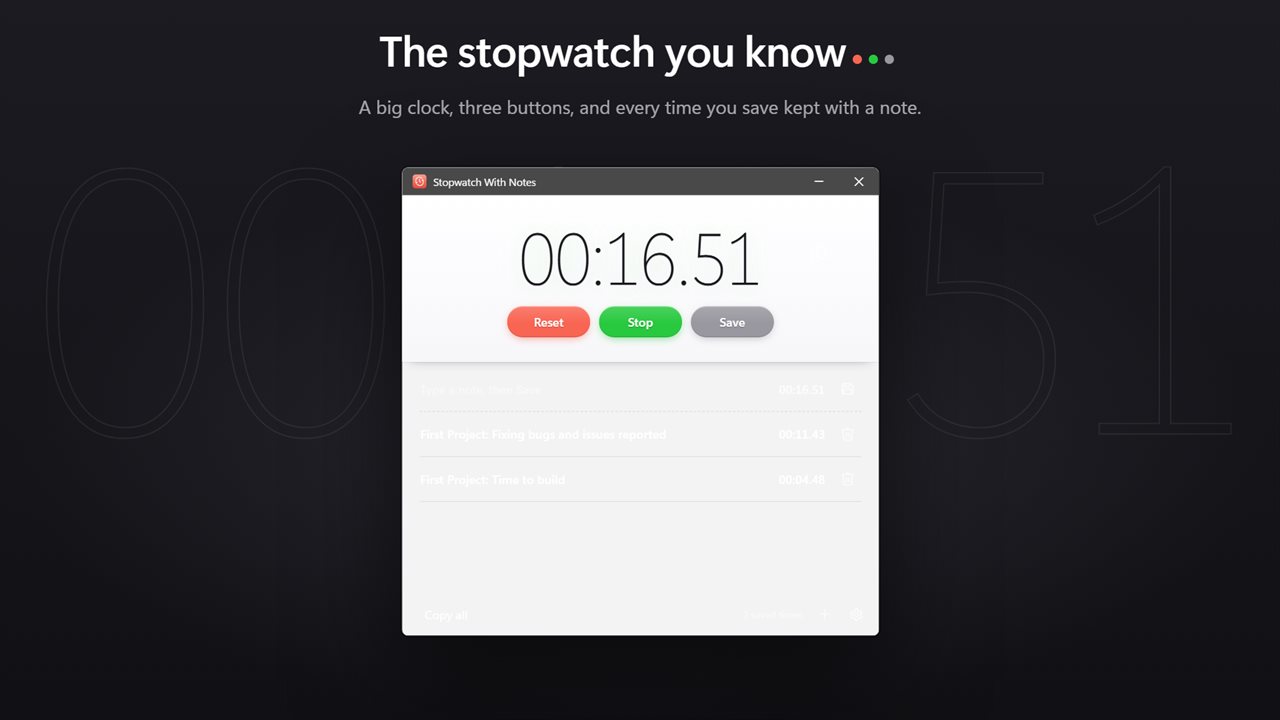
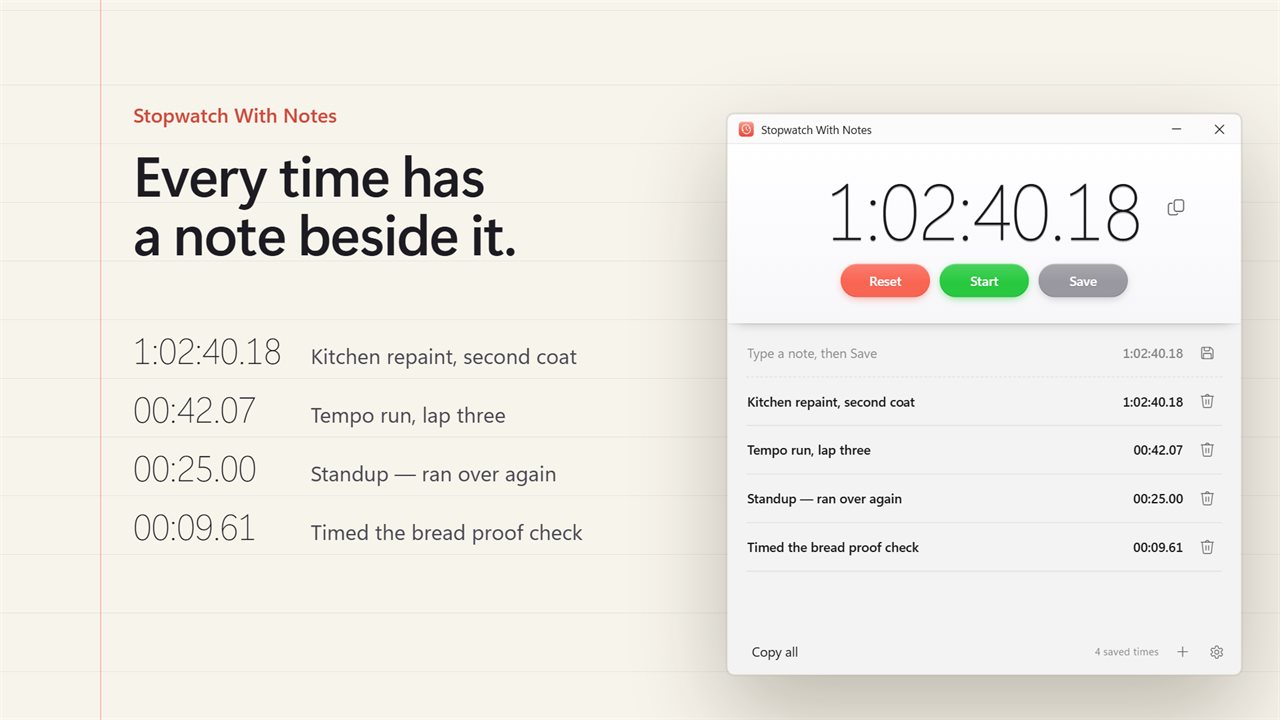
The stopwatch you know: a big clock, Reset, Start and Save.
Every saved time keeps a note you can edit at any time.
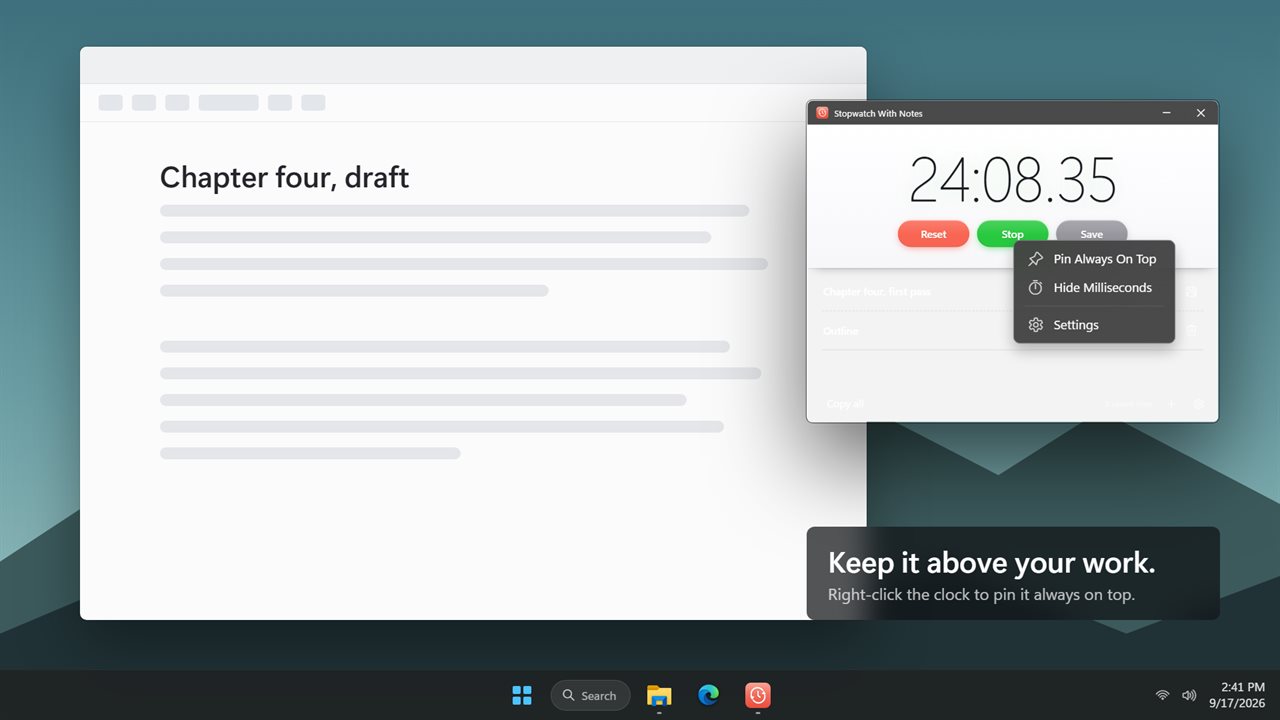
Pin it always on top of your work from the right-click menu.
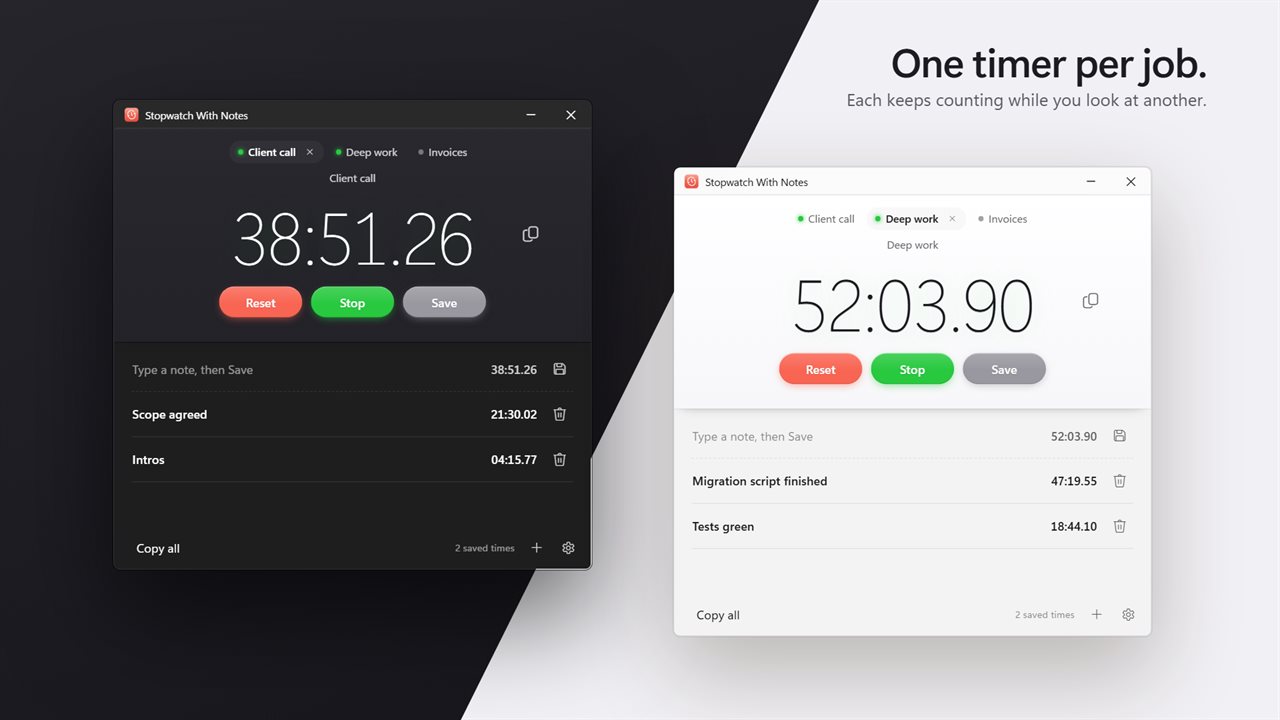
More than one timer at once, in dark or light.
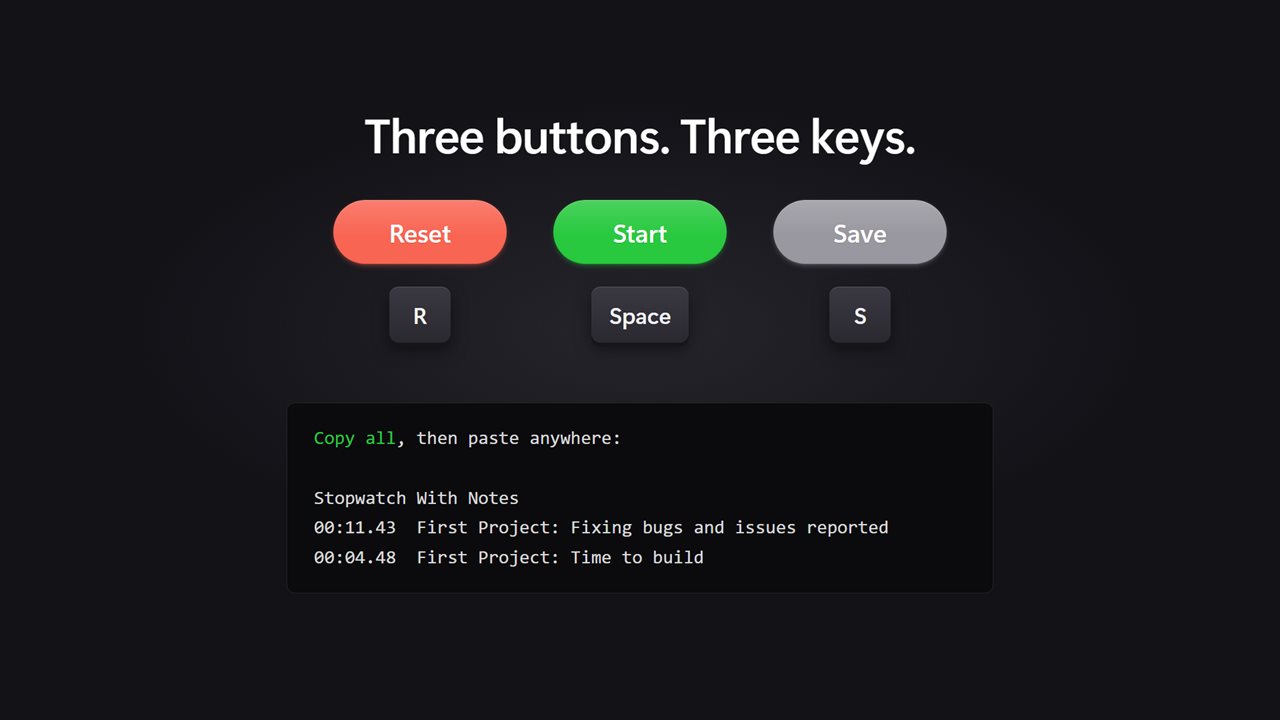
Space, S and R from the keyboard, and copy every time as text.

The stopwatch you know: a big clock, Reset, Start and Save.

190,000+downloads of EvlarSoft apps
Signed by EvlarSoftVerified US publisher
14-day money-backNo questions asked
Updates includedNo upgrade fees

A stopwatch with splits that remembers what each split was

An ordinary stopwatch with splits gives you a column of numbers. Lap 4: 12:31.07. An hour later, nobody remembers whether lap 4 was the speaker changing, the batch going into the oven, or the moment the bug reproduced. Stopwatch With Notes fixes that by giving every saved time a line of text beside it.

The layout is deliberately plain: a big clock, three buttons beneath it labeled Reset, Start and Save, and the list of saved times underneath. Press Save as often as you like. The clock does not stop, so you can mark one event after another during a single run.

Type in the note box before you press Save and the text goes in with the time. Forget, and the time is titled with the date and time instead, so no entry is ever blank. Click any note afterwards to rewrite it.

How to log timestamps with a note while the clock runs

Logging timestamps usually means a stopwatch in one window and a notepad in another. Here both sit in one place, and the clock never pauses while you write.

  • Press Start, or Space.
  • When something worth marking happens, type a few words into the box that reads Type a note, then Save.
  • Press Enter, or click Save. With no note to add, press S instead. The time and its note drop into the list and the box clears for the next one.
  • At the end, press Copy all to put every saved time for this timer on the clipboard, one line each with its note, ready to paste into a timesheet, an email or a document.

A split timer that reads properly over long runs

Times are shown in hours, minutes, seconds and hundredths, so a long session reads 2:00:14.33 rather than an awkward 120:14.33. If hundredths are more detail than you need, right-click the clock and choose Hide Milliseconds, or switch off Show milliseconds in Settings; the change applies to the clock and every saved time.

Settings also lets you choose where the Newest saved time appears, At the top or At the bottom of the list, depending on whether you read it like a feed or a log.

Separate task timers that run side by side

Press Add a timer to start another stopwatch in the same window. Give each one a name with Name this timer, such as Client A or Rehearsal, and it keeps its own saved times and its own count while you switch to another.

Mistakes are forgiving. Resetting the clock or deleting a saved time shows an Undo option for a few seconds. Right-click the clock and choose Pin Always On Top to keep it above whatever you are timing, and the window reopens at the size you left it.

What you get

  • Save marks a split without stopping the clock
  • A note on every saved time, typed before or edited after
  • Untitled saves labeled automatically with the date and time
  • Hours, minutes, seconds and hundredths, with hundredths optional
  • Copy the running time, or Copy all saved times as text
  • Keyboard controlSpace, S, R and Enter
  • Several named timers counting independently
  • Undo after a reset or a deleted time
  • Pin Always On Top from the clock's right-click menu
  • Optional EvlarSoft ONE sign-in to back up times and notes

Where labeled splits are useful

Meetings, interviews and recordings

Note when each topic or speaker starts, then paste the list as rough chapter markers or minutes.

Work on the clock

Save a time at each switch of task with what you were doing, and copy the log into your timesheet at the end of the day.

Testing and experiments

Mark each observation as it happens without pausing the run, then tidy the notes once it is over.

What's new in 2.0.3

  • Fixed: notes. Type one before you save, and edit any note afterwards
  • Fixed: times over an hour. They read 2:00:14.33 rather than 120:14.33
  • Fixed: Hide Milliseconds is now remembered
  • New: more than one timer, each counting on its own
  • New: a settings page with always on top, start with Windows, light and dark
  • New: the window resizes, and opens again the size you left it
  • New: Undo for a deleted time and for a reset
  • New: copy all saved times as text, and keyboard keys for Start, Save and Reset
  • Your saved times are carried across on the first run

Questions

Anything else? Ask us

Does pressing Save stop the stopwatch?

No. Save adds the current time to the list and the clock keeps running, so you can mark one moment after another. A note typed beforehand goes in with the time; with no note, the time is titled with the date and time.

Does the stopwatch keep counting after I close the app?

No. A timer that was running comes back stopped at the time it had reached when the app closed, and you can press Start to carry on from there.

Can I run several timers at once?

Yes. Add a timer for each job; each keeps its own name and saved times and keeps counting while you look at another one.

What are the keyboard shortcuts?

Space starts and stops, S saves the time and R resets. Enter saves the note you are typing. They do not apply while you are typing in a note or a timer name.

How do I get my saved times into a spreadsheet or timesheet?

Use the copy button to copy every saved time for the current timer as text, one line per time with its note, then paste it. There is no file export.

Can it count down or sound an alarm?

No. It only counts up and never alerts.

Can I change a note after saving the time?

Yes. Click the note on any saved time in the list and edit it. The time itself stays as it was recorded.

Can I undo a reset by mistake?

Yes. After Reset, a bar appears with an Undo button for a few seconds. The same applies when you delete a saved time.

Can I name each timer?

Yes. Each timer has its own name field, and a new one starts as Timer 1, Timer 2 and so on until you rename it.

Which versions of Windows does it run on?

Windows 10 (version 1809 or later) and Windows 11.

Is it a subscription?

No. Stopwatch With Notes is a one-time purchase of $2.49, and updates are included.

How do I get it?

Buy it on this page and your license key arrives by email. If the button says Notify me, Stopwatch With Notes is not on sale here yet; leave your email and we will tell you when it is.