Why a countdown, and not a calendar?
A calendar answers when. It does not answer how long, and that is usually the question: how many days until the trip, how many weeks until the deadline, how long until the kids are home.
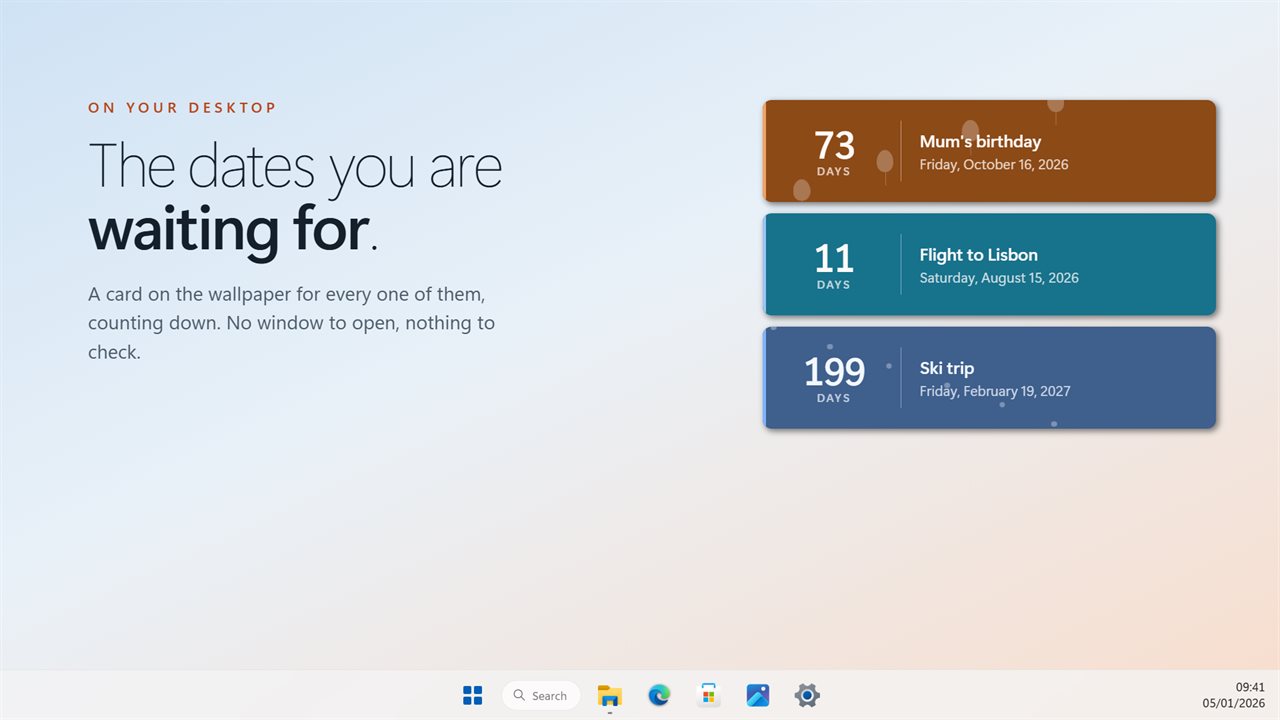
A countdown on the desktop answers it every time you see your wallpaper. Nothing to open, no app to check. As the date gets near, the number switches from days to hours to minutes, so the last stretch is easy to read at a glance.
Turn on the highlight for a date and its card pulses in the final fifteen minutes, so a start time does not slip past while you are busy in another window.
How to add a countdown widget to your Windows desktop
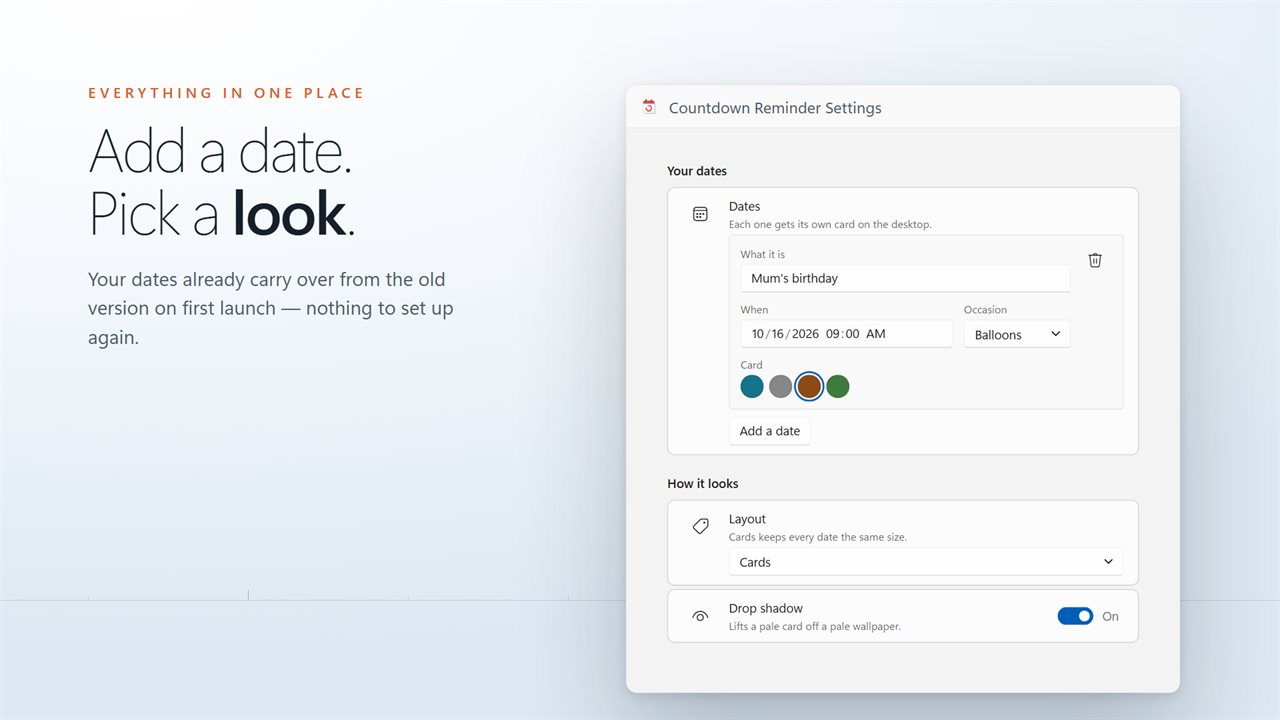
Countdown Reminder puts one card on your wallpaper for each date you are counting toward. Setting up a card takes a minute.
- Add a date and give it a name.
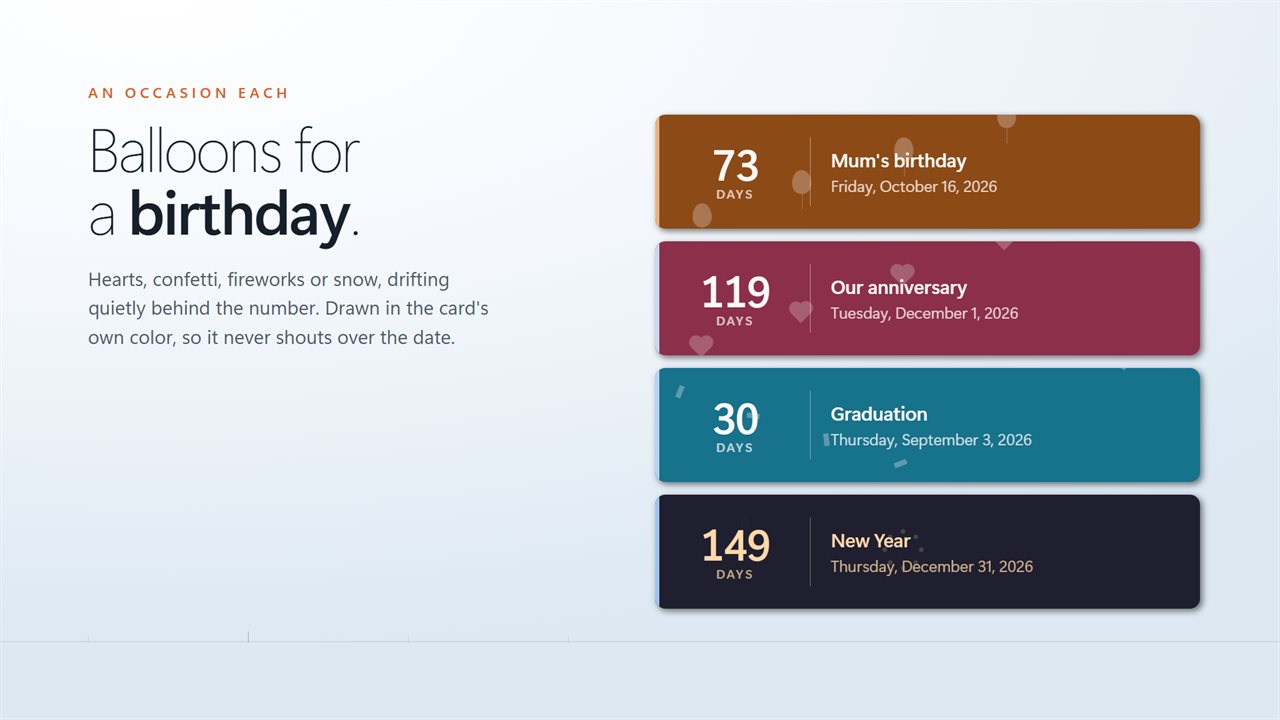
- Pick an occasion style, such as balloons, hearts, confetti, fireworks or snow, or keep a plain card.
- Give the date its own two colors, or put the whole set on one palette.
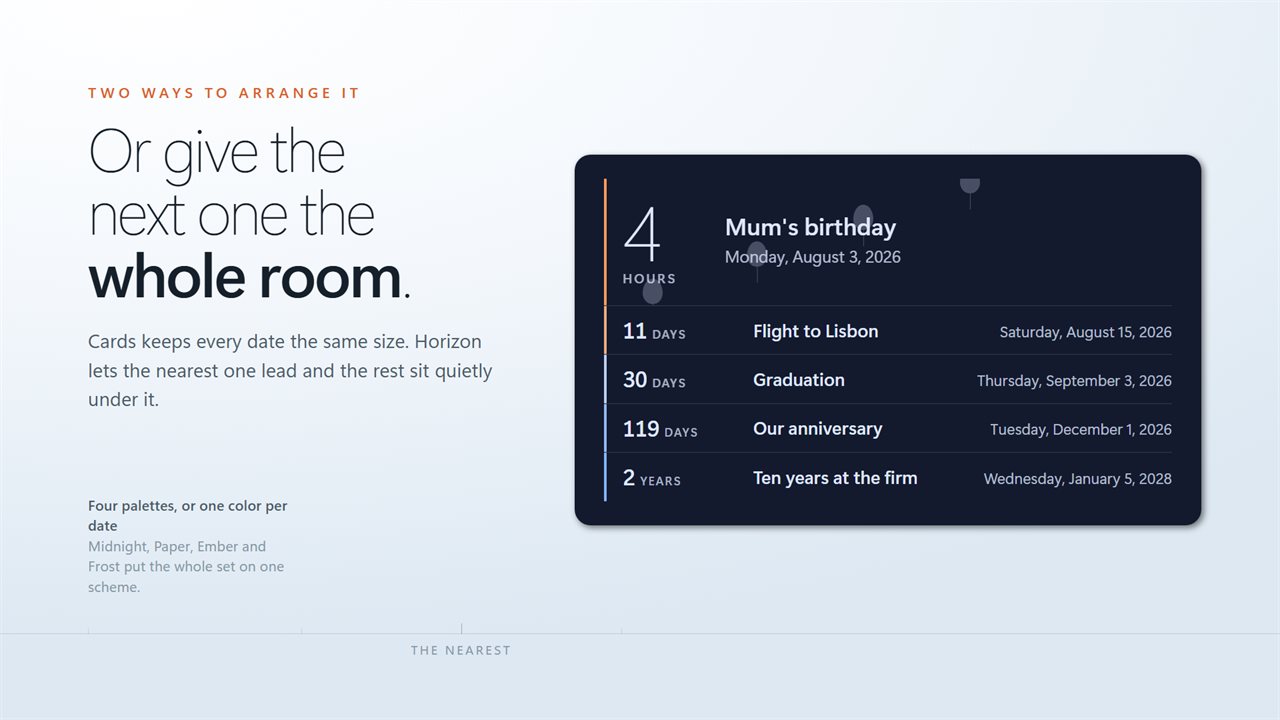
- Choose Cards or Horizon for how the dates sit on the desktop.
- Decide what happens once the date passes: count up, hold at zero, or leave the desktop.
A desktop countdown timer that changes units as the date gets closer
A countdown in days alone gets awkward at both ends. Far off, you read a four-figure number of days, and on the day itself you get a zero that tells you nothing about the next few hours.
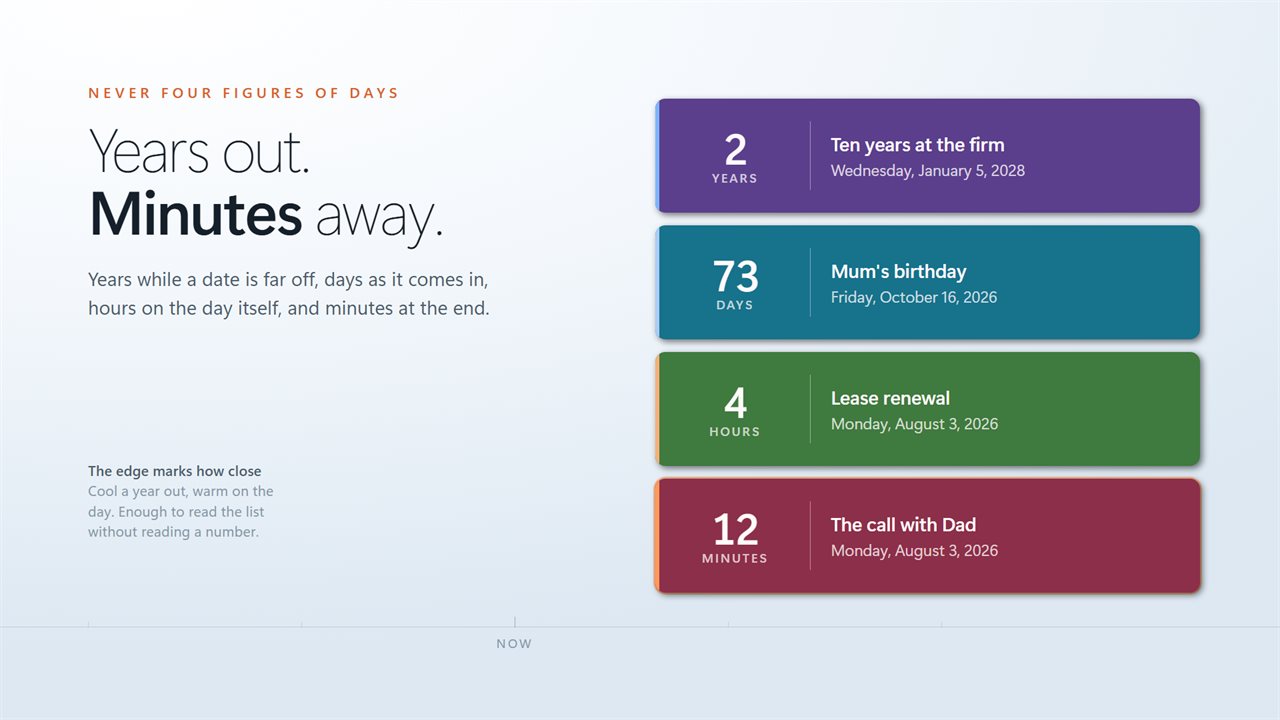
Countdown Reminder switches on its own. It reads in years while a date is far off, days as it approaches, hours on the day itself, minutes in the final hour and seconds in the last minute.
Several countdowns at once: Cards or Horizon
Cards gives every date the same size. That suits a set of dates that all matter equally, like a run of birthdays or several deadlines in the same month.
Horizon gives the nearest date the room and lists the rest under it as quiet lines. Either way, each card carries a mark showing how close its date is, so you can tell at a glance which one comes first.
What the countdown does when the date arrives
Turn on the highlight for a date and its card pulses in the final fifteen minutes. That helps when the date is a start time and you are busy in another window.
Once the date passes, the card does not just vanish unless you want it to. It can count up so you can see how long it has been, hold at zero, or take itself off the desktop.