A simple countdown timer that stays out of your way
Search for a simple countdown timer and most of what comes back is a browser tab. That works until the tab gets buried under twenty others, the laptop sleeps, or the alarm plays from a page you closed an hour ago. A desktop timer lives in its own small window, so it is always one glance away.
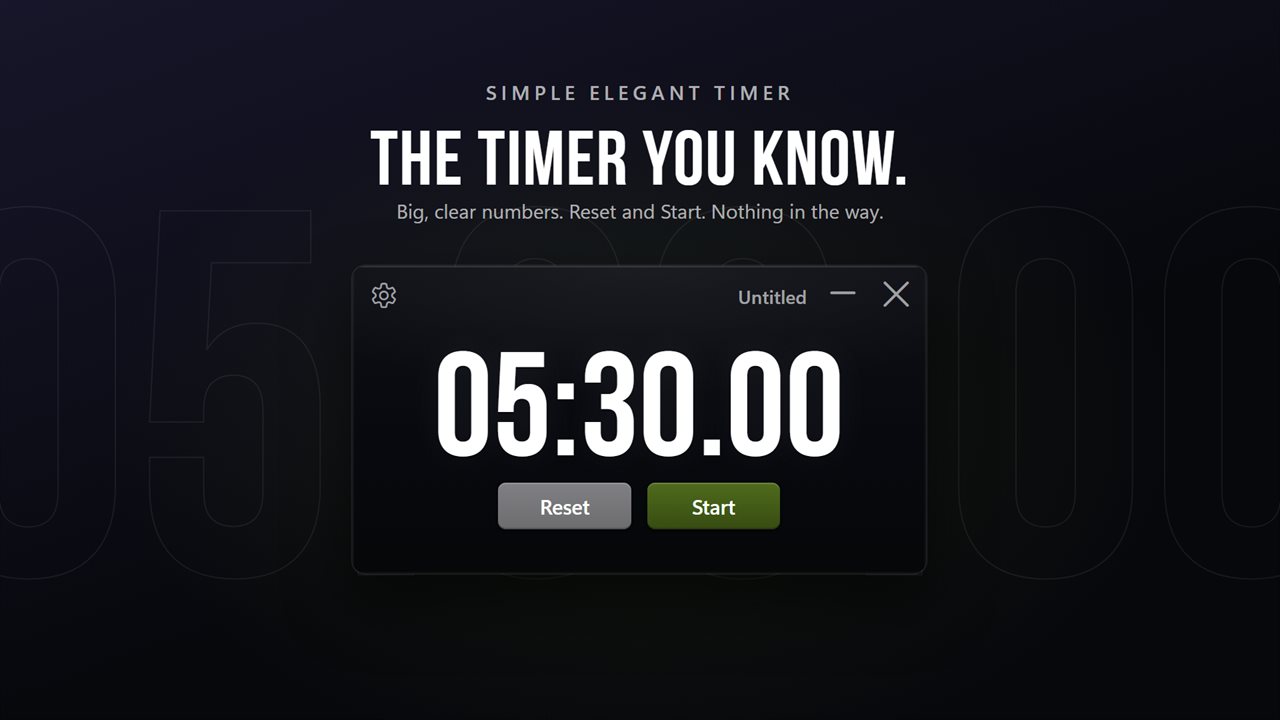
Simple Elegant Timer is deliberately small: a dark plate showing the remaining time in large digits, with Reset and Start below. There is no list of presets to scroll and no dashboard. Set a time once and it is remembered for the next launch, so a recurring ten-minute break or a 45-minute study block is one click.
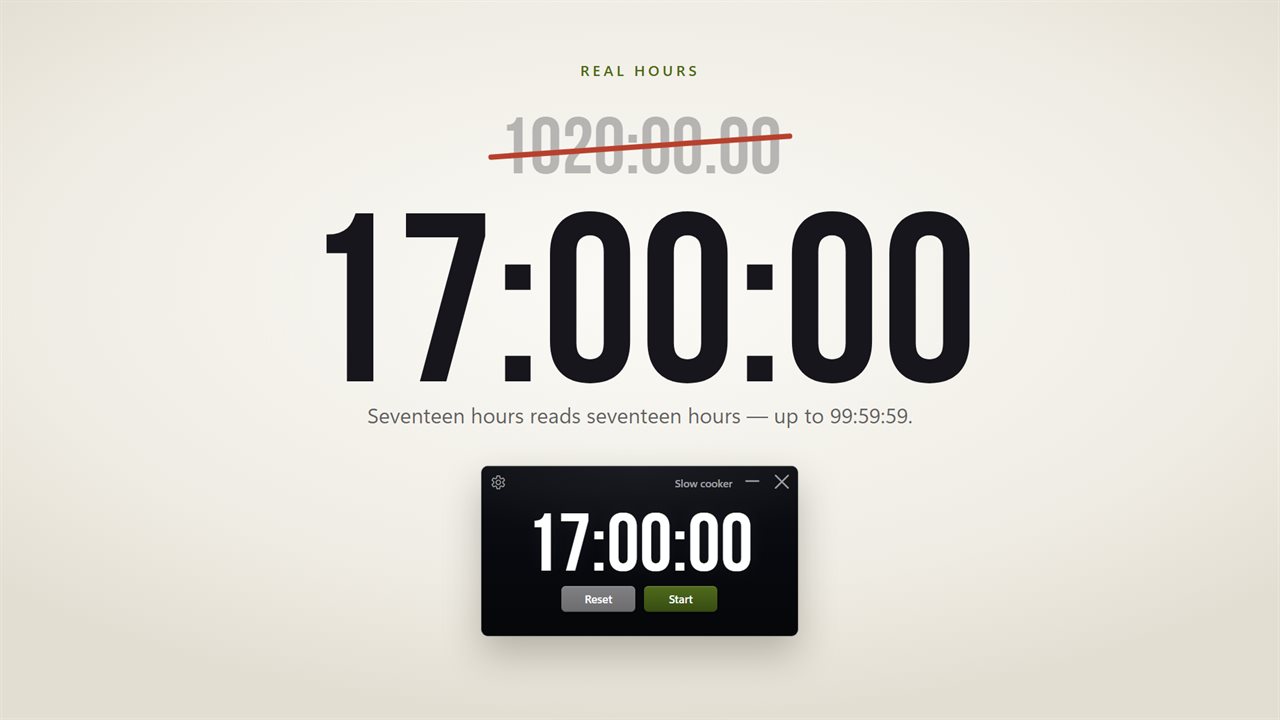
Durations run from a single second to 99:59:59, and anything past an hour is shown as hours, minutes and seconds, so a long bake or a rendering job reads naturally.
How to set a countdown timer on Windows
For small corrections, scroll the mouse wheel over the digits while the timer is stopped; each notch adds or removes one minute.
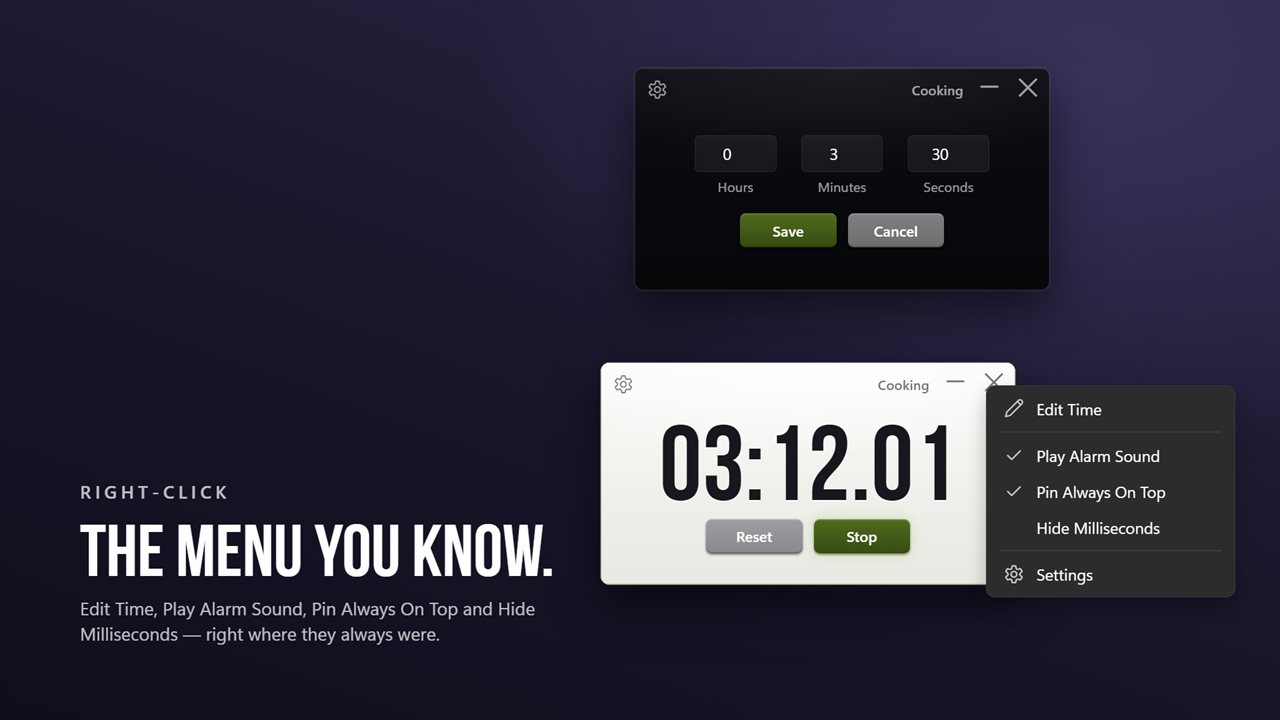
- Right-click the plate and choose Edit Time.
- Fill in Hours, Minutes and Seconds, then press Save.
- Click Untitled in the corner to give the timer a short name, such as Tea or Standup.
- Press Start, or the Space bar. Press it again to pause with the remaining time held.
- Press Reset or Esc to return to the time you set. If the timer is running, Reset restarts it from the top.
A countdown timer with alarm that you will not miss
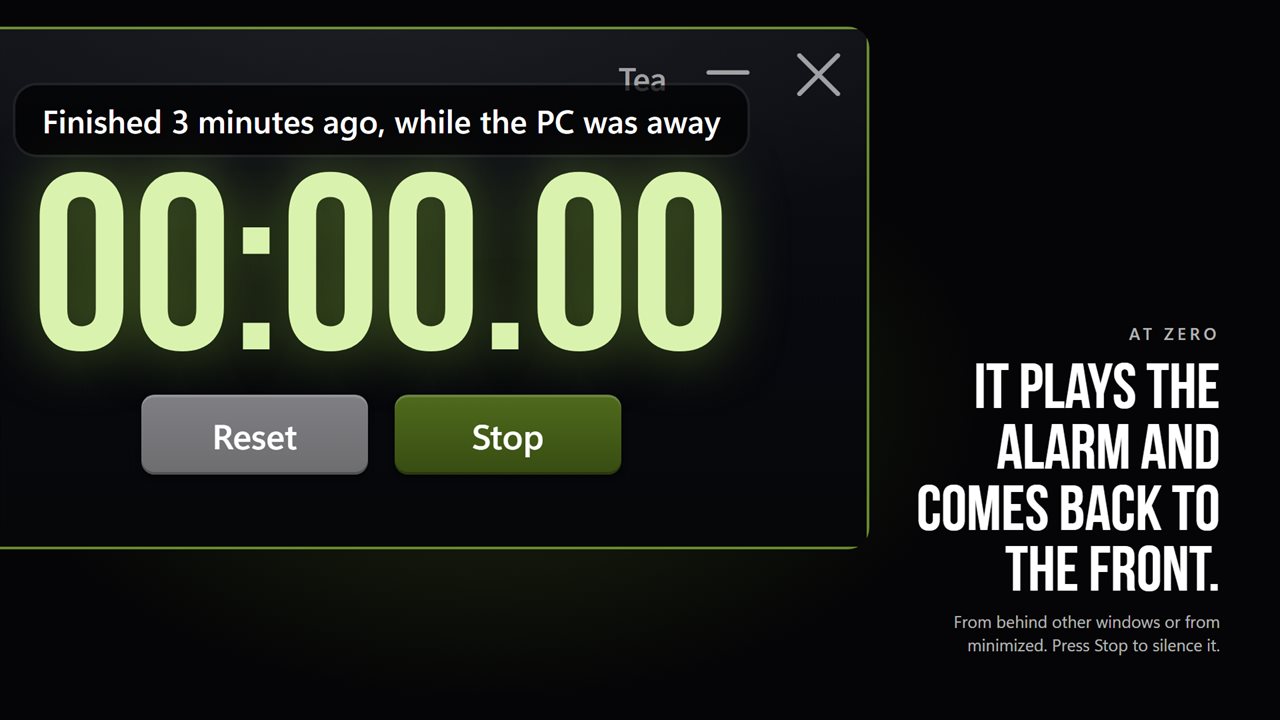
When the count hits zero, a chime repeats until you press Stop, and the window surfaces from behind other windows or from the taskbar. By default it appears without stealing the keyboard, so you do not lose a sentence mid-type. Turn on Switch to the timer in settings if you would rather it take focus.
If the PC was asleep at the moment time ran out, the timer goes off on wake and tells you how long ago it actually finished, rather than leaving you to work it out. Prefer silence? Untick Play Alarm Sound and the window still jumps forward.
Floating timer for study and focus blocks
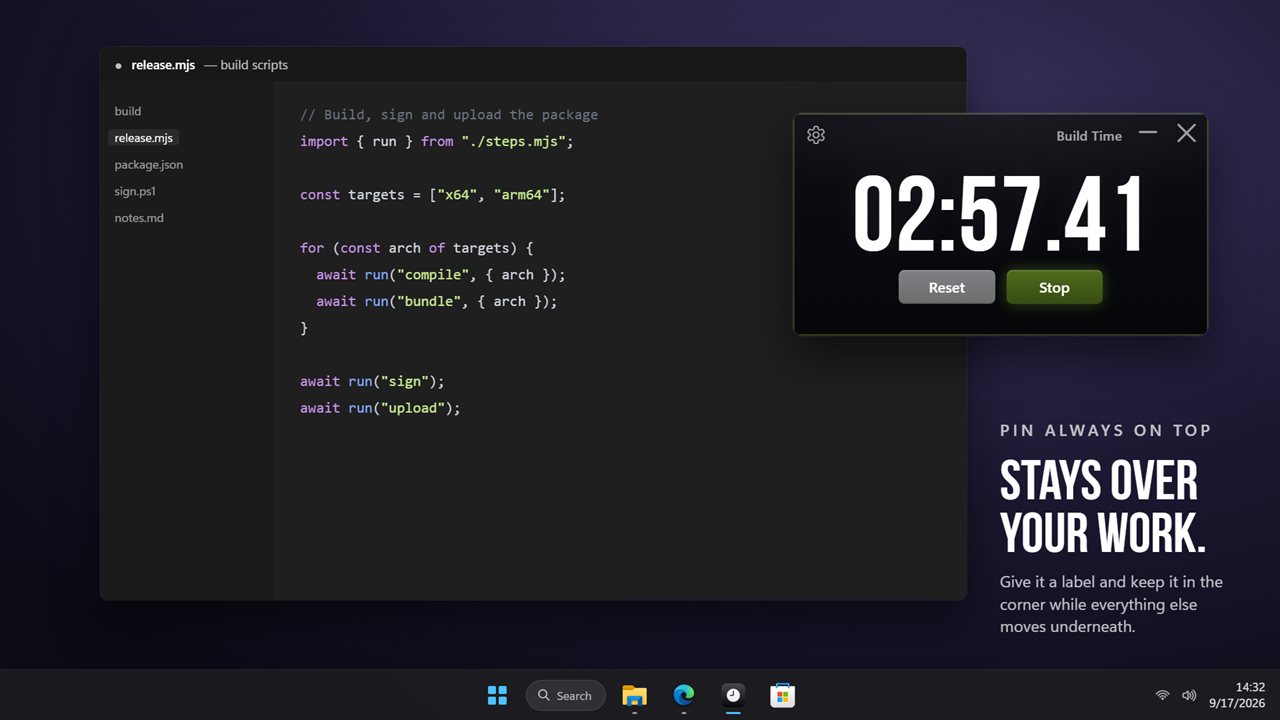
Choose Pin Always On Top and the plate floats above your editor, slides or reading, small enough to tuck into a corner. Under an hour it shows hundredths of a second, which suits timed drills and speeches; Hide Milliseconds calms the display for a long focus session.
Need more than one countdown? New Timer, or Ctrl+N, opens another plate with its own time and label, handy for a meeting timer running beside a break timer.