EEvlarSoft

Alarm Clock Widget

An alarm clock for PC that looks like the one on your nightstand, sitting on the Windows desktop and ringing with bells, beeps or birdsong.

Buy for $2.99
One payment. No subscription.
14-day money-back guarantee.
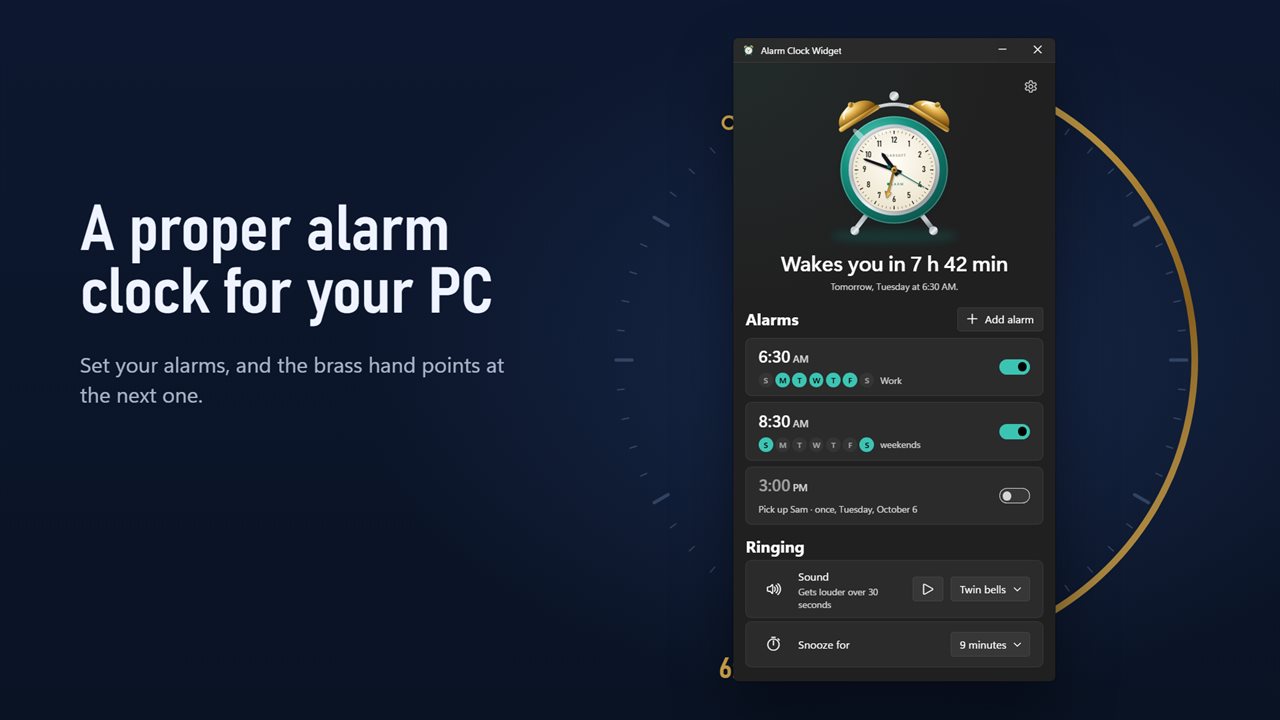
A proper alarm clock for your PC. The brass hand points at your next alarm.
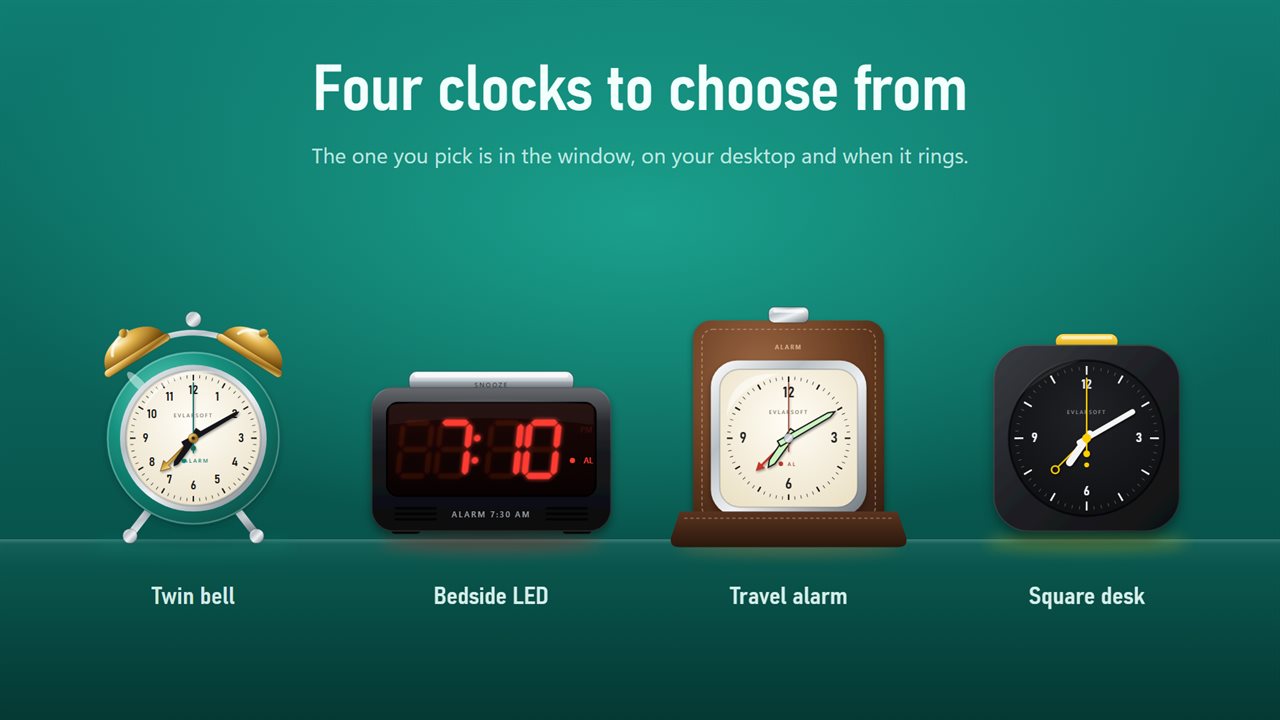
Four clocks to choose from: Twin bell, Bedside LED, Travel alarm and Square desk.
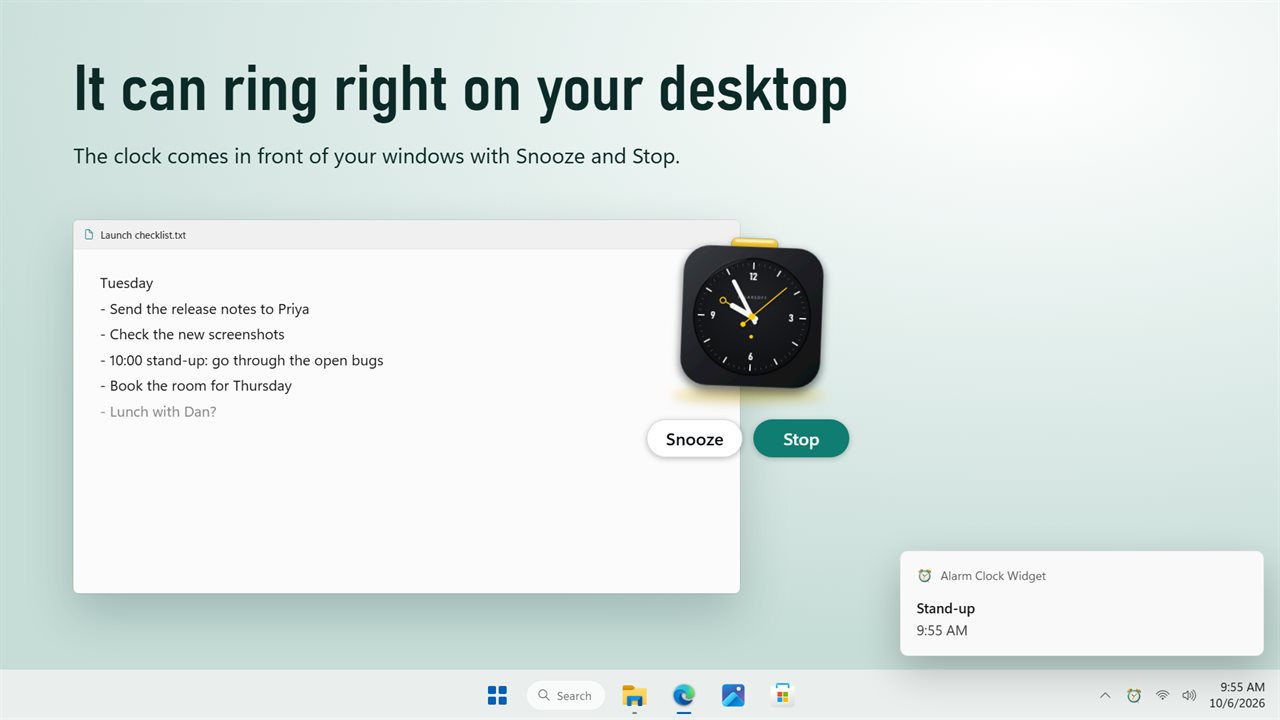
Ring on the widget: the clock comes in front of your windows with Snooze and Stop.
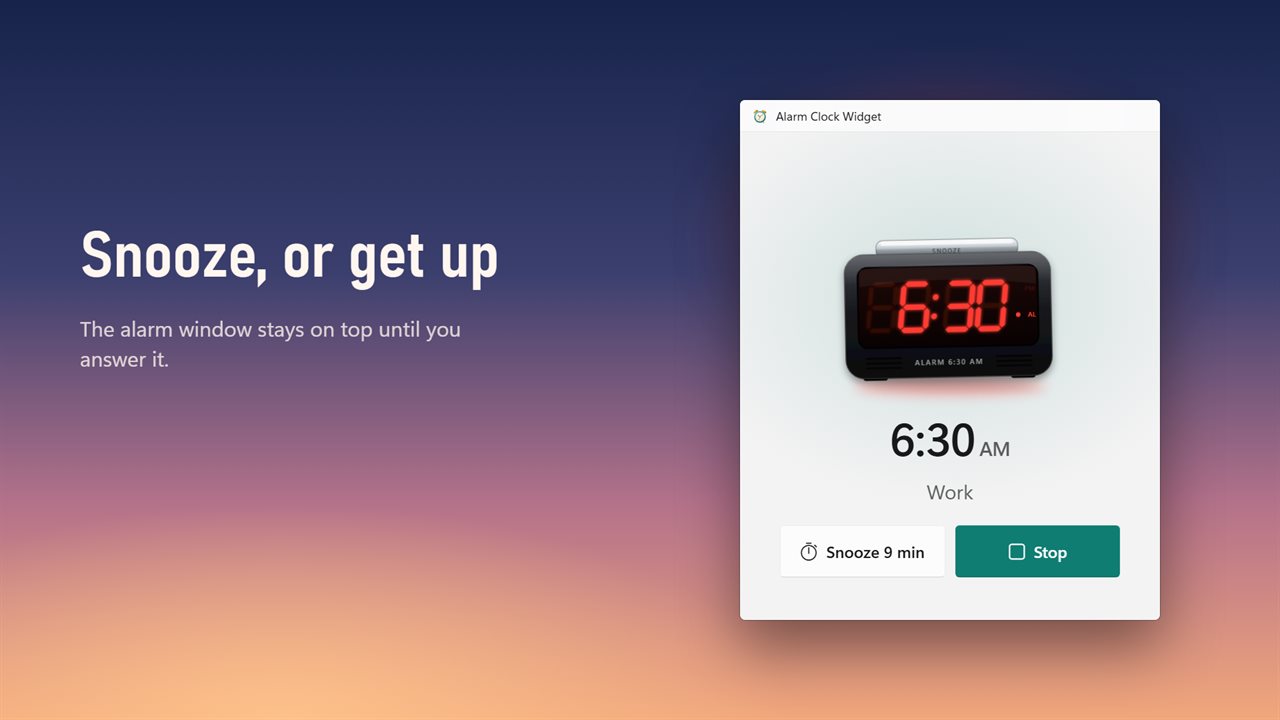
The alarm window stays on top until you snooze or stop it.
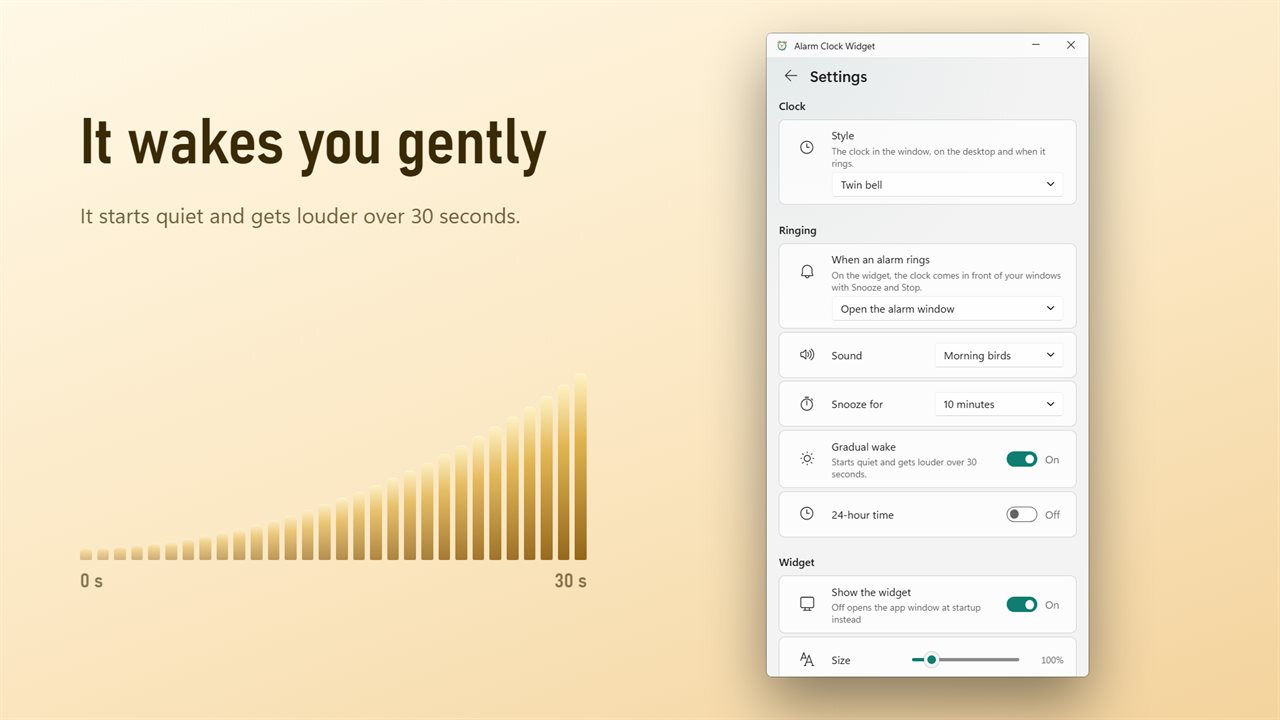
Gradual wake starts quiet and gets louder over 30 seconds. Pick bells, beeps or birds.
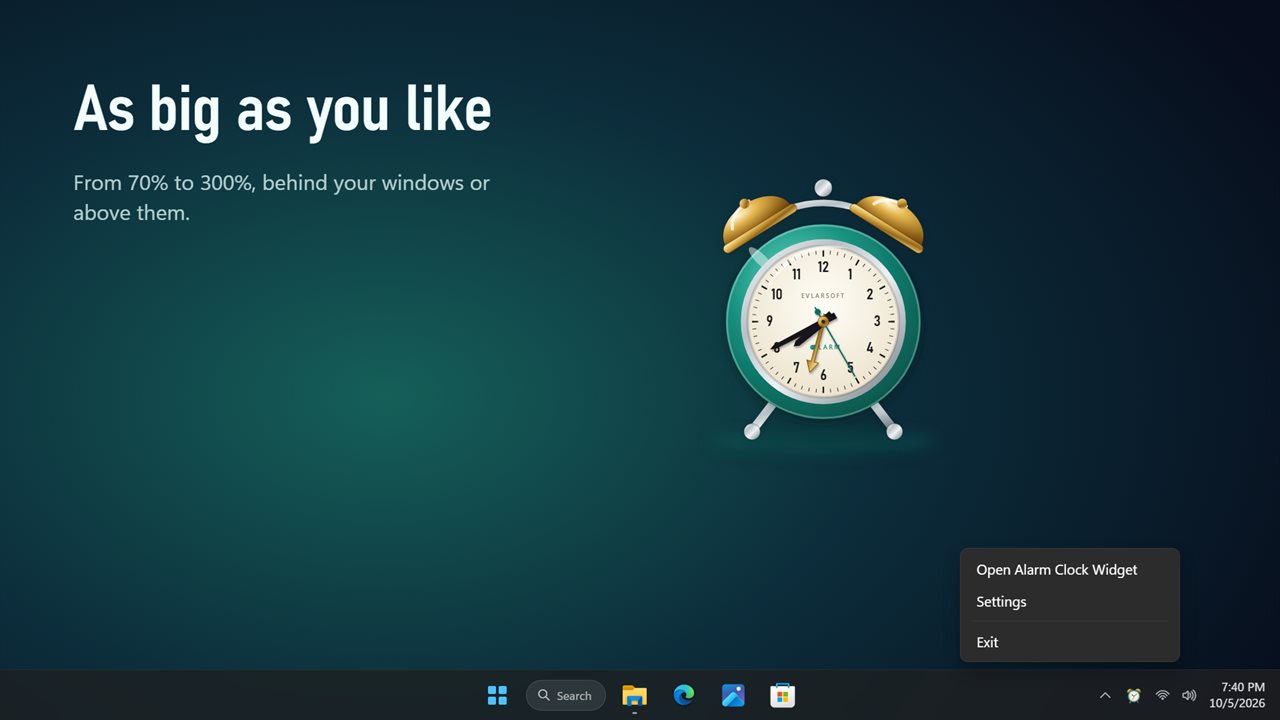
Any size from 70% to 300%, behind your windows or above them.
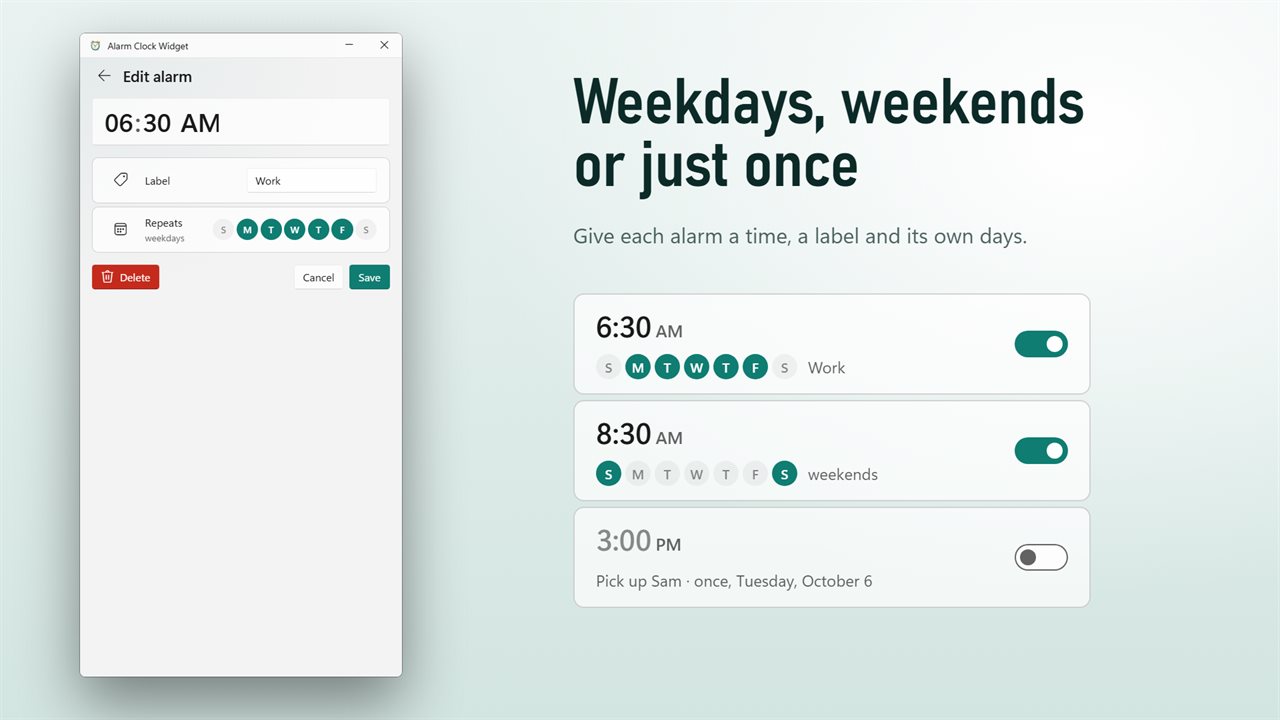
Weekdays, weekends or just once. Give each alarm a time, a label and its own days.

A proper alarm clock for your PC. The brass hand points at your next alarm.

190,000+downloads of EvlarSoft apps
Signed by EvlarSoftVerified US publisher
14-day money-backNo questions asked
Updates includedNo upgrade fees

An alarm clock for PC that stays in sight

Windows can already set an alarm, but it hides the clock inside an app you rarely open, and you only find out whether an alarm is set by going to look. This alarm clock for PC puts a clock face on the desktop instead, so your next alarm is part of the view.

Choose from four Style options. Twin bell is a teal enamel face under two bells, with a brass hand that points at your alarm time. Bedside LED shows the time in digits with the next alarm underneath. Travel alarm sits in a leather case and marks the alarm with a red hand, and Square desk is a black block with a yellow one. A small lamp on the face lights whenever an alarm is armed.

The app window lists every alarm with its own switch and tells you how long you have until the next one rings, which is a quick sanity check before you shut the lid on a Sunday night.

How to set an alarm on your laptop

Open the app window from the tray icon or by right-clicking the clock and choosing Open Alarm Clock Widget. Then:

  • Click Add alarm and set the time. Give it a Label of up to 40 characters, such as Gym or Take the bins out, and it is shown when the alarm rings.
  • Pick the days it should repeat, such as weekdays or weekends. Leave every day unselected for a one-off alarm that switches itself off after ringing.
  • Under Sound, choose Twin bells, Radio beeps or Morning birds, and press Play the sound to audition it.
  • Set Snooze for to 5, 9, 10, 15 or 20 minutes. Nine is the classic default.
  • Turn on Start with Windows so the alarm is armed after every restart.

Snooze and stop, like a real desk alarm clock

When an alarm rings decides where it appears. Open the alarm window puts the time in large type with your label, plus two buttons, Snooze and Stop, in a window that stays above everything until you answer. Ring on the widget brings the desktop clock forward with the same two buttons beneath it. Either way a Windows notification carries the label and time.

You can also snooze the way you would on the physical clock by tapping the part you would hit at 6 a.m.: the bells on Twin bell, the snooze bar on Bedside LED, the alarm button on Travel alarm, or the top button on Square desk. Gradual wake begins the sound softly and builds to full over 30 seconds, all within your current Windows volume. Switch it off and the hint reads Full volume from the start.

Will a PC alarm go off when the computer is asleep?

Not on its own. A sleeping or shut-down computer cannot play sound, and this app does not wake it. What it does do is catch up: when the PC wakes, the alarm rings straight away and the ring screen says Missed while the PC was asleep, so a nap that ran long does not pass silently.

For a morning alarm, keep the laptop plugged in and set its sleep timer in Windows power settings to Never while it is on power. Closing the lid usually sends a laptop to sleep, so leave it open or change what the lid does in the same settings.

What it does

  • Four clock stylesTwin bell, Bedside LED, Travel alarm and Square desk
  • Alarm hand and a lit alarm lamp on the clock face
  • Countdown to your next alarm in the app window
  • Several labeled alarms, each with its own on/off switch
  • Repeat on chosen weekdays, or ring once
  • Three generated sounds with preview, plus 30-second gradual wake
  • Snooze of 5, 9, 10, 15 or 20 minutes, from a button or the clock itself
  • Ring in an always-on-top window or on the widget, with a Windows notification
  • Missed-alarm ring on wake and a 15-minute automatic stop
  • Widget from 70% to 300%, with Glow, Drop shadow, 12 or 24-hour time and Full screen

Good for

A nightstand clock on a spare laptop

Right-click the clock and pick Full screen to turn an old laptop into a large bedside display with a working alarm.

Work-from-home reminders

Labeled alarms for standup, school pickup or the end of the day ring right where you are already looking.

Power naps between tasks

Set a one-time alarm twenty minutes out, and if the laptop dozes too it rings on wake and flags the miss.

Questions

Anything else? Ask us

Will the alarm go off if my PC is asleep or turned off?

No. It does not wake the PC. If the PC was asleep, the alarm rings when it wakes and is marked as missed, and if several were missed it rings once for the latest. Alarms only ring while the app is running, so turn on Start with Windows.

Can I use my own song or sound file as the alarm?

No. There are three built-in sounds, Twin bells, Radio beeps and Morning birds, and each is generated by the app as it plays. You can play each one from the app window to hear it first.

How long does the alarm ring if I don't answer it?

Up to 15 minutes, then it stops by itself. If it rings in the alarm window and you close that window without pressing Snooze or Stop, it opens again within a minute.

What snooze lengths can I choose?

5, 9, 10, 15 or 20 minutes, with 9 as the default. While it rings you can snooze from the button or by clicking the clock's own control: the bells, the snooze bar, the alarm button or the top button, depending on the clock.

Can I set an alarm for just one day?

Yes. Leave every day unselected and it rings once, then switches itself off. Otherwise pick any days of the week, and each alarm has its own on/off switch.

Does gradual wake change my Windows volume?

No. It starts the sound at a low level and raises it to full over 30 seconds, within whatever volume Windows is set to. A muted PC stays muted.

Can the clock fill the whole screen?

Yes. Right-click the widget and choose Full screen. Choose Leave full screen to return it to the desktop.

Can I hide the desktop clock and keep the alarms?

Yes. Turn off Show the widget. The alarms still ring, and the app window opens at startup instead of the desktop clock.

Does it show 24-hour time?

Yes. Switch on 24-hour time in settings; otherwise the clock uses 12-hour time.

Which versions of Windows does it run on?

Windows 10 (version 1809 or later) and Windows 11.

Is it a subscription?

No. Alarm Clock Widget is a one-time purchase of $2.99, and updates are included.

How do I get it?

Buy it on this page and your license key arrives by email. If the button says Notify me, Alarm Clock Widget is not on sale here yet; leave your email and we will tell you when it is.

Prefer widgets? The Alarm widget on WidgetSpark does a similar job, alongside over 100 other desktop widgets in one app.