EEvlarSoft

Simple Beautiful Stopwatch

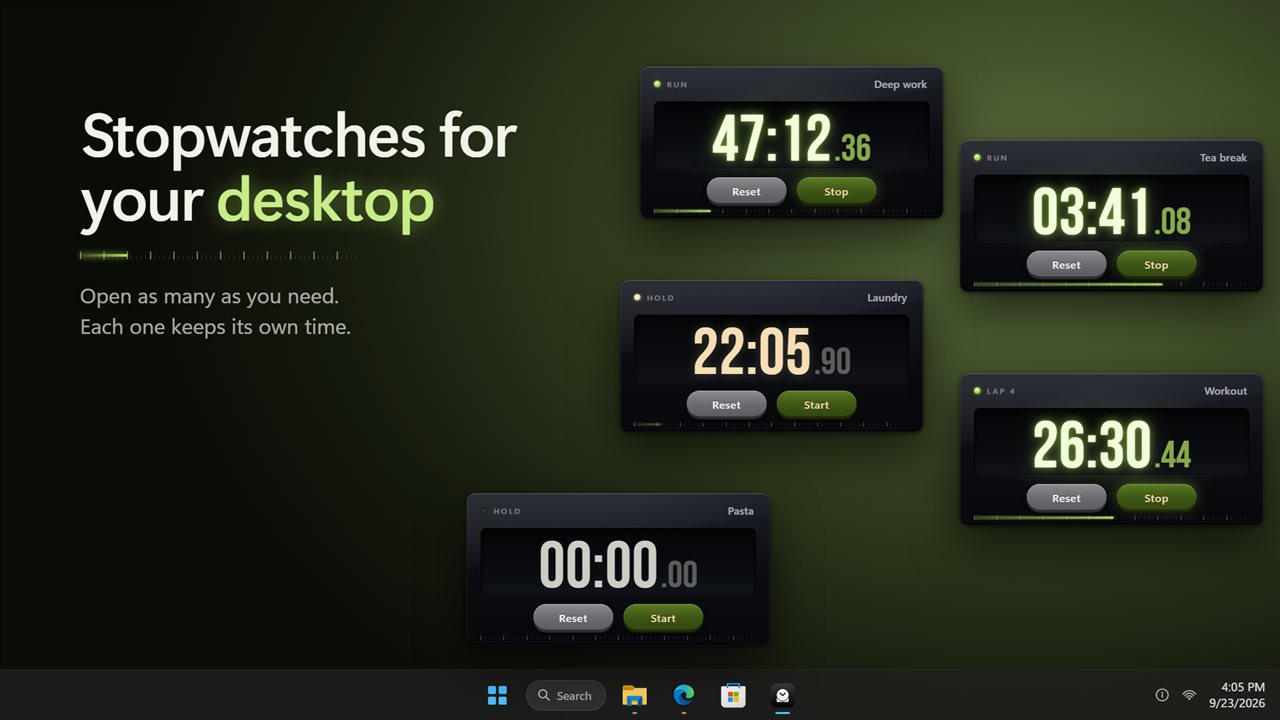
Run multiple stopwatches side by side on your desktop, each on its own small card with a name, big readable digits and its own laps.

Buy for $1.99
One payment. No subscription.
14-day money-back guarantee.
3.7
As many stopwatches as you need, right on your desktop.
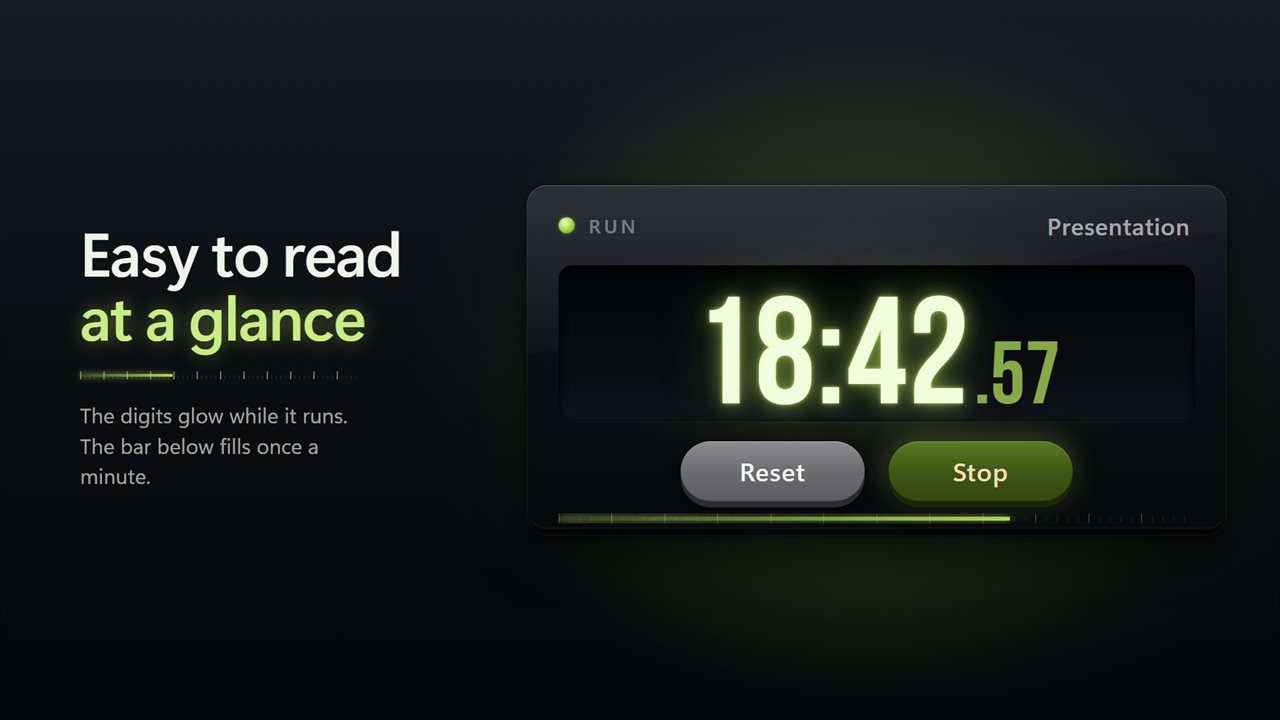
Big glowing digits you can read from across the room.
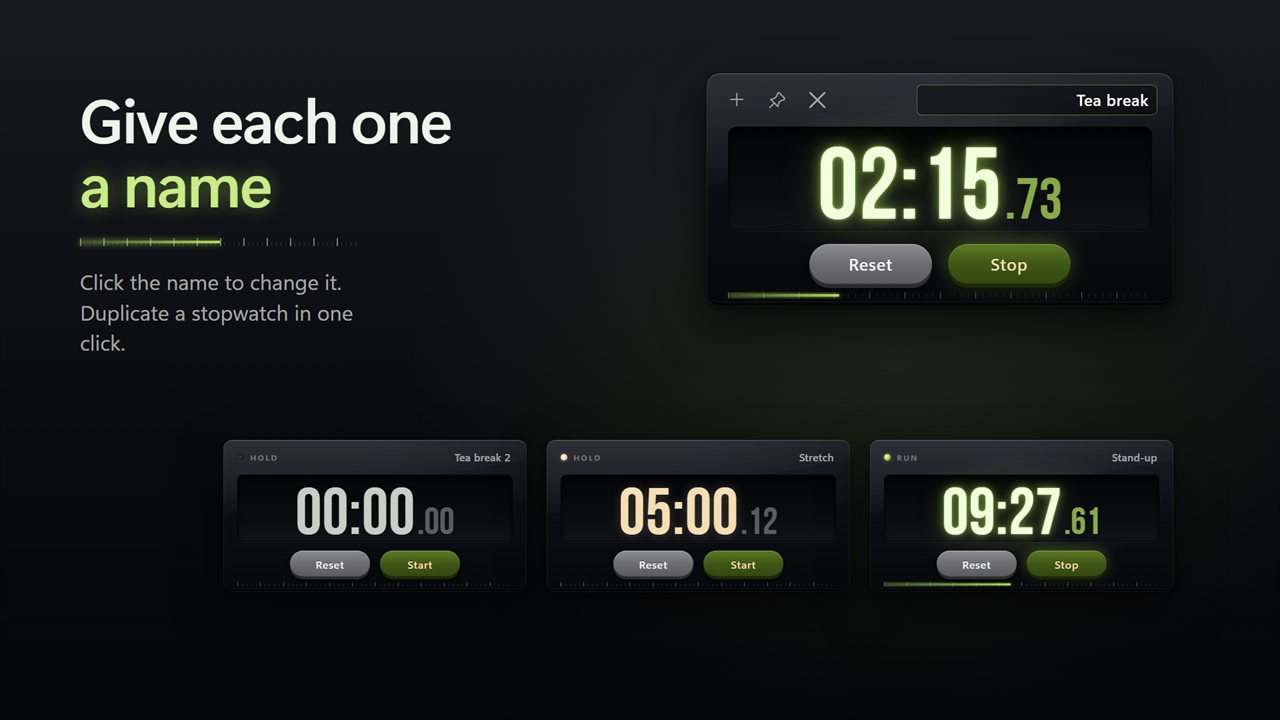
Name each stopwatch. Duplicate one in a click.
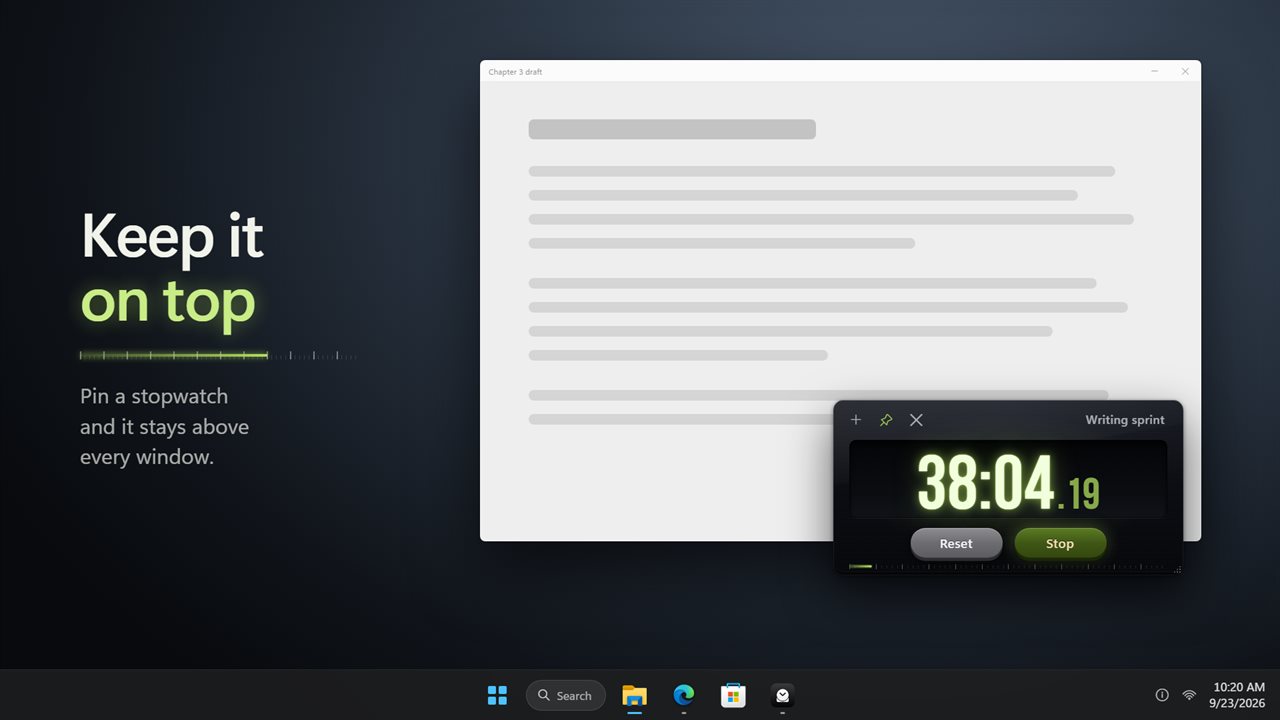
Pin a stopwatch on top of your work.
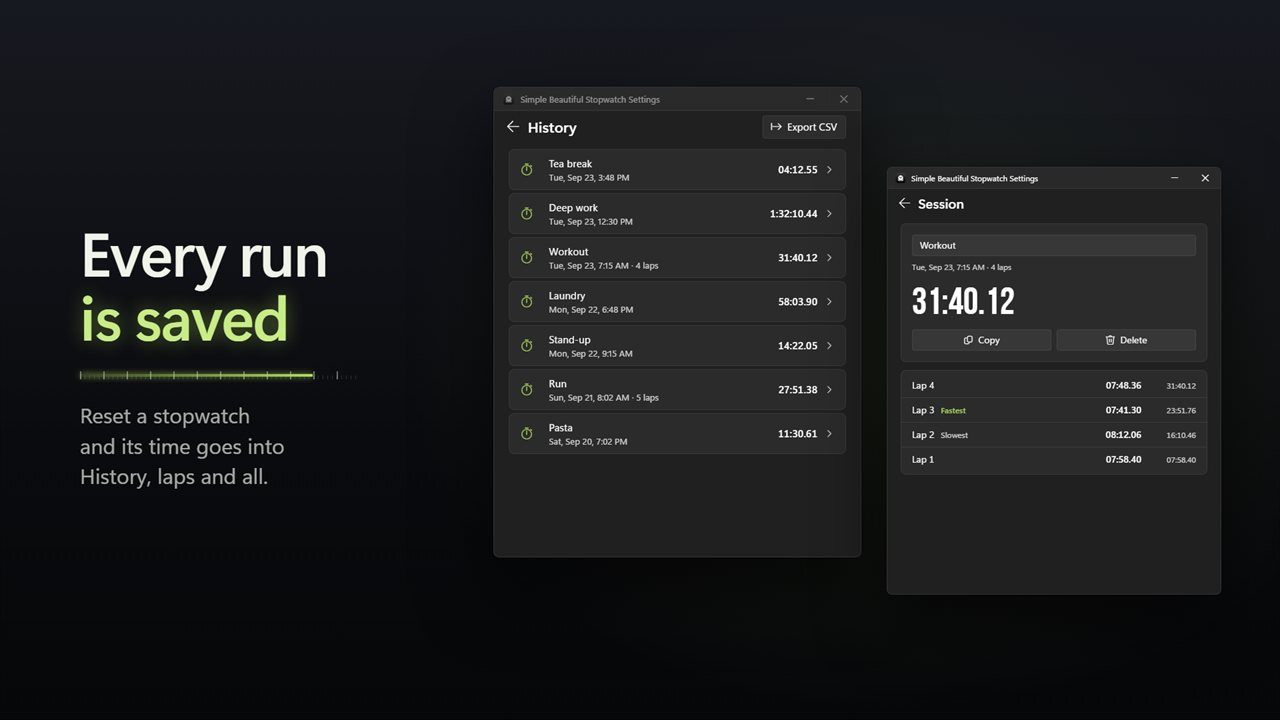
Every run is saved, laps and all.
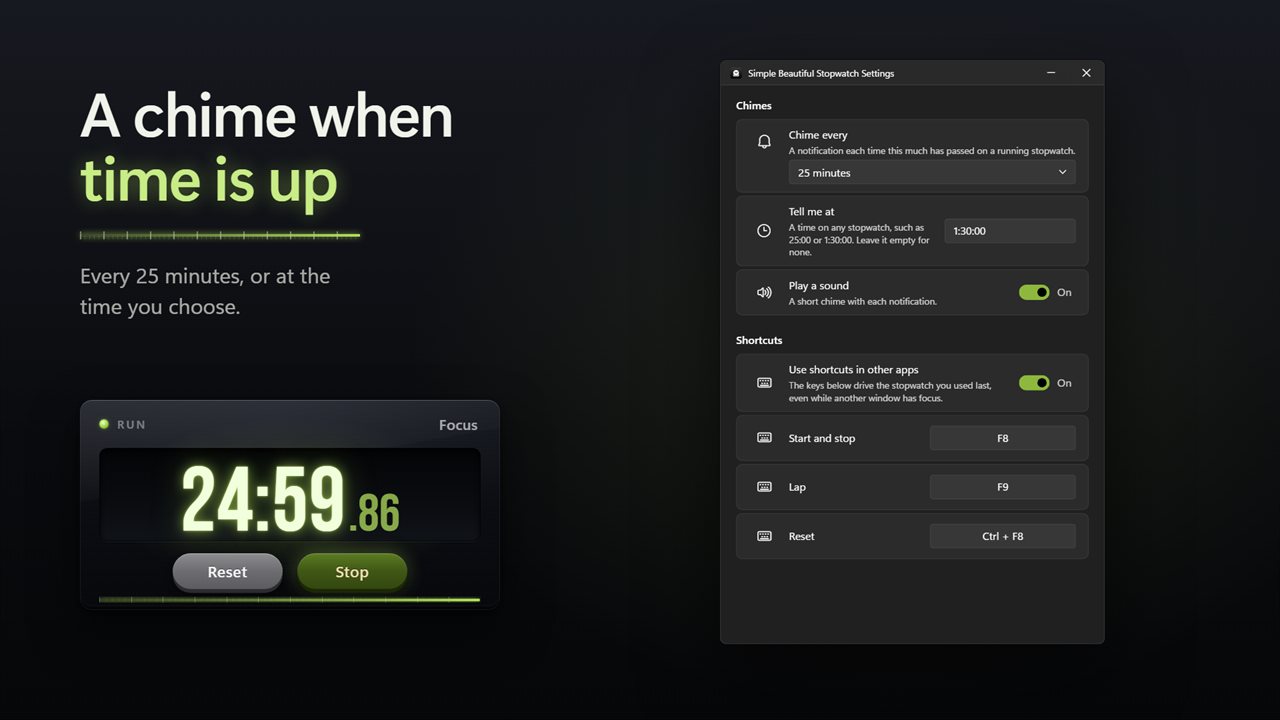
A chime when your time is up.

As many stopwatches as you need, right on your desktop.

190,000+downloads of EvlarSoft apps
Signed by EvlarSoftVerified US publisher
14-day money-backNo questions asked
Updates includedNo upgrade fees

Why run multiple stopwatches instead of one

A single stopwatch is fine until you are timing two things. The bread is proving, the call with a client is billable, and you promised yourself a 25-minute focus block. A phone app makes you flip between screens. Simple Beautiful Stopwatch lets you keep multiple stopwatches open on the desktop at once, each as a separate card you can place wherever you like.

Every card carries its own name of up to 15 characters, so the one in the corner says Proofing and the one by your editor says Client call. Start and stop them independently, mark laps on any of them, and drag a corner to make the one that matters right now larger.

The design is part of the point. Digits glow while a card runs and turn a warm tone while it is stopped, and a thin bar under the time fills once a minute, so you can tell at a glance from across the room which timers are live.

A floating stopwatch that stays above your other windows

Right-click any card to open its menu. Pin on top keeps that stopwatch in front of every other window, which is handy when you are timing work in a full-size app. The same menu offers Hide milliseconds, Duplicate, New stopwatch and Close.

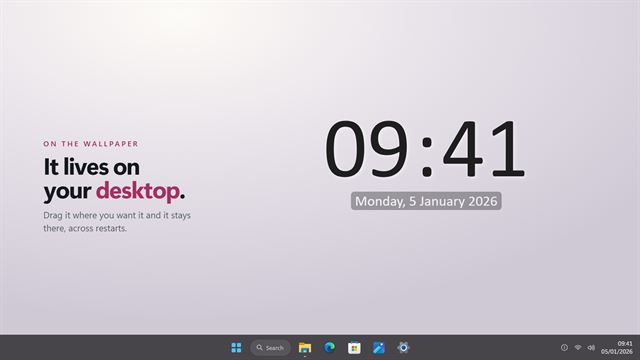
Cards are independent windows, so you can pin one and leave the rest behind your work. The tray icon lists every stopwatch with its current time, and choosing one brings that card forward.

Stopwatch with laps and a history you can export

While a card is running, press L on it, or the global Lap key from any app, to mark a split. When you reset, the run is filed in History under the stopwatch's name with all its laps, and the fastest and slowest laps of the run are flagged.

From History you can open a session, copy it, rename it or delete it. Export CSV writes the record to a file one lap per row, ready for a spreadsheet, which makes it useful for logging practice sessions or tracking how long recurring jobs really take.

Keyboard shortcuts and chimes for a desktop stopwatch

On a focused card, Space starts and stops, L laps and R resets. Turn on Use shortcuts in other apps in Settings and F8, F9 and Ctrl+F8 control the stopwatch you used last without switching windows. Each of those keys can be changed.

Chimes help when you are not watching. Chime every can be set to 1, 5, 10, 15, 25 or 30 minutes, or 1 hour, and Tell me at fires once at a time you type, such as 45:00. Each chime arrives as a notification naming its stopwatch, and Play a sound decides whether it is audible.
What each stopwatch card can do

  • Open as many cards as you need, from the tray menu or a card's New stopwatch
  • Name each card by clicking its title, up to 15 characters
  • Pin on top, per card, from the right-click menu
  • Resize a card by dragging its corner
  • Hide milliseconds on any card you choose
  • Laps with fastest and slowest marked in History
  • Export CSV of saved runs, one row per lap
  • Global shortcuts F8, F9 and Ctrl+F8, all remappable
  • Interval and set-time chimes with optional sound
  • Cards return in place, still counting, after a restart

Good fits for several stopwatches at once

Freelancers juggling clients

One named card per client, each run saved to History so the hours are on record when the invoice is due.

Kitchens and labs

Several processes with different start times, each visible on its own card instead of buried in an app.

Practice and training

Lap each attempt, then check History for the fastest and slowest and export the lot to compare over weeks.

What's new in 2.0.4

  • New: open as many stopwatches as you need, and duplicate one in a click
  • New: glowing digits and a bar that fills once a minute
  • New: History keeps every run you reset, with its laps. Export it to a spreadsheet
  • New: chimes every few minutes or at a time you choose
  • New: shortcuts that work from any app
  • New: the tray lists every stopwatch with its time
  • Your stopwatches come back where you left them, still counting

Questions

Anything else? Ask us

Does a stopwatch keep counting if I close the app or restart my PC?

Yes. A running stopwatch saves the moment it started, so the time keeps adding up while the app is closed. When it opens again, the stopwatch shows the full time and is still running.

Which stopwatch do the shortcuts control when I have several open?

The one you focused or pressed last. Space, L and R work on a focused card, and F8, F9 and Ctrl+F8 work from other apps once you turn that on in Settings, where you can also pick other keys.

What happens when I reset a stopwatch that is running?

It goes back to zero and keeps running, and the run you just ended is saved to History with its laps. A stopwatch that was stopped stays stopped at zero.

Is a run saved if I close its card instead of resetting it?

No. Closing a card removes that stopwatch, and only runs ended with Reset go to History. When the last card is closed, the app waits in the notification area.

How much history does it keep, and can I export it?

History keeps the 500 most recent runs. Export writes them to a CSV file with one row per lap, giving the session name, date, lap number, lap time and running total.

How do the chimes work with more than one stopwatch?

The chime settings apply to every running stopwatch, and each notification names the stopwatch it is for. You can chime every 1, 5, 10, 15, 25 or 30 minutes or every hour, and at one time you type, such as 25:00 or 1:30:00.

Is there a limit on how many stopwatches I can open?

The app sets no fixed number. Each stopwatch is its own card, and you can add another with New stopwatch from the tray menu or any card's right-click menu.

Can I make a stopwatch bigger on screen?

Yes. Drag the corner of a card to resize it; the digits scale with the card, so a large one can be read from across a room.

How do I copy a stopwatch I have set up?

Right-click the card and choose Duplicate. A second card opens beside it at the same size, with the same pin and milliseconds setting and a copy of its name, ready to time something else.

Which versions of Windows does it run on?

Windows 10 (version 1809 or later) and Windows 11.

Is it a subscription?

No. Simple Beautiful Stopwatch is a one-time purchase of $1.99, and updates are included.

How do I get it?

Buy it on this page and your license key arrives by email. If the button says Notify me, Simple Beautiful Stopwatch is not on sale here yet; leave your email and we will tell you when it is.

Prefer widgets? The Stopwatch widget on WidgetSpark does a similar job, alongside over 100 other desktop widgets in one app.