EEvlarSoft

Desktop Clock for Windows

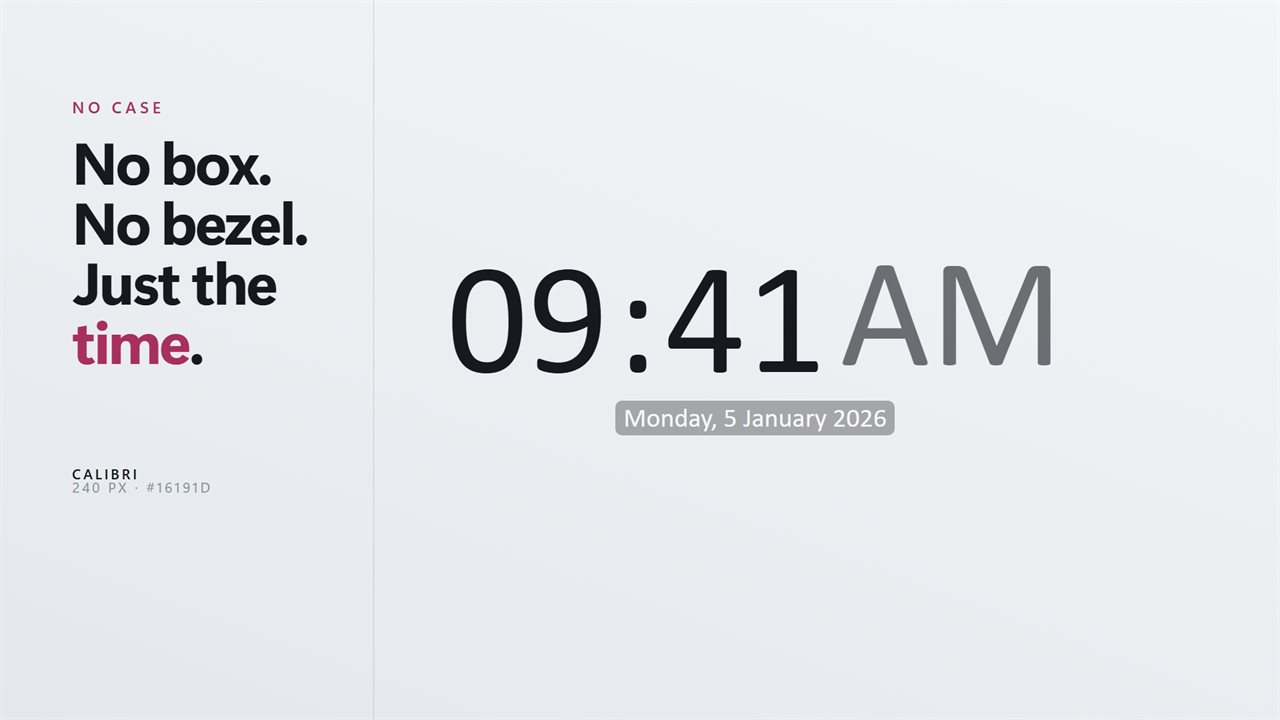
The time, drawn straight onto your wallpaper in any font you have installed. No window around it, no frame, nothing else on screen.

Buy for $2.99
One payment. No subscription.
14-day money-back guarantee.
4.4
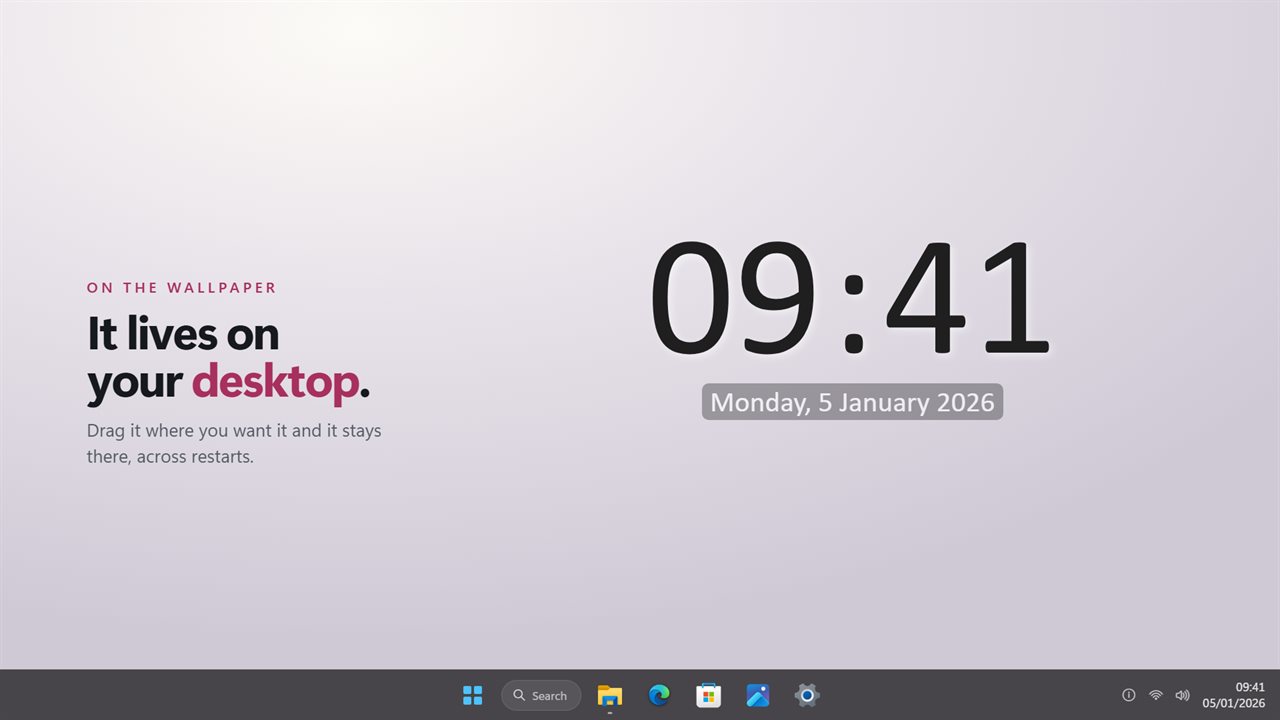
Desk Clock showing the time and date directly on a Windows wallpaper, with no window around it
It sits on your desktop, wherever you drag it — and stays there across restarts.
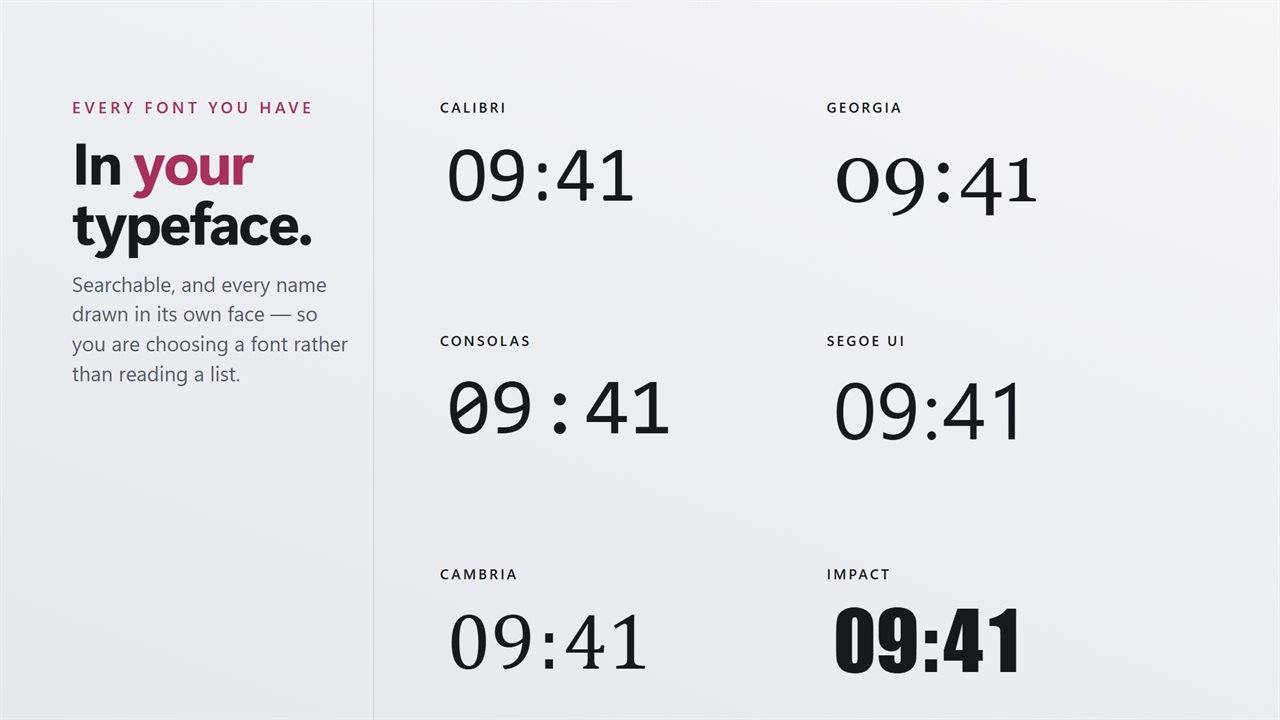
In your typeface. Every font on your PC, searchable, each name drawn in its own face.
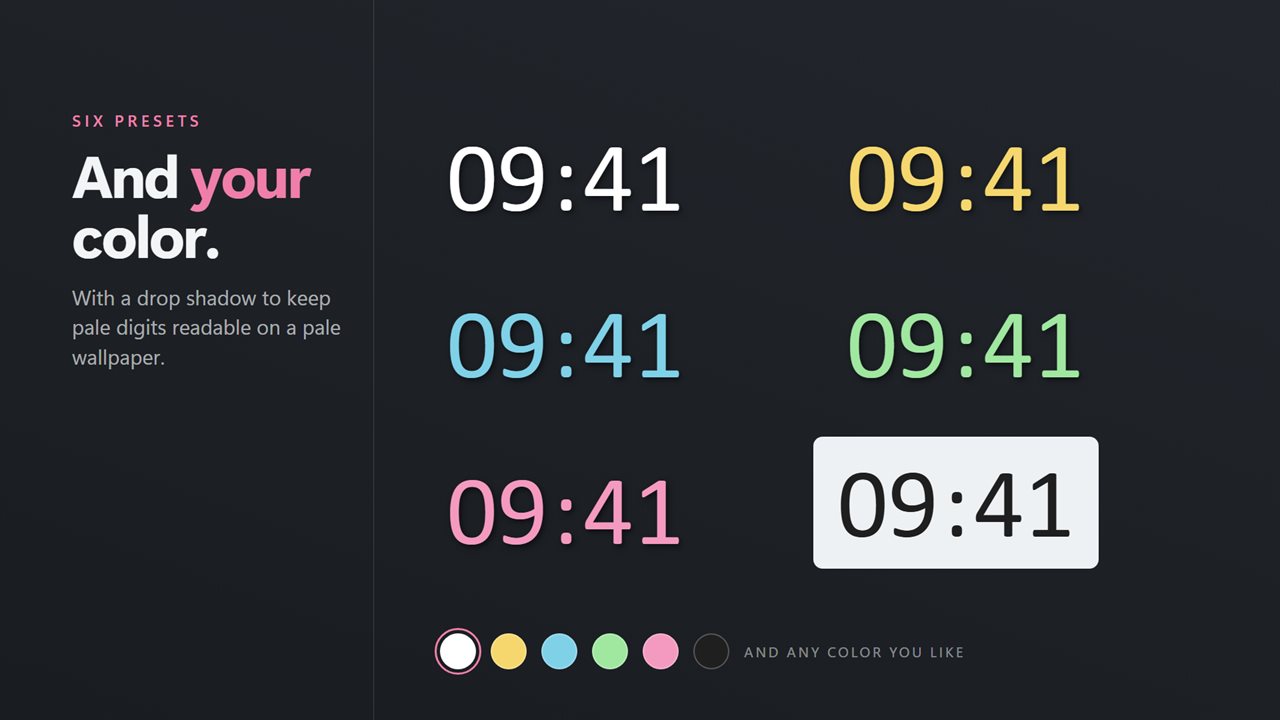
And your color. Six presets or anything else, with a drop shadow for pale wallpapers.
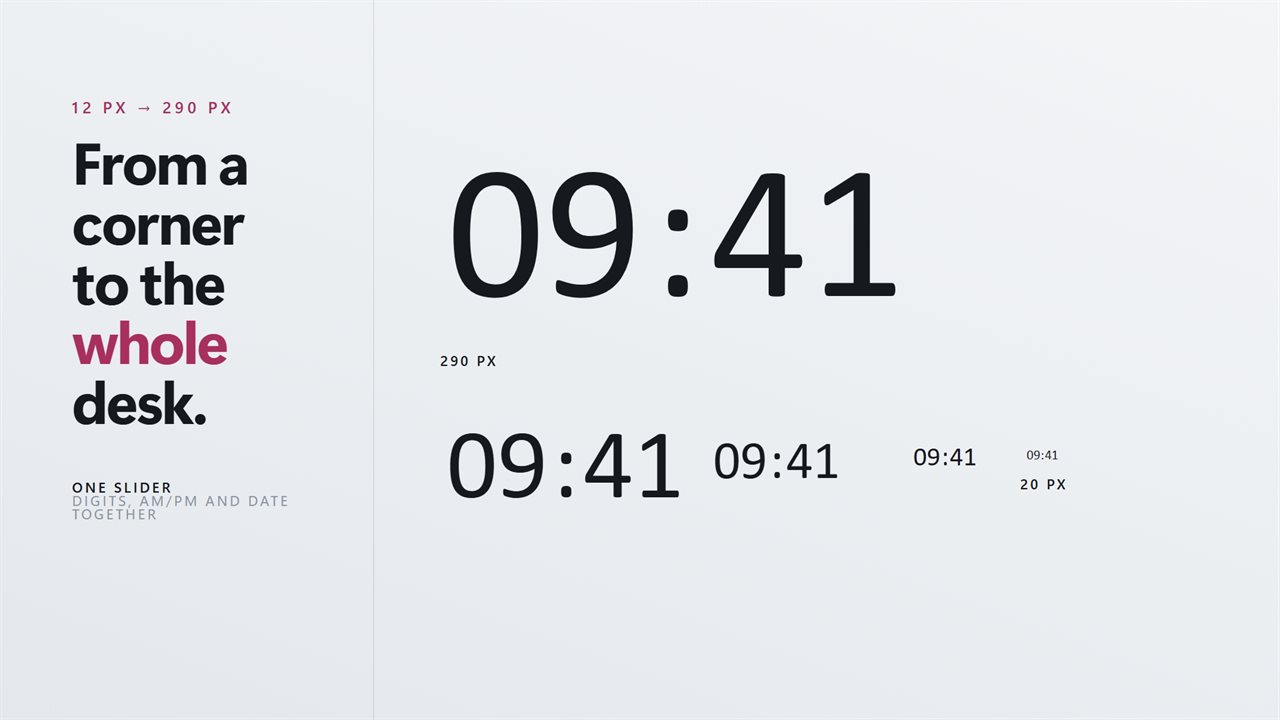
Any size from 12px to 290px. One slider moves the digits, the AM/PM and the date together.
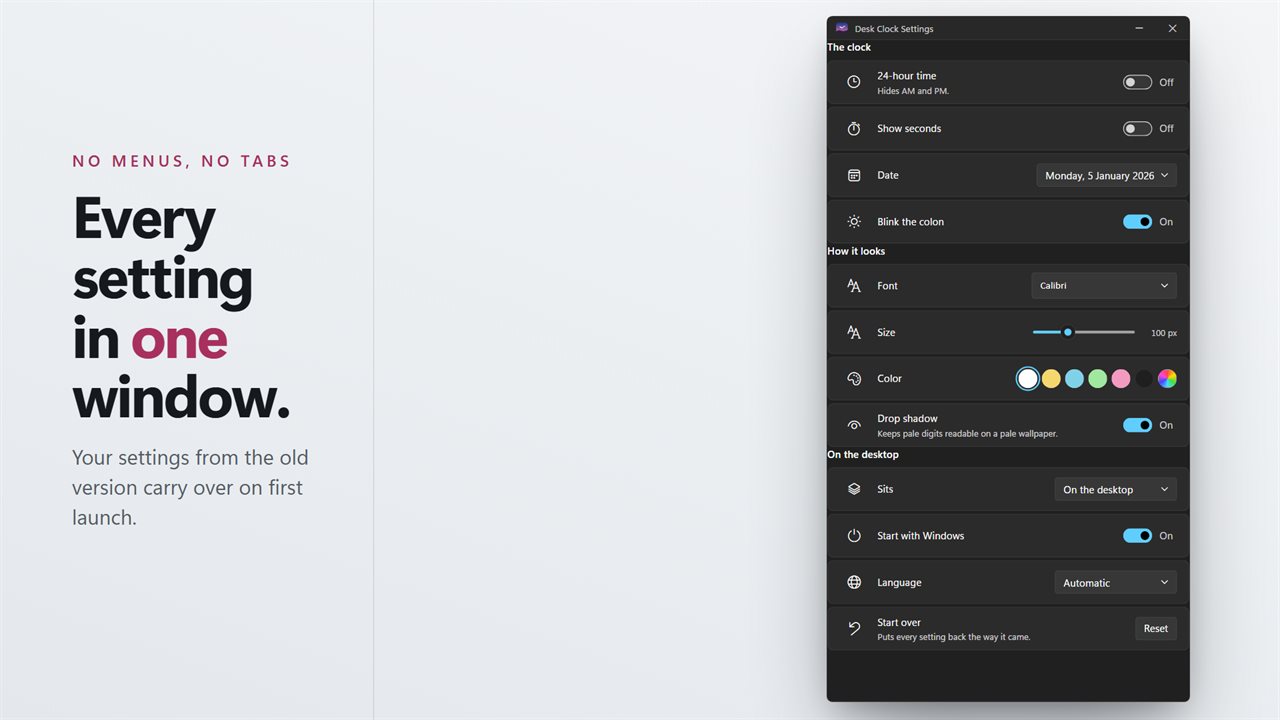
Every setting in one window, and your settings from the old version carry over on first launch.

Desk Clock in 31 seconds

Desk Clock trailer
190,000+downloads of EvlarSoft apps
Signed by EvlarSoftVerified US publisher
14-day money-backNo questions asked
Updates includedNo upgrade fees
12 px to 600 px

As small or as large as you like

One slider sets the time. The date has its own size and color, so it can be a quiet line or match the digits.

Every installed font

Your typeface, not ours

Search the fonts on your PC by name. Each one is shown in its own face, so you can see it before you pick it.

Wallpaper · Above windows

Under your work, or over it

Leave it on the desktop behind everything, or keep it above every window when you need the time in sight.

Why a clock on the wallpaper?

The clock in the taskbar is small, and on a second monitor it is often not there at all. A clock on the wallpaper is big enough to read from across a desk and is there on every screen you put it on.

Most clock widgets are a picture of a clock: a box, a face, a frame. Desk Clock draws only the numerals, so it looks like part of the wallpaper rather than one more window on top of it.

With seconds turned off it updates once a minute, so it costs almost nothing to leave running all day.

How to put a clock on your desktop in Windows 11

Desk Clock draws the time straight onto your wallpaper, with no window around it. Setting it up takes a minute in its settings window.

  • Pick a typeface from the searchable list of every font installed on your PC.
  • Set the size with the slider and choose one of six color presets, or any color from the picker.
  • Choose 12-hour or 24-hour time, seconds on or off, and a date format or no date.
  • Drag the clock to where it belongs on the desktop. It stays there across restarts.
  • Turn on the start-with-Windows switch so the clock is there every time you sign in.

A desktop clock under your windows, or above them

You can keep the clock pinned to the wallpaper, so it sits underneath everything you are working in and shows whenever the desktop does. It never steals focus and never appears in Alt+Tab, so it does not get in the way of switching between apps.

When you want the time in view all day, float it above every window instead. That suits a time clock on the desktop you check through a long session, or a large readout on a second monitor that is otherwise full of other windows.

Keeping the time readable on any wallpaper

A clock with no frame depends on contrast with the wallpaper behind it. The six color presets run from white through gold, sky, mint and pink to near-black, and the picker covers anything else, so you can match a dark or a light background.

On a pale wallpaper, turn on the drop shadow to keep a light color readable. The date has its own size and color, so you can keep it as a quiet line under bold digits, or turn it off and leave just the time.

Starting the desktop clock with Windows

One switch in Desk Clock registers it with the Windows Startup page. You can see it there and turn it off like any other startup app, and it keeps working across updates.

Leaving it running all day costs very little. With seconds turned off it wakes once a minute rather than sixty times, and it works fully offline with no account.

Desk Clock features

  • No box or frameJust the numerals and an optional date on your wallpaper.
  • Any installed fontSearchable, with each name drawn in its own typeface.
  • One size sliderDigits, AM/PM and date scale together from 12 pixels up.
  • Six color presetsWhite, gold, sky, mint, pink and near-black, plus a color picker.
  • Drop shadowKeeps a pale clock readable on a pale wallpaper.
  • 12-hour or 24-hourWith seconds on or off and an optional blinking colon.
  • Six date formatsFrom the full date to just the weekday, or no date at all.
  • Wallpaper or on topPin it under your windows or float it above them.
  • Time offsetRun the clock up to an hour fast or slow.
  • Starts with WindowsRegisters with the Windows Startup page, and works fully offline.

What people use it for

A wall clock for a second monitor

Large digits on the screen you glance at, without giving up any of the one you work on.

Matching a desk setup

The same font and color as the rest of the desktop theme, at whatever size suits it.

A clock that runs a little fast

Set it up to an hour ahead or behind, for when the PC's own time is locked by work.

What people say

★★★★★

“Great app with independently resizable time and date. Thank you for adding time offset, it works perfectly. Much appreciated :)”

Werner, GB
★★★★★

“Exactly what I was looking for in a desktop clock.”

Jonathan, US
★★★★★

“This version now does all you need on a desktop clock.Font, colour and drop shadows all work well and day, date and year display correctly as well as all other options.”

Roger, GB

What's new in 2.1

  • The Living Clocks Pack, an optional add-on with six new designs
  • A time offset of up to an hour fast or slow
  • The date sized and colored on its own, above, below or beside the time
  • Six date formats, from the full date to just the weekday
  • A much larger maximum size for big and high-resolution screens

Questions

Anything else? Ask us

What is the Living Clocks Pack?

An optional add-on with six more designs in your own font and color: Waveform, Day Ring, Stacked, Word Clock, Progress and Orbit. The Classic clock and every setting come with the app.

Does it show up in Alt+Tab or take focus?

No. It sits on the desktop like part of the wallpaper and never takes focus.

Can I hide the date?

Yes. Choose one of six date formats, or turn the date off entirely.

Can it show seconds or 24-hour time?

Both. Seconds are a switch, and so is the 24-hour clock.

Will my old settings carry over?

Yes. Your font, size, color and position are brought across on the first launch.

Do I need an account?

No. It works offline. An optional EvlarSoft ONE sign-in backs up your settings for another PC.

Which versions of Windows does it run on?

Windows 10 (version 1809 or later) and Windows 11.

Is it a subscription?

No. Desk Clock is a one-time purchase of $2.99, and updates are included.

How do I get it?

Buy it on this page and your license key arrives by email. If the button says Notify me, Desk Clock is not on sale here yet; leave your email and we will tell you when it is.

Prefer widgets? The Digital Clock widget on WidgetSpark does a similar job, alongside over 100 other desktop widgets in one app.