How to stop a PC from sleeping, and know it is working
Ask how to stop a PC from sleeping and the usual reply is Settings, System, Power, Screen and sleep, then Never. It works, but it changes your power plan for good, it has a separate pair of values for battery that people forget, and it gives no sign of how close the machine was to sleeping in the first place. Plenty of people only find out their timeout was 10 minutes when an upload dies at minute 11.
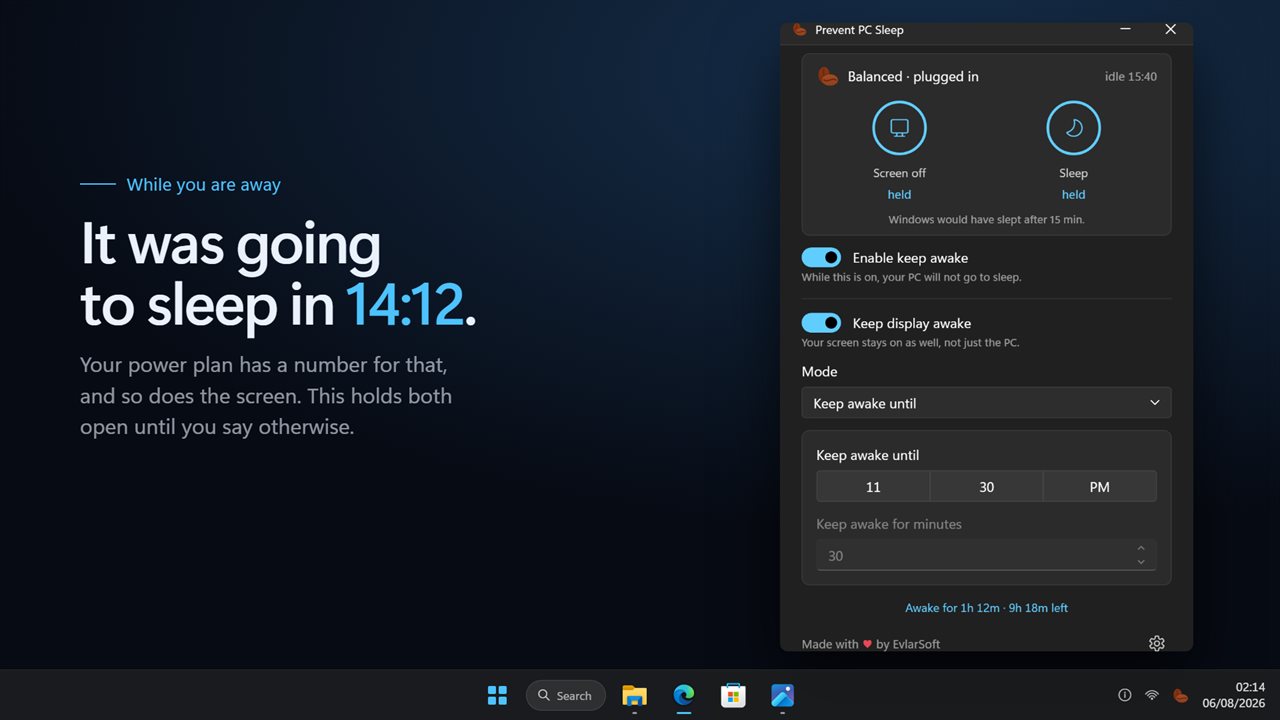
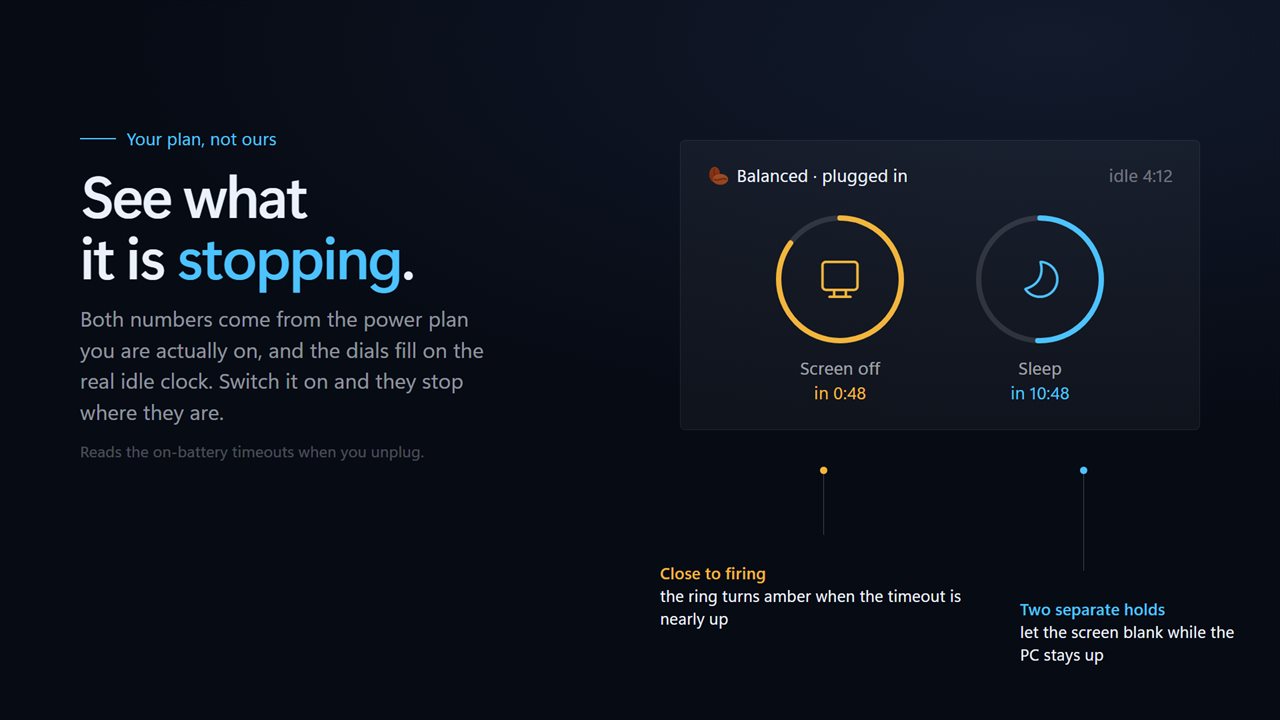
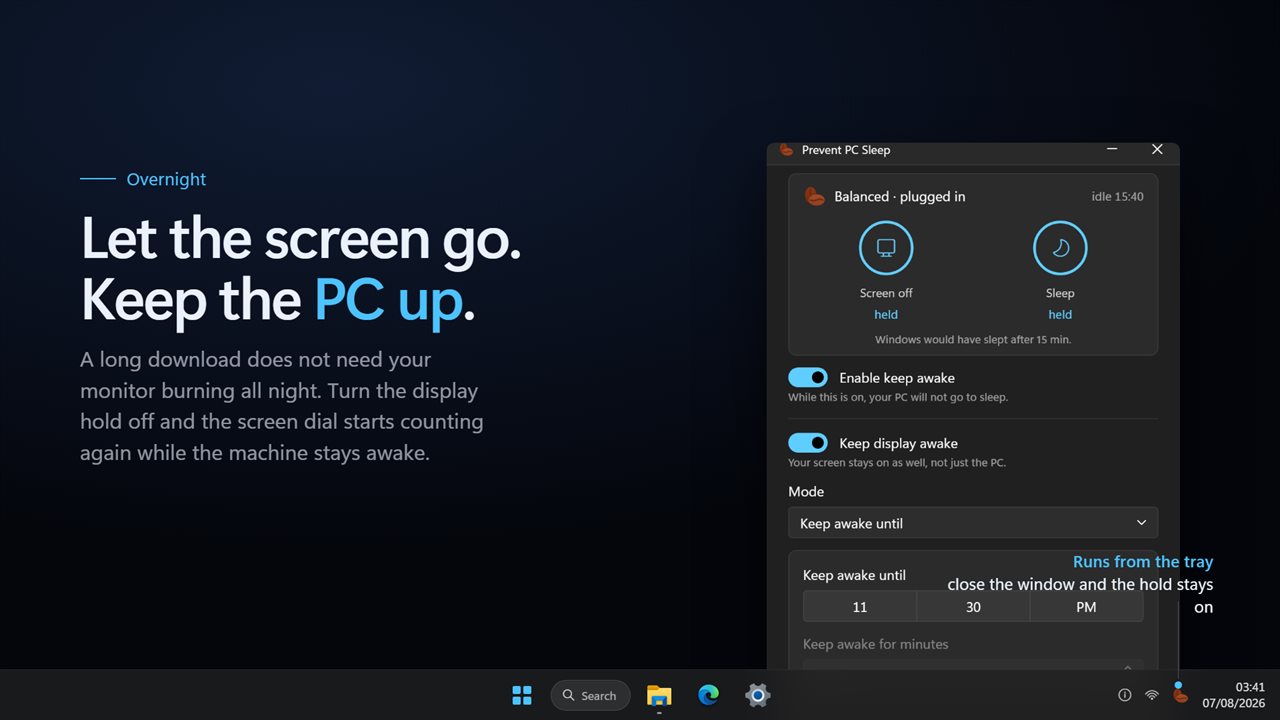
Prevent PC Sleep shows those numbers before it does anything. Two dials, Screen off and Sleep, are filled from the timeouts in the power plan you are on right now, and they count up against how long you have been idle since the last key press or mouse move. A line above them names the plan and says whether you are plugged in or on battery.
Switch on Enable keep awake and both dials read held. A note underneath tells you what Windows would have done without it, such as sleeping after 15 minutes, so you can see the hold working instead of taking it on trust.
Check your Windows 11 sleep settings at a glance
The dials double as a quick audit of your sleep mode settings. If a dial says never, that timeout is already switched off in your plan. If it shows a countdown, that is how long you have before the screen goes dark or the PC sleeps, and the dial warms as it passes 80 percent of the way.
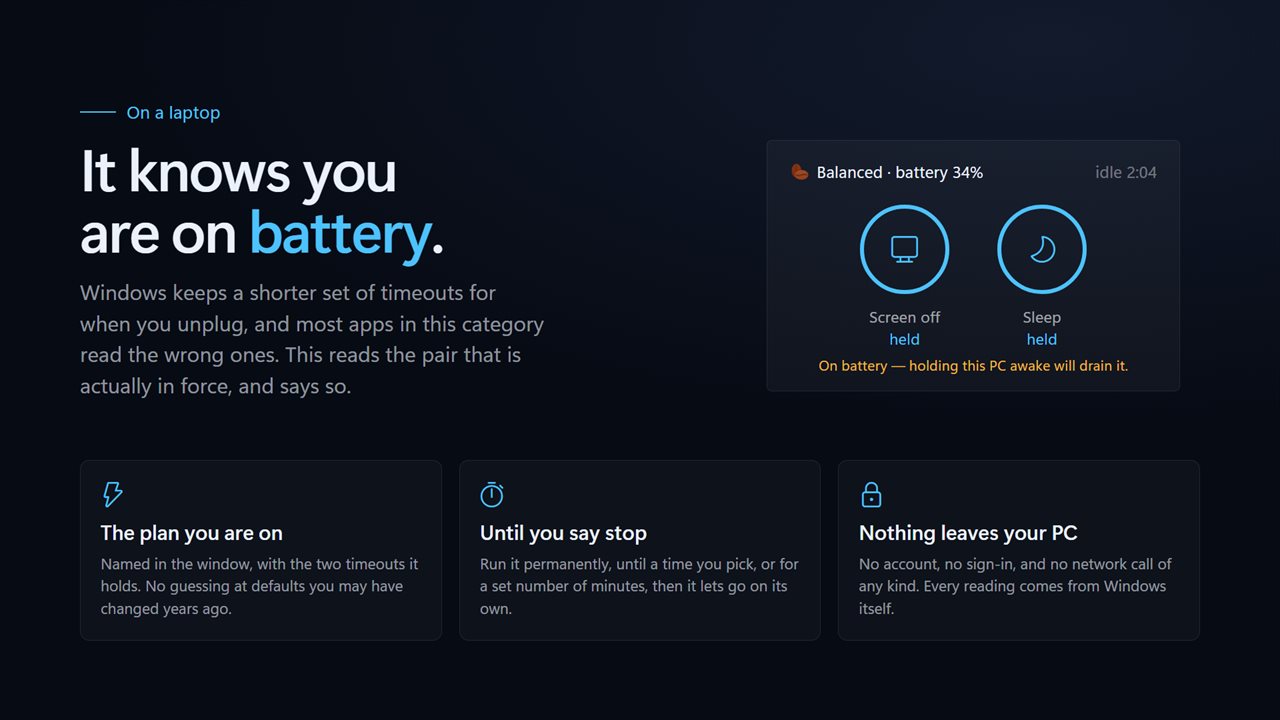
On a laptop, Windows keeps one set of timeouts for plugged in and a shorter set for battery. The app reads whichever pair is in force at the moment, so the dials change when you pull the charger, and the battery level appears in the plan line.
Prevent a laptop from sleeping, with or without the screen
On a laptop the useful split is between the machine and its panel. With Keep display awake off, the screen blanks on schedule, which saves the most charge, while a download or render carries on behind it. With it on, the panel stays lit for a slide deck or a monitoring page.
Two things no hold of this kind overrides. Closing the lid follows the lid action in your power options, so a laptop set to sleep on lid close will still sleep: leave the lid open, or change that action for the job. And an unplugged laptop held awake keeps spending battery, which is why the app shows On battery — holding this PC awake will drain it. while the hold is on.
Disable sleep mode for a while, not forever
Setting Screen and sleep to Never is the blunt way to disable sleep mode, and it stays that way until you remember to undo it. Mode gives you a hold with an end. Keep awake until fires at a clock time, 17:30 unless you change it, which suits the end of a workday. Keep awake for minutes runs for a set stretch, 30 by default, then lets go by itself. Keep awake permanently is there for the jobs with no known finish.
While a timed hold runs, the status line counts both ways, for example Awake for 42m 10s · 47m 50s left, so you know how much cover is left before the dials start filling again.