EEvlarSoft

System Activity LED Indicators

Activity indicator lights for disk, network, CPU and memory, drawn on a compact panel near a corner of your display, for PCs and laptops that no longer have any.

Buy for $2.49
One payment. No subscription.
14-day money-back guarantee.
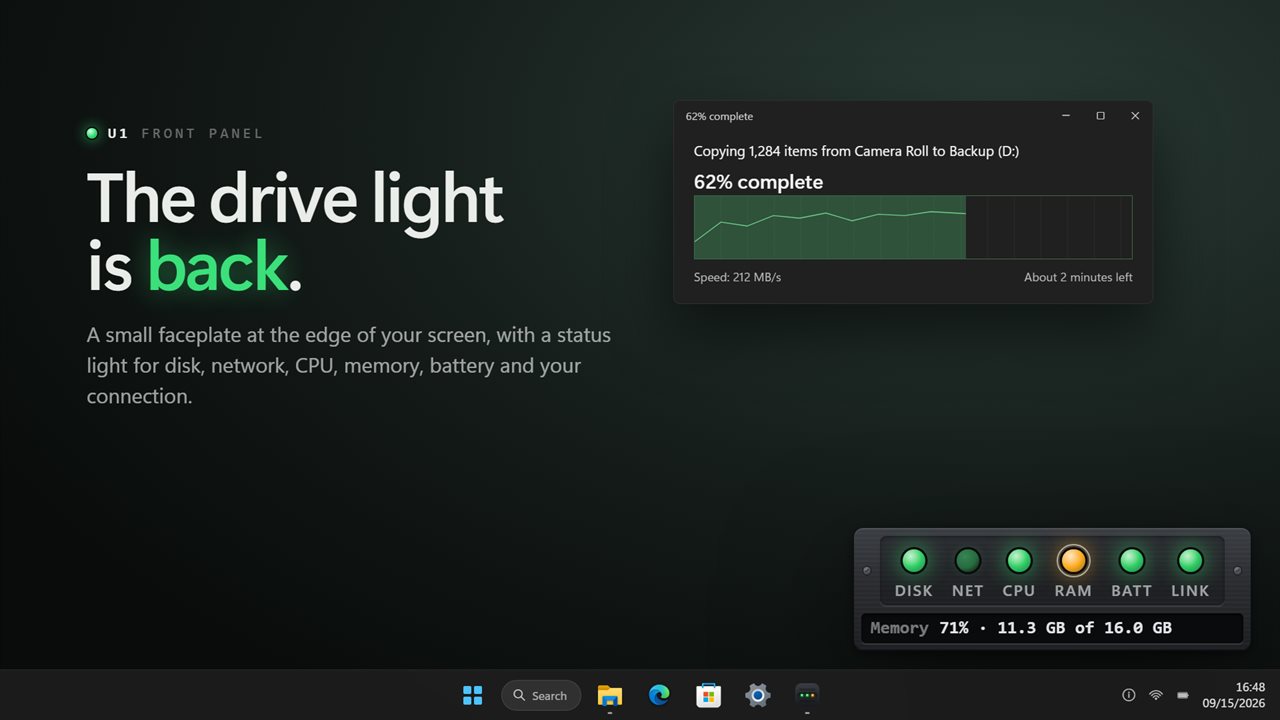
A drive light for your desktop: status lights for disk, network, CPU, memory, battery and your connection.
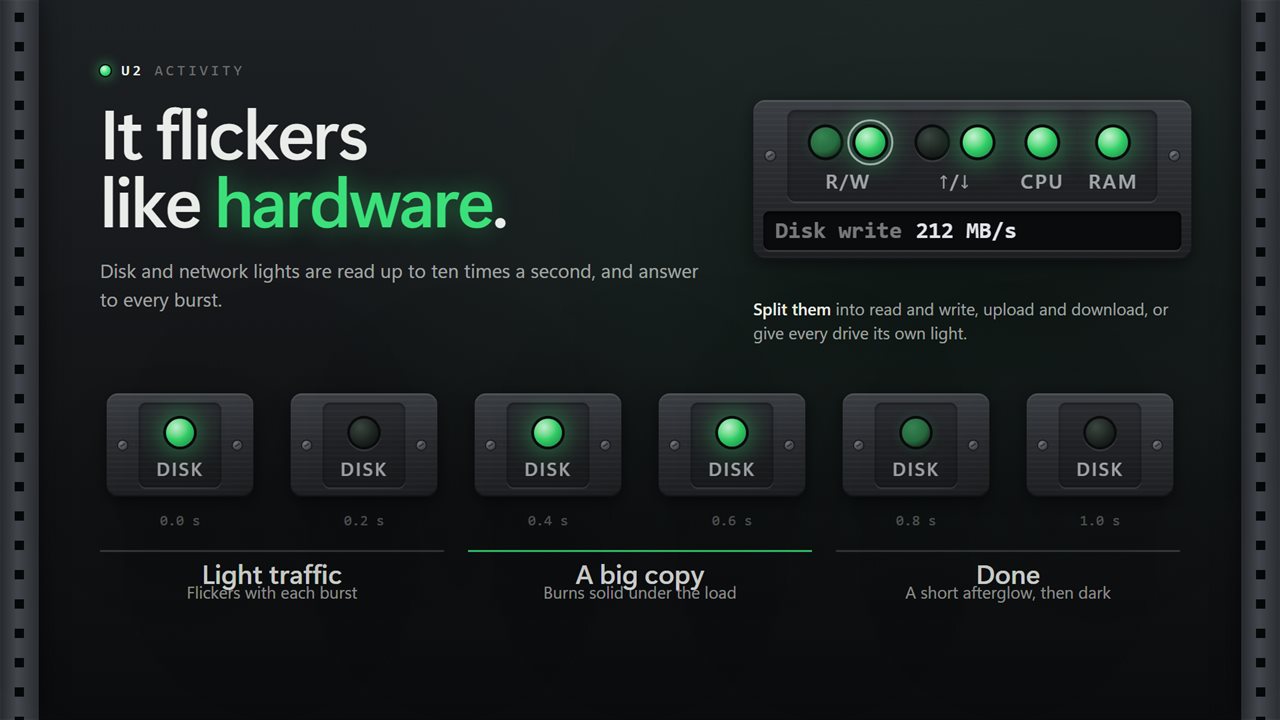
Disk and network lights flicker with light traffic, burn solid under a big copy, then fade.
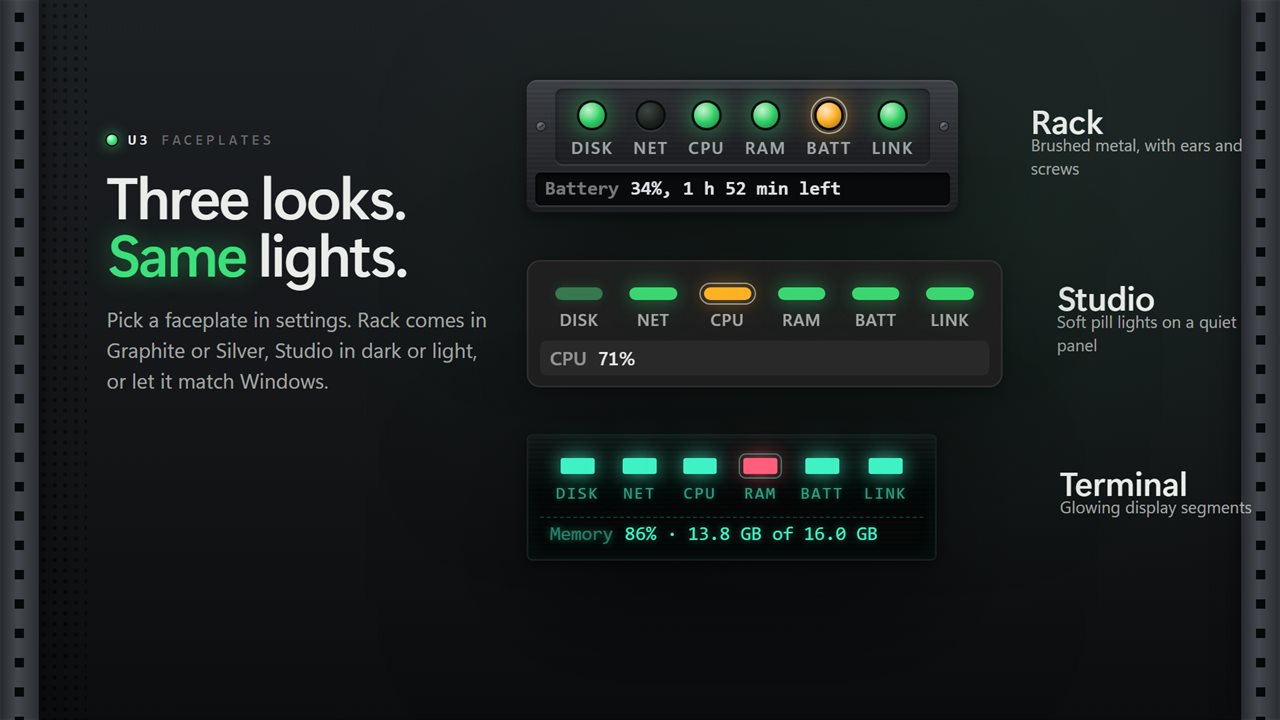
Three looks with the same lights: Rack, Studio and Terminal.
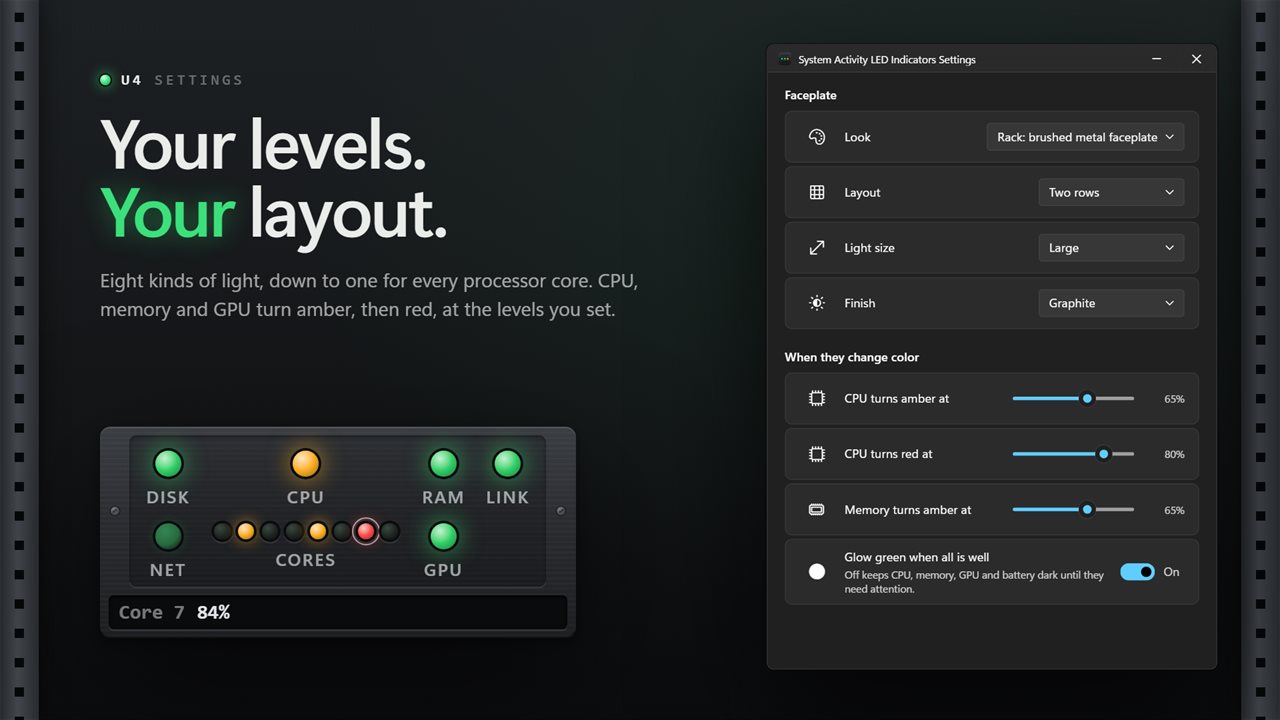
Pick your lights, your layout and the levels where CPU and memory turn amber and red.
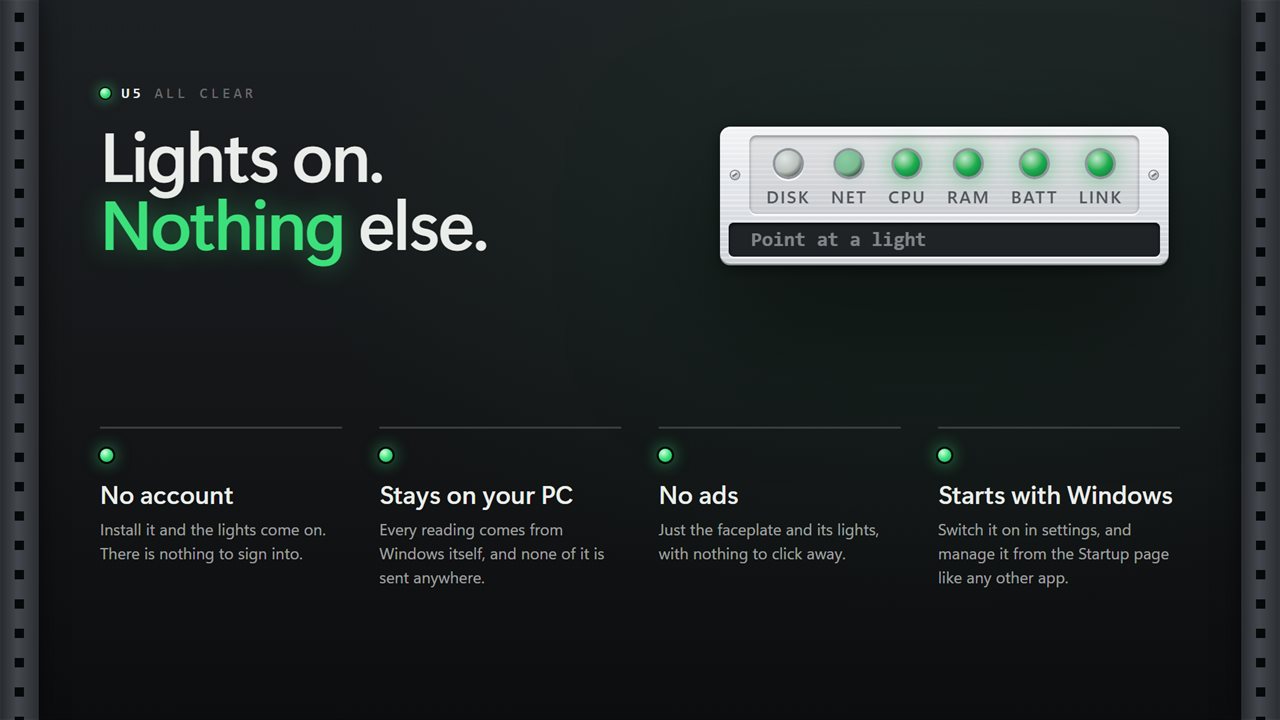
No account, no ads, nothing leaves your PC unless you choose to send feedback, and it starts with Windows.

A drive light for your desktop: status lights for disk, network, CPU, memory, battery and your connection.

190,000+downloads of EvlarSoft apps
Signed by EvlarSoftVerified US publisher
14-day money-backNo questions asked
Updates includedNo upgrade fees

Activity indicator lights for a PC that has none

Desktop towers used to come with a row of activity indicator lights on the front: one for the drive, one for power, sometimes one for the network. Most laptops and many modern cases dropped them, so the only way to tell whether the machine is busy is to open Task Manager and wait for it to draw.

System Activity LED Indicators brings that panel back as a strip of lamps on screen. Drive and network lamps blink with each burst of reads, writes and packets, keep flickering through a long copy, and fade out shortly after it ends. CPU, memory and GPU lights work differently: they sit green while load is comfortable, then shift to amber and red once load passes thresholds you pick.

Unlike a taskbar icon, the strip is its own small window. It stays visible when the taskbar auto-hides, and it can sit in a screen corner, along an edge, or wherever you drag it.

Disk activity light and network activity light, split your way

A single DISK lamp blinks for any drive. Turn on Separate read and write lights to tell loading from saving, or A light for every drive to see which drive letter is busy. On the network side, Separate upload and download lights splits one NET lamp into two arrows.

Under Activity you choose how lively they are. Disk and network lights update can run 10 times a second, 5 times a second or twice a second. Sensitivity decides whether a lamp reacts to the background chatter Windows always has (High) or waits for real work (Low), Flicker under steady load keeps the lamp blinking during a heavy transfer instead of burning solid, and Afterglow controls how long a lamp lingers once activity stops: None, Short or Long.

CPU and memory lights that change color

The When they change color section holds an amber and a red level for each of CPU, memory and GPU, plus two low levels for the battery. The CORES bank adds a pinpoint for every logical processor, dark until that core passes the CPU amber level, so you can see whether one thread or the whole chip is working.

If you only want to be told about trouble, switch off Glow green when all is well and healthy lamps stay dark. The LINK lamp answers a different question: green when you are connected through a gateway, amber when connected without one, red when the network is down.

How to arrange the indicator strip

The Faceplate section sets the look. With Readout window on, hover any lamp to read its number in the readout, and click to pin that figure in place.

  • Look: Rack (brushed metal faceplate), Studio (soft pill lights) or Terminal (glowing display segments).
  • Layout: a horizontal or vertical strip, or Two rows; Light size of Small, Medium or Large; optional labels.
  • Position: four corners, top or bottom center, the center of the screen, or Wherever I drag it.
  • Right-click a lamp to shift it left or right, or switch it off; choose Let clicks pass through so the strip never gets in the way.

Lights on the faceplate

  • DISK with optional read/write split or one lamp per drive
  • NET with optional separate upload and download lamps
  • CPU, RAM and GPU lamps with your own amber and red levels
  • A CORES bank with one pinpoint per logical processor
  • LINK lamp for connected, connected without a gateway, or offline
  • BATT lamp that shows only on PCs with a battery
  • Hover readout with click to pin the figure
  • Stops taking readings while a full-screen game or video is running, with a switch to change that
  • Graphite or Silver finish on the Rack look, and a tray icon with Show/Hide LEDs

Why people keep it on screen

Is it working or frozen?

A flickering disk lamp during a long install tells you the PC is busy, not hung.

Spotting background activity

Disk and network lamps that light while you are idle point to updates, sync or indexing running behind your back.

A server-rack look for a home lab

The Rack faceplate on a spare monitor gives a workstation the front-panel feel of a machine in a data center.

What's new in 2.1.8

  • Fixed: the app no longer weighs on your processor. Readings are taken the way Windows' own tools take them, and the lights only redraw when something changes
  • New server-style faceplate with lights that flicker with real disk and network activity
  • New: amber and red levels for CPU, memory and GPU
  • New: a light for every drive, and one for every processor core
  • New: point at a light to read its figure, click to keep it showing
  • New: three looks (Rack, Studio and Terminal), vertical and two-row layouts, three light sizes, and a silver finish
  • New: pauses during full-screen games and videos
  • Your thresholds, split lights, labels and position carry over

Questions

Anything else? Ask us

Which status lights does it have?

Eight kinds: disk, network, CPU, a light for each processor core, memory, GPU, battery and network link. Disk can be split into read and write or given a light per drive, and network into upload and download. The GPU light appears only when the graphics adapter reports its load, and the battery light only on a PC with a battery.

How often do the drive and network lights update?

10 times a second, 5 times a second or twice a second, your choice, with 5 as the default. CPU, memory and GPU colors are checked twice a second, and the battery every 10 seconds.

Can I choose when the CPU light turns amber or red?

Yes. CPU, memory and GPU each have their own amber and red levels, and the battery has its own low levels. Out of the box CPU and memory turn amber at 65% and red at 80%.

Does it keep running during full-screen games?

No, by default it pauses. When a full-screen game, video or presentation has the screen, it stops taking readings until you leave it. You can turn this off in settings.

How do I get back to settings with click-through turned on?

Open the app again from the Start menu and the running copy brings settings up. The notification area icon also has a Settings item.

Does it show CPU or GPU temperatures?

No. The lights show load, disk and network activity, battery charge and whether you are connected. There is no temperature reading.

Can I see which drive is busy?

Yes. Turn on A light for every drive and the single DISK lamp becomes one lamp per drive letter, USB drives included, so you can tell the system drive from a backup disk at a glance.

Can I hide the lights without closing the app?

Yes. The notification area icon has a Show/Hide LEDs item that toggles the strip while the app keeps running.

Can I see the actual numbers behind each light?

Yes. With Readout window switched on, pointing at a lamp shows its figure, such as the CPU percentage or the disk read rate, and clicking the lamp keeps that figure on screen.

Which versions of Windows does it run on?

Windows 10 (version 1809 or later) and Windows 11.

Is it a subscription?

No. System Activity LED Indicators is a one-time purchase of $2.49, and updates are included.

How do I get it?

Buy it on this page and your license key arrives by email. If the button says Notify me, System Activity LED Indicators is not on sale here yet; leave your email and we will tell you when it is.