EEvlarSoft

Battery Monitor Widget

A laptop battery alert that lives on your desktop, flagging when you should plug in and when you have charged enough to unplug.

Buy for $2.99
One payment. No subscription.
14-day money-back guarantee.
3.8
Watches the charge on the desktop and says something when it crosses a level you set.
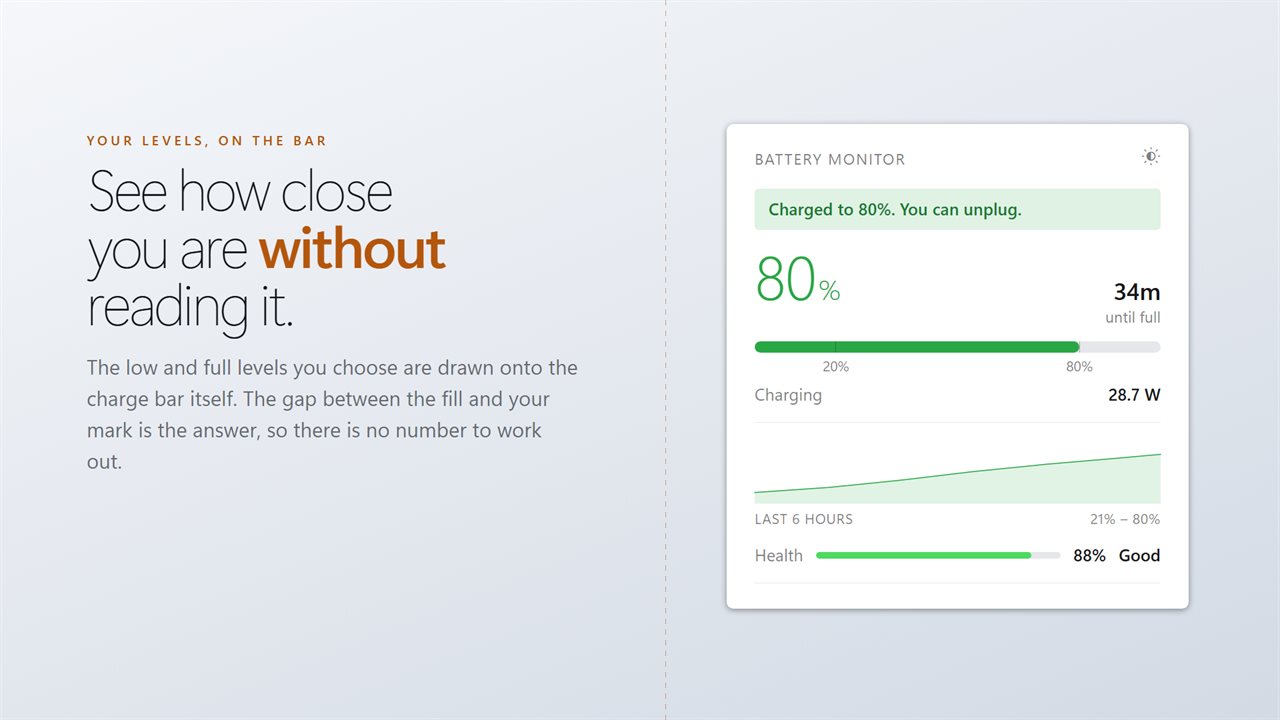
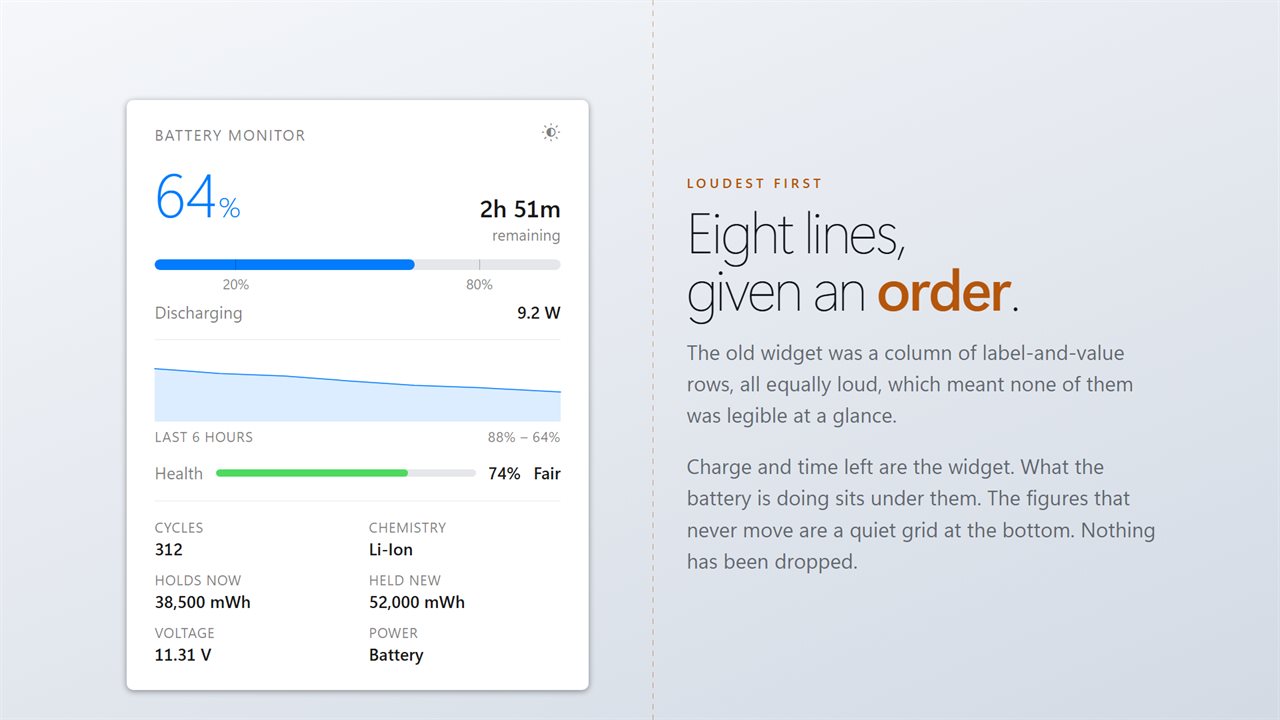
Your low and full levels are drawn onto the charge bar, so how close you are is a distance, not a number.
Charge and time left first, what the battery is doing next, and the figures that never move underneath.
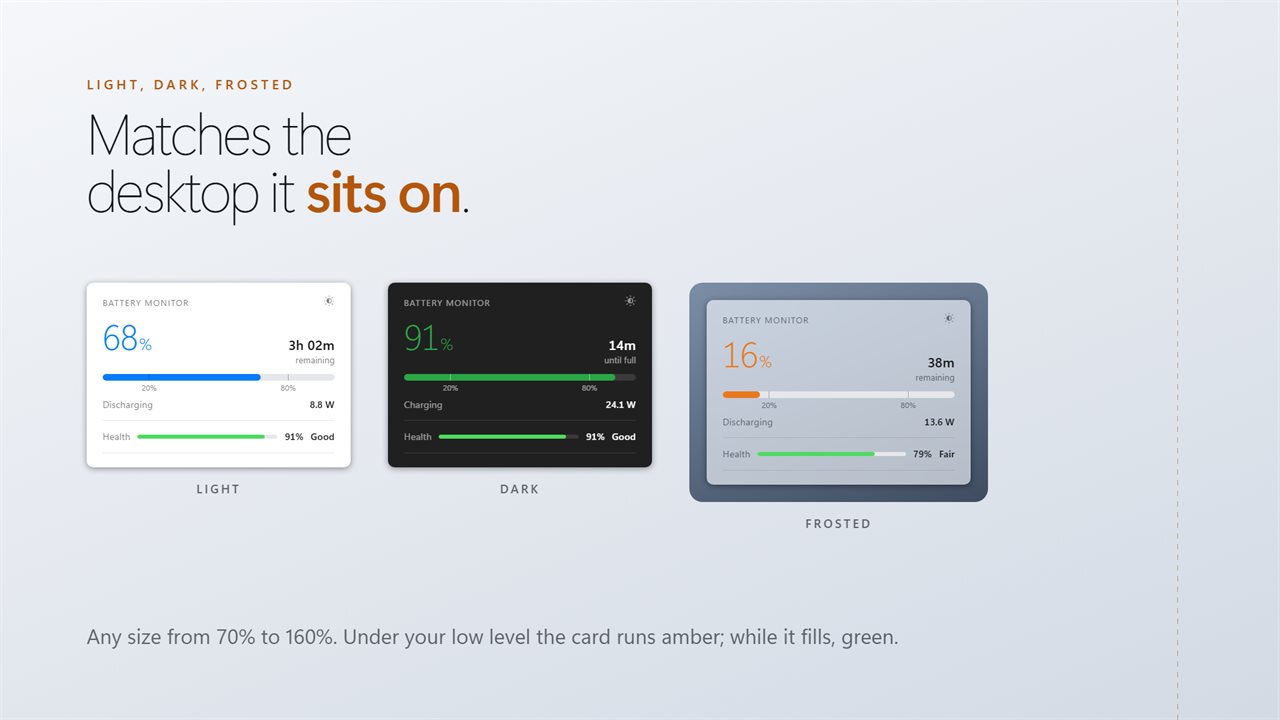
Light, dark or frosted, at any size from 70% to 160%.
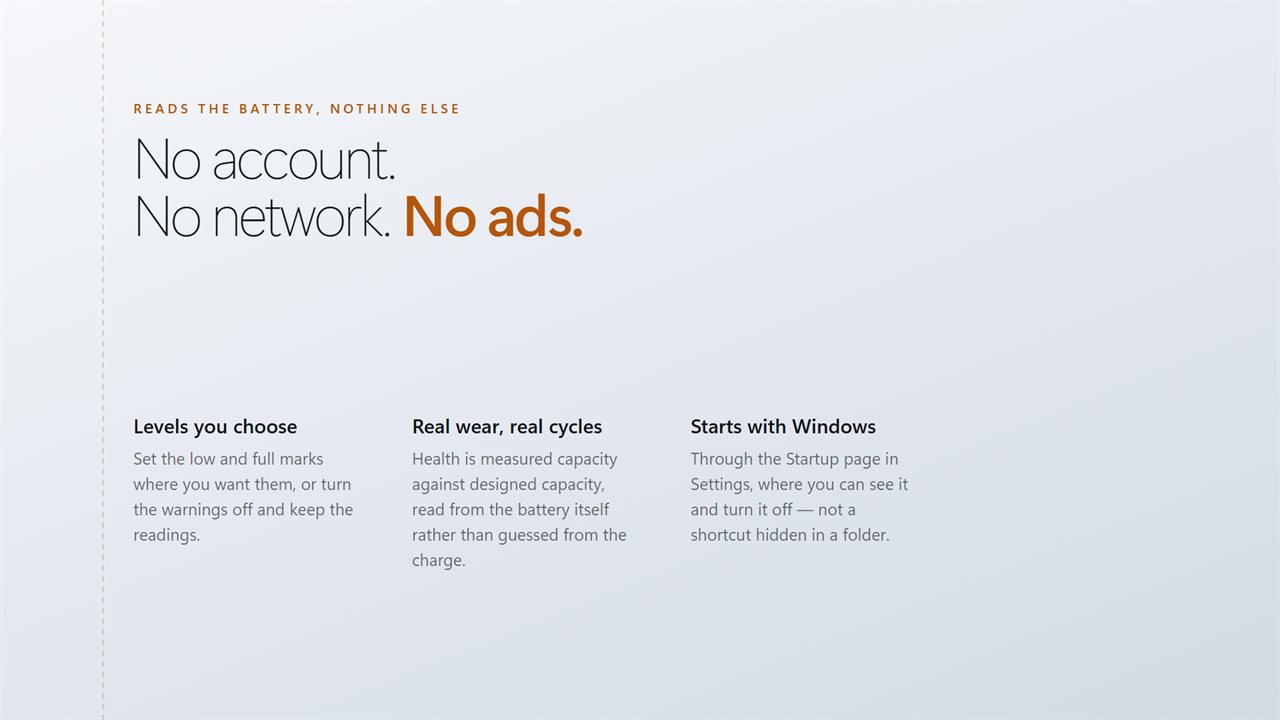
Read from the battery hardware. No account, no tracking, no ads.

Watches the charge on the desktop and says something when it crosses a level you set.

190,000+downloads of EvlarSoft apps
Signed by EvlarSoftVerified US publisher
14-day money-backNo questions asked
Updates includedNo upgrade fees

A laptop battery alert you set at your own levels

Windows tells you about the battery when it is nearly empty, and by then you are already hunting for a charger. It says nothing at all when you could stop charging. This laptop battery alert widget covers both ends with levels you choose.

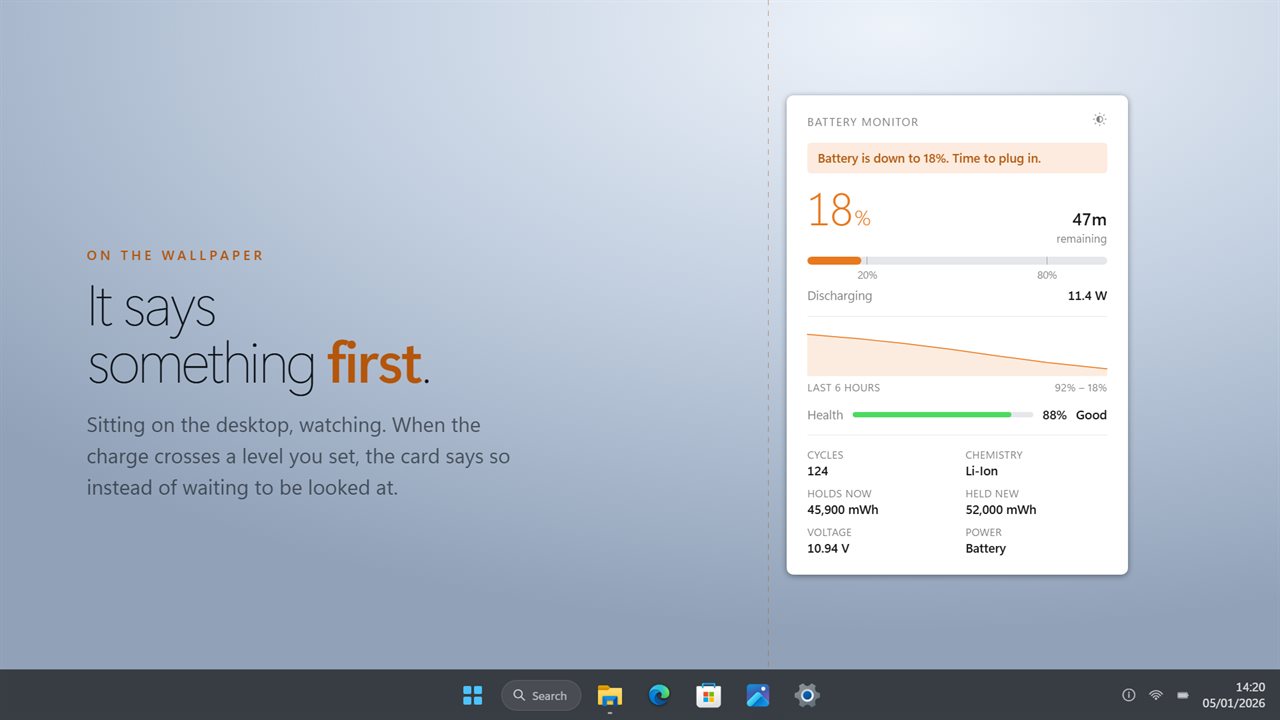
Getting low at sets the bottom line anywhere from 5% to 50%, starting at 20%. When the laptop is running on battery and hits it, a band across the widget reads "Down to 20%. Time to plug in." Charged enough at sets the top line from 50% to 100%, starting at 80%, and while charging the widget shows "Charged to 80%. Safe to unplug." once you reach it. Both levels are drawn on the charge bar, so you can watch yourself approach them.

The warnings appear on the widget itself rather than as a sound or a Windows notification, which keeps them visible without interrupting a call or a presentation.

Should you unplug your laptop at 80 percent?

Lithium-ion cells wear faster when they spend long hours held at a full charge, especially when warm. Keeping a laptop that lives on a desk between roughly 20% and 80% is common advice for slowing that wear. The catch is that many laptops offer no way to cap the charge, and where a limit exists it usually sits in the manufacturer's own utility rather than in Windows settings.

A reminder is the practical middle ground. Set Charged enough at to 80%, keep working, and pull the cable when the widget says so. When you know you need every minute for a flight, ignore it and charge to full.

See battery drain in watts, not a guess

The widget reads the charge or drain rate the battery reports, in watts, every 5 seconds. Start an export or a game and the number climbs straight away; close it and it falls. The time shown, left or to full, is calculated from that same live rate, so it reacts to what you are doing now instead of an average built up over the last stretch of light use.

Turn on Show the last hour for a trace of the charge with one point a minute, scaled to the range it actually moved through, with your low level marked when it falls inside.

Battery wear level at a glance

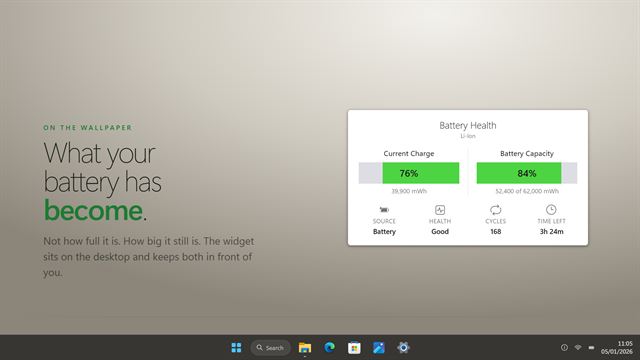
The Health section compares Holds now, what the pack stores when full, with Held new, its design capacity, and rates the result Good, Fair, Poor or Replace. Next to it are Cycles, Chemistry, Voltage and Power, which shows Charger or Battery. The status line reads Charging, Not charging or Discharging, so it is obvious when a dock or a weak adapter is only holding the charge level.

What it shows

  • Low-charge warning band at a level from 5% to 50%
  • Charged-enough band at a level from 50% to 100%, 80% by default
  • Both thresholds marked on the charge bar
  • Live charge or drain rate in watts, refreshed every 5 seconds
  • Time left or time to full from the current rate
  • One-hour charge graph with your low level marked
  • Measured health with Good, Fair, Poor and Replace ratings
  • Cycle count, chemistry, both capacities, voltage and power source
  • Light, Dark or Frosted themes from 70% to 160% size
  • On the desktop or above other windows, with Start with Windows

Who it helps

Laptops that never leave the desk

Unplug at 80% and plug back in at the low band, and the pack spends far less time sitting at full.

Working away from an outlet

The watts figure shows which app is eating the charge, and the low band tells you in time to save and find power.

Checking an older battery

Health and cycle count show whether short runtimes are wear, or just a heavy workload.

What's new in 2.0.10

  • Rebuilt for Windows 11
  • New: warnings at a low level and a charged-enough level, both configurable
  • New: live draw in watts
  • Battery health is now measured wear rather than charge repeated
  • Real cycle count, read from the battery hardware
  • Light, dark and frosted themes, and any size from 70% to 160%
  • Lower memory use and a faster start

Questions

Anything else? Ask us

Does it warn me when my laptop battery is getting low?

Yes, on the widget itself. When the PC is on battery and the charge reaches your low level, a band appears reading "Down to 20%. Time to plug in." The level is set from 5 to 50% and starts at 20%. It is a band on the widget, not a sound or a Windows notification.

Can it tell me when to unplug at 80%?

Yes. While charging, a band says the battery is charged enough once it reaches your full level, which is set from 50 to 100% and starts at 80%. Both levels are marked on the charge bar so you can see how close you are.

Does it show how many watts my laptop is using?

Yes. It shows the charge or drain rate the battery reports, in watts, read every 5 seconds. The time left is worked out from that same rate rather than from Windows' longer average.

Does it show battery health and wear?

Yes. Health is what the battery holds when full as a share of what it was designed to hold, rated Good at 80% or more, Fair from 60%, Poor from 40% and Replace below that. Beside it are the cycle count, chemistry, both capacities in mWh, voltage and power source.

Can it show a graph of my battery charge?

Yes. Show the last hour adds a trace of the charge, one point a minute, scaled to the range it actually moved through, with your low level marked when it falls inside. It can be turned off.

Does it work on a desktop PC?

No. It reads a battery, so on a PC without one it shows No battery on this PC.

Can I turn the warnings off?

Yes. Switch off Show a warning on the widget under Warn me. The levels stay marked on the charge bar.

What does Not charging mean when the charger is plugged in?

The laptop is on mains power but the battery is not taking charge. That often happens when a manufacturer's charge limit is holding the pack, or when the adapter supplies only enough for the running load.

Which versions of Windows does it run on?

Windows 10 (version 1809 or later) and Windows 11.

Is it a subscription?

No. Battery Monitor Widget is a one-time purchase of $2.99, and updates are included.

How do I get it?

Buy it on this page and your license key arrives by email. If the button says Notify me, Battery Monitor Widget is not on sale here yet; leave your email and we will tell you when it is.

Prefer widgets? The Battery Health widget on WidgetSpark does a similar job, alongside over 100 other desktop widgets in one app.