EEvlarSoft

Modern Battery Widget

A battery widget for your Windows desktop that shows the percentage, the watts going in or out, and how much of its original capacity your laptop battery still has.

Buy for $2.99
One payment. No subscription.
14-day money-back guarantee.
4.5
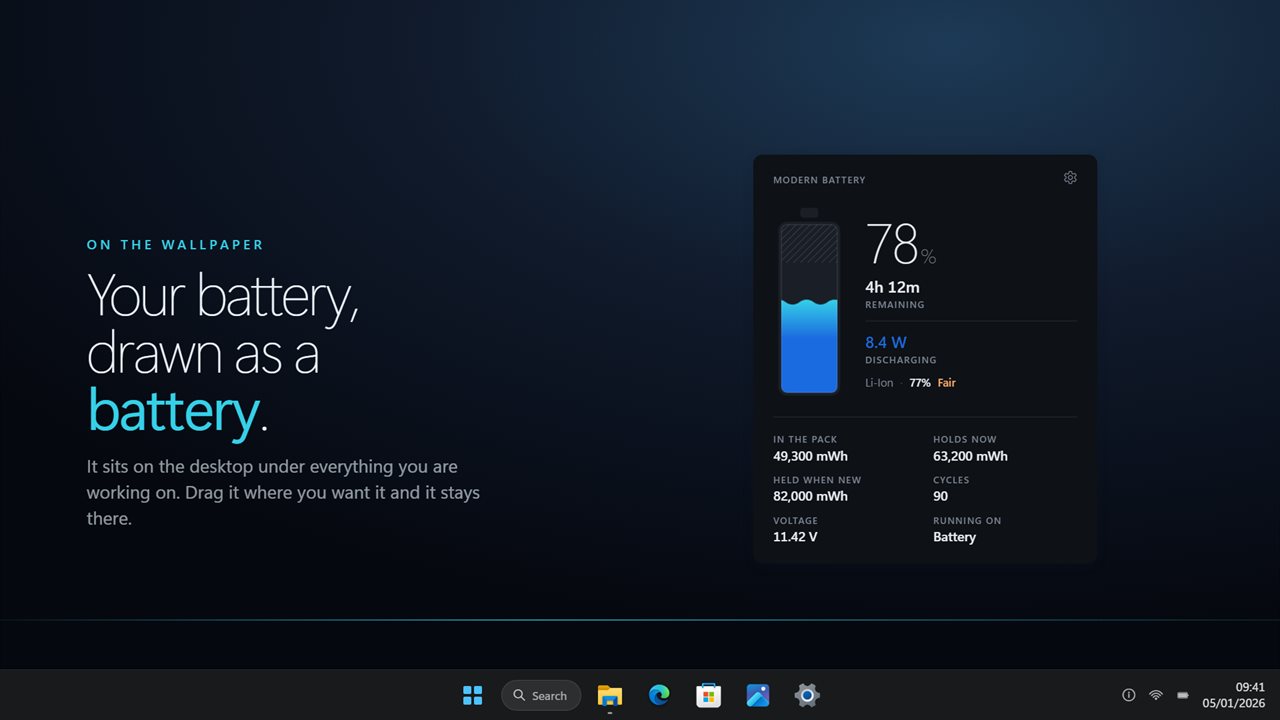
Sits on the desktop under your windows, drawn as the thing it is: a cell filled to the charge.
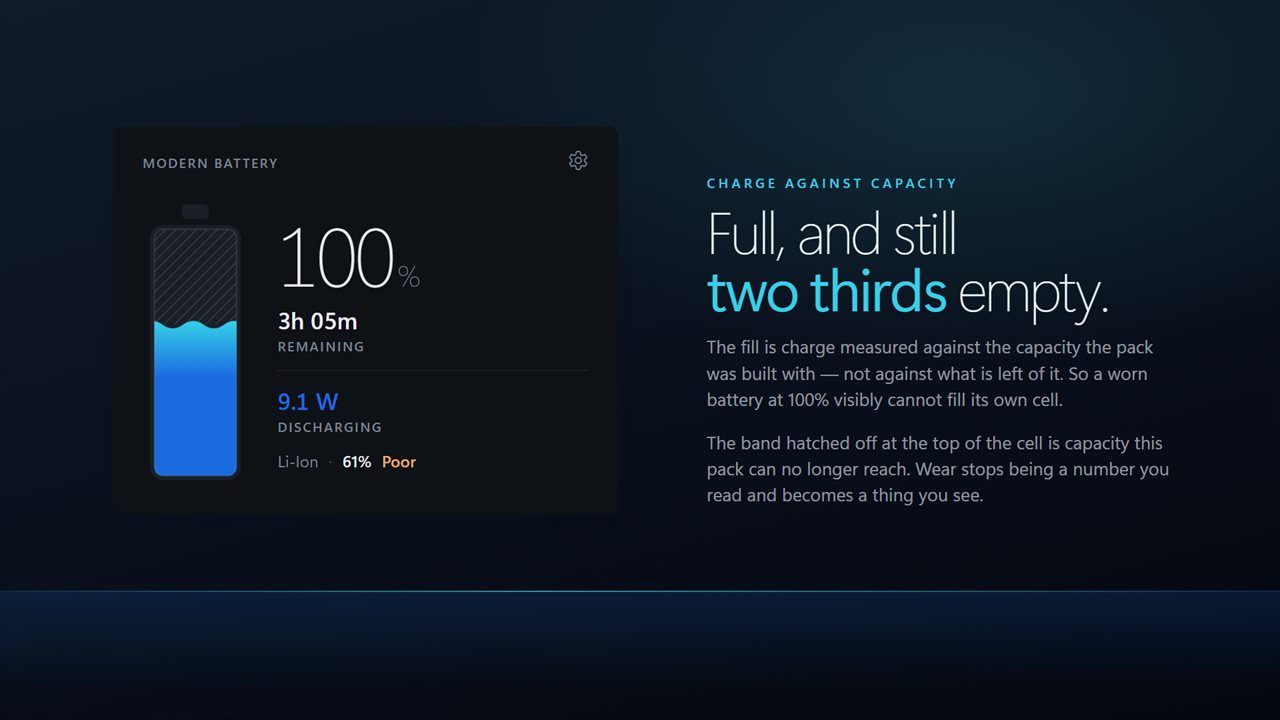
The fill is measured against the capacity the pack was built with, so a worn battery at 100% cannot fill its own cell.
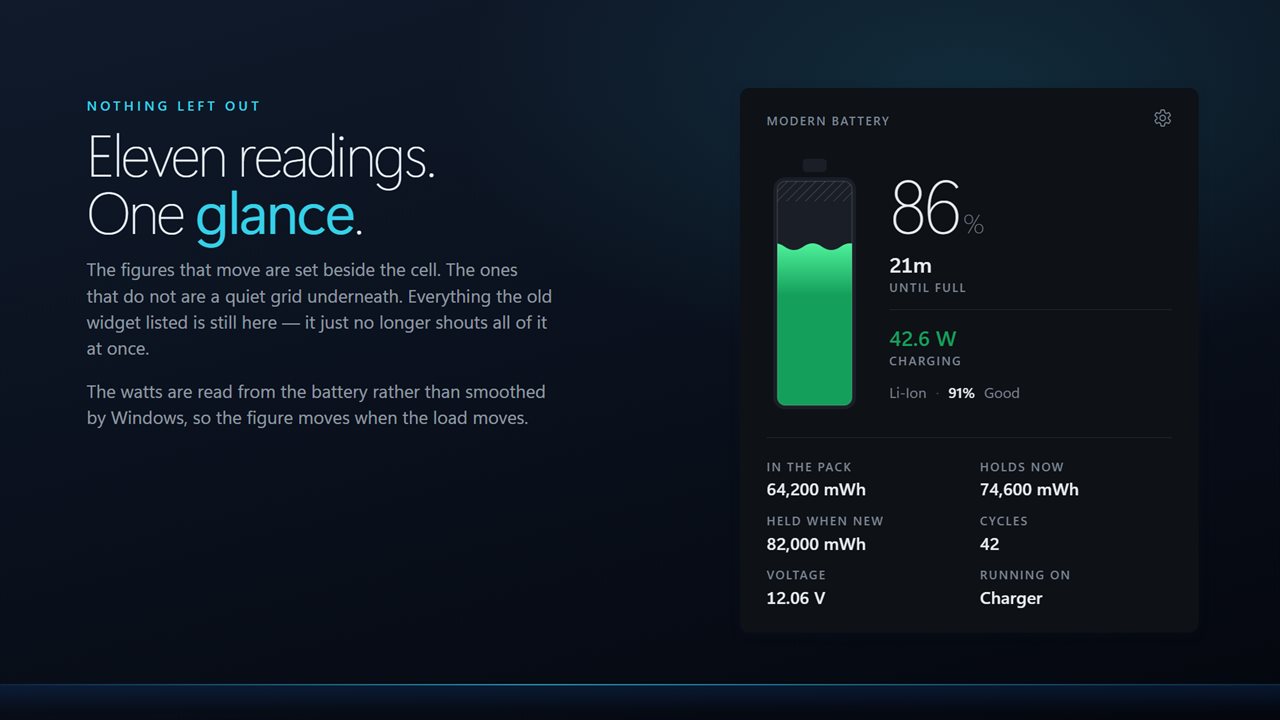
Every reading the original listed — charge, time, real watts, capacity, cycles, voltage and chemistry.
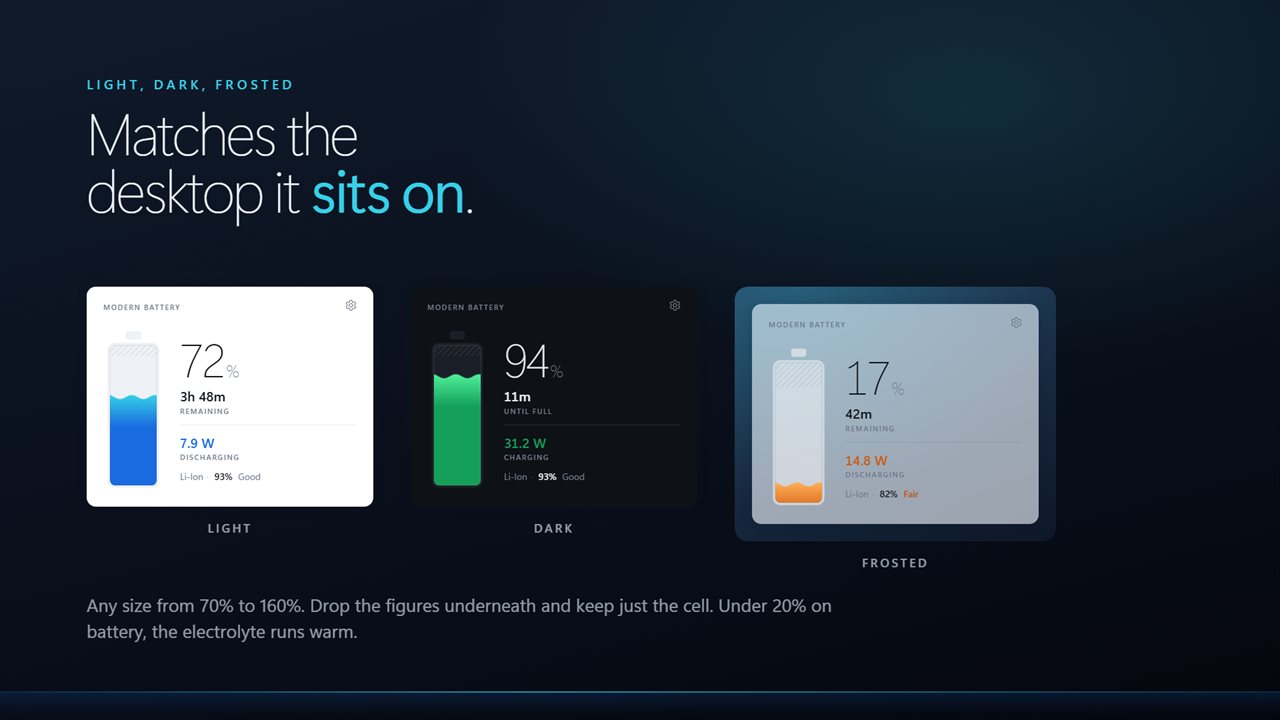
Light, dark or frosted, at any size from 70% to 160%.
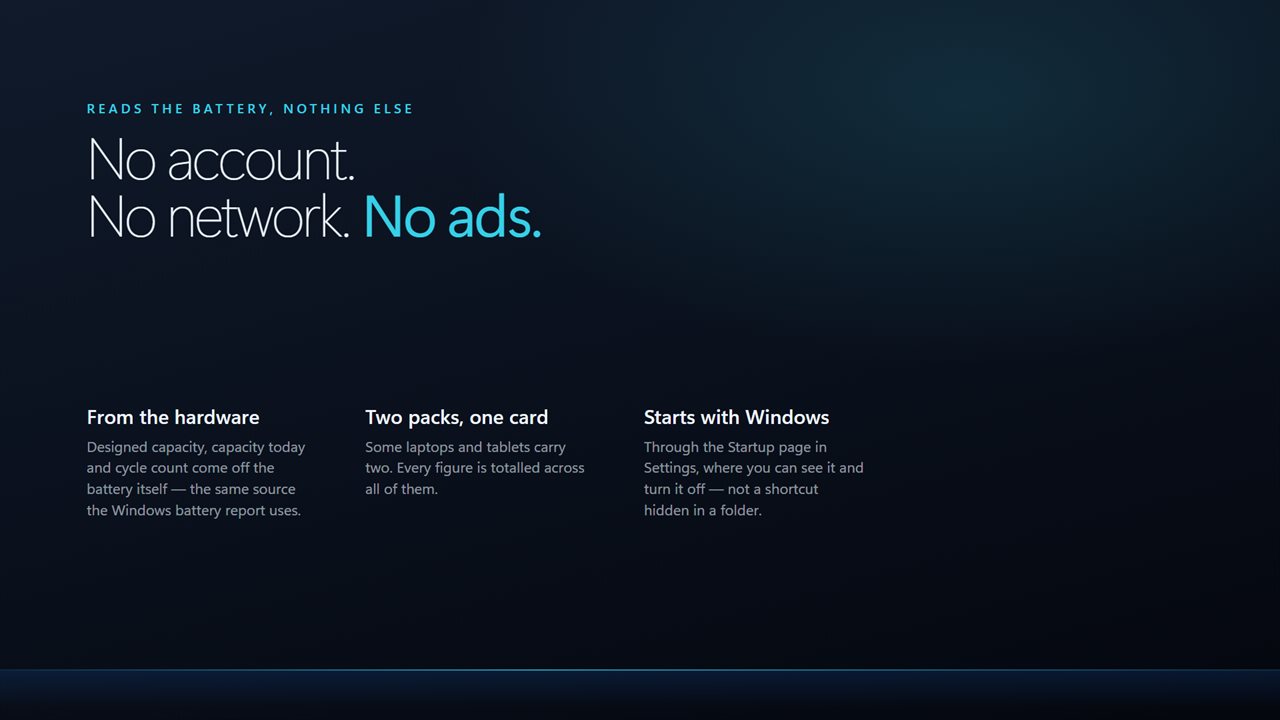
Read from the battery hardware. No account, no tracking, no ads.

Sits on the desktop under your windows, drawn as the thing it is: a cell filled to the charge.

190,000+downloads of EvlarSoft apps
Signed by EvlarSoftVerified US publisher
14-day money-backNo questions asked
Updates includedNo upgrade fees

A battery widget for Windows that shows more than a percentage

The battery icon on the taskbar gives you one number. Modern Battery Widget is a battery widget for Windows that sits on the desktop and lays out the rest: whether the laptop is charging, not charging or discharging, the time remaining or the time until full, the live rate in watts, and a condition rating for the pack.

Its centerpiece is a drawn battery cell. The fill is scaled against what the battery could hold when it was new, so wear shows up as a section the charge can no longer reach. Under the cell, a grid of facts spells out the numbers behind the picture: In the pack, Holds now, Held when new, Cycles, Voltage and Running on.

Windows has these figures, but most of them normally live in a battery report you generate from a command prompt and read as a web page. Here they refresh on their own while you work.

How to put a battery meter on your desktop

Launch the app and the panel appears on the desktop; drag it wherever it fits. Open Settings from the gear on the widget or by right-clicking it, then adjust it under Appearance and On the desktop.

  • Theme: Light, Dark, or Frosted, which picks up color from the wallpaper behind it.
  • Size: a slider from 70 to 160 percent, plus a Drop shadow switch.
  • Just the cell: hides the fact grid and keeps the readings that change.
  • Sits: On the desktop, under your windows, or Above other windows.
  • Start with Windows, so the meter is there after every sign-in.

Watch laptop power draw in watts

Watts tell you what the percentage cannot. A video call, a game or a stuck background process shows up as a jump in drain long before the charge figure moves, and the widget re-reads the battery every five seconds, so the figure follows the load closely. Plug in and the same line shows how fast the charger is filling the pack.

Time remaining and time until full are calculated from that same live rate rather than a long average, so they respond within a reading or two after you change what you are doing. When the laptop is on its charger and the pack is not taking charge, the time line simply reads On power.

Check battery wear at a glance

Every lithium pack loses capacity as it ages. The widget compares what the battery holds when fully charged today with its design capacity and turns that into one of four words: Good, Fair, Poor or Replace. If the firmware does not report cycles, the Cycles line says Not counted rather than guessing.

Because the rating sits next to the percentage all day, you notice a decline over the months instead of discovering it the day the laptop dies at 30 percent.

Readings on the panel

  • Charging, Not charging or Discharging status
  • Percentage with time remaining or time until full
  • Charge and drain rate in watts
  • Present full-charge capacity against design capacity
  • Condition rated Good, Fair, Poor or Replace
  • Cycle count, voltage and whether it is running on the charger or the battery
  • Combined figures on PCs with more than one battery
  • Light, Dark and Frosted themes, sized from 70 to 160 percent
  • Desktop layer or above other windows, with Start with Windows

Who it suits

Laptop users who work unplugged

See which apps cost you battery by watching the watts change as you switch tasks.

Anyone deciding on a replacement battery

The condition word and the capacity numbers show whether the pack is merely older or actually worn out.

People buying a used laptop

Install it and the cell shows the remaining capacity straight away, with no command line or report to dig through.

What's new in 2.0.9

  • Rebuilt for Windows 11
  • New: live draw in watts
  • Capacity remaining is now measured wear rather than charge repeated
  • New: compact mode
  • Light, dark and frosted themes, and any size from 70% to 160%
  • Lower memory use and a faster start

Questions

Anything else? Ask us

Why doesn't the battery picture fill up at 100%?

Because the fill is measured against the capacity the battery was built with. The part a worn battery can no longer hold is hatched off at the top of the cell, so a pack at 85% health stops short even when fully charged.

Does it show how many watts my laptop is drawing?

Yes. It shows the charge or drain rate the battery reports, in watts, read every 5 seconds, along with whether it is charging, not charging or discharging. Time remaining or until full is worked out from that rate.

How does it decide the battery condition?

From wear alone: what the pack holds when full as a share of what it was designed to hold. Good is 80% or more, Fair 60 to 79%, Poor 40 to 59% and Replace below 40%. The cycle count is shown separately and does not change the rating.

Does it warn me when the battery is low?

No. There is no alert or notification. The cell turns orange when the PC is on battery at 20% or less, which is the only low-charge signal.

What does the compact setting hide?

Just the cell drops the grid underneath: charge in the pack, what it holds now, what it held when new, cycles, voltage and power source. The cell, percentage, time, watts, status, chemistry and health stay.

Does it work with two batteries?

Yes. Capacities and cycle counts are added up across every battery the PC reports, so the cell and figures describe the packs together. On a PC with no battery it shows No battery on this PC.

How do I show battery percentage on the Windows desktop?

Run Modern Battery Widget and the percentage appears on a panel on the desktop, alongside status and time left. Turn on Start with Windows in Settings to keep it there after every restart.

Can the battery widget stay on top of other windows?

Yes. Set Sits to Above other windows in Settings. On the desktop keeps it underneath your open windows instead.

Does the battery widget work on a desktop PC?

Only if the PC has a battery. On a machine without one, the panel says No battery on this PC instead of showing empty readings.

Which versions of Windows does it run on?

Windows 10 (version 1809 or later) and Windows 11.

Is it a subscription?

No. Modern Battery Widget is a one-time purchase of $2.99, and updates are included.

How do I get it?

Buy it on this page and your license key arrives by email. If the button says Notify me, Modern Battery Widget is not on sale here yet; leave your email and we will tell you when it is.

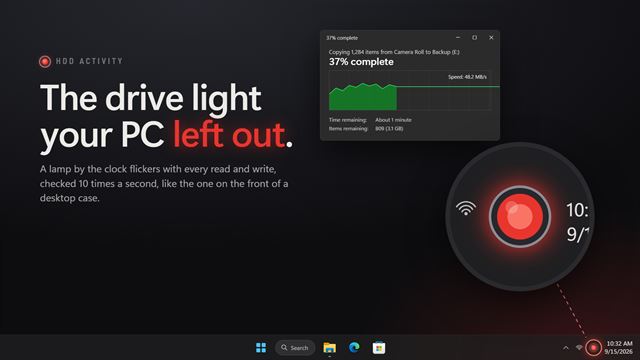
Prefer widgets? The Battery Health widget on WidgetSpark does a similar job, alongside over 100 other desktop widgets in one app.