EEvlarSoft

Blaze CPU Stress Test

Stress test your PC's processor on as many cores as you pick, and see the boost figure that shows how much turbo headroom it is really using.

Buy for $2.49
One payment. No subscription.
14-day money-back guarantee.
3.0
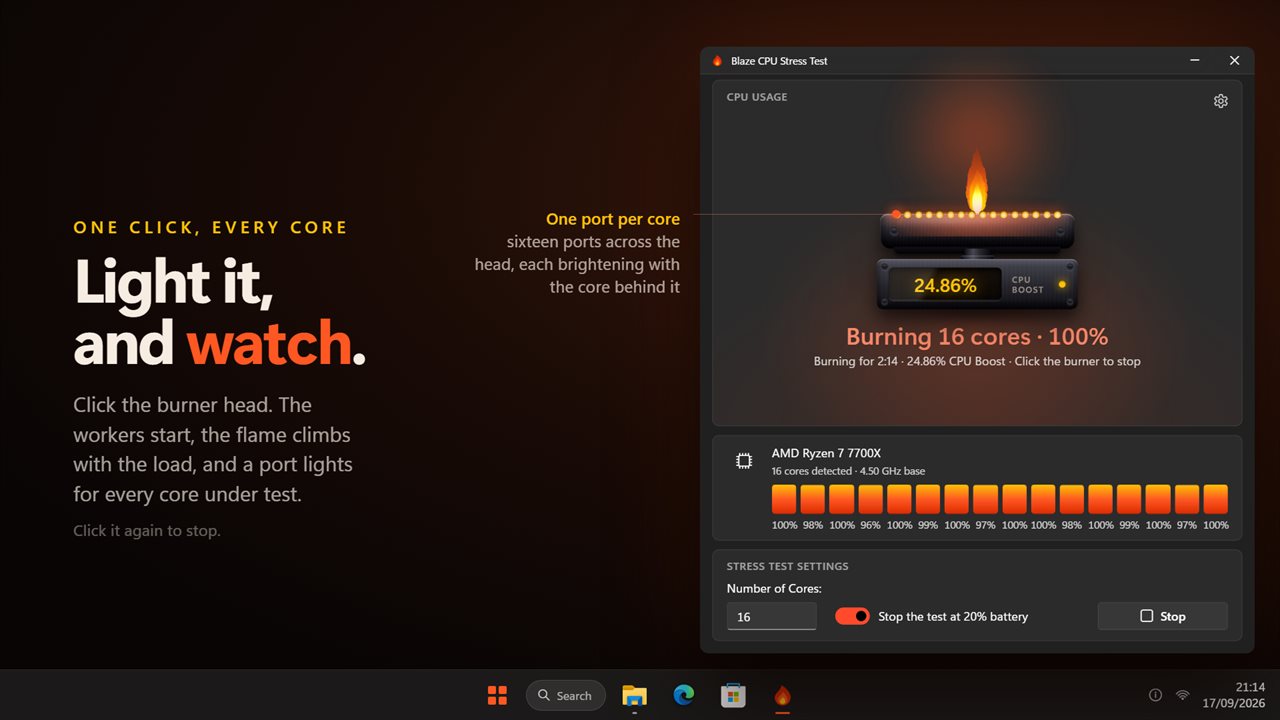
Click the burner and every core you picked lights up.
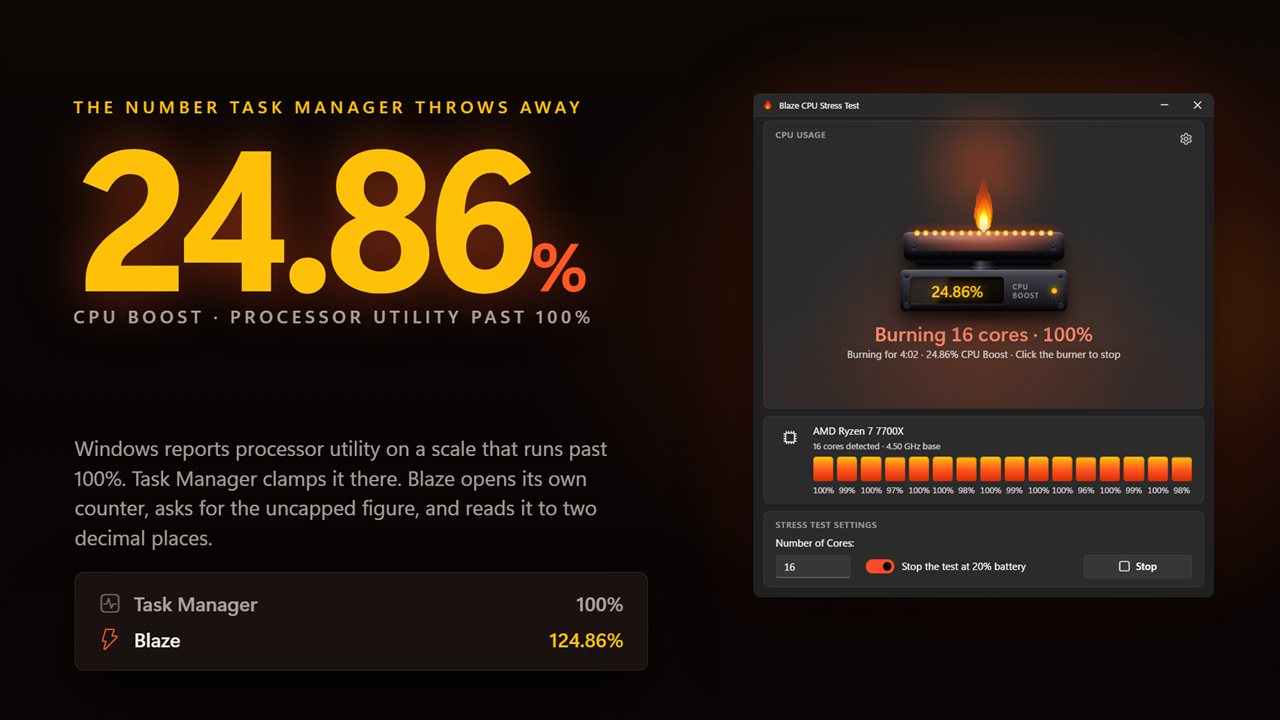
The gauge reads the turbo headroom past 100% that Task Manager caps.
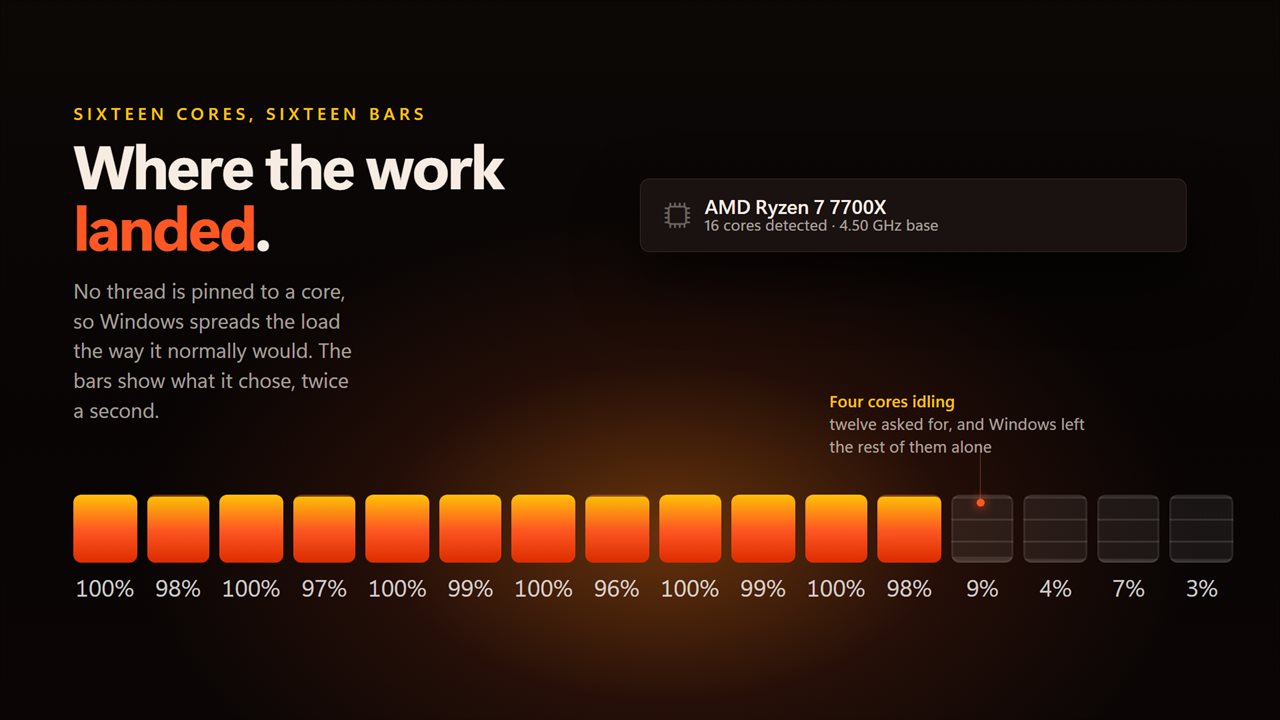
A bar for every core shows where the work actually landed.
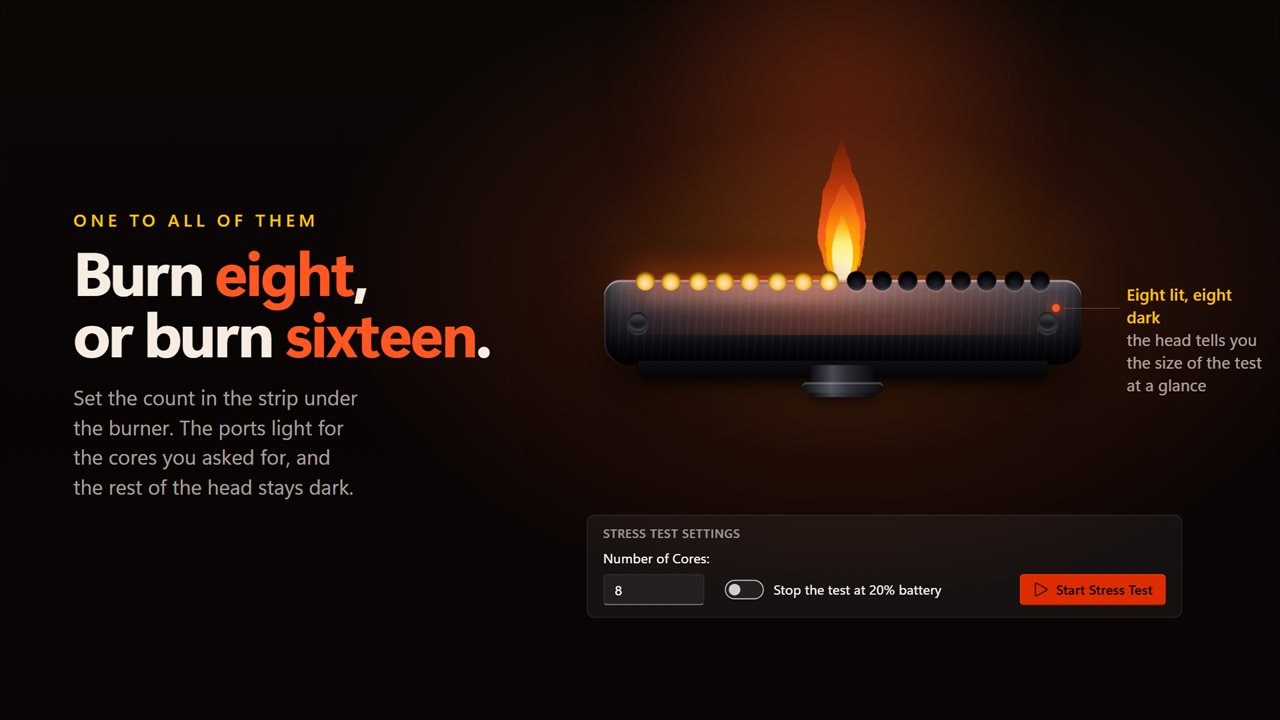
Choose how many cores to burn, from one to all of them.
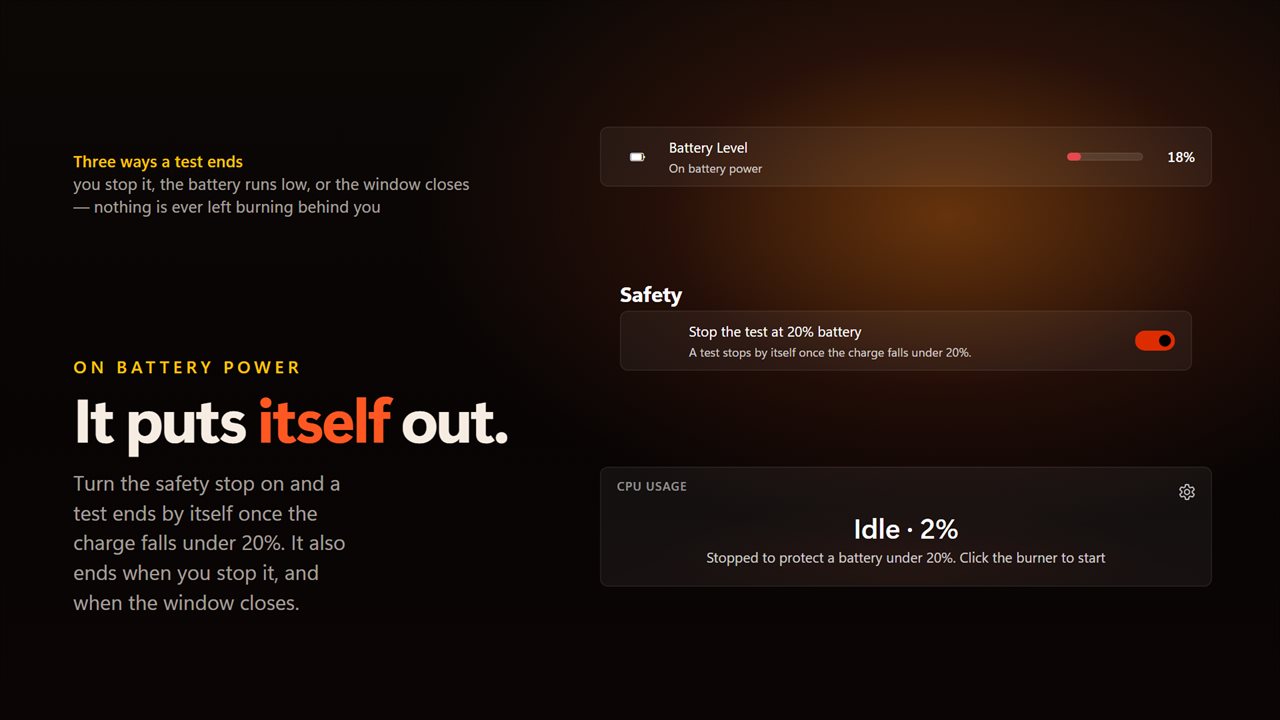
On a laptop it can stop itself once the charge falls under 20%.
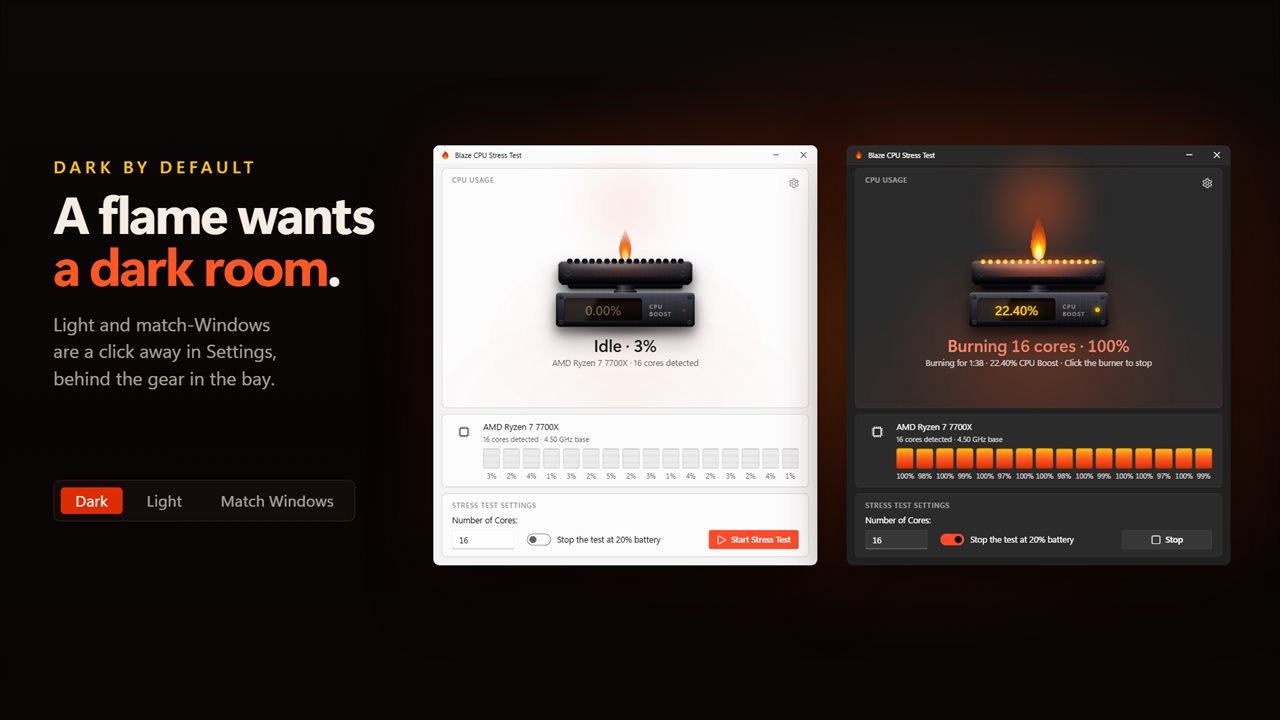
Dark by default, with light and match-Windows themes.

Click the burner and every core you picked lights up.

190,000+downloads of EvlarSoft apps
Signed by EvlarSoftVerified US publisher
14-day money-backNo questions asked
Updates includedNo upgrade fees

A PC stress test that shows what happens past 100%

When you stress test a PC's processor, a usage graph pinned at 100% tells you only that it is busy. It says nothing about speed. A modern chip that is boosting does more work per second at 100% than one sitting at its base clock, and one that is overheating can drop back while the graph stays flat.

Windows does measure the difference. Its processor utility counter is scaled to the base clock, so a core running faster than base reads above 100. Most monitors cut that number off at 100. Blaze CPU Stress Test opens the counter itself with the cap removed and shows the share above 100 as CPU Boost, to two decimal places, for as long as the test runs.

The load comes from worker threads, one per core you ask for. Each spins for 99 milliseconds out of every 100 and rests for 1, so the demand is steady instead of arriving in bursts. Threads are not pinned, so Windows schedules them the way it schedules everything else.

How to max out a CPU for a stability check

The window centers on a gas burner. Its head has one flame port for each core under test, up to sixteen, and each port brightens with the load on its core while the flame rises as total load climbs.

  • Set Number of Cores: anything from 1 up to the number of logical processors Windows reports. The value is remembered for next time.
  • Click the burner head, or Start Stress Test, to light it.
  • Watch the headline, which reads Burning and the core count with total load, and the elapsed time and boost underneath.
  • Click the burner again, or Stop, to end the run. Closing the window ends it too, so nothing keeps running in the background.

What a falling CPU Boost number tells you

Early in a run, a chip with good cooling usually shows its highest boost. If the figure sinks over the next few minutes while load stays near full, the processor is pulling its clocks back, most often because of heat or a power limit. A boost that holds steady suggests the cooling has headroom to spare.

Compare runs rather than single numbers: one core against all cores, a laptop propped up on a stand versus flat on a bed, or the same PC before and after cleaning the fans. Above the per-core bars the app names your processor, counts its cores, shows the performance and efficient core split on hybrid chips and gives the base clock in GHz, so you can note the setup alongside the result.

The app does not read temperatures and does not produce a benchmark score.

Running a CPU burn test on a laptop

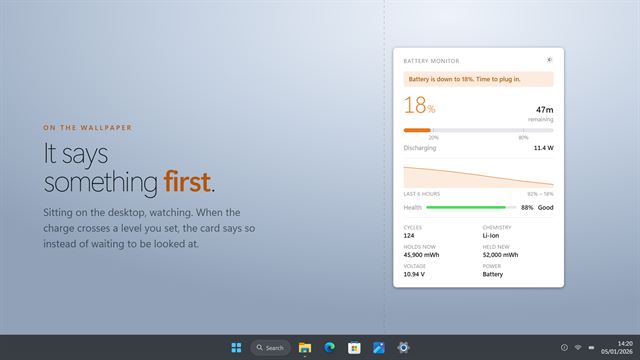
A full-load run drains a battery fast. The Battery Level row gives the charge and says whether the machine is Charging, Plugged in or On battery power. In Settings, turn on Stop the test at 20% battery and the run ends by itself once the charge drops under that mark, with a note saying why it stopped.

Features

  • CPU Boost readout from the uncapped Windows processor utility counter
  • Load on 1 to every logical processor, chosen with Number of Cores
  • Flat 99-in-100 millisecond duty cycle on every worker thread
  • Clickable burner with up to sixteen ports that glow with each core's load
  • Per-core load bars plus total CPU Usage
  • Processor name, core count, performance and efficient split, base clock
  • Optional automatic stop at 20% battery
  • Dark theme by default, with Light and Match Windows

Questions

Anything else? Ask us

What does the CPU Boost figure mean?

It is how far the Windows processor utility counter runs above 100%, which happens when the processor is clocking past its base speed. Task Manager caps that counter at 100%, so this app reads it uncapped and shows the part above 100 to two decimal places.

Can I choose how many cores to load?

Yes. You can run anywhere from one worker thread up to one per logical processor. Each worker runs flat out for 99 milliseconds of every 100, and Windows decides which core it lands on.

Does it show CPU temperature?

No. It shows load per core, total load, the boost figure, your processor's name, core split and base clock, and battery status. Use a separate tool if you need temperatures.

Does the test stop on its own?

It runs until you click the burner or Stop, or until you close the window. There is no timed run, but on a laptop you can turn on a setting that stops the test once the battery falls below 20%.

Does it give a benchmark score?

No. It applies a steady load and shows what the processor does under it, without scoring or ranking the result.

Why does CPU usage go over 100% in Windows?

The processor utility counter compares work done against the base clock. When the chip boosts above base speed, that counter climbs past 100. This app shows the part above 100 as CPU Boost.

How long should I stress test my CPU?

Give it long enough for the heatsink to warm through, usually somewhere past the first ten minutes, since that is when a weak cooler starts costing boost. There is no timer here; the run lasts until you end it.

Is it safe to max out a CPU?

Modern processors protect themselves by lowering their clock speed when they get too hot, and a boost reading that keeps sinking is usually that protection at work. Watch the machine during a first run and click Stop if it freezes, restarts or the fans sound wrong.

Which versions of Windows does it run on?

Windows 10 (version 1809 or later) and Windows 11.

Is it a subscription?

No. Blaze CPU Stress Test is a one-time purchase of $2.49, and updates are included.

How do I get it?

Buy it on this page and your license key arrives by email. If the button says Notify me, Blaze CPU Stress Test is not on sale here yet; leave your email and we will tell you when it is.