
A CPU stress test that tells you whether your processor holds its speed
The usual advice for a CPU stress test is to run one program to create the load and a second to watch the clock speed, then judge the graphs yourself. Quick CPU Stress Tester does both in one window and gives you a verdict at the end: Held its speed, or Slowed down to stay cool.
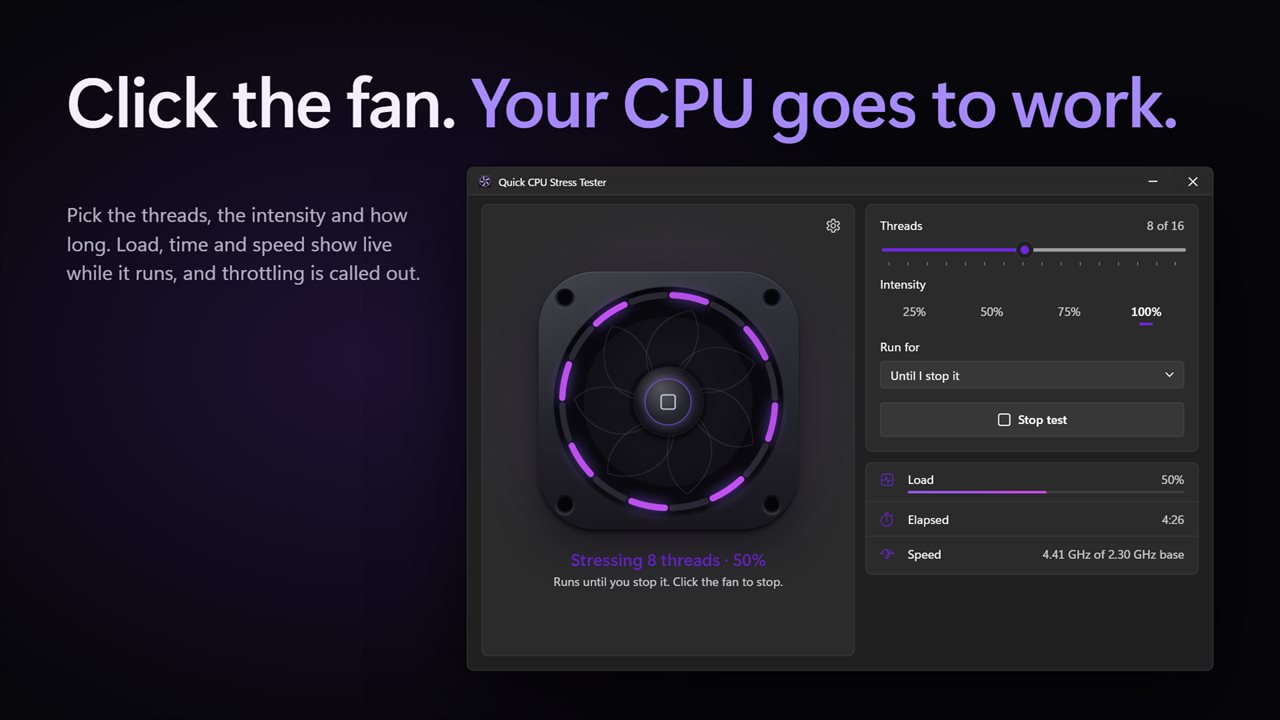
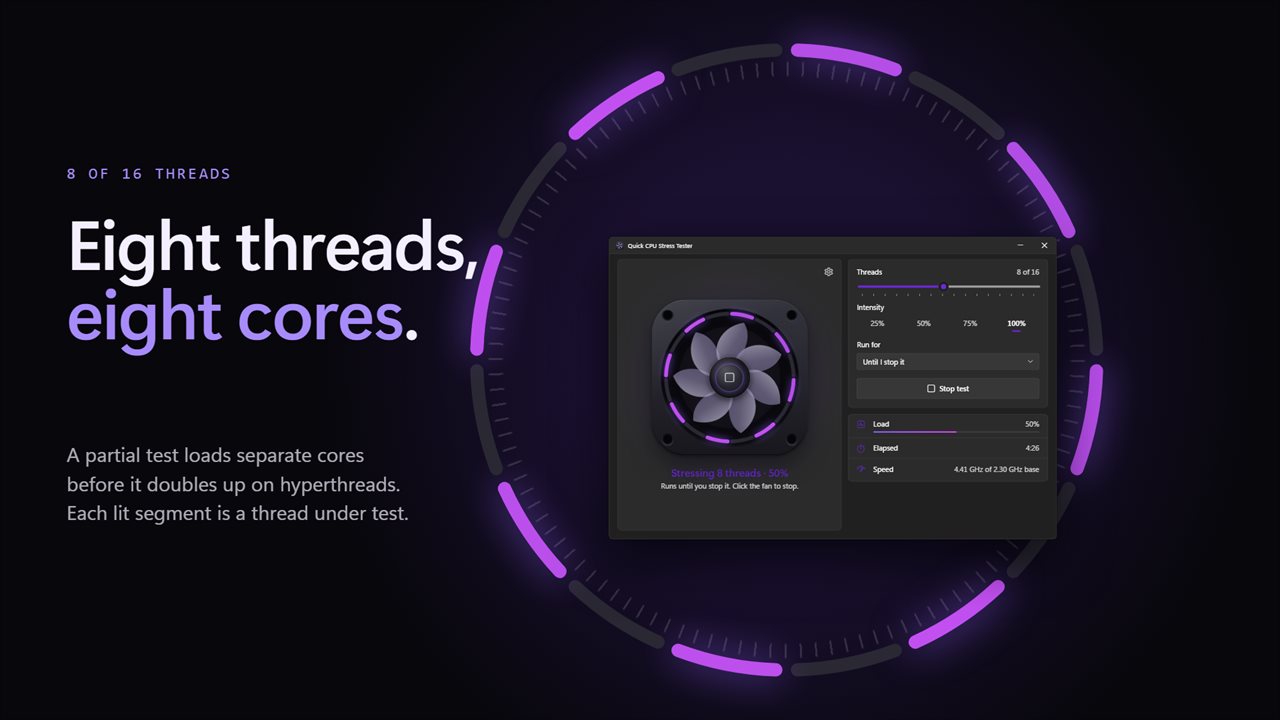
Click the fan hub to begin. The blades spin up with the load, and the ring around them carries one segment per logical processor; the threads being tested light up and brighten as they work. Underneath, a Live panel shows total Load, Elapsed time and time left, Speed as current GHz against the chip's base clock, and Battery on a laptop.
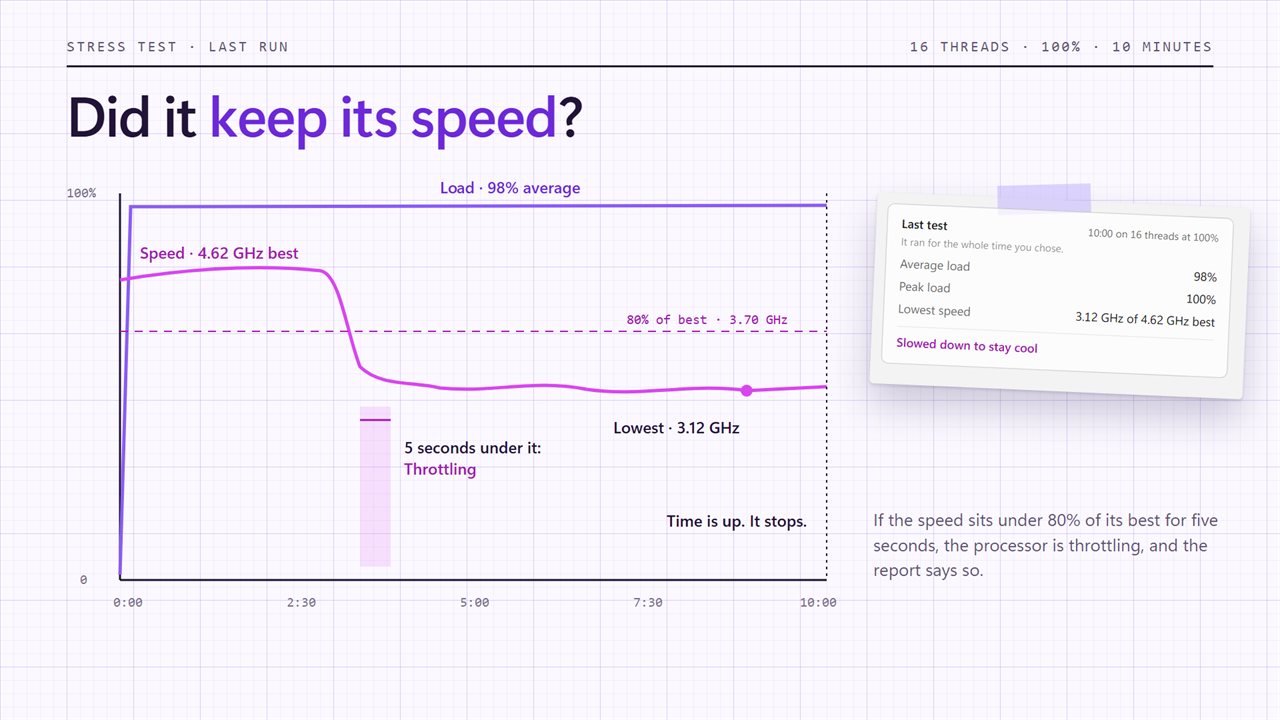
Throttling is flagged the moment the clock stays below 80% of the fastest speed seen in that run for five seconds straight. Short dips do not count, so a single background task will not trip the warning.
How to stress test a CPU, step by step
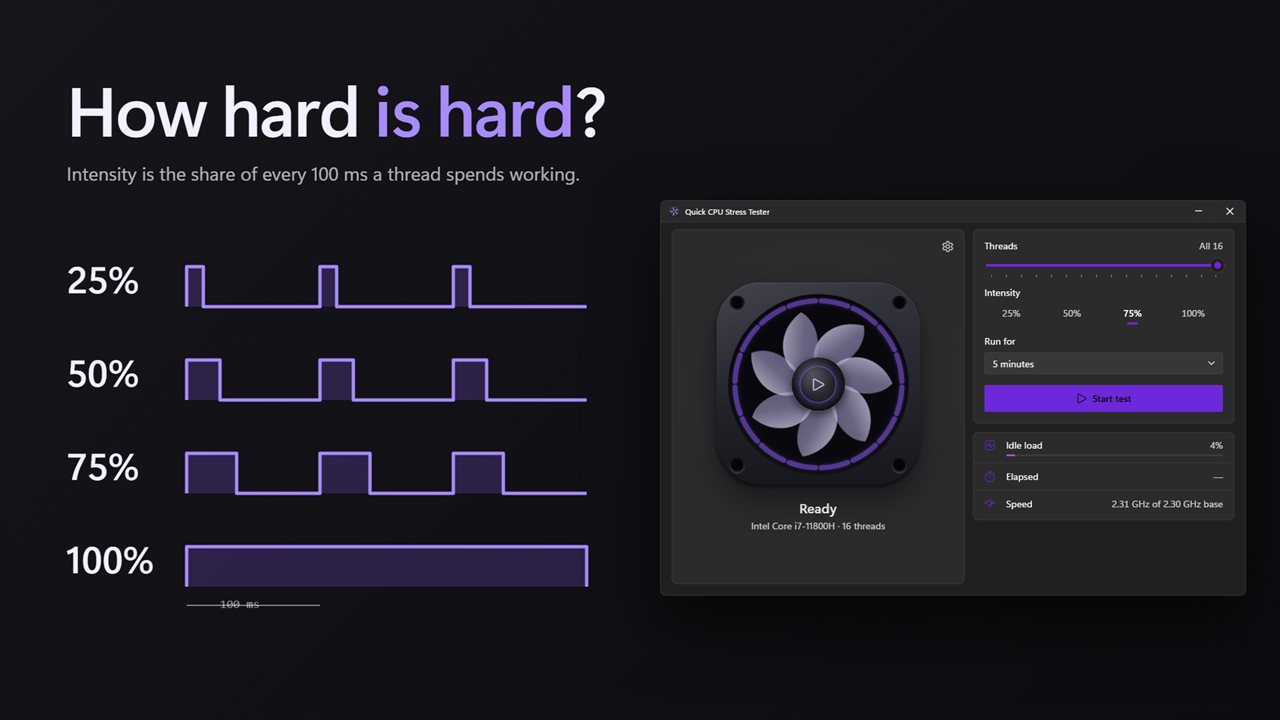
Close heavy apps first so the reading reflects the test, and note the Idle load figure shown before you start. Then set three controls:
- Threads: from 1 up to All, the full count of logical processors. Each worker is pinned to its own processor.
- Intensity: 25%, 50%, 75% or 100%. Each thread works for that share of every 100 milliseconds and sleeps for the rest, giving a smooth, even load rather than spikes.
- Run for: 1 minute, 5 minutes, 10 minutes, 30 minutes, or Until I stop it.
Testing for thermal throttling on a laptop
Thin laptops are where throttling shows up most, because the cooling has little headroom. Run all threads at 100% for 10 minutes on a desk, then repeat with the laptop on a cushion or with a dusty vent, and compare the Lowest speed line in each report. A machine that drops from near its boost clock to well under base is losing performance in every long render or compile.
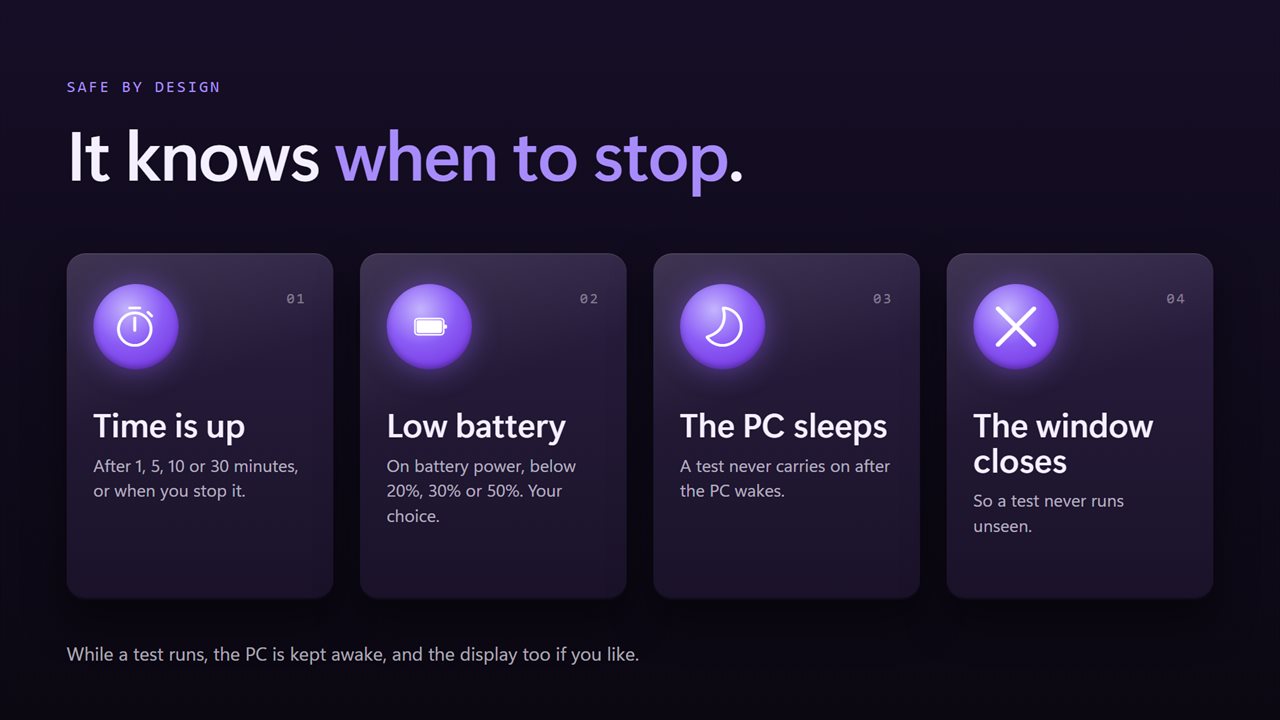
Running unplugged is also a useful battery check. The Battery used line records the start and end charge, and the Stop on low battery setting ends the test below 20%, 30% or 50% so you never drain the machine flat. When the laptop is charging, that floor is ignored.
Partial load and per-core testing
Not every question needs all cores. Loading 1 or 2 threads shows how high a single core boosts when the rest of the chip is idle, which is the speed most everyday software sees. Raising the count step by step shows where the clock starts falling.
On processors with two threads per core, a partial test places one worker on each physical core before it doubles up, so choosing 4 threads means four real cores at work rather than two cores split in half.
What the stress test report shows
When a run ends, the Last test card summarizes it: duration and settings, Average load, Peak load, Lowest speed against the best speed of the run, the throttling verdict, and Battery used. It also says why the run ended, whether it completed, you stopped it, the battery hit its floor, the PC went to sleep, or the window was closed.