EEvlarSoft

Desktop Authenticator

An authenticator app for PC: 2FA codes kept on Windows, one shortcut away, and locked behind Windows Hello.

Buy for $2.99
One payment. No subscription.
14-day money-back guarantee.
5.0
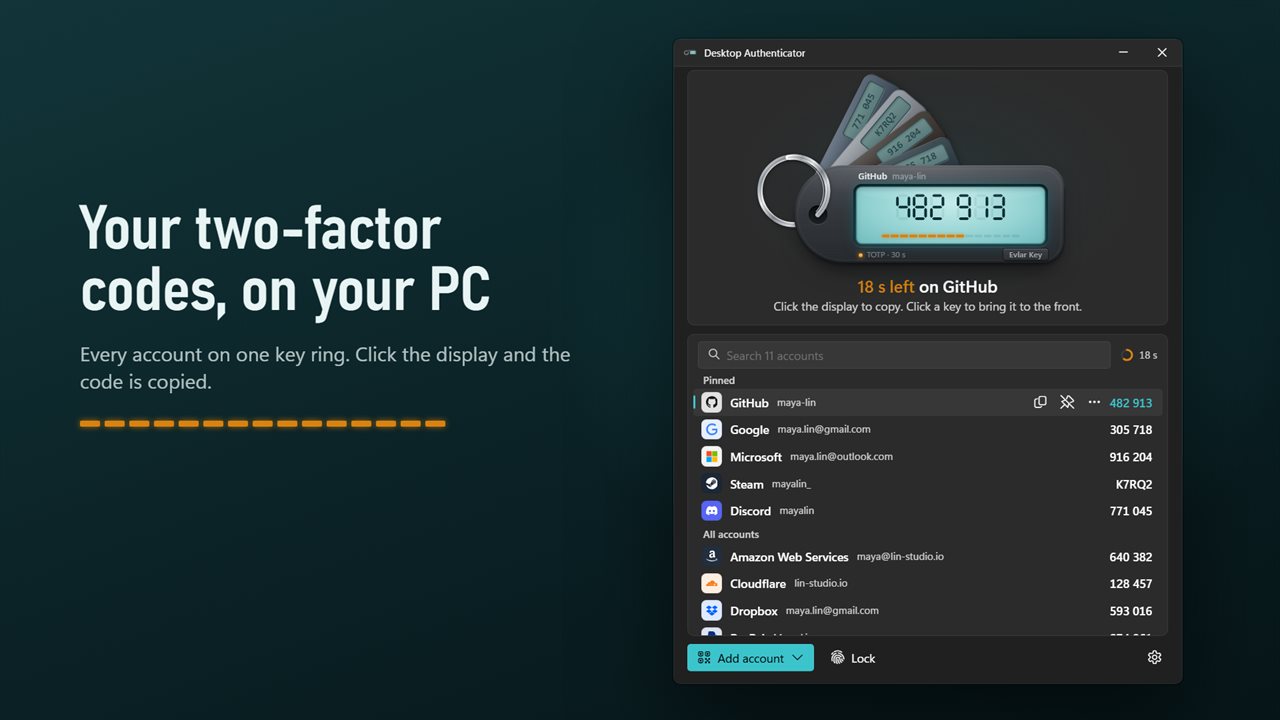
Your two-factor codes on your PC. Click the display to copy.
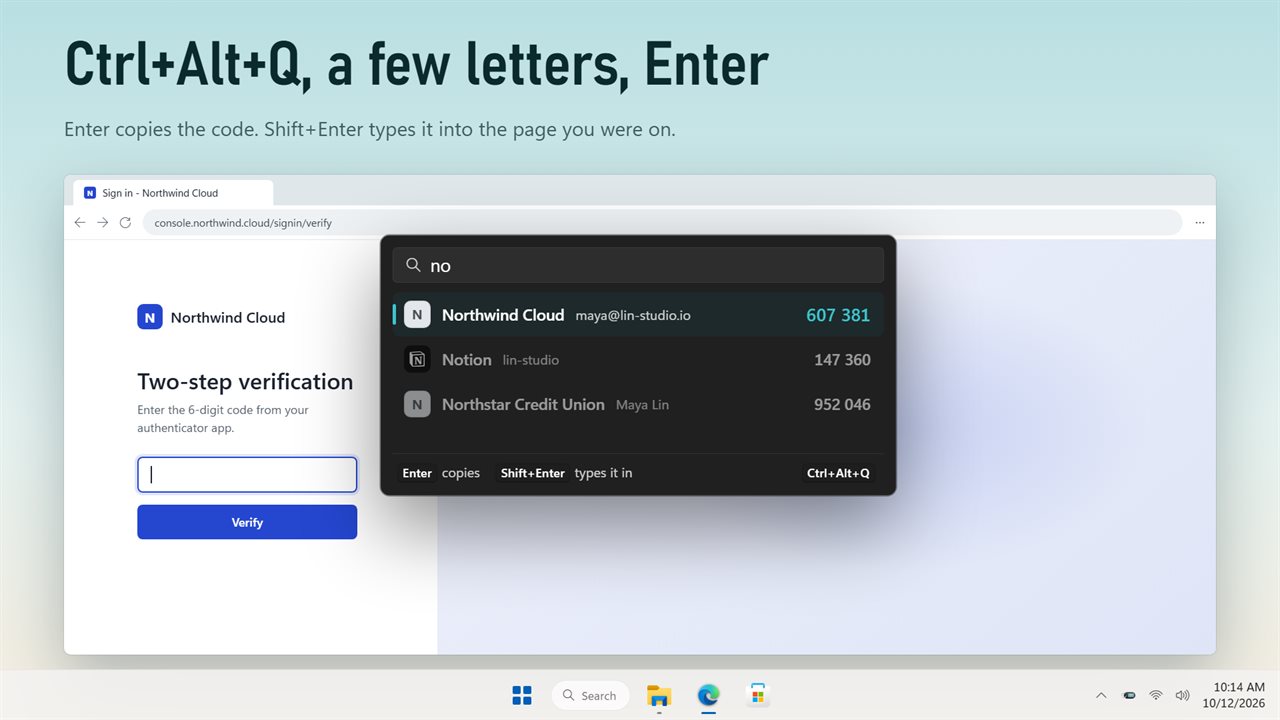
Press Ctrl+Alt+Q in any app, type a name, and copy the code or type it in.
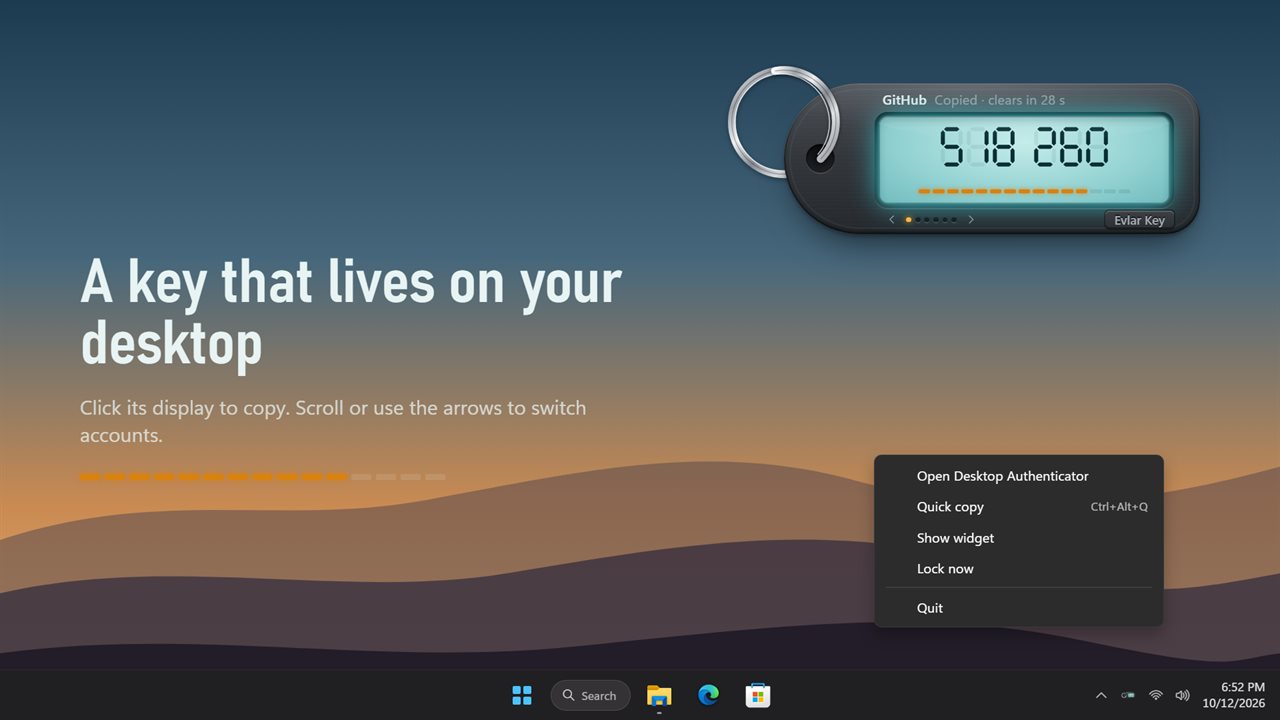
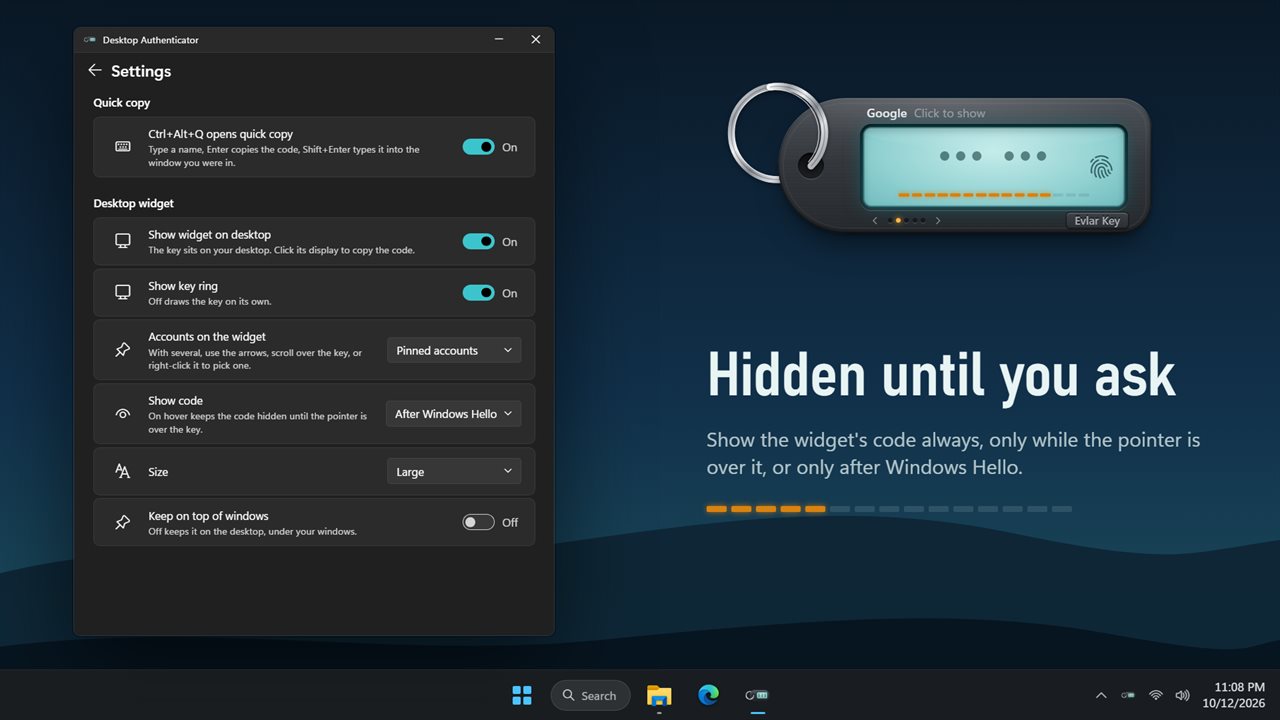
Keep your key on the desktop and click its display to copy.
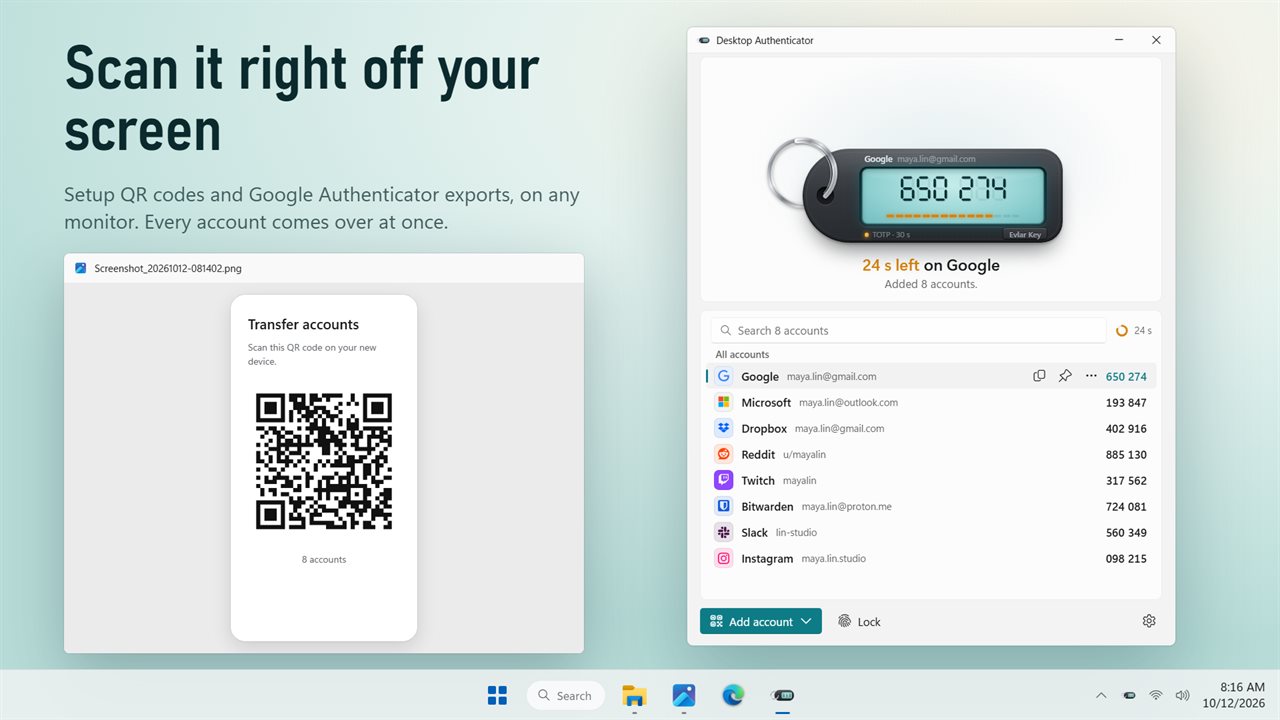
Scan a setup QR code or a Google Authenticator export right off your screen.
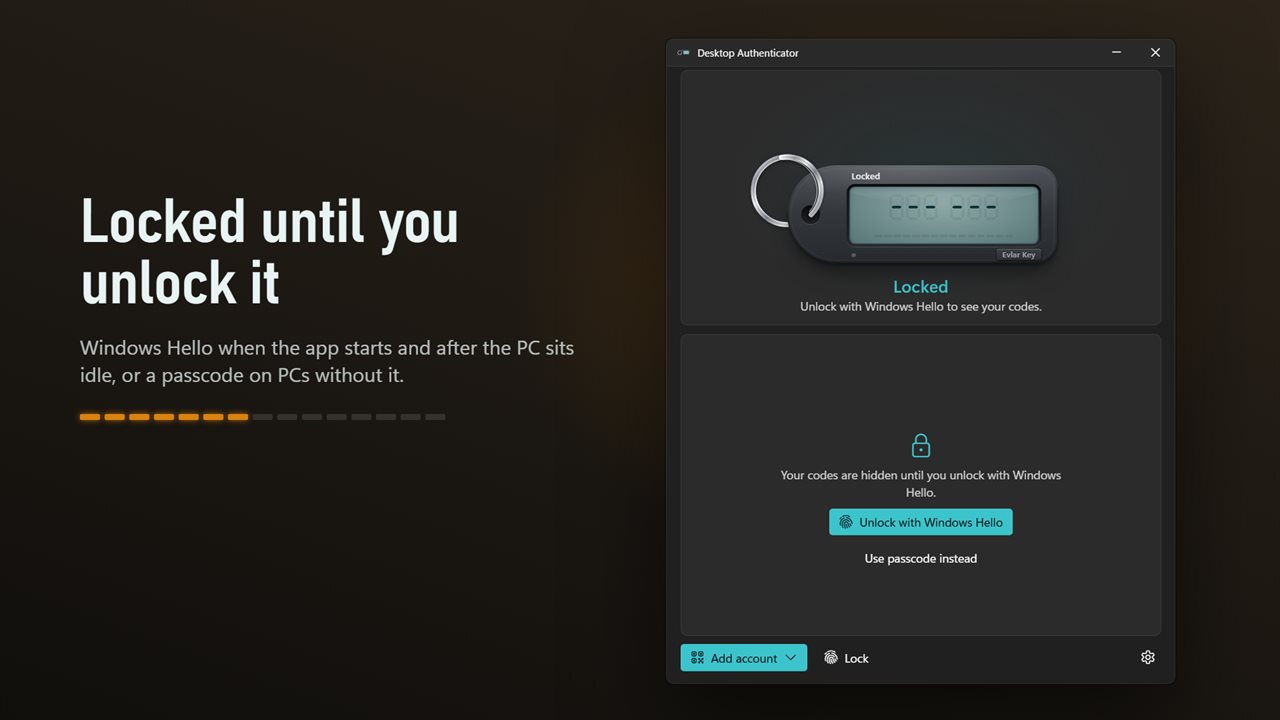
Locked with Windows Hello, or a passcode on PCs without it.
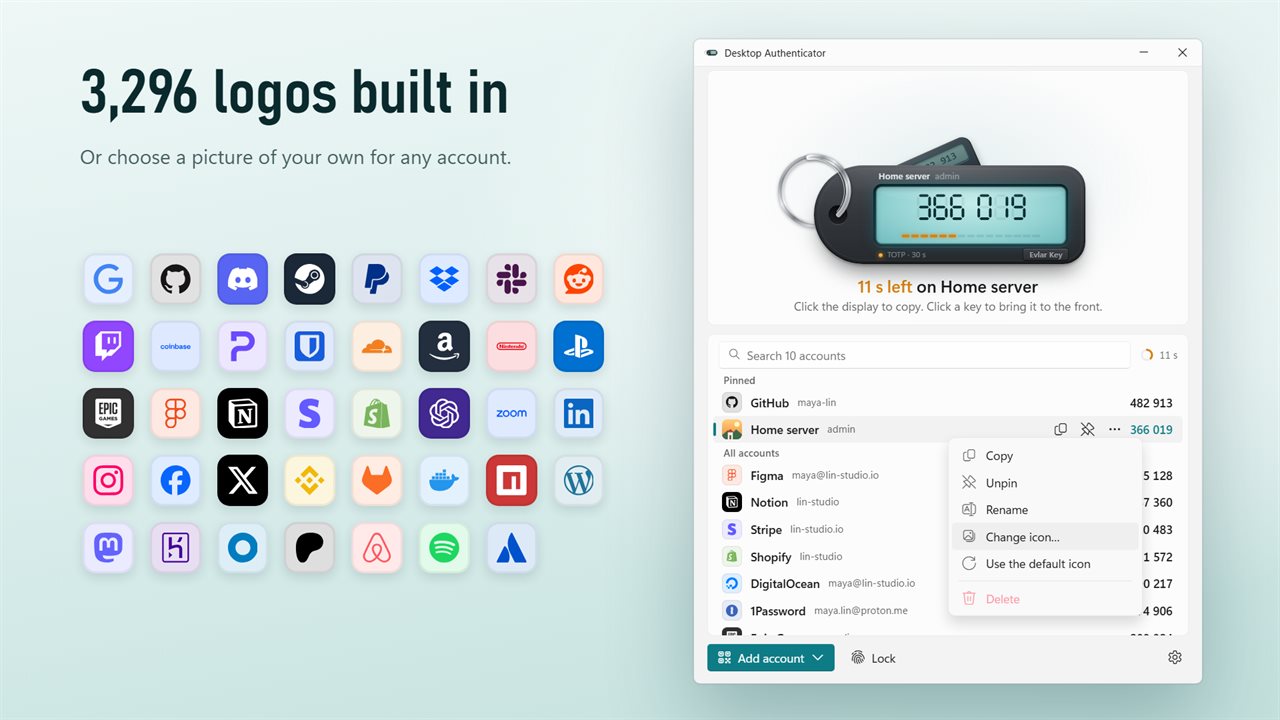
Logos for 3,296 services built in, or a picture of your own.
Hide the widget's code until you hover over it or unlock with Windows Hello.

Your two-factor codes on your PC. Click the display to copy.

190,000+downloads of EvlarSoft apps
Signed by EvlarSoftVerified US publisher
14-day money-backNo questions asked
Updates includedNo upgrade fees

Why use an authenticator app on your PC

Two-factor sign-in usually means stopping, finding your phone, unlocking it, opening an app and copying six digits by eye before they expire. If you sign in at a desk all day, an authenticator app for PC removes that whole trip. Desktop Authenticator generates the same time-based codes as a phone app, from the same setup keys, right on Windows.

The quickest path is the keyboard. Ctrl+Alt+Q opens a small search box from any program. Type part of a service name and Enter puts the code on your clipboard; Shift+Enter enters it for you in the box that had focus before. The clipboard copy is wiped from the clipboard after the time set in Clear a copied code after, and it never lands in Windows clipboard history.

In the main window, your front account shows on a key fob in big numerals over a countdown strip. During the last five seconds the next code is already shown underneath, so you are never caught typing one that has just expired.

How to add accounts: scan a QR code from your screen

Sites show a QR code when you turn on two-factor sign-in. On a PC there is no camera to point at it, so the app reads the screen instead.

  • On the website, open the two-factor setup page until the QR code is visible.
  • In the app choose Add account, then Scan a QR code on screen. Any monitor works, including light codes on dark pages.
  • If the site gives a text link instead, use Paste a setup link. If it gives only a key, use Enter a key by hand and fill in Service, Account and Secret key.
  • Type the current code back into the website to finish setup.

Moving 2FA codes from your phone to your PC

You do not have to turn two-factor sign-in off and on again for every site. Most phone authenticators can export accounts as a transfer QR code; put that code on your PC screen, for example by opening a photo of it, and Scan a QR code on screen reads the whole batch in one pass.

Do it in a quiet moment, and test before you trust. Sign in to each service once with a code from the PC, and only then remove the account from the phone, if at all. Keeping both is a reasonable choice: the same secret produces the same code on each device.

Write down where each site's recovery codes live before you move anything. They are the way back into an account if this PC is lost or replaced.

A TOTP authenticator locked to your Windows account

Lock when the app starts asks for Windows Hello before any code shows. Lock after the PC is idle for re-locks it after 1, 5, 15 or 30 minutes, an hour, or never, which covers stepping away from a shared office desk. On a PC without a camera or fingerprint reader, App passcode does the same job.

The desktop widget follows the same rules. Set its code to show Always, On hover or After Windows Hello, so a glanceable code on the desktop is a choice rather than a leak.

TOTP itself is simple: a shared secret plus the current time gives a short code that changes every period. Nothing about it needs a phone, which is why a PC can do the job as well as a pocket can.

What it includes

  • Ctrl+Alt+Q quick copy from any app, with Shift+Enter to type the code in place
  • QR scanning from any monitor, setup links, export links and manual keys
  • Windows Hello or passcode lock at launch and after idle time
  • Clipboard cleared after 15 seconds, 30 seconds, 1 minute or 2 minutes
  • Next code previewed in the final five seconds
  • Pinned accounts on a key ring, switched with one click
  • An optional desktop widget whose code shows Always, On hover or After Windows Hello
  • Built-in logos for 3,296 services, or a picture of your own
  • Runs from the notification area and can start with Windows

Who it helps

Developers and admins

Dozens of consoles, registries and dashboards each ask for a code. One shortcut and a few letters fill each prompt without leaving the keyboard.

Anyone whose phone is across the room

Charging, in a bag or simply elsewhere, the phone no longer has to be in hand for every sign-in at the desk.

Gamers using Steam Guard

Add the Steam Guard secret as its own code type and read it from the desktop widget during sign-in.

Questions

Anything else? Ask us

Can I export or back up my accounts?

No. There is no export, and the vault is encrypted to your Windows account on this PC, so another account or PC cannot open it. Keep each service's recovery codes, or another authenticator, as your backup.

Can I move my accounts over from Google Authenticator?

Yes. Export your accounts in Google Authenticator, show the export QR code on your PC screen, and choose Scan a QR code on screen to bring them all across at once. You can also paste the otpauth-migration export link.

What happens if I forget the app passcode?

It cannot be recovered. After 5 wrong tries the app makes you wait 30 seconds before each try, and the wait doubles every five more failures. The only way past a forgotten passcode is to reset the app, which deletes every account.

Can I change the Ctrl+Alt+Q shortcut?

No. Ctrl+Alt+Q is fixed, but you can turn it off in Settings. In the quick copy box, Enter copies the code and Shift+Enter types it into the window you were in.

Which kinds of codes does it support?

Time-based codes with SHA-1, SHA-256 or SHA-512, counter-based codes, and Steam Guard. When you type a key by hand you can choose 6, 7 or 8 digits and a 30 or 60 second period.

How long does a copied code stay on the clipboard?

15 seconds, 30 seconds, 1 minute or 2 minutes, as you choose; 30 seconds by default. It is cleared only if the clipboard still holds the code, and it is kept out of Windows clipboard history.

Is it safe to keep 2FA codes on a computer?

It trades some separation for speed. Here the vault is encrypted to your Windows account and can sit behind Windows Hello, but anyone who controls your unlocked PC could reach both password and code. Keep recovery codes somewhere else.

Does it need an internet connection to make codes?

No. Time-based codes are calculated from the secret key and the PC clock, so they work without a connection. Keep the Windows clock synced or codes will be rejected.

Can I use it alongside the authenticator on my phone?

Yes. If you add the same setup key to both, both produce identical codes, and either can be used to sign in.

Which versions of Windows does it run on?

Windows 10 (version 1809 or later) and Windows 11.

Is it a subscription?

No. Desktop Authenticator is a one-time purchase of $2.99, and updates are included.

How do I get it?

Buy it on this page and your license key arrives by email. If the button says Notify me, Desktop Authenticator is not on sale here yet; leave your email and we will tell you when it is.