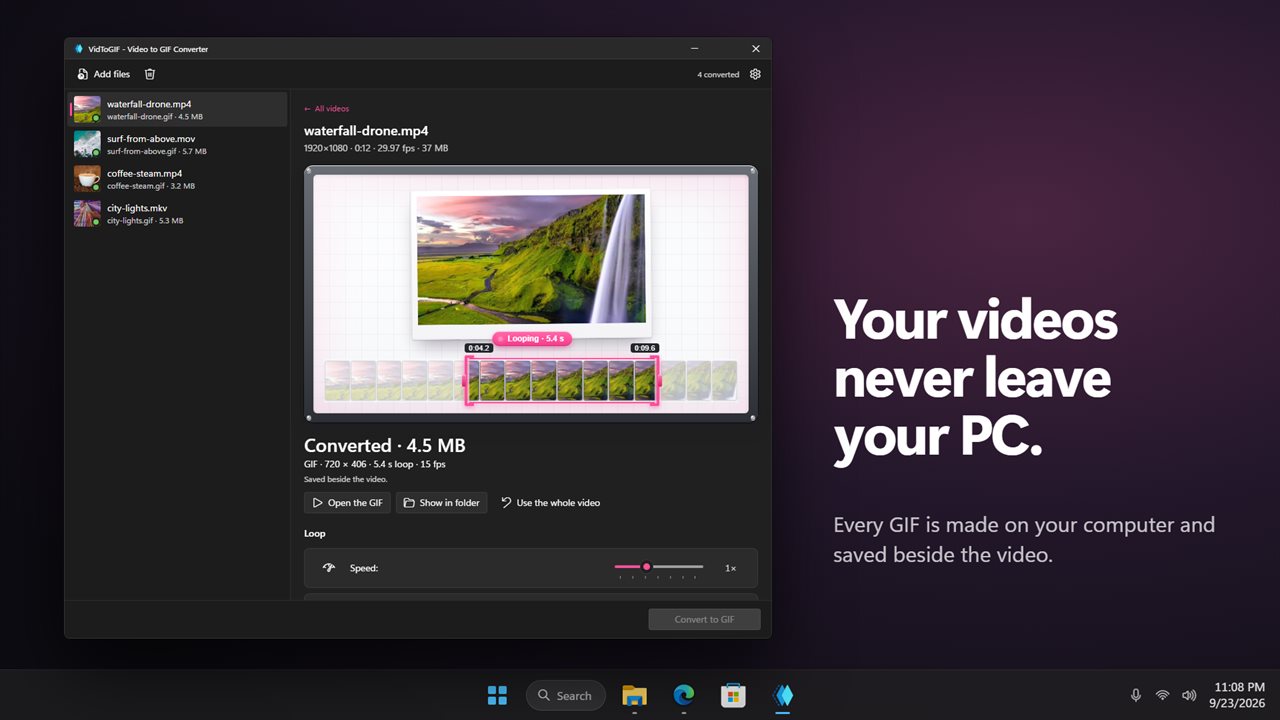
Video to GIF, with the loop picked by eye
Turning a video to GIF is easy. Getting a GIF that starts and stops at the right frame, loops cleanly and is small enough for a chat or a forum is the part that takes trial and error. VidToGIF is built to cut that loop of export, check, export again.
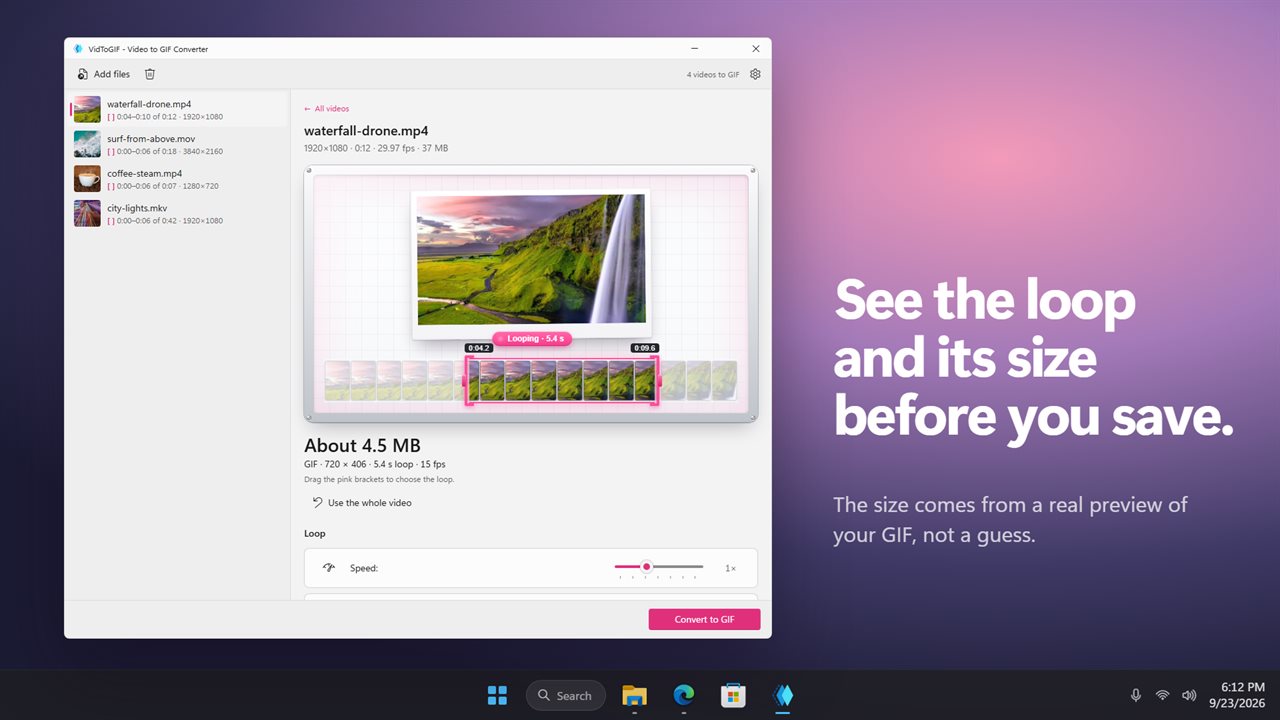
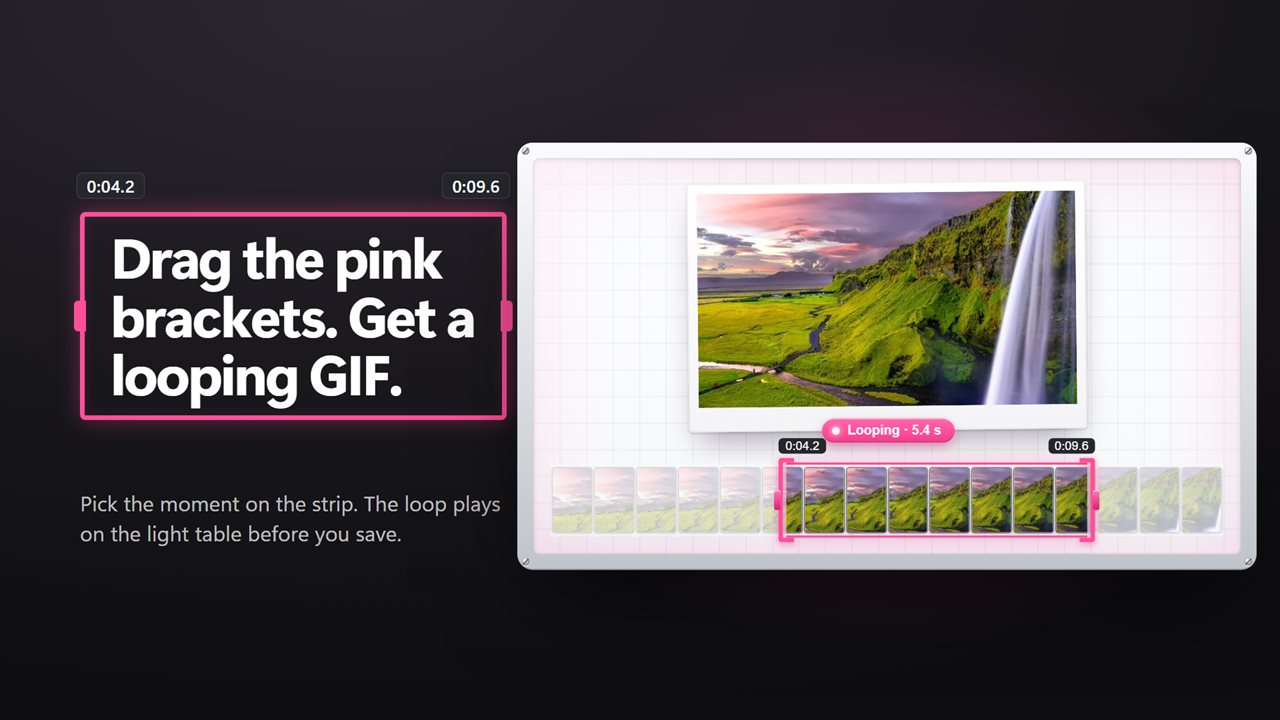
When you add a video, its frames are spread across a strip under the preview. Two pink brackets mark Loop starts and Loop ends; drag either one, or drag the space between them to slide the whole selection along the clip. A long video opens with only its first 6 seconds selected, because a GIF grows with every second you add and a full minute of one is rarely worth sending.
Above the strip, the preview plays the actual loop rendered with your current settings, and the size readout gives an estimate of the finished file. Change the width, frame rate or colors and the preview re-renders a moment later, so you see the effect of each setting before anything is saved.
How to make a GIF from a video
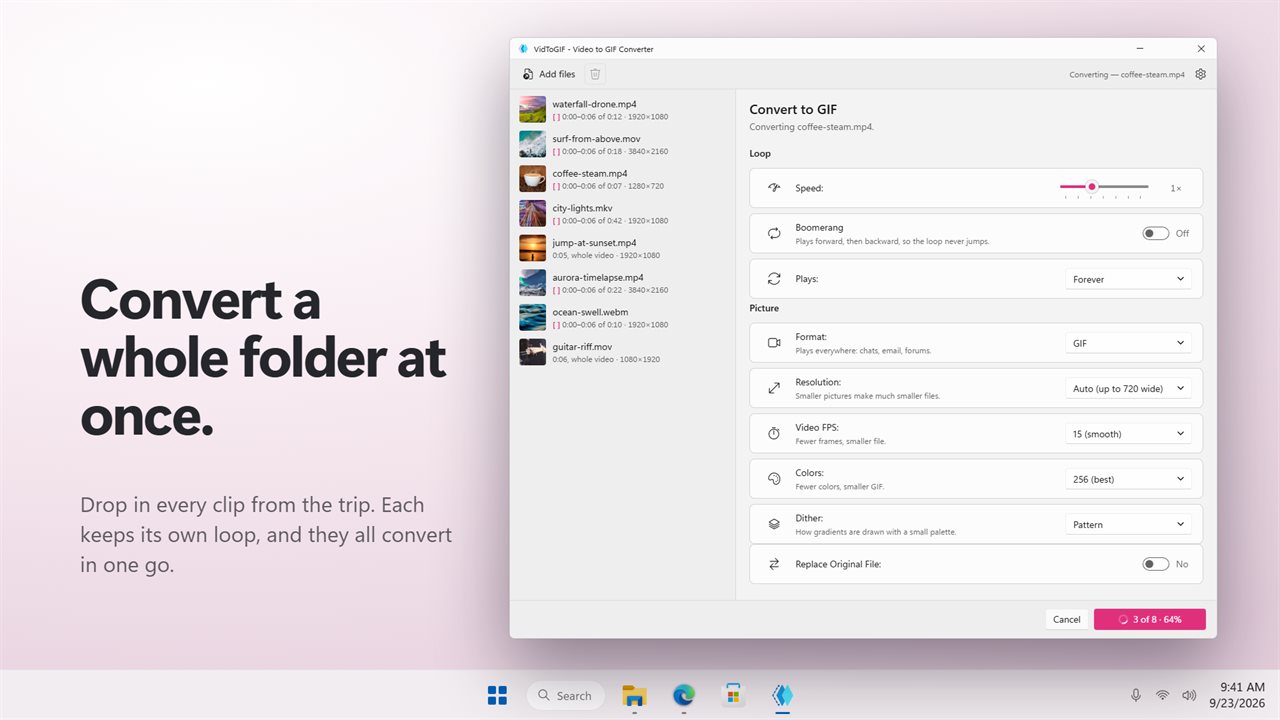
One video or a whole list, the order is the same.
- Drop MP4, MOV, MKV, WebM, AVI, WMV or other videos onto the window. An existing GIF can be added too.
- Click a video in the list, then drag the pink brackets on its frame strip to set the loop. Every video keeps its own selection.
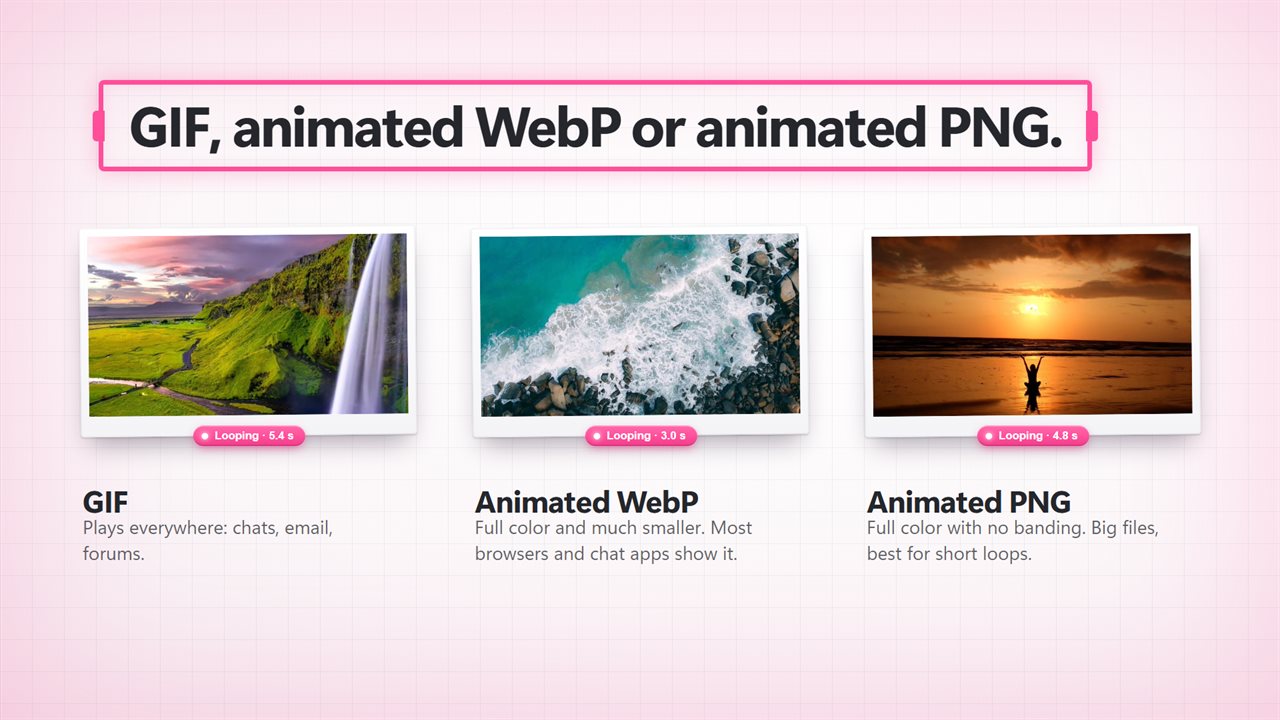
- Pick a format: GIF, WebP for animated WebP, or APNG for animated PNG.
- Adjust Picture, Loop and the color settings while you watch the preview and the size estimate.
- Press Convert to GIF (the button follows the format you picked). Each file lands beside its video under the same name, or replaces the video if you turn on Replace Original File and confirm.
How to reduce GIF size without ruining it
A GIF stores every frame as a full picture with at most 256 colors, so file size climbs fast. Four settings do almost all the work, and the hints beside them say which way each one pushes the size.
Animated WebP sidesteps most of this. It keeps full color, is usually far smaller than the same GIF, and has its own Quality slider from 30 to 100. Most browsers and chat apps display it; GIF is still the safer choice for email and older forums.
- Width: Auto keeps the video's own width up to 720 pixels. Presets run from 240 wide to 1080 wide, or choose Custom…. Halving the width cuts the pixel count to a quarter.
- Frame rate: from 8 to 30 frames per second, with 15 as the smooth default. 10 or 12 is plenty for most reaction clips.
- Colors: 256 (best) down to 16 (smallest). The palette is built from the clip itself, so 128 or 64 often looks the same.
- Dithering: Pattern, Diffusion, Light diffusion or None. Dithering hides color banding but adds noise that compresses poorly, so None gives the smallest file on flat graphics.
MP4 to GIF loops that do not jump
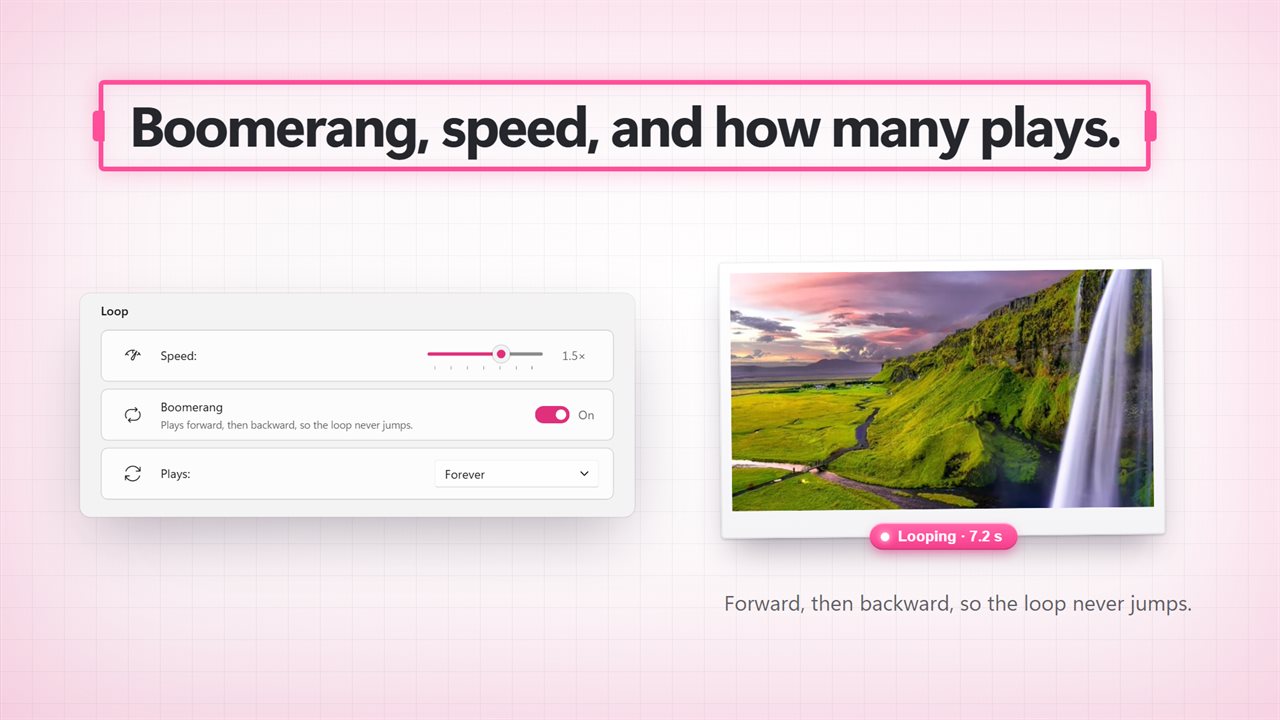
The usual giveaway of a converted clip is the jolt when the last frame snaps back to the first. Turn on Boomerang and the clip plays forward and then in reverse, so the motion flows back to the start with no visible cut. It also doubles the play time and roughly the file size, so pair it with a shorter selection.
The Speed slider runs from 0.5× to 2× in quarter steps, for slow-motion replays or squeezing a longer moment into fewer frames. Loop sets how often the animation repeats: Forever, Once, or 2, 3 or 5 times, which matters for a GIF in an email or presentation that should stop on its final frame.
GIFs made here are silent, as every GIF is. For the soundtrack, save it separately as an audio file.