Extract frames from video three different ways
Most tools that extract frames from video do one job. A browser grabber lets you scrub to a moment and save that single still. A command-line recipe dumps every frame and leaves you to sort through thousands of files. This app puts both in one window and adds the middle option most people actually want: a picture every few seconds.
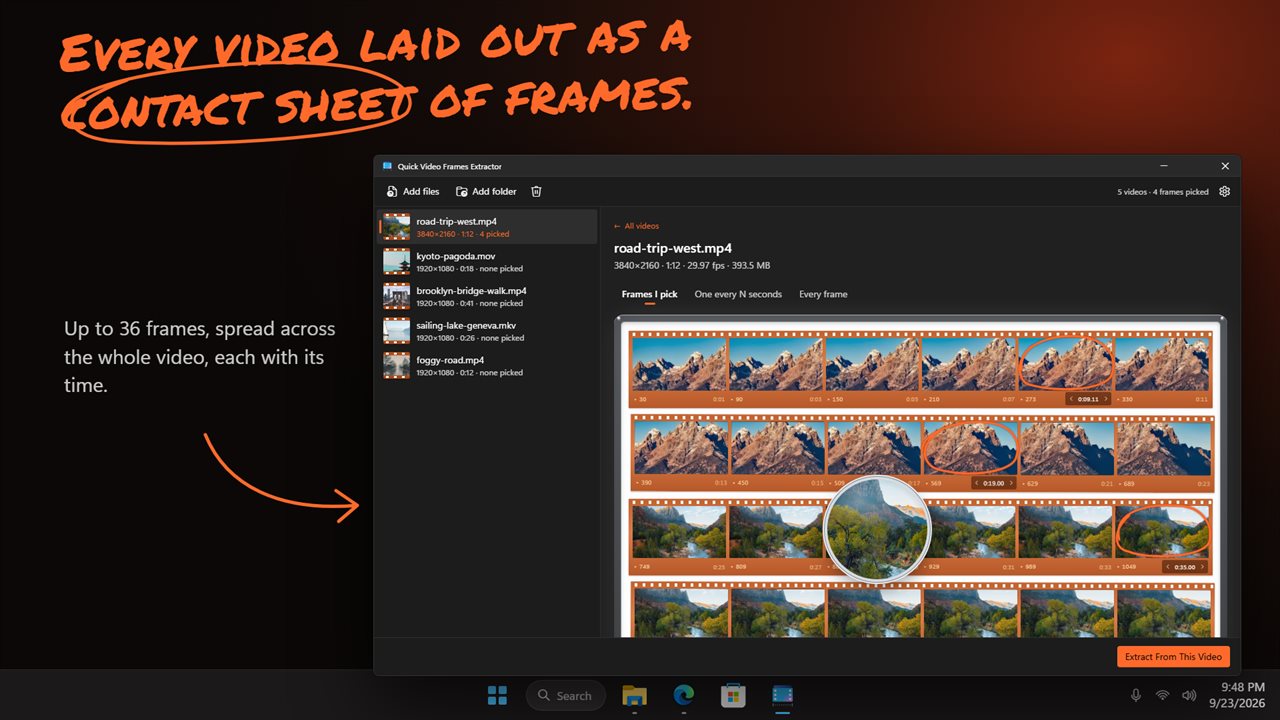
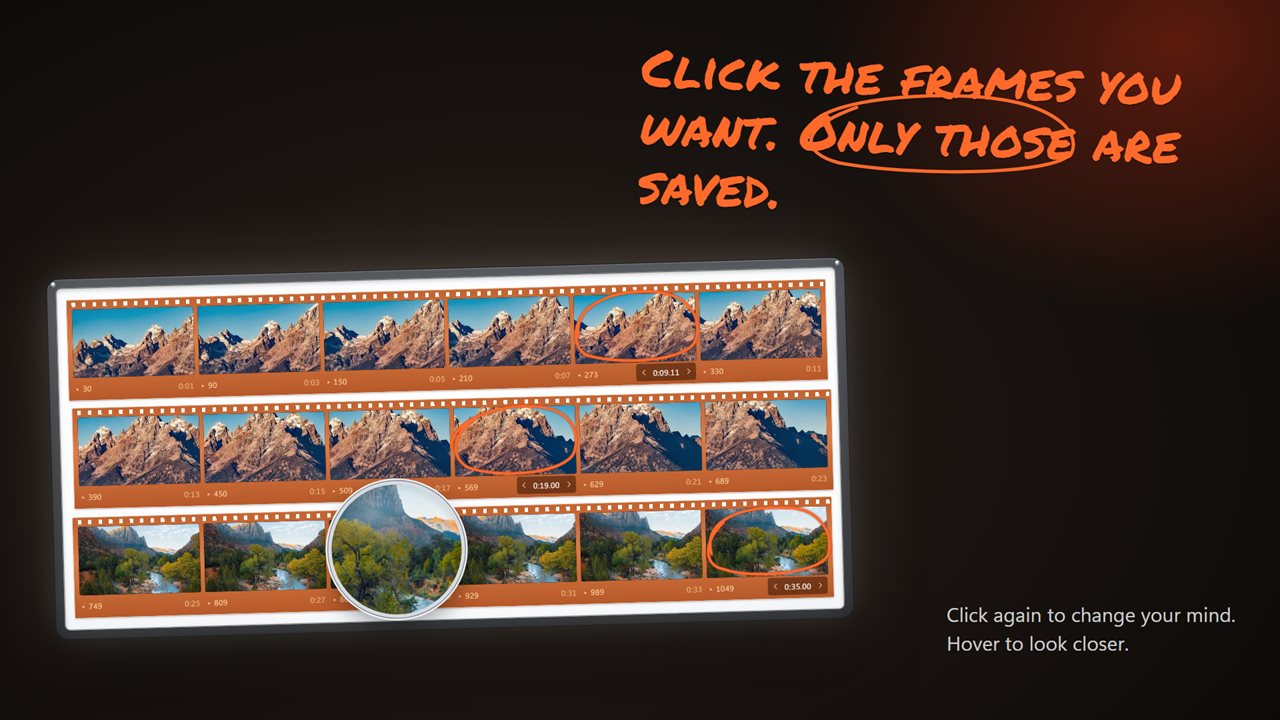
Each video you add becomes a contact sheet: a grid of 36 evenly spaced frames (48 for a portrait clip) that fill in as they are read. Rest the pointer on a frame and a loupe magnifies it, swapping to a sharper copy after a moment, so you can tell a blink from an open eye before you save anything.
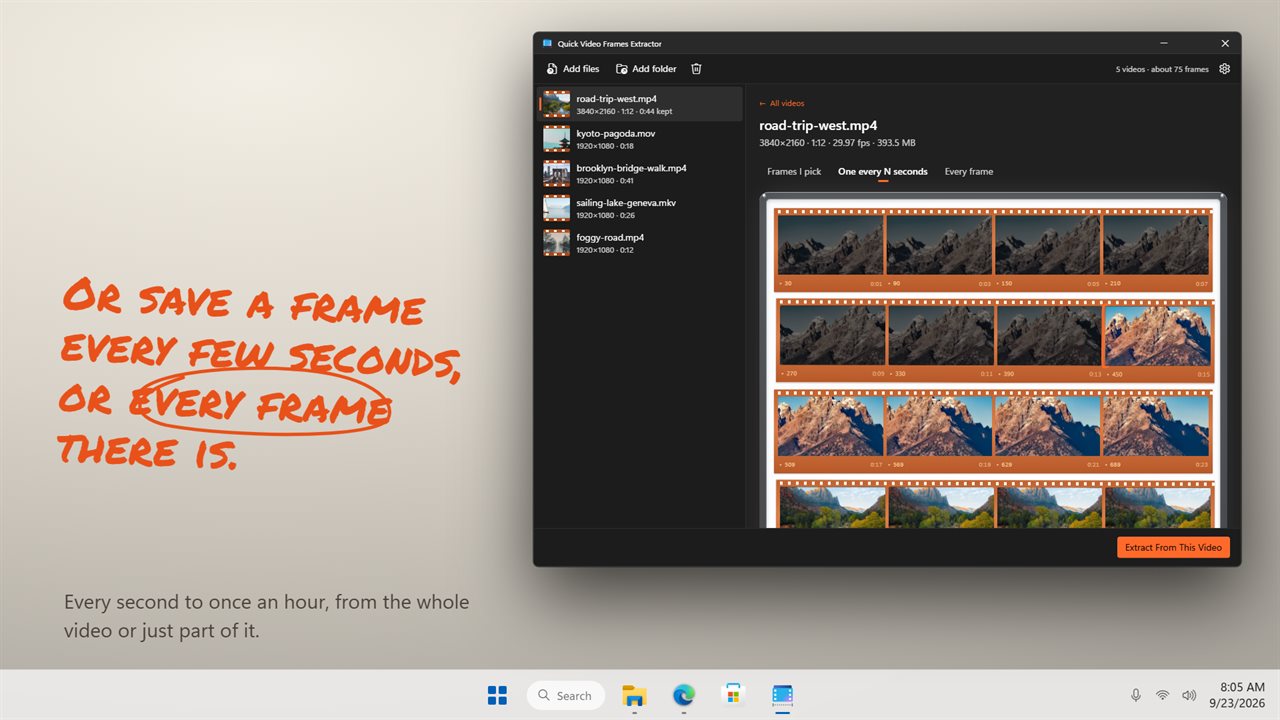
Under What to save you choose Frames I pick, One every N seconds, or Every frame. The panel shows how many pictures the run will write, and the Extract Video Frames button does the rest.
How to save a still frame at the exact moment you want
- Drop a video on the window, or add a whole folder of them.
- Switch What to save to Frames I pick.
- Click each frame you want on the sheet. A grease-pencil loop and tick mark it as picked.
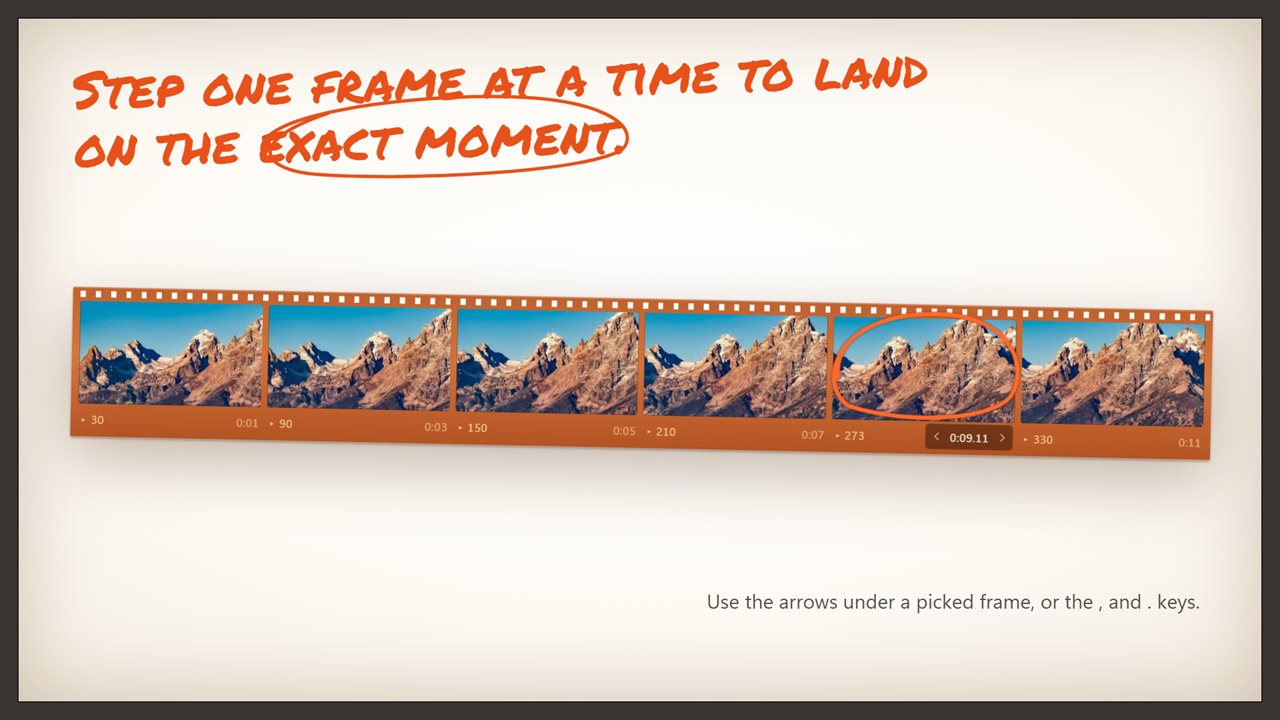
- Fine-tune a pick with the small arrows beneath it, or with the comma and period keys, which shift it by a single frame each press.
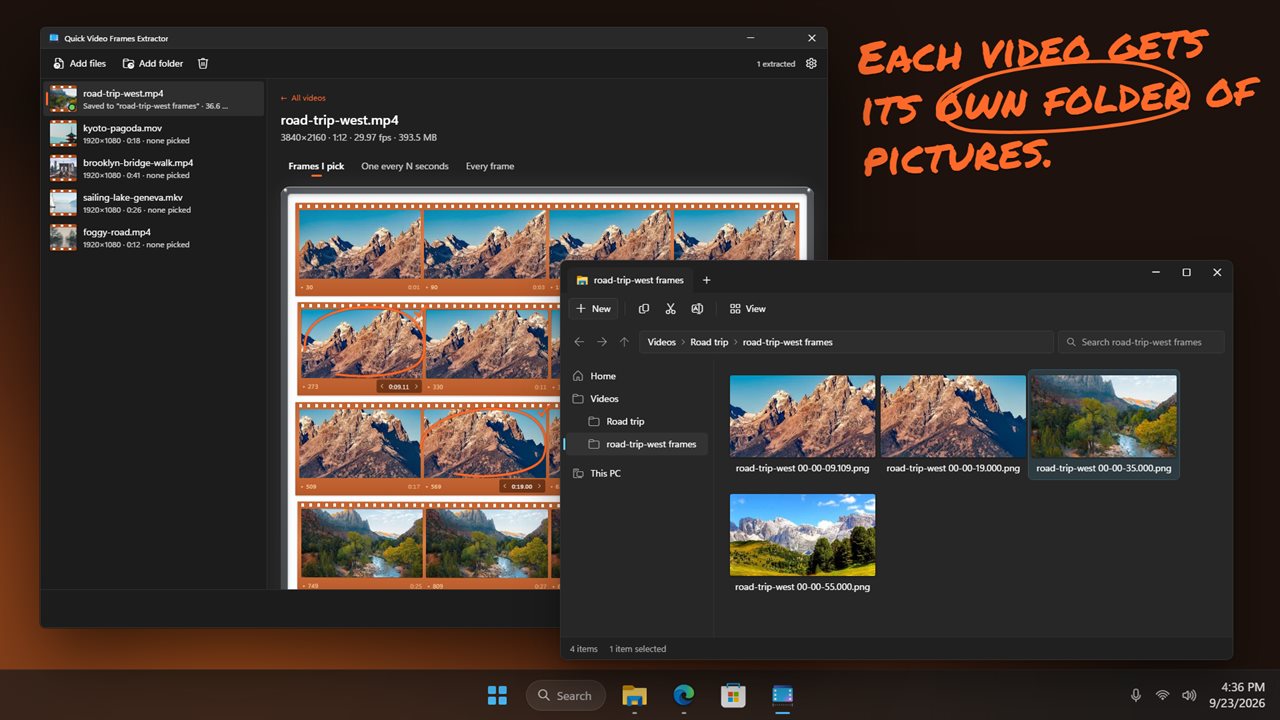
- Press Extract Video Frames. Each still is named after its timestamp in the video, so you can find the moment again.
Turn a video into an image sequence
Every frame writes the whole clip out as numbered pictures, ready for an animation tool, a stop-motion edit or a dataset. Because a minute of 30 fps footage is 1,800 images, the app warns you when a run is heading past about 2,000 files and offers two ways to rein it in.
One every N seconds samples the clip at a fixed gap of 1 to 3600 seconds, which suits timelapse reviews, lecture slides or a quick storyboard. Max frames caps how many pictures come from each video. You can also trim the run: right-click a frame and choose Start here or End here, or type times into the Start and End boxes, and only that stretch is used.
Picking the output format and size
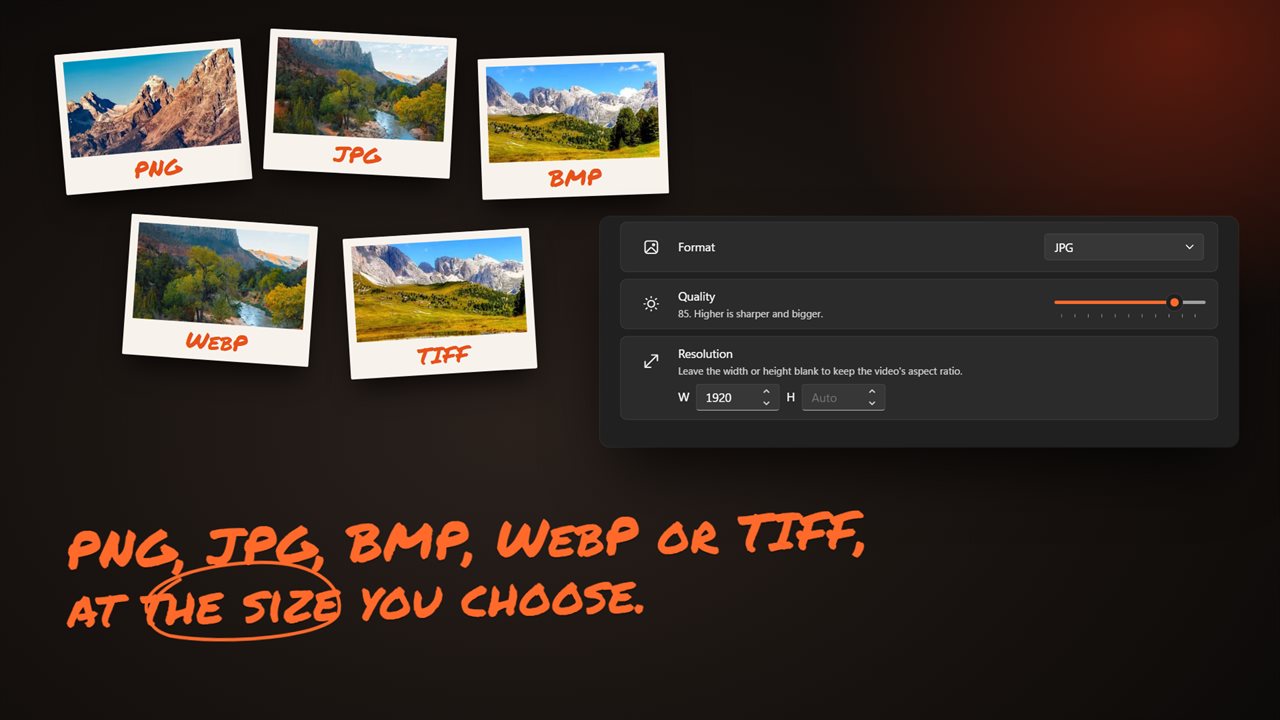
PNG (Lossless) is selected at first and keeps every pixel exactly as decoded, which matters for screenshots of text or frames you plan to edit. JPG and WebP make far smaller files and reveal a Quality slider from 10 to 100. BMP and TIFF are there for software that expects them.
Under Resolution, leave W and H on Auto to keep the video's own size, or type one value to scale every frame down while keeping the shape. Save to puts each video's frames in their own folder, placed beside the source clip or under a location of your choosing, and Open the folder when done takes you straight to them.