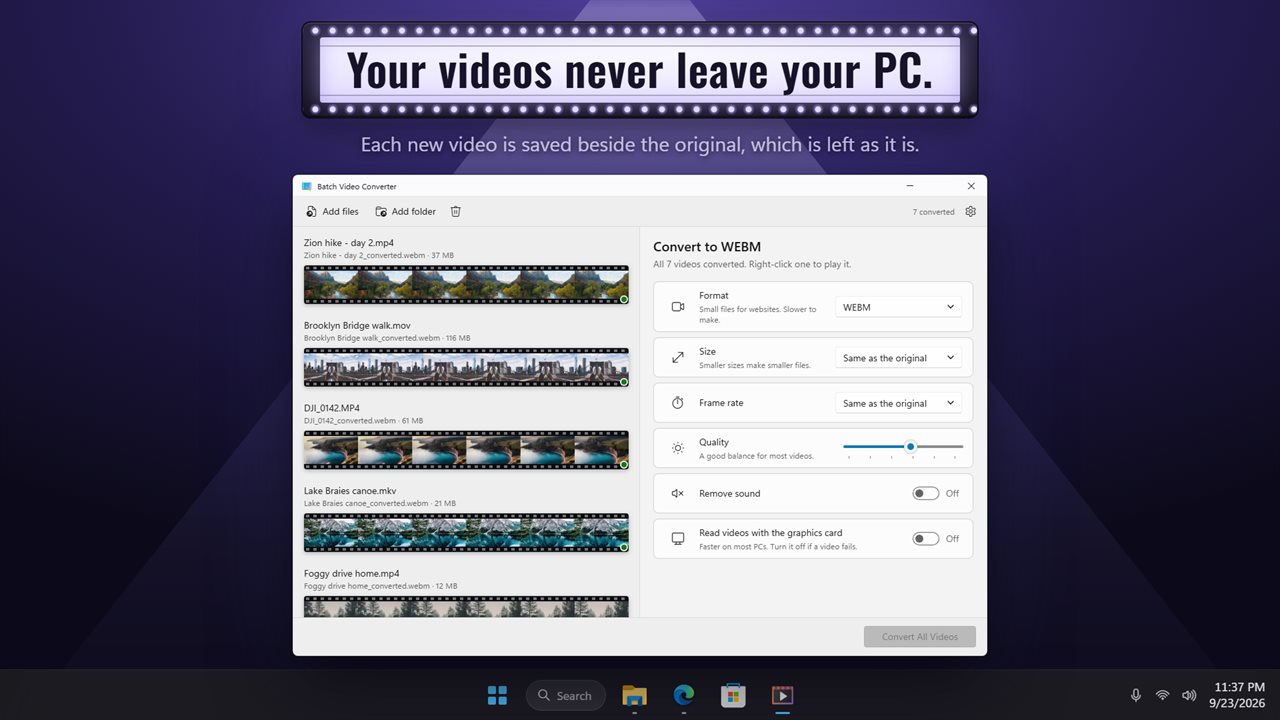
A batch video converter that shows you the footage
A batch video converter is the answer when you have twenty phone clips, a drive of old camcorder files or a folder of screen recordings that all need to end up in the same format. Doing them one by one is slow, and command-line scripts are quick only once you know the flags. Here you drop the videos, or add a whole folder, set the output once, and the queue works through every file.
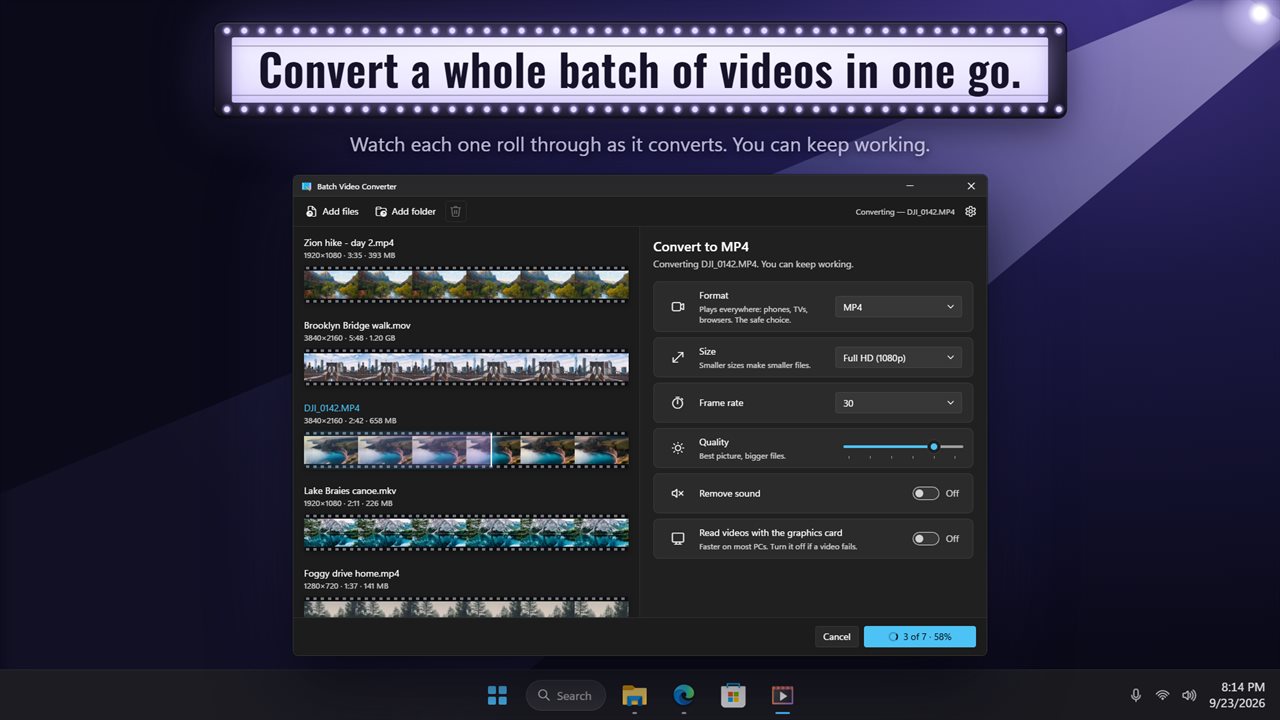
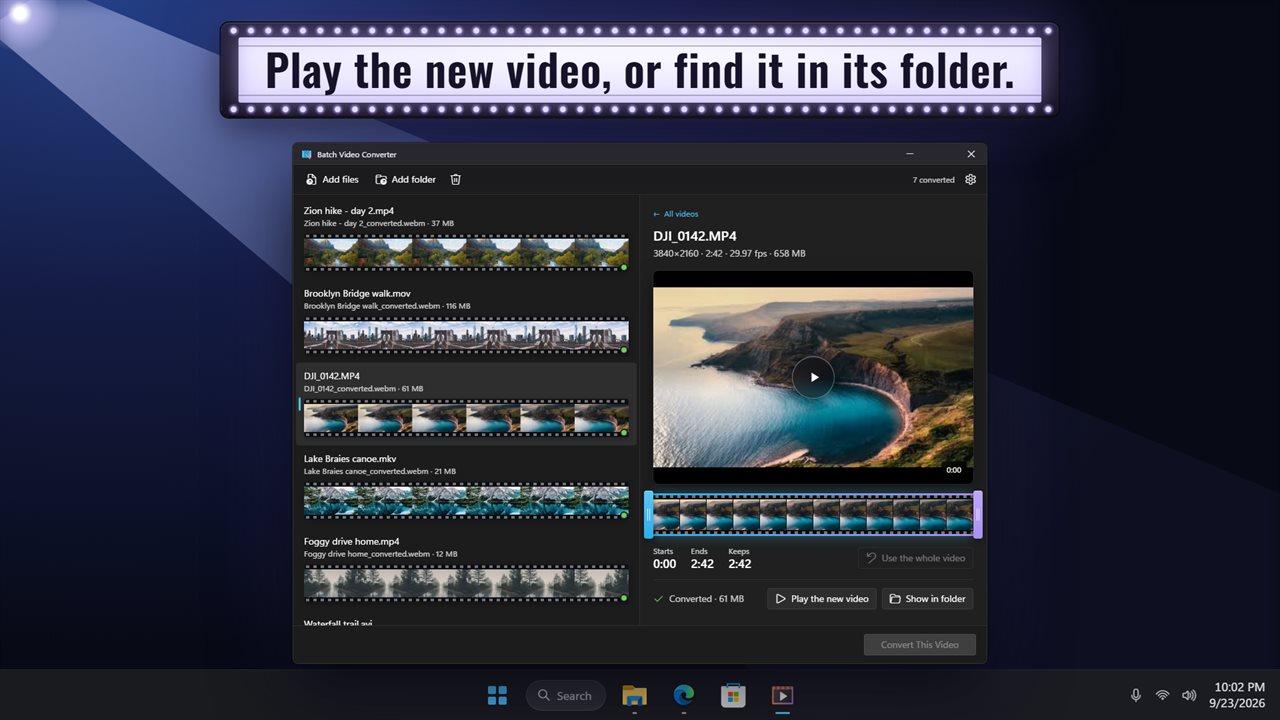
Each row in the list is a strip of frames from that video, so you can tell clips apart without reading file names. While a file converts, a playhead travels across its strip. When it finishes, right-click the row to play the converted video or jump to it in Explorer.
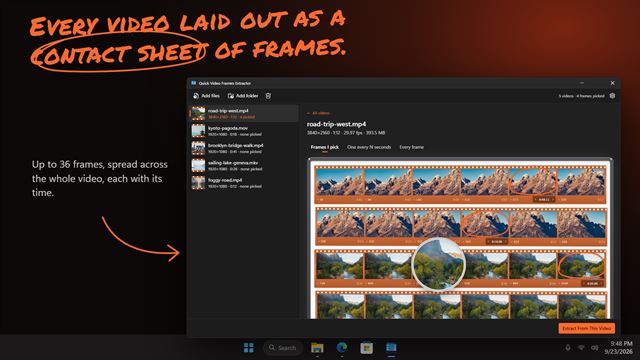
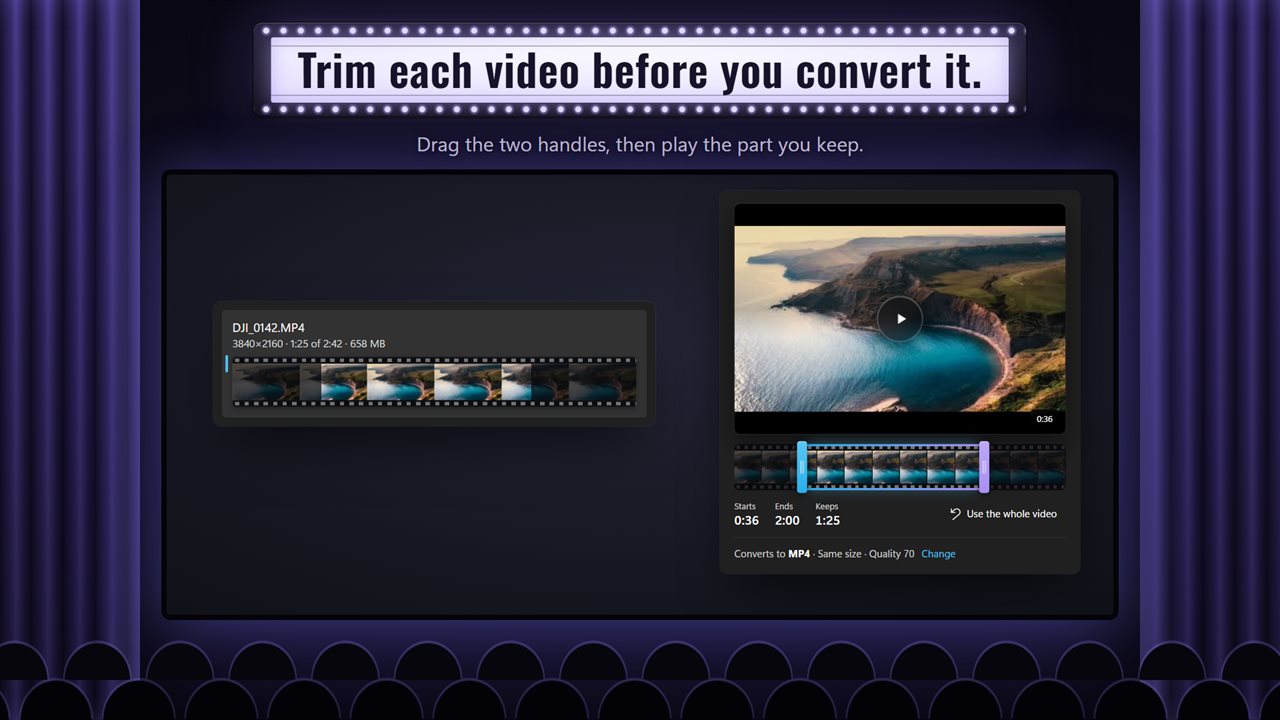
Selecting a clip lays its frames out along a timeline, with a handle at each end. Drag the handles to cut a slow start or a shaky ending before converting. MP4 and WebM files can be previewed inside the app to check the cut; other formats open in your usual player.
How to convert MOV, MKV and AVI to MP4 in bulk
The source files are never touched, and a name already in use gets a number rather than being overwritten.
- Drag your videos onto the window or add the folder they are in.
- Under Format, choose MP4. Its note reads that it plays on phones, TVs and browsers.
- Leave Size on Same as the original unless you need smaller files, and leave Quality at its starting value of 70.
- Trim any clip that needs it by clicking it and dragging the timeline handles.
- Press Convert All Videos. Each result appears beside its source with _converted added to the name.
Shrink video file size by changing resolution, frame rate and quality
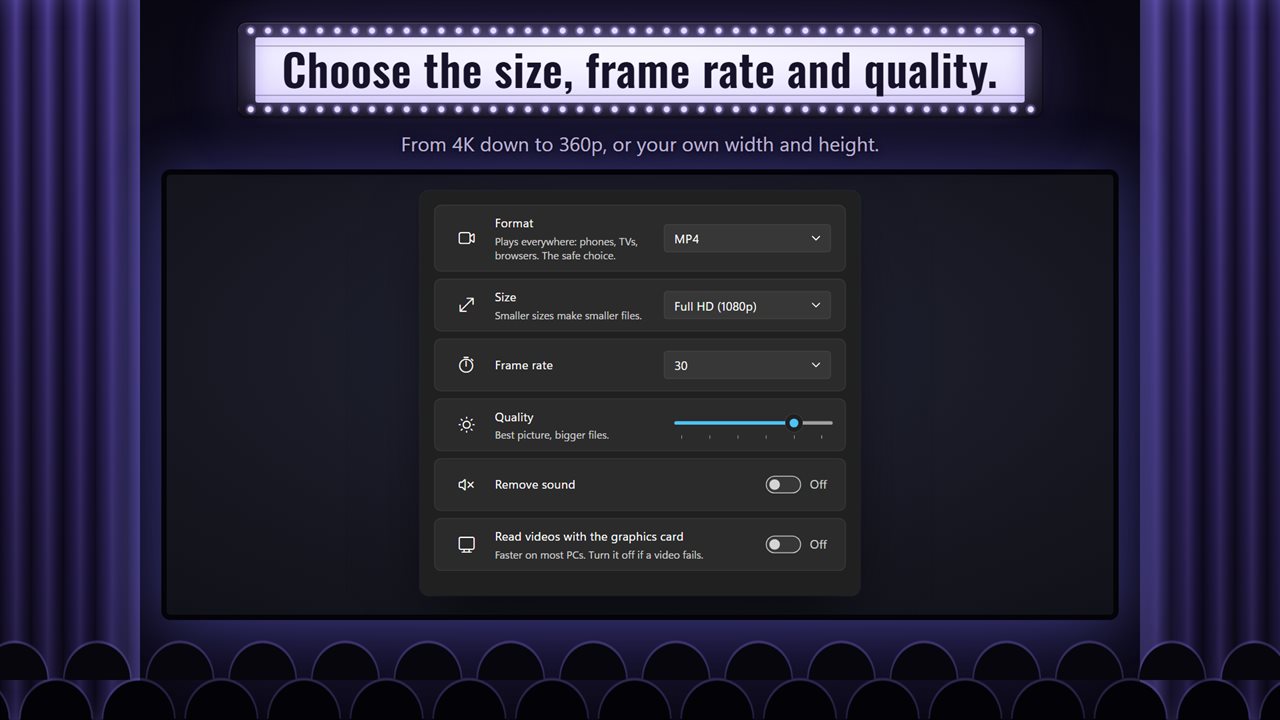
Three settings decide how big the output is. Size offers 4K (2160p), Full HD (1080p), HD (720p), 480p, 360p and Custom…, where you type a width or a height and the other follows so nothing is stretched. Dropping a 4K phone video to 1080p is often the largest single saving.
Frame rate can stay the same as the original or be set to 24 (film), 25 (PAL), 30, 50 or 60. The Quality slider runs from 30 to 100: toward the top gives the best picture and bigger files, toward the bottom gives the smallest files and a softer image.
Remove sound strips the audio track completely, which helps for silent product clips or footage you will score later. A switch labeled Read videos with the graphics card speeds up decoding on most PCs; turn it off if a particular file fails.
Picking the right output format
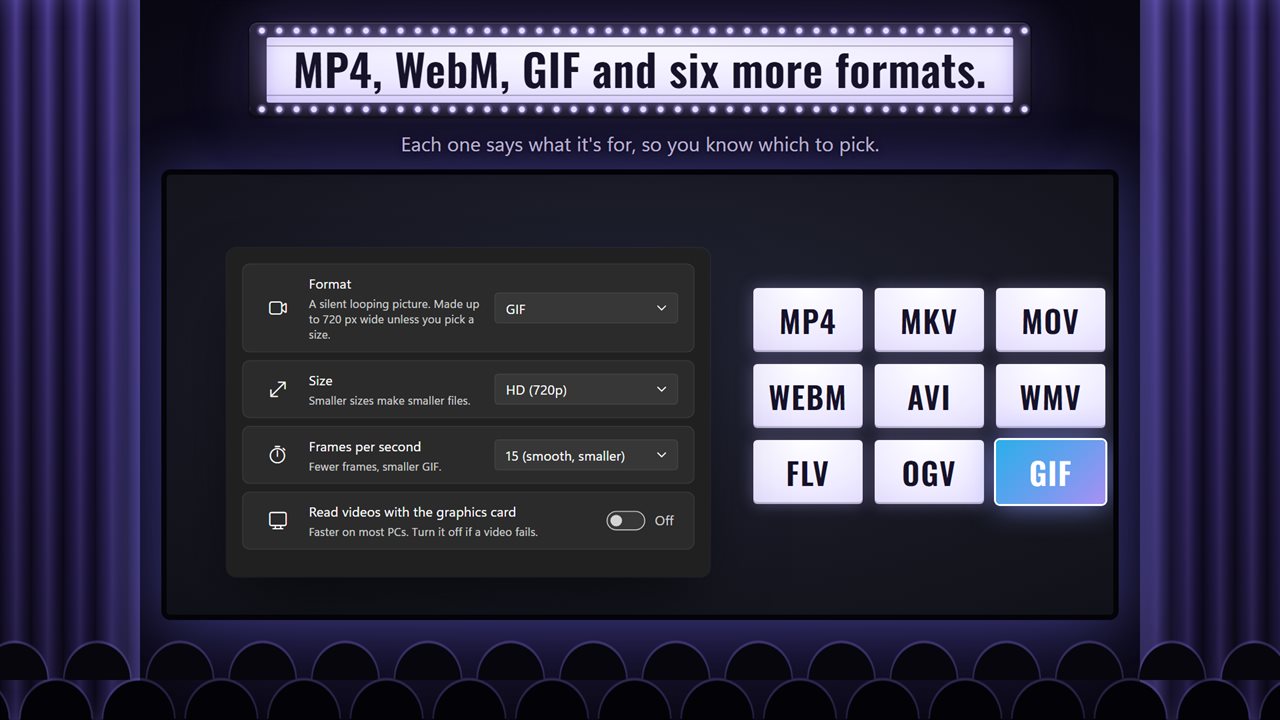
MP4, MKV and MOV are written as H.264 video with AAC audio using the encoder that ships with Windows, so they play almost anywhere. MOV suits iPhone, Mac and editing software; MKV is the same picture in a container many media players prefer. WebM uses VP9 and Opus and is meant for websites, though it takes longer to make.
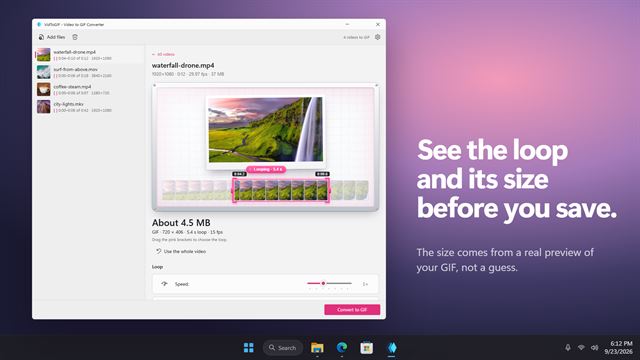
AVI, WMV and FLV are there for older players, TVs and programs that refuse anything newer, and OGV is the fully open Ogg Theora format. GIF turns a clip into a silent loop; you pick the frame rate, and the width tops out at 720 pixels unless you set a size yourself.