Screen to GIF in three steps: box, record, share
Going from screen to GIF should take less time than describing the bug in words. Screen to GIF Recorder keeps the whole job in one small window: choose an area, record it, tidy the take and send it.
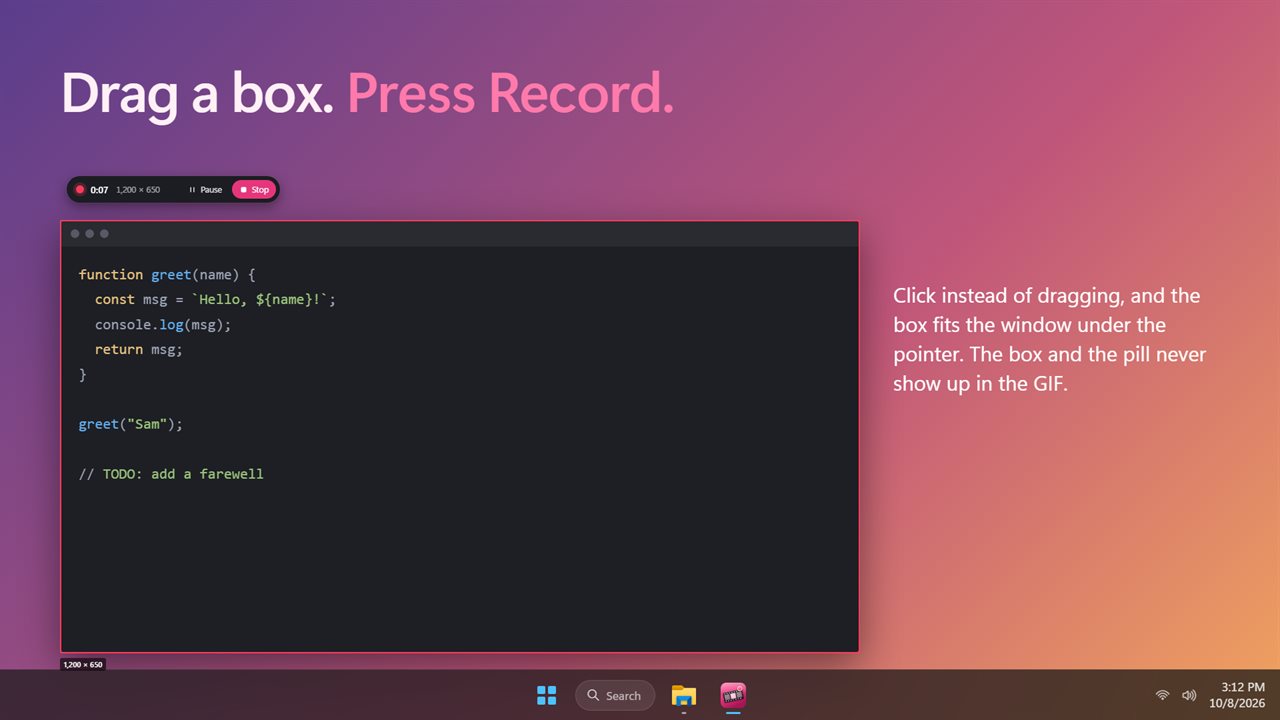
Click New recording and choose Region, Window or Full screen. In Region mode you drag a box over the area; a single click instead snaps the box around whichever window you clicked. A size readout shows the exact pixel dimensions as you go, and Esc backs out.
The box is remembered after each take. Record the same dialog again tomorrow and it lines up exactly with yesterday's clip, which matters when GIFs sit side by side in documentation.
How to record a GIF on Windows with a shortcut
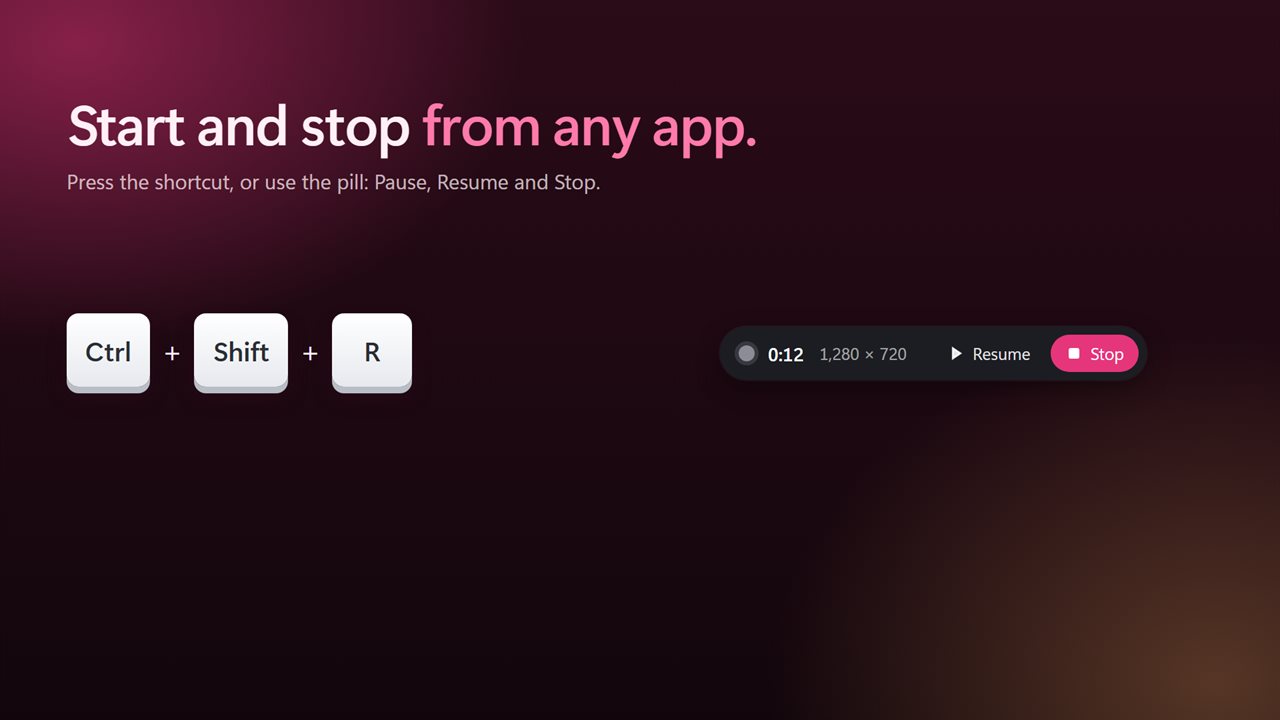
Once the box is placed, a compact pill takes over. It has Record, Pause, Resume and Stop, a running timer, and New box if you picked the wrong area. You do not have to reach for it at all: Ctrl+Shift+R begins and ends a take from any program, and Settings lets you choose another combination or switch the shortcut off.
Neither the capture frame nor the pill shows up in the footage. The frame can be dragged by its border and resized from its edges before you start, and under Record at in Settings you pick a capture rate of 10, 15, 24 or 30 fps and whether to Show the pointer.
Trim a screen recording before it becomes a GIF
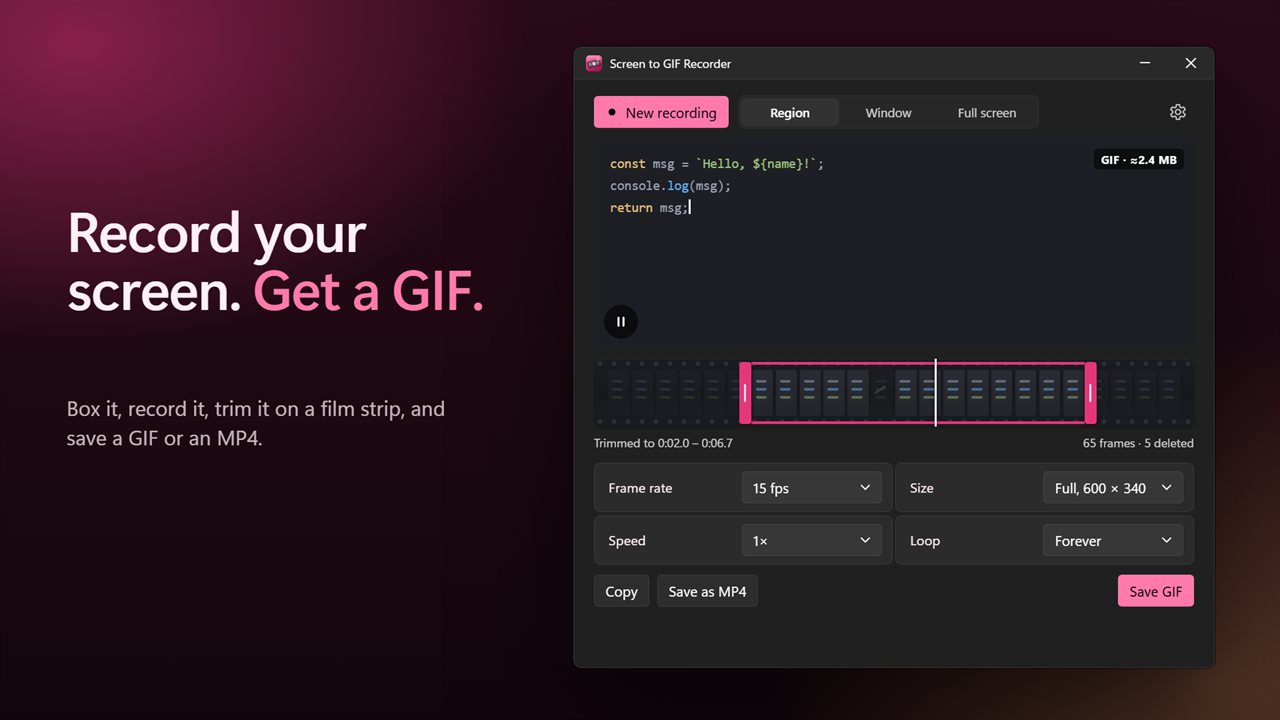
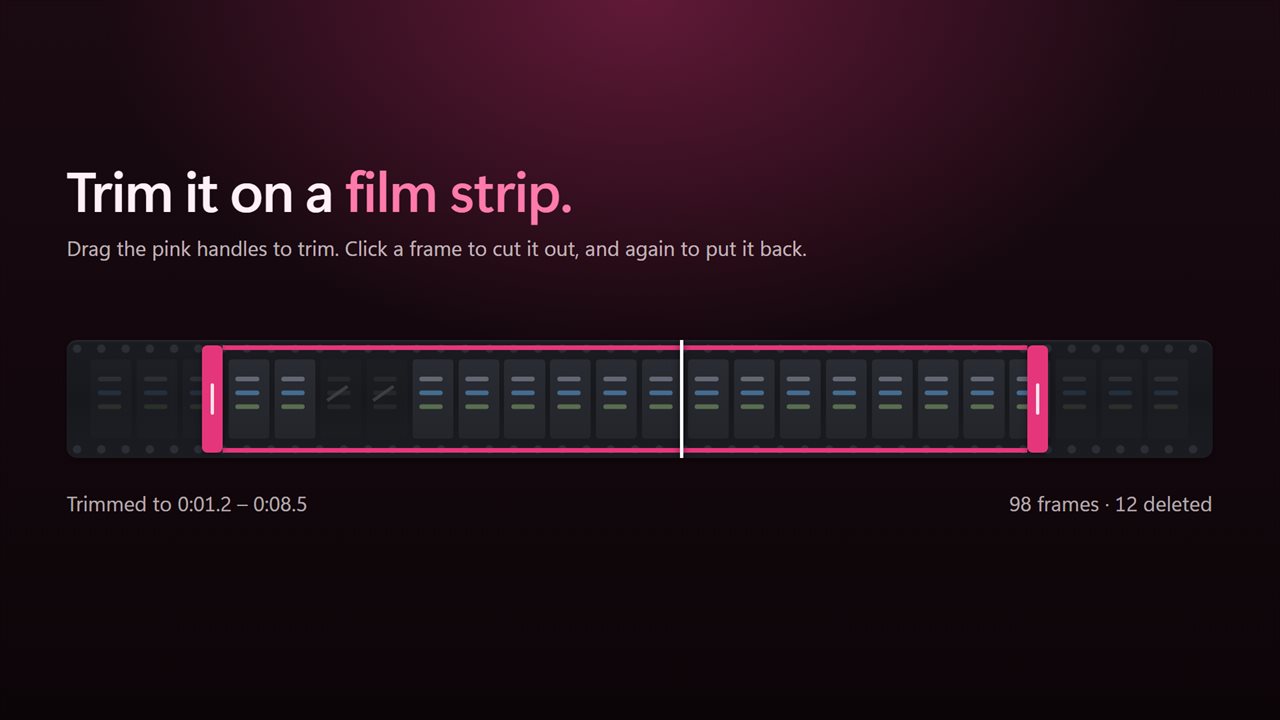
When you press Stop the take opens in the editor and starts playing. Underneath is a film strip of the frames:
- Drag Trim start and Trim end to drop the fumbling at either end.
- Click a frame, or a run of frames, to delete it from the middle. A second click restores it.
- Scrub along the strip to land on any moment, and click the preview to play or pause.
Keeping the GIF file size small
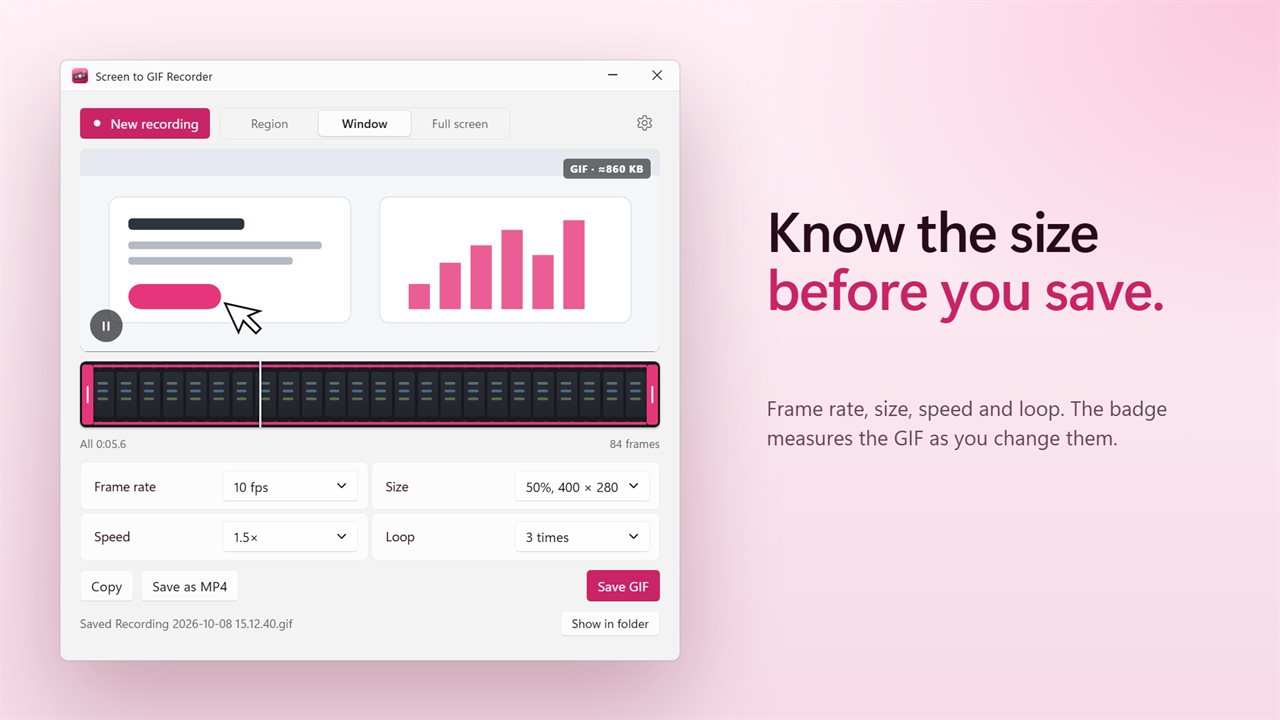
Animated GIFs grow fast, and many chat and ticket tools cap uploads. Four controls bring the file down, and a badge next to the preview estimates the size of the GIF as you change them.
Frame rate can be set to 5, 10, 15, 20 or 30 fps, never above what you recorded at. Size scales the picture to 100, 75, 50 or 33 percent, with the resulting width and height shown. Speed plays the clip at 0.5x, 1x, 1.5x or 2x, and Loop chooses Forever, Once or 3 times. The GIF itself is built with a palette generated from your recording, so colors stay close to the original.
Copy, Save GIF or Save as MP4
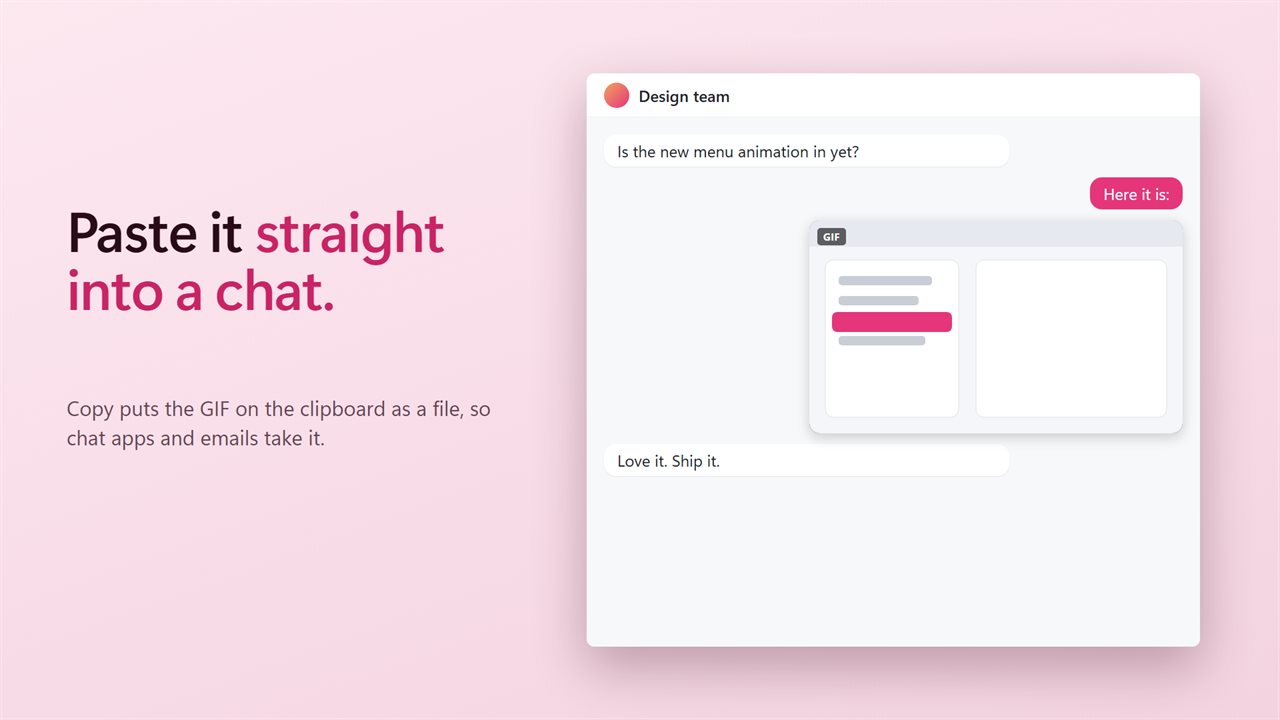
Copy hands the clipboard an actual GIF file, the form messaging and email apps accept as an animation rather than a still image. Save GIF writes it to disk, and Show in folder takes you to it. Save as MP4 exports the same edit as a silent H.264 video for places that play video more smoothly than GIF.